
Conditions
In short
A condition decides whether something applies: whether an object is printed, which image or text appears, which rows a rule keeps, what value a variable or a template setting gets or which email template a button uses. It is built everywhere with the same builder: choose a field, choose a comparison, enter a value and combine several conditions with AND or OR. Only the versions of a text have a simpler input of their own. On the canvas, conditions take effect only in part; what is printed is shown by the full preview and the PDF. The fields you choose in a condition come from the field picker; it is described under Data tree and field picker.
The builder
The builder is a group of conditions. In the header of the group you set how the conditions work together. Below it there is one condition per row, a small sentence made of field, comparison and value, such as “Rabatt greater than 0”. At the bottom of the group you add further conditions or a subgroup. A new builder begins with an empty condition in an AND group.
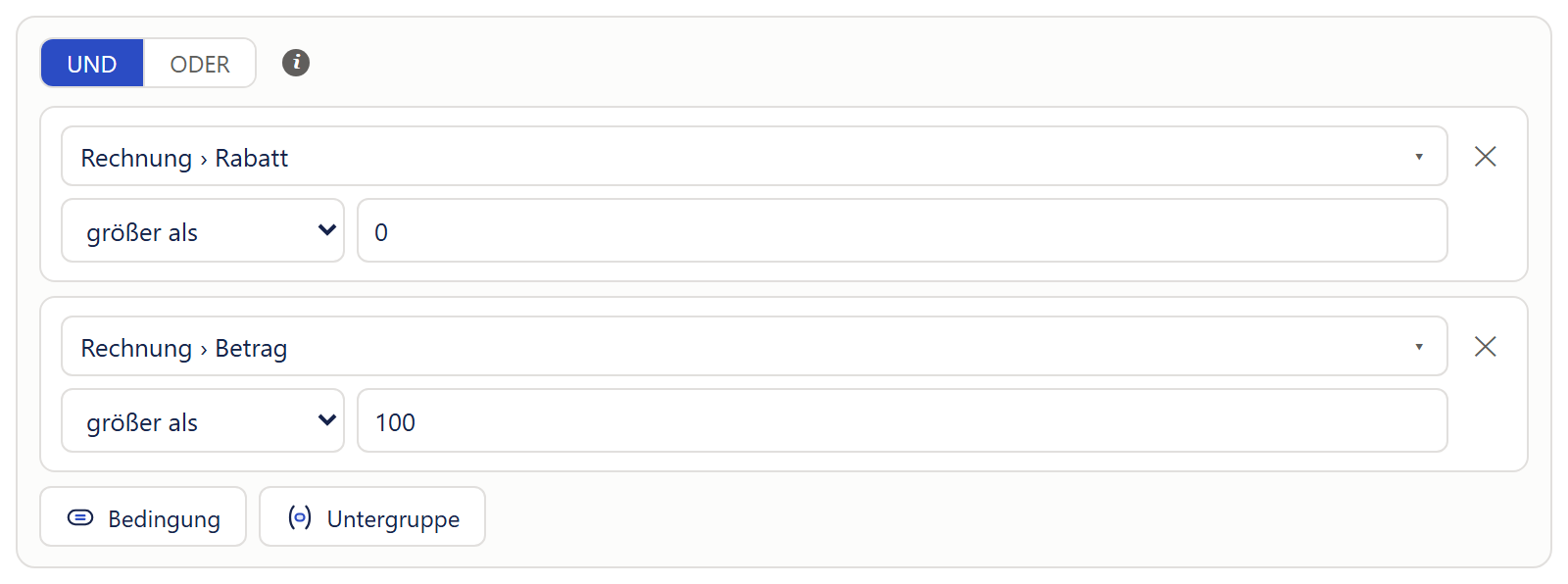
- 1Sets whether all conditions of the group must be met (“AND”) or one is enough (“OR”).
- 2Opens the field picker. Afterwards the button shows the chosen field.
- 3The comparison. Which comparisons there are depends on the kind of the field.
- 4The value that is compared with.
- 5Removes the condition without a confirmation question.
- 6“Condition” appends an empty condition, “Subgroup” an offset subgroup.
- In the empty condition, click “Choose field …”. A field picker opens. Which one it is depends on where you are (see Data tree and field picker: The field picker).
- Click the field, such as “Rabatt”. The field picker closes. The button now shows the field, below it a selection list with the comparisons that fit this field, and the input box “Value”.
- Choose the comparison, such as “greater than”, and enter the value, such as 0.
- For a second condition, click “Condition” at the bottom of the group and build it the same way. In the header you use “AND” or “OR” to set whether all of them or only one must be met. If the group has only one condition, the button is called “Another condition” in the window of a variable and in the windows that also use it (“Wenn-Dann für …” on an entry of the e-invoice, “Wert für …” for barcode, QR code, GiroCode and in a step of a button); the switch and “Subgroup” appear there only with the second condition.
| Setting | What it does | Default |
|---|---|---|
| “AND” | “OR” | In the header of every group, even if it has only one condition; only in the window of a variable and the windows that also use it, from the second condition on. Sets whether all conditions and subgroups of the group must be met or one is enough (see AND, OR and subgroups). | AND; a new subgroup gets the opposite of its parent group |
| ⓘ in the header | Only on the top group. If you point at it, the explanation of AND and OR appears. A click, the Enter key or the Space bar opens it in the “AND / OR — when is something shown?” window with two example images. | – |
| “Choose field …” ▾ | Opens the field picker (see Data tree and field picker). Afterwards the button shows the chosen field with source and path, such as “Rechnung › Kunde › Name”, for a summary for example “Sum of …”; in the filter of a rule, in the condition branches of a variable of the rule and in the button assistant only the field name or “relationship · field”. If you choose another field, the designer resets comparison and value. | no field |
| Comparison (selection list without a label) | Appears as soon as a field is chosen. Which comparisons there are depends on the kind of the field (see The comparisons). | the first comparison in the list |
| “Value” | The value that is compared with: for text a text box, for numbers a number box, for a date a box with a calendar. With “between” there are two boxes with “and” between them. With “is filled in”, “is empty”, “is yes” and “is no” there is no value box. Text counts as you type it, also with an apostrophe as in “O'Neill”; spaces at the beginning and end are dropped. An empty value box means: This condition is not checked (see A condition without a value). | empty |
| “123” | “ƒx” | Only in the filter of a rule and in the condition branches of a variable of the rule: a fixed value or a value from the data (see Fixed value or value from the data). | “123” |
| ✕ at the end of the condition | Tooltip “Remove this condition”. Removes the condition without a confirmation question. If it was the last one in the group, an empty condition is there again. | – |
| “Condition” | At the bottom of every group. Appends an empty condition. | – |
| “Subgroup” | At the bottom of every group. Appends a subgroup, offset in color, with an empty condition. In the window of a variable and the windows that also use it, from the second condition on. | – |
| “✕ Group” | On the right in the header of a subgroup. Removes the subgroup together with all its conditions, without a confirmation question. The tooltip says “Remove this group of conditions”, but the conditions do not move into the group above; they are gone. | – |
Good to know
From the condition parts, the designer writes the condition in a short formula notation; only this counts in printing. You see it, for example, when you point at the “Rule: …” row of a visibility rule in the properties (see Visibility). When a change in the builder takes effect, immediately or only with a button such as “Save”, depends on where you are; the overview is under Where conditions occur.
AND, OR and subgroups
- AND: The group applies only if all its conditions are met. Each further condition narrows the selection. Example: “Bezahlt is yes” AND “Betrag greater than 100”.
- OR: It is enough if one condition is met. Each further condition widens the selection. Example: “Land is Deutschland” OR “Land is Österreich”.
The switch applies to all conditions and subgroups of its group. Its tooltip says “Sets whether ALL conditions (AND) or only ONE (OR) must be met”.
Mixing both: subgroups
With a subgroup you mix AND and OR, such as “paid AND (Germany OR Austria)”:
- Leave the top group on “AND” and build the first condition: “Bezahlt” “is yes”.
- Click “Subgroup” at the bottom. A group offset in color with an empty condition appears. It is already on “OR”, because a new subgroup always gets the opposite of its parent group.
- In the subgroup, build “Land” “is” “Deutschland”. In the subgroup, click “Condition” and build “Land” “is” “Österreich”.
Subgroups can be nested further.
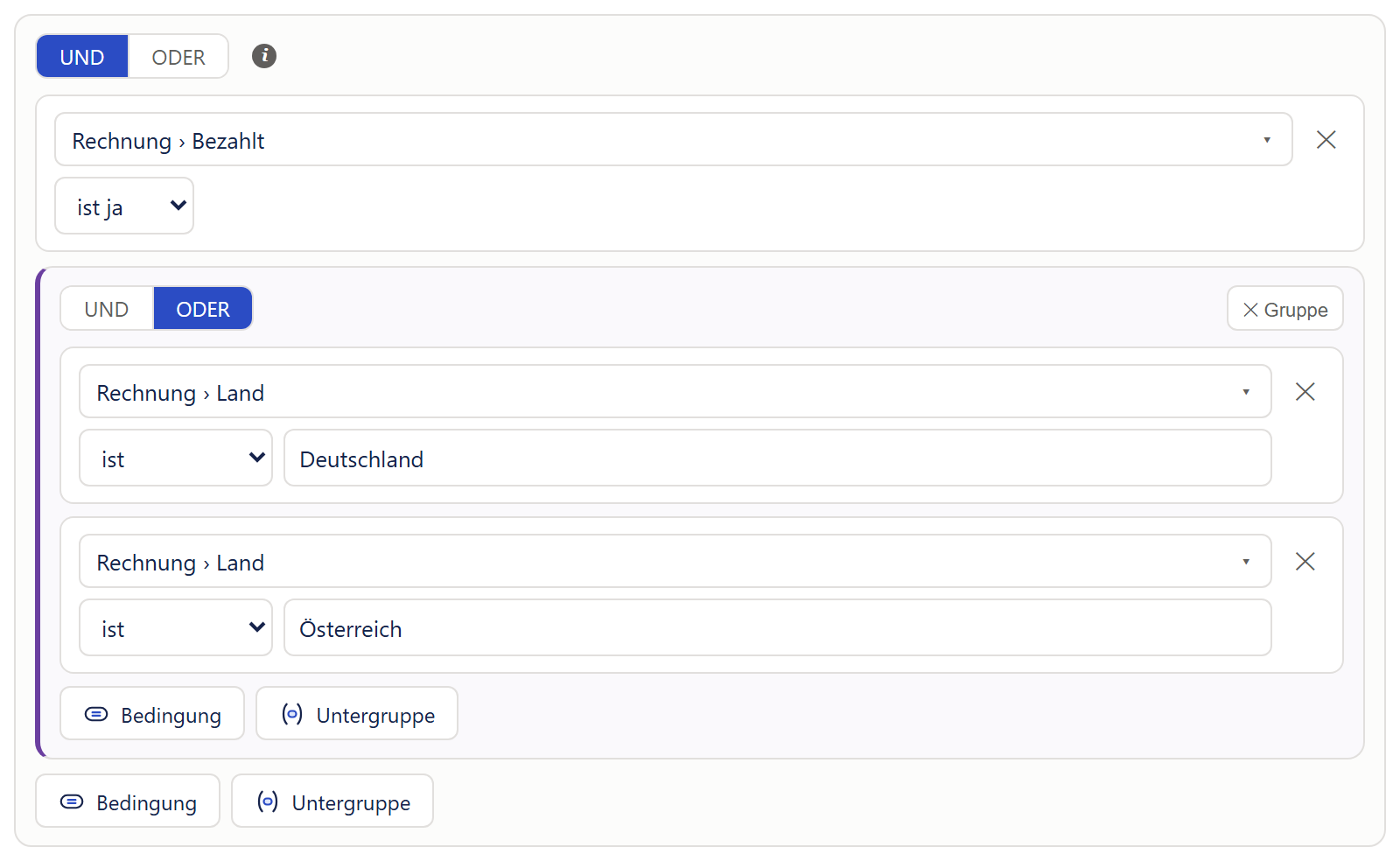
- 1The outer group is on “AND”: “Bezahlt” and the whole subgroup must be met.
- 2The subgroup is offset in color, with a violet line on the left, and has a switch of its own.
- 3A new subgroup always gets the opposite of its parent group, here “OR”.
- 4Removes the subgroup together with all its conditions, without a confirmation question.
- 5Appends a subgroup. Subgroups can be nested further.
A condition without a value
A condition whose value box is still empty is not checked. What this does depends on the group:
- In an AND group this restriction drops out. The selection becomes wider.
- In an OR group this possibility drops out. The selection becomes narrower as long as the group still checks something else. Then the note “⚠ No value yet — this condition is not checked. …” appears below the row (see Notes and warnings).
- If no condition of a group is filled in, the whole group drops out.
Caution
A half-filled condition looks complete in the builder. If you mean “the field is empty” for a text field, do not leave the value box empty but choose the comparison “is empty”. If an AND subgroup under an OR group has conditions that all have no value, no note appears; the subgroup then drops out as a possibility.
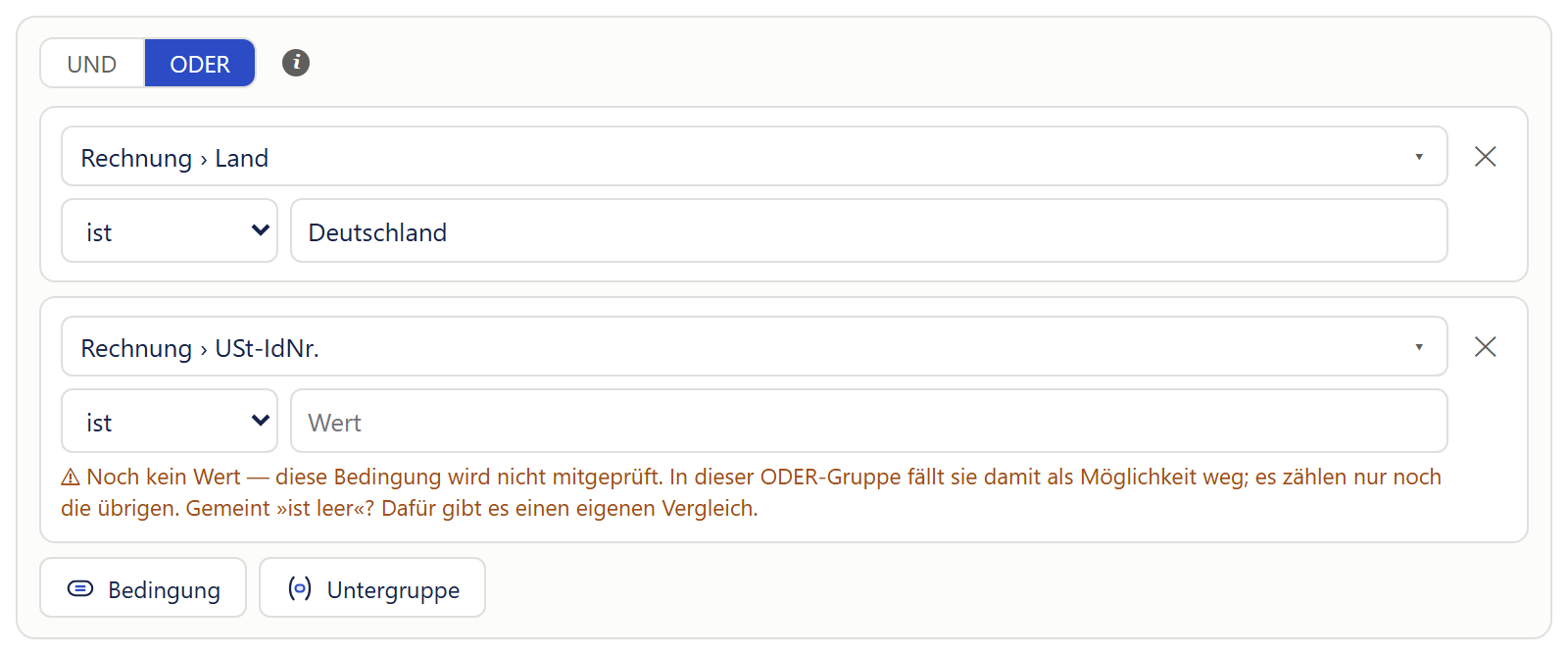
- 1The group is on “OR”. Only then does the note appear.
- 2The value box is empty. The builder still looks complete.
- 3The condition is not checked and drops out as a possibility. For “the field is empty” there is the comparison “is empty”.
The comparisons
Which comparisons are in the selection list depends on the kind of the field. The first comparison in the list is the default each time. For each kind, the table names the section in which its comparisons are described.
| Kind of field | The comparisons are under | Default |
|---|---|---|
| Text, lookup, image, file | Text, choice field and lookup | “is” |
| Choice field, status, status reason, multiple choice | Choice fields: by option value | “is”, for a multiple choice “contains” |
| Number, amount, decimal number, whole number | Numbers and amounts | “equals” |
| Date, date with time | Date | “on” |
| Yes/No | Yes/No | “is yes” |
- For a custom variable, its type determines the list: number and currency like a number, date like a date, yes/no like yes/no, text and color like text.
- Sum, average and count over a list are always numbers. First, minimum and maximum have the kind of their field (see Sum, count and so on).
- The builder offers the comparison “does not contain” only for a multiple choice whose value you choose “by option value”. “is filled in” and “is empty” exist for text and for choice fields.
Text, choice field and lookup
A lookup is compared with the text Dynamics displays, such as the name of a company. An image field and a file field have the same comparisons. A choice field you usually compare by its options (see Choice fields: by option value); with “by text”, it is compared with its label as described here, such as “Offen”.
Caution
The display texts of choice fields and yes/no fields come in the language of the user who creates the document. A condition “by text” such as “Status is Offen” does not apply for a user with an English interface; there the value is “Open”. Therefore choose the value of a choice field “by option value” (see Choice fields: by option value): Then the comparison is made via the code of the option, and the condition applies in every language. When printing, choice and yes/no fields appear in the option label language, by default the template language, not the language of the user (see Numbers, currency and dates: Option label language); a condition “by text” still compares with the text in the language of the user. How a yes/no field is compared is described under Yes/No.
| Comparison | What it checks | Example |
|---|---|---|
| “is” | The text matches exactly. Uppercase and lowercase count. | “Status is Offen” applies to “Offen”, not to “offen”. |
| “is not” | The opposite of “is”. Also applies to an empty field. | “Land is not Deutschland” |
| “contains” | The value occurs somewhere in the text. Uppercase and lowercase do not count. | “Name contains gmbh” applies to “Muster GmbH”. |
| “starts with” | The text begins with the value, regardless of case. | “Artikelnummer starts with A-” |
| “ends with” | The text ends with the value, regardless of case. | “Dateiname ends with .pdf” |
| “is filled in” | The field has a value that does not count as “empty” (see below). | “USt-IdNr. is filled in” |
| “is empty” | The field is empty or contains a value that counts as “empty”. | “Bemerkung is empty” |
“is filled in” and “is empty” are actually a yes/no check. Therefore the texts “Nein”, “No”, “false”, “off”, “n”, “non”, “nee” and “nie” also count as empty, regardless of case, so also “NEIN” or “False”, and every zero with a period as the decimal separator such as “0”, “00” or “0.00”; “0,00” with a comma counts as filled in. A text field that contains only “Nein” is therefore “empty”. If you use “contains”, “starts with” or “ends with” to compare a field that contains a number, the spelling with a period applies: “5.5”, not “5,5”. For a yes/no field from Dynamics, by contrast, what counts is whether it is set to yes or no, not its label (see Yes/No).
Tip
“does not contain” can be built for the printed record with a custom variable: Create a variable of type text with the condition branch IF “Name contains GmbH” THEN “ja” and leave ELSE empty (see Variables: Condition branches). Then check “@variable” “is empty”. The variable has a value in the whole document; for each row of a table separately you need a variable of the rule.
Choice fields: by option value
For a choice field, also for status, status reason and multiple choice, the options that Dynamics knows for this field appear instead of the value box, such as “Neu · 1”: first the label in the language of your Dynamics interface, then the code of the option. In the window of a variable and in the windows that also use it (“Wenn-Dann für …” on an entry of the e-invoice, “Wert für …” for barcode, QR code, GiroCode and in a step of a button) only the label appears there, such as “Gutschrift”; the code of the chosen option is shown small and gray next to it on the right, every code also in the tooltip of its entry. If two options have the same label, their code appears after it in brackets. The comparison is made via the code. The condition therefore applies regardless of the language in which Dynamics delivers the label and the language in which the document prints it. The options appear everywhere you build conditions: in the filter of a rule, for visibility, image rules and dynamic text, in the condition branches of variables and settings, in the email cases of a button and in the versions of a text.
| Comparison | What it checks | Example |
|---|---|---|
| “is” | The field has exactly this option. | “Statusgrund is Neu” |
| “is not” | The field has another option or is empty. | “Status is not Abgesagt” |
| “contains” | Only for a multiple choice: This option is among the chosen ones. | “Kategorien contains Rot” |
| “does not contain” | Only for a multiple choice: This option is not among them, also if the field is empty. | “Kategorien does not contain Rot” |
| “is filled in”, “is empty” | As for text (see Text, choice field and lookup). | “Priorität is empty” |
- The switch “by option value” | “by text” before the comparison switches between the options and the comparison with the label (see Text, choice field and lookup). It is called this in every builder. A new condition begins with “by option value”. A condition that has already been built with a label stays as it is and works as before; only a click on “by option value” converts it. If its label is among the options, the builder takes over the matching option. With a variable instead of a fixed value (“ƒx”) you compare under “by text”.
- Without a connection to Dynamics the designer does not know the options. Then the text box appears as for text; a condition that has already been built via the code shows the code as a number.
- If a saved option no longer exists in the table, it appears as “⚠ … — unknown in this table” among the options and stays until you choose another.
- In the template the condition is written as an expression over the raw value, such as
statuscode_code == 1, for a multiple choicecontoso_tags_code contains 100000001(see Template format: Conditions).
Numbers and amounts
| Comparison | What it checks | Example |
|---|---|---|
| “equals” | The number is equal. Tiny rounding remainders do not count. | “Menge equals 1” |
| “does not equal” | Any other number. Also applies to an empty field. | “Rabatt does not equal 0” |
| “greater than” | The number is greater than the value. | “Betrag greater than 1000” |
| “less than” | The number is less than the value. Also applies to an empty field. | “Menge less than 10” |
| “greater than or equal to” | The number is at least as large as the value. | “Menge greater than or equal to 1” |
| “less than or equal to” | The number is at most as large as the value. Also applies to an empty field. | “Rabatt less than or equal to 5” |
| “between” | The number lies between the two values; both limits are included. If one limit is missing, only the other applies; if both are missing, the condition is not checked. | “Betrag between 100 and 500” also applies at exactly 100 and exactly 500. |
Enter the number without a thousands separator. A period always counts as the decimal separator: “1.000” is 1, not one thousand. A comma as the decimal separator is taken by the designer as a period: 1,5 is 1.5. Anything that is still not a number after that is compared as text. An amount is compared as a number, without a currency symbol.
The comma is not treated everywhere as it is in the builder. The table puts the places where you type a number side by side:
| Where you type the number | A comma as the decimal separator | More |
|---|---|---|
| Value box of a condition in the builder | The builder converts it when it writes the condition: 1,5 becomes 1.5. In a condition written by hand, by contrast, a decimal comma is not converted; the designer reports it (see Notes and warnings). | Numbers, currency and dates: Reading numbers: comma and period |
| Fixed value of a custom variable | Is not converted: “1,19” cannot be calculated. Write decimal numbers with a period. | Variables: Fixed values |
| Formula | Is not converted: A comma turns the formula into text. Write decimal numbers with a period. | Template format: Formulas |
Date
Date comparisons are exact to the day as long as one side carries no time, also for a field with a time such as “Erstellt am”. The tooltip of the comparison list says this too. Only “before”, “after”, “on or before”, “on or after” and the lower limit of “between” compare exactly down to the time, and only if both sides carry a time, for example for a field via “ƒx”. “on” and “not on” always compare the calendar day. The calendar day of a stored point in time counts in the time zone of the Dynamics user. You choose the value in the calendar of the value box.
| Comparison | What it checks | Example |
|---|---|---|
| “on” | The same calendar day; the time does not matter. | “Rechnungsdatum on 31.08.2026” |
| “not on” | Any other day. Also applies to an empty field. | “Lieferdatum not on 24.12.2026” |
| “before” | An earlier day. Also applies to an empty field. | “Fälligkeit before 01.10.2026” |
| “after” | A later day. | “after 31.08.2026” begins on 01.09.2026. |
| “on or before” | This day or earlier. Also applies to an empty field. | “on or before 31.08.2026” includes the whole of 31.08. |
| “on or after” | This day or later. | “on or after 01.09.2026” |
| “between” | A day between the two dates; both days are included. If one limit is missing, only the other applies. | “between 01.08.2026 and 31.08.2026” is the whole of August. |
Yes/No
| Comparison | What it checks | Example |
|---|---|---|
| “is yes” | The field is set to yes. For a yes/no field from Dynamics its value counts, not its label. If the document knows only the label (own data, sample data without Dynamics), everything except the no words counts as yes (see Text, choice field and lookup), so also “Yes”, “1” or “on”. | “Bezahlt is yes” |
| “is no” | The field is set to no, also with a label of its own such as “Unbezahlt”; without a value from Dynamics also “No”, “0” or “off”. If the field is not set at all in Dynamics, neither “is yes” nor “is no” applies. | “Gesperrt is no” |
Caution
A yes/no field comes with its label from Dynamics and, next to it, with its value, yes or no. “is yes” and “is no” go by this value. If a yes/no field in your Dynamics has labels of its own, such as “Aktiv” and “Inaktiv”, “is no” therefore applies to “Inaktiv”, and likewise to a no in another language such as “Nej”. Formerly the label decided here: Everything except the no words counted as yes, and “is no” never applied to “Inaktiv”. A comparison with the text, such as “Bezahlt is Unbezahlt” written by hand, still compares the label. If the data come without Dynamics (sample data, a flow with its own data), there is only the label; then, as before, everything except the no words counts as yes. Such a field is printed with its label, so “Inaktiv” (see Numbers, currency and dates: Option label language). The same applies to a variable of type yes/no that takes over such a field, also for a variable of a rule: “is no” applies to “Inaktiv”. A variable of a rule still prints the label, a custom variable “Nein” (see Variables: Type yes/no).
Only the simple input of the versions counts an unset field as no with “is empty / no” (see Texts: Content depending on a condition).
What happens with empty fields
An empty field is not a special case that the builder intercepts. It behaves like this:
- Applies: “is not”, “does not equal”, “not on”, “is empty”, and also “less than”, “less than or equal to”, “before” and “on or before”: An empty field counts as less than or earlier than any value.
- Does not apply: “is”, “contains”, “starts with”, “ends with”, “is filled in”, “equals”, “greater than”, “greater than or equal to”, “on”, “after”, “on or after”, “between”, “is yes” and “is no”. An empty number field is therefore not “equal to 0”, and an unset yes/no field is neither yes nor no.
- In a rule and in a table row an empty field stays empty. If the row above has a field of the same name, such as the invoice and its items each having an “Art”, its value does not step in, not even if you compare a choice field “by option value” (see Choice fields: by option value). Only what the row does not have at all is looked up higher up. This also applies to a field behind an empty lookup, such as the name of the currency for an item without a currency: It is empty, even if the row above has filled the same lookup.
Tip
If rows without a value should not count, use “between” with a lower limit instead of “less than or equal to”, such as “Rabatt between 0 and 5” instead of “Rabatt less than or equal to 5”. For text, join the condition “is filled in” with AND; rows in which only “Nein”, “0” or a similar word appears also drop out (see Text, choice field and lookup). For a date, likewise use “between” with an early start date instead of “before” or “on or before”.
Fixed value or value from the data: “123” and “ƒx”
On the right in a condition there is normally a fixed value that you type. In the filter of a rule and in the condition branches of a variable of the rule, next to the comparison there is also the switch “123” | “ƒx” with the tooltip “A fixed value or a variable from the data tree”. Everywhere else the value is always fixed.
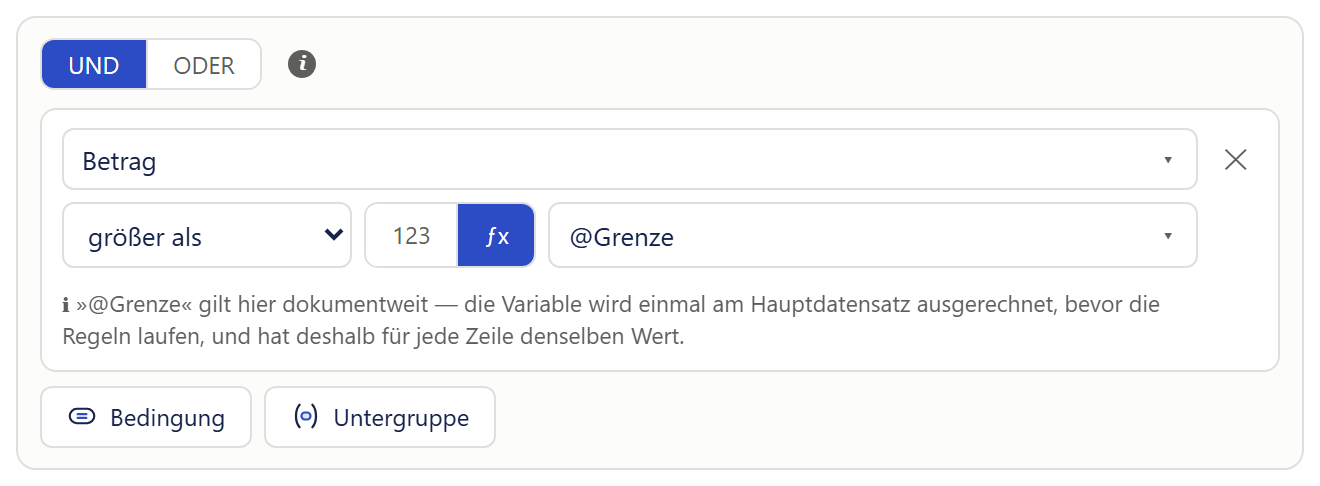
- 1“123” is a fixed value that you type; “ƒx” takes the value from the data.
- 2Opens the field picker with the whole data tree. Chosen here is the custom variable “@Grenze”.
- 3A custom variable has a value in the whole document, the same in every row.
| Setting | What it does | Default |
|---|---|---|
| “123” | Fixed value. You type it into the “Value” box. | selected |
| “ƒx” | Value from the data. Instead of the input box, the button “Choose variable …” appears. It opens the field picker “Choose field” with the whole data tree, without system variables (see Data tree and field picker: The “Choose field” window). You can choose, for example, a field of the document such as the customer’s credit limit or a custom variable such as “@Grenze”. | – |
- The switch appears only for comparisons with a value, so not for “is filled in”, “is empty”, “is yes” and “is no”. Switching clears the value.
- Example: In the filter of the items “Betrag greater than @Grenze”. A custom variable has a value in the whole document and is therefore suitable as a fixed comparison value.
- Before the designer accepts a choice, it checks it: The rule must not read itself (its result only comes into being through it), must not close a cycle with another rule (see Rules: When rules read each other in a cycle) and must not read anything from a rule higher up (see Rules: What a rule may read). Otherwise a message with “⚠” appears at the top, and the value is not accepted. The sentences the designer shows for this are under Notes and warnings.
- With “between” only the lower limit comes from the data; the upper one stays a fixed value.
- For a date, what is under Date applies. With “between” only the lower limit from the data can carry a time; the upper one is a fixed day and is compared exact to the day.
Tip
To compare two numbers where there is no “ƒx”, such as in a visibility rule: Create a custom variable of type number that calculates the difference, such as “Betrag” “minus” “Kreditlimit” (see Variables: Operators). Then check “@Unterschied greater than 0”. An empty field counts as 0 in the calculation: If no credit limit is entered, the condition applies to every amount above 0.
Sum, count and so on over a list
A field from a list (1:N) has many values, a condition needs one. That is why there is a small selection list on the right of such fields: First choose the summary and then click the field. The tooltip says so: “Click to choose (summary selectable on the right)”. The selection exists on the fields of a list, under a rule that returns a list, and on an additional source. The tree in which it appears is described in Data tree and field picker: The tree in the field picker.
| Summary | Result | For |
|---|---|---|
| “Sum” | All values added up. Each value is rounded beforehand (see Rules: Round first, then sum). | number, amount |
| “Avg” | The average over the filled rows; here too each value is rounded beforehand (see Rules: Round first, then sum). | number, amount |
| “First” or “First value” | The value from the first row of the list, even if it is empty. Which row is the first is not fixed without sorting. | all fields |
| “Count” | How many rows the list has. | all fields |
| “Min”, “Max” | The smallest or largest value. | number, amount |
- Numbers and amounts offer “Sum”, “Avg”, “First”, “Count”, “Min” and “Max”; all other fields, also a date, only “First value” and “Count”. The first entry is the default.
- In the field button it then says, for example, “Sum of …”, “Average of …”, “First value of …”, “Count of …”, “Minimum of …” or “Maximum of …”; after a choice in “Choose a field of this row” it says “First of …” instead of “First value of …” (see Data tree and field picker: The “Choose a field of this row” window).
- The calculation is made after loading over all rows of the list. This costs no additional query, unless the list is otherwise needed only by rules whose filter already takes effect when loading: Then printing loads it in full for that (see Data sources and relationships: How the document fetches the data).
- Over an empty list, sum, average, count, minimum and maximum give 0, and the document reports it. If you mean “has rows, and the value is 0”, join “Count of … greater than 0” with AND.
The same kinds of calculation also exist in the calculations of a rule and in custom variables, there with other names and for other fields. The table puts them side by side. After the name it says for which fields the kind of calculation exists, for a custom variable for which types of the variable:
| Kind of calculation | In a condition | In the calculation of a rule | In a custom variable |
|---|---|---|---|
| Sum | “Sum”: number, amount | “Sum”: only numbers and amounts | “Sum of”: number, currency |
| Average | “Avg”: number, amount | “Average”: only numbers and amounts | “Average of”: number, currency |
| Count | “Count”: all fields | “Count”: needs no field | “Count of”: text, number, currency |
| Smallest and largest value | “Min”, “Max”: number, amount | “Minimum”, “Maximum”: all fields, also text and date | “Smallest value of”, “Largest value of”: number, currency |
| First value | “First” or “First value”: all fields | does not exist; you choose the first record in the “Selection” tab with “Only the first” | “First value of”: text, number, currency, yes/no, date |
| Earliest and latest date | cannot currently be queried in a condition | “Minimum” and “Maximum” apply to all fields, also to a date | “Earliest of”, “Latest of”: date, only in the first row |
Example: In the filter of the rule on the items, only items should remain whose batches together add up to more than 1,000 pieces.
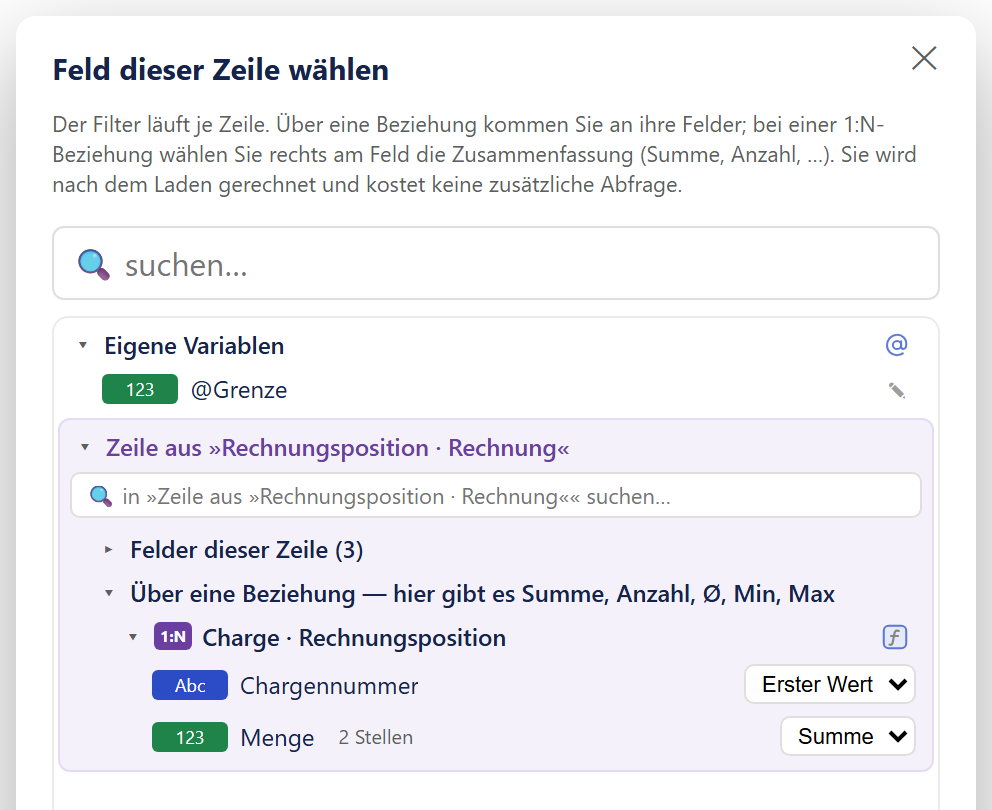
- 1Explains that the filter runs per row and that the summary is calculated after loading, without an additional query.
- 2Names the list whose row is being checked.
- 3The row’s own fields, with their number. Collapsed, because the row has relationships.
- 4Here are the lookups (N:1) and lists (1:N) of the row. Only on the fields of a list is there the summary.
- 5The summary. Choose “Sum” here first, then click the field.
- In the “Filter” tab, click “Choose field …”. “Choose a field of this row” opens.
- Under “Via a relationship — here you get Sum, Count, Avg, Min, Max”, expand the batches.
- On the right of the field “Menge”, choose the summary “Sum” and then click the field. The field button says “Sum of …”; the comparisons are those of a number.
- Choose “greater than” and enter 1000.
Caution
Under a list, the field picker also shows its rules with their calculated fields, likewise in the large picker under the lists of the document. A condition on the fields of a rule that sits on a list may find no value in the PDF. It then calculates with 0 or with an empty field and applies differently from what you expect. Therefore check such a condition in the full preview before you rely on it. The rules say so too: Whether such a comparison takes effect correctly in the document is currently not assured (see Rules: Comparing with a list, a variable or another rule). The summary directly on the field of the list, as in the example above, works reliably.
Custom variables in a condition
- Custom variables are at the very top of the field picker under “Custom variables” and appear in the field button as “@Name”. Their type determines the comparisons.
- A custom variable has a value in the whole document, in a filter and in every table row the same. A filter that compares only a variable with a fixed value therefore lets all rows through or none (see Variables: When a custom variable is calculated).
- If a variable does not exist (any more), a condition on it does not apply, not even with “is not” or “does not equal”. Before the full preview and the PDF, the designer reports names that do not exist (see Notes and warnings).
- In the filter of a rule, a variable should not read results of rules: They do not exist there yet, and the variable is then empty or 0 (see Variables: When a custom variable is calculated). The builder points this out (see Notes and warnings).
- In the condition branches of the template settings a custom variable works as everywhere; there it is calculated with the fixed decimal places and the fixed number style of the template (see Numbers, currency and dates: Condition branches). In the button assistant it does not exist at all.
Conditions in a table cell
If an object is in a cell of a data table, its condition is checked for each row separately: the visibility rule, the image rule, the dynamic text and the versions of a text. For the first three, the field picker then offers the fields of this row under “Per row · …” (see Data tree and field picker: The data tree in the cell designer and column designer); for the versions a restriction applies, which is described further below. What the condition can read there:
- the fields of the row, for a table on a rule also its “Calculated fields”,
- sum, count and the other summaries over a list of the document,
- your custom variables.
A simple field of the document, such as the status of the invoice, is not found by the condition in a cell, although the field picker offers it under “All fields”. If you need it, create a custom variable that reads this field and check the variable.
The same applies in a cell of a data table for image rules and dynamic texts. The versions of a text are also checked against the row there; but their field list offers only fields of the document. If a text in a cell is to differ per row, use a dynamic text with the fields under “Per row · …” and check the result in the full preview.
In a free-form table there are no data rows, and a header cell of a data table does not belong to any row either. There the condition is checked against the level on which the table sits. Directly in the document this is the record being printed, as outside a table; the fields of the document are then also found, and the field picker shows no “Per row · …”.
A table itself checks its visibility against the level on which it sits, not against its own rows. Typical for an items table: “Count” on a field of the items, comparison “greater than”, value 0. Then the table appears only if there are items; “Count” counts the rows, even if the chosen field is empty in them. All items of the relationship are counted, also those that the filter of the table rule takes out.
Notes and warnings
Below a condition, at the top of the canvas or before the full preview and the PDF are created, the designer explains when something does not work as it looks:
| Note | When it appears | What you do |
|---|---|---|
| “⚠ No value yet — this condition is not checked. In this OR group it therefore drops out as an option; only the others count.” (orange) | In an OR group, when a condition has a field but no value and the group otherwise still checks something (see A condition without a value). For a text field it is followed by “Did you mean »is empty«? There is a separate comparison for that.”. With “ƒx” it begins with “⚠ No variable chosen yet”. | Enter a value, choose “is empty” or remove the condition with ✕. |
| “⚠ No variable has been chosen yet.” (red) | After switching to “ƒx”, as long as no value is chosen. | “Choose variable …” or back to “123”. |
| Red sentence, depending on the case “⚠ »…« cannot refer to itself — its result only comes into being through that.”, “⚠ Cycle: »…« itself accesses »…«. One of the two directions must go.” or “⚠ »…« is on a higher level. … this reference will be deleted. …”; when choosing, a message at the top with “⚠ …” instead | The value with “ƒx” reads the rule the condition is in, a rule in a cycle or a rule higher up. When choosing, such a value is not accepted. The check is described under Fixed value or value from the data. | Choose another value. For a rule higher up, create the key figure as a rule of its own on this level and compare against it (see Rules: What a rule may read); for a cycle, take out one of the two directions (see Rules: When rules read each other in a cycle). |
| “ℹ »@…« applies document-wide here — the variable is calculated once on the main record before the rules run, and therefore has the same value for every row.” (gray) | In the filter of a rule or in the condition branch of a variable of the rule, a custom variable is on the left or under “ƒx”. | Nothing; for information only. |
| Red sentence about a custom variable, such as “The variable »@…« does not exist (any more).” | At the same place, when the variable is missing, when its own condition reads row fields, results of rules or page numbers (the sentence calls page numbers “system values”; the variable then silently falls back to its default value) or when its content reads a result of a rule. Today’s date and the user do not trigger the sentence. | Adjust the variable (see Variables: When a custom variable is calculated) or choose another. |
| Orange note “Without a condition this rule always applies …” for an image rule and “Without a condition this version always applies …” for a version of a text | An image rule has no condition, or a version that is not the last has no condition. The windows themselves give the wording and the consequences (see Images: The “Except when — which image when?” window and Texts: Content depending on a condition). | Build a condition or remove the image rule; for a version, set a condition or move it to the end with ▼. |
| English message at the top, beginning with “condition '…':” | A condition written by hand has a suspicious spelling, such as a single instead of a double equals sign, a single “&” instead of “&&”, a bracket without a counterpart, a decimal comma or a word such as “isEmpty” (see Checking for empty in a condition written by hand), or a part is missing (see Incomplete conditions). The message corrects nothing; the PDF reports the same. The wording is given in Problems and messages: Variables and conditions. | Rebuild the condition with the builder (see Conditions written by hand). |
| “Deleted: rule »…« — …” | When the sample data is recalculated, if a filter or a variable of a rule reads a rule higher up. | See Rules: What a rule may read. |
| Confirmation question “Something is wrong with the custom variables: …” with the buttons “Generate anyway” and “Cancel” | Before the full preview and the PDF, among other things when a condition names a variable that does not exist, or when a condition branch without a condition comes before others in a variable or a template setting. All findings are under Variables: The check before the full preview and the PDF, the dialog under Full preview and PDF: Confirmation question about rules and variables. | With “Cancel” go back and correct; “Generate anyway” generates as set. |
| Confirmation question “Some conditions in the template are incomplete: …” with the buttons “Generate anyway” and “Cancel” | Before the full preview and the PDF, when a condition of the template is missing a part (see Incomplete conditions). One point per condition, in the wording of the note of the check. | With “Cancel” go back and complete; “Generate anyway” generates as set, the missing part never counts as met. |
If two rules read each other in a cycle, the designer also warns when the rule is saved, on the canvas and before the full preview and the PDF (see Rules: When rules read each other in a cycle).
Conditions written by hand
A template can contain conditions that were not built with the builder, for example from an imported template, from the AI package or from an older version. If the builder cannot display such a condition exactly as it is, for example because it uses “does not contain”, has a composite field or a comparison that the kind of the field does not know, then: It stays valid unchanged, and merely opening it changes nothing. How it is displayed depends on where you are:
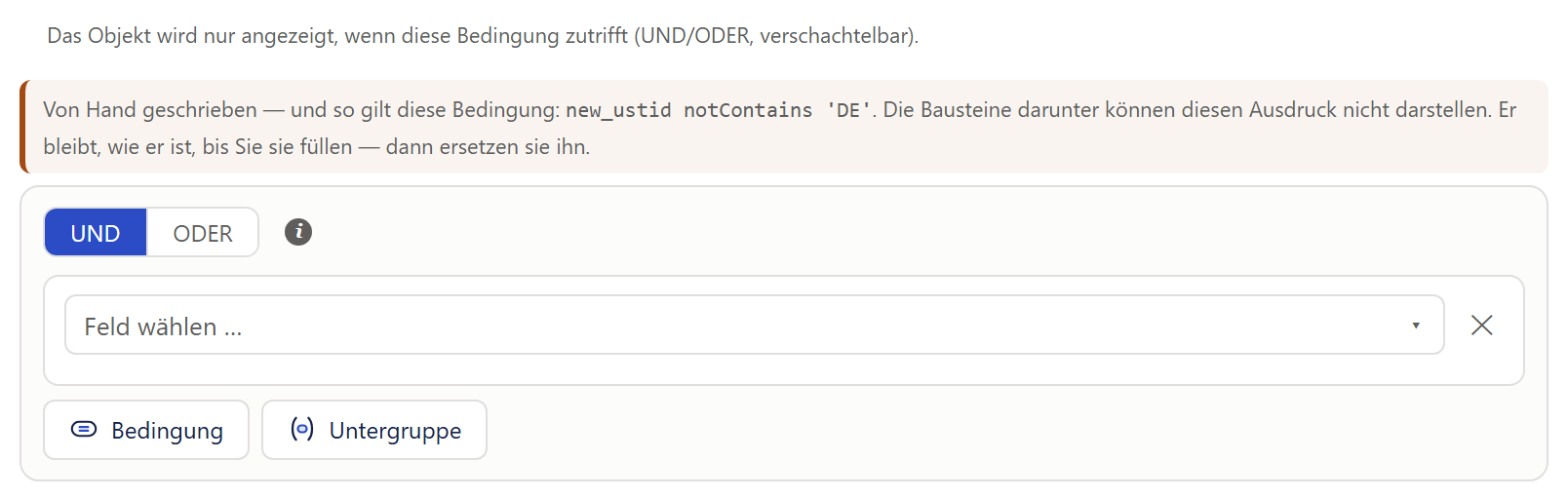
- 1Shows the condition word for word. It continues to apply, even if the condition parts look empty.
- 2The condition parts are empty. As soon as you build a condition here, it replaces the expression in the box.
| Where | What you see | How to replace it |
|---|---|---|
| Visibility rule, image rule, dynamic text | Above empty condition parts a box with a brown line: “Written by hand — and this is the condition that applies: … The condition parts below cannot represent this expression. It stays as it is until you fill them — then they replace it.” | Build a condition in the condition parts below it. As soon as it yields something, the box disappears, and the new condition applies. |
| Cases “Je nach Bedingung” in the button assistant | The same box with “… and this is the case that applies: …”. | As above. |
| Versions of a text | The same box as above, above empty condition parts of the version, for example for feld == '' or a == 1 || b == 2 (see Texts: Content depending on a condition). |
Fill in the condition parts of the version. As soon as they yield something, the box disappears, and the new condition applies. |
| Filter of a rule | At the top of the tab: “This rule has a filter that was not built with the builder: »…«. It is kept. As soon as you create a condition here, the builder replaces it.” | Create a condition, or “🗑 Remove filter”. “Cancel” in the rule window restores the old filter. |
| Condition branches of a variable | The condition in gray typewriter font, below it “Hand-written condition — stays unchanged. The condition builder would replace it.” | “Rebuild with the condition builder”. You answer the confirmation question “The condition »…« will be discarded in the process. Continue?” with “Replace” or “Cancel”. |
| Condition branches of the template settings | The condition in a gray box with the note that it was written by hand and stays unchanged. If it contains a field in “{{ }}” or one of the words “isEmpty”, “notEmpty”, “isNotEmpty”, this note is missing; instead there are the red note “⚠ Typo: …” and the button “Rebuild with the condition builder” (see Fields in “{{ }}” and Checking for empty in a condition written by hand). | Remove the whole branch with ✕ and create it anew. For “{{ }}” or “isEmpty” & co. also “Rebuild with the condition builder” with the same confirmation question as above; afterwards “Done” stays disabled until the new condition is complete. |
If you uncheck the box in the properties for such a visibility rule, it is gone if the builder cannot display it. The second case and the difference between switching off and deleting are described in Visibility: Switching off or deleting.
Incomplete conditions
If a part is missing from a condition written by hand, for example after an AND or OR (status == 'Offen' &&), before a comparison (!= 5) or its value (status !=), the missing part never counts as met. With AND the condition then never applies, with OR only if the complete part applies. Formerly the missing part counted as met: status == 'Offen' || applied to every record without anyone noticing. The PDF reports such a condition as a warning (see Problems and messages: Variables and conditions), and when a template is imported, the check names the place as a note. At the top of the canvas the designer reports it as soon as it evaluates the condition with the sample data, for example in the filter of a rule or in the versions of a text; it does not evaluate a visibility rule there (see What changes in the document?). Before “Full preview” and “PDF” the designer asks if a condition of the template is incomplete, also a visibility rule (see Full preview and PDF: Confirmation question about rules and variables). A completely empty condition is not incomplete; it still means “always”. The builder does not write incomplete conditions.
Fields in “{{ }}”
In a text, double curly brackets fetch a field: {{betrag}}. In a condition the field appears without them: betrag > 100. If it does appear with brackets, such as {{betrag}} > 100 from a template written by hand or produced by an AI, the field is not read at all, and the condition mostly never applies (with “is not”, by contrast, always). Until now this happened without a word. Now it is reported, also in templates that are already in use; the calculation continues as it stands:
- The PDF reports the condition as a warning (
condition '…': '{{' and '}}' do not belong in a condition, see Problems and messages: Variables and conditions). The document looks as before. - In the e-invoice it is an error: No e-invoice is created, and the message names the place, such as “the condition »…« cannot be evaluated like this: »{{ }}« does not belong in a condition …” (see Problems and messages: E-invoice). This applies to “Only if …”, to the condition of a list and of a fixed entry and to every branch of an if-then, also one that does not take effect for the document at all.
- When importing and when the AI makes a change, the check names the place, under “eRechnung” as an error (with the e-invoice switched off as a note), otherwise as a note. Before “Full preview” and “PDF” the designer asks (see Full preview and PDF: Confirmation question about rules and variables).
- In the window of a variable, in the if-then of an entry of the e-invoice and in the condition branches of the template settings, the red note “⚠ Typo: »{{ }}« does not belong in a condition; as written the field is not read at all. Rebuild the condition.” appears below the branch, next to the buttons “⚠ Typo in the condition: branch …”, and “Save”, “Apply” or “Done” stays disabled. Rebuild the condition with “Rebuild with the condition builder” or remove the branch; both work in all three windows. In the condition branches of the template settings, “Done” stays disabled after rebuilding (“⚠ Condition incomplete: branch …”) until the new condition is complete: This window applies changes immediately and has no “Cancel”, and a branch without a condition would apply to every document there (see Numbers and dates: Condition branches).
If {{ is in a text in quotation marks, such as name == '{{x}}', this is an ordinary comparison with this text and is not reported. The builder never writes {{ }} into a condition.
Checking for empty in a condition written by hand
For “is empty” the builder writes !feld and for “is filled in” feld. In a condition written by hand, for example from an import or by an AI, with == and != the following also applies: Empty equals empty. An empty field from Dynamics, a field that does not exist, a field behind an empty lookup (produkt.name) or a rule without a hit (TeuresProdukt.name), null and the empty text '' are equal to one another. So feld == '' matches an empty field, feld != '' only a filled one. Formerly feld != '' was always met for an empty field from Dynamics and feld == '' never. Unlike !feld, the number 0 and the label “Nein” do not count as empty here. A real yes/no value no does not count as empty here either: For the value behind a yes/no field (feld_code) and for a custom variable of type yes/no, == '' and == null do not apply for no. Conversely, an empty value is neither yes nor no: feld == false does not match an empty field, not even through a yes/no variable. You check whether a yes/no field is empty with feld == '', whether it is set to no with feld == false. A rule with “Only the first”, “Only the last” or “The one at a specific position” that has found nothing is also empty: TeuresProdukt == '' and !TeuresProdukt apply, TeuresProdukt != '' does not, and count(TeuresProdukt) is 0.
A field behind an empty lookup is also empty in the filter of a rule: If an item has no currency but the invoice has “Euro”, in the filter of the items waehrung.name == '' applies and waehrung.name != '' does not. Only a field that does not exist on the row at all takes the value of the row above there (see What happens with empty fields). In a table cell only the row itself counts.
In the versions of a text such a condition stays. The simple input of the version cannot represent feld == '', feld != '' and feld == null; it therefore shows the condition in the box “Written by hand — and this is the condition that applies: …” above empty condition parts. The condition applies unchanged until you fill the condition parts below it; then these replace it. If you want to use the input of the version, use “is empty / no” or “is set” there; like !feld they also count 0 and “Nein” as empty.
A condition does not know words such as isEmpty, notEmpty or isNotEmpty. It reads such a thing as a field that does not exist, and the condition mostly never applies. This is reported like a field in “{{ }}”: in the PDF as a warning (condition '…': 'isEmpty' is not known - write '!field' for 'is empty' and 'field' for 'is filled'), in the e-invoice as an error, when importing and when the AI makes a change as a note, and before “Full preview” and “PDF” the designer asks. In the window of a variable, in the if-then of an entry of the e-invoice and in the condition branches of the template settings, such a word disables “Save”, “Apply” or “Done” like “{{ }}” (see Fields in “{{ }}”); below the branch it says in red “⚠ Typo: there is no »isEmpty« in a condition. For »is empty« write »!field«, for »is filled« »field«. Rebuild the condition.” The calculation continues as it stands. Write !feld for “empty” and feld for “filled in”.
Where conditions occur
The builder is the same everywhere. Depending on where you are, what is checked against, which field picker opens, whether there is the switch “123” | “ƒx”, what happens without a condition and when a change takes effect differ. Where several conditions are checked one after another, the same principle applies everywhere: from top to bottom, the first one that applies wins. The first table names what is checked against and what is available to choose; the second, what happens without a condition, in which order the checking is done and when a change takes effect.
| Where | Checked against | Field picker | 123 / ƒx | Custom variables | More |
|---|---|---|---|---|---|
| Filter of a rule: “Filter” tab in the “Edit rule” window | each row of the list separately | “Choose a field of this row” | Switch “123” | “ƒx” | are available | Rules: The “Filter” tab |
| Condition branches of a custom variable: button “Condition branch” in the window of the variable | the printed record, once, before the rules run | “Choose field” | only a fixed value | are available | Variables: Condition branches |
| Condition branches of a variable of the rule: “Variables” tab in the rule window | each row separately, after filtering, grouping and selecting | “Choose a field of this row” with a note of its own; nothing from above | Switch “123” | “ƒx” | are available | Rules: The “Variables” tab |
| Condition branches of the template settings: “Numbers & date” tab, window “Condition branches: …” | the printed record, once for the whole document | “Choose field” | only a fixed value | are available, but have no effect here | Numbers, currency and dates: Condition branches |
| Visibility: section “Visibility” in the properties, window “Visibility rule” | on the page the printed record, in a cell of a data table the row | “Choose field”, in such a cell with “Per row · …” | only a fixed value | are available | Visibility: The “Visibility rule” window |
| Image rule: “Except when” on an image, window “Except when — which image when?”, row “If …” | like visibility: in a cell of a data table against the row | as for visibility: “Choose field”, in a cell with “Per row · …” | only a fixed value | are available | Images: A different image depending on a condition |
| Dynamic text: window “Dynamic text”, cards “Except when …” | the printed record, in a cell of a data table the row | “Choose field”, in a cell with “Per row · …” | only a fixed value | are available | Texts: Dynamic text |
| Versions of a text: window “Conditional content — which version?” | the printed record, in a cell of a data table the row | no field picker, but a field list of its own with the fields of the sources and their lookups | only a fixed value and exactly one comparison | do not exist; no lists either | Texts: Content depending on a condition |
| Email template “Je nach Bedingung” in the button assistant, card “If” per case | the same data as the visibility rules, after the document is built | “Choose a field of this row”, only with the fields the template carries from its primary source; no relationships or rules | only a fixed value | do not exist | Buttons: Depending on a condition: the cases |
| Where | Without a condition | Order | A change takes effect | Other |
|---|---|---|---|---|
| Filter of a rule | Without a condition, all rows are included. | – | On the sample data only with “Save” of the rule window; “Cancel” takes everything back. | “🗑 Remove filter” takes out all conditions. If the filter reads a rule higher up, the designer deletes this part. |
| Condition branches of a custom variable | A branch without a condition always applies. | From top to bottom, the first branch that applies wins, otherwise “ELSE” applies. | Applied with “Save” of the variable. | – |
| Condition branches of a variable of the rule | As for a custom variable. | As for a custom variable. | Applied with “Save” of the variable and then with “Save” of the rule window; its “Cancel” takes them back. | – |
| Condition branches of the template settings | A branch without a condition always applies; if it comes before others, the designer reports this before the full preview and the PDF. | From top to bottom, the first branch that applies wins; the branches cannot be re-sorted. | Every input is in the template immediately; the window has no “Cancel” of its own. Applied with “Apply” of the template settings, taken back with their “Cancel”. | – |
| Visibility | If the condition stays empty, the object is visible. | – | Every input applies immediately. | Has no effect on the canvas. |
| Image rule | A rule without a condition always applies; the designer warns. | From top to bottom, the first rule that applies wins; if none applies, the image from the properties stays. | Every input applies immediately; “✓ Done” discards rules without an image. | The canvas shows the image that applies with the sample data. |
| Dynamic text | The designer discards a rule without a condition when saving. | The first matching rule wins; if none applies, the default applies. | Applies with “Save” in the window and then with “Apply” in the “Edit text” window. | On the canvas a green pill with its label, without evaluation; the result with sample data is shown only by the window. |
| Versions of a text | A version without a condition always applies; if it is not at the end, those below it are never printed. | The first version that applies is printed; if none applies, the text stays empty. | Every input applies immediately. | The canvas shows the version that applies with the sample data. |
| Email template “Je nach Bedingung” | A case counts only once the condition and the email template are set. | The first case that applies wins. | A complete case is in the opened template immediately. | Checked when the button is clicked, without any influence on the document. |
Everything is stored in Dynamics only with “Save” in the template row.
If an object is in a cell of a data table, the restrictions under Conditions in a table cell apply to visibility, the image rule, the dynamic text and the versions.
The versions of a text have no builder but a simple input of their own: per version a field, a comparison and a value, without AND, OR and subgroups. All fields of the window are described in Texts: Content depending on a condition.
“Rule” in the visibility rule and in the image rule only means “this condition”. They have nothing to do with the rules from the chapter Rules, which filter and summarize lists.
Conditions and loading the data
Most conditions only decide what is printed; they do not reduce what is loaded. Only the filter of a rule on a list can load less, and even it only as long as nothing else needs the whole list (see Data sources and relationships: How the document fetches the data). A firm principle applies: rather load too many rows than too few.
- Already when loading: Simple comparisons on text and number fields of the row itself, joined with AND, are passed on to Dynamics by Smart Templates right away, such as “Menge greater than 0”. Dynamics then delivers fewer rows.
- Only after loading: everything that is joined with OR (if the top group is on OR, the whole condition; otherwise the OR subgroup), negations such as “is not”, “does not equal” or “is empty”, “is filled in”, fields via a relationship, comparisons with a date, a choice field, yes/no or a lookup, “greater than” and “less than” for text, search texts with % or _, comparisons with a value from the data via “ƒx”, such as with another field of the same row (of these only “greater than”, “less than”, “greater than or equal to”, “less than or equal to” and “between” on a number field against a field outside the row, such as the customer’s credit limit, take effect already when loading), summaries such as sum or count, results of rules and custom variables.
- Always once more: After loading, printing checks the whole filter on every row. Anything loaded in excess drops out here; a row that matches is never missing. The only limit: Printing does not load more than 20,000 rows per query. If this limit is reached, printing cuts off there and reports it as a warning (see Data sources and relationships: What the canvas loads and what is printed).
- An additional source is always loaded in full; its filter only shortens the result (see Data sources and relationships: What the canvas loads and what is printed). The selection of a rule, such as “The first N”, also only shortens the result (see Rules: The “Selection” tab).
Conditions on child data
If each item has a list of batches, it matters in which rule the condition is:
- In the filter of the rule on the batches, such as “per item only batches above 100”: Only the batches are filtered (see Rules: The “Filter” tab). An item for which no batch matches is kept and then has no batches in this rule.
- In the filter of the rule on the items that needs the batches, such as “only items whose batches together are above 1,000”: Printing checks this condition only once all batches are loaded. Otherwise the sum would calculate over only a part and would be silently wrong.
What changes in the document?
On the canvas
Fields appear as blue markers with their name. Visibility rules do not take effect; a hidden object stays visible. A dynamic text appears as a green pill with its label, without evaluation. Versions of a text and image rules follow the sample data. The filter of a rule takes effect on the sample data as soon as you save the rule, but only on the excerpt that the canvas loads; sums and counts in conditions also calculate with this excerpt (how large it is, is described under Data sources and relationships: What the canvas loads and what is printed).
In the PDF
Every condition is checked with the real data, summaries over all rows. Hidden objects are missing, images, versions and dynamic texts appear depending on the condition, rules keep only the matching rows, and variables and template settings take the value of their first branch that applies; if none applies, their value without a branch applies. The cases “Depending on a condition” of a button change nothing in the document.