
Fonts and images
In short
The font “Arimo” is included. You upload your logo and further fonts once, and afterward they are available in all templates. If you upload your logo with the short name logo_full, it appears at the top of the header in every new template. How uploading works is described on the page Image library and fonts; this page describes what only administrators do: the logo, deleting and replacing images in Dynamics and the setting for sharp images from records.
Uploading your logo and images
Uploading is done in the designer, in the image selection under “Fixed image” and “Upload new image”. The individual steps, all fields and check messages of the form and the permitted formats are described under Image library and fonts: Uploading a new image. The designer suggests the name and short name; you can change the short name.
Tip
New templates carry the image with the short name logo_full at the top of the header. If you upload your company logo under exactly this short name, it appears there without any further steps. If the short name already exists, the designer rejects the upload. The file of an existing image cannot be replaced in the app “Smart Templates” under “Bild-Assets”: delete the old image there, reopen the designer and upload the new one under the same short name.
Good to know
You do not delete images in the designer, but in the app “Smart Templates” under “Bild-Assets”. What applies when two images have the same short name is described under Image library and fonts: The image library.
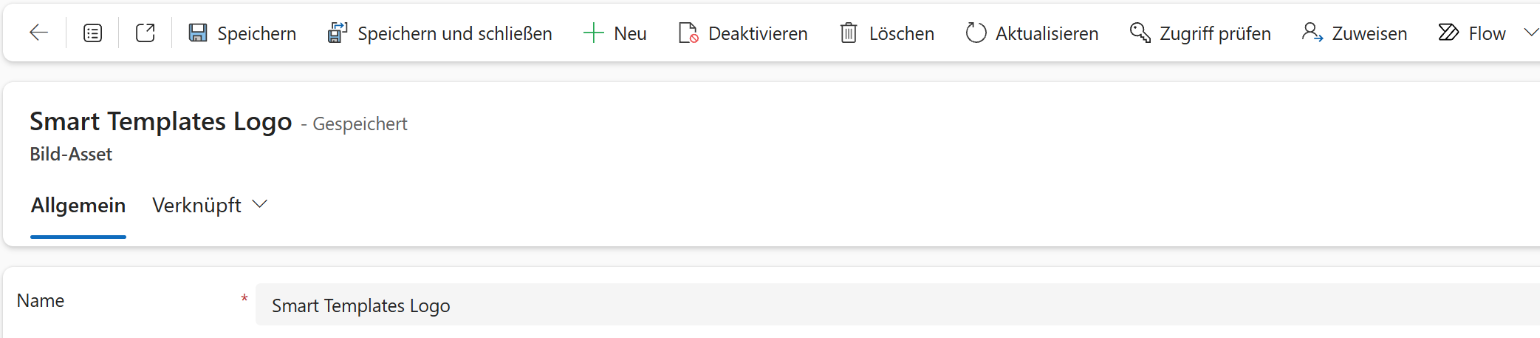
- 1“Delete”: This is where you delete the image. It cannot be done in the designer.
- 2“Name”: the name of the image. Here it can be changed.
Providing fonts
The solution brings the font “Arimo”. Users upload further fonts in the designer, in the “Template settings”, “Font” tab, with “⚙ Manage fonts”. The steps and every button of the window, including replacing, downloading and deleting fonts, are described under Image library and fonts: The “Manage fonts” window. What is printed when a font or a style is missing, and what the document then reports, is described under Template settings: Default font.
Images from records
Images can also come from a field of a record, such as a product photo. If the image field in Dynamics stores only a preview image, Smart Templates also prints only that, at a low resolution. For sharp images, turn on in Power Apps, on the image column of the table, the setting that stores full images (the designer calls it “Can store full images”). Images that were uploaded before stay small; upload them again.
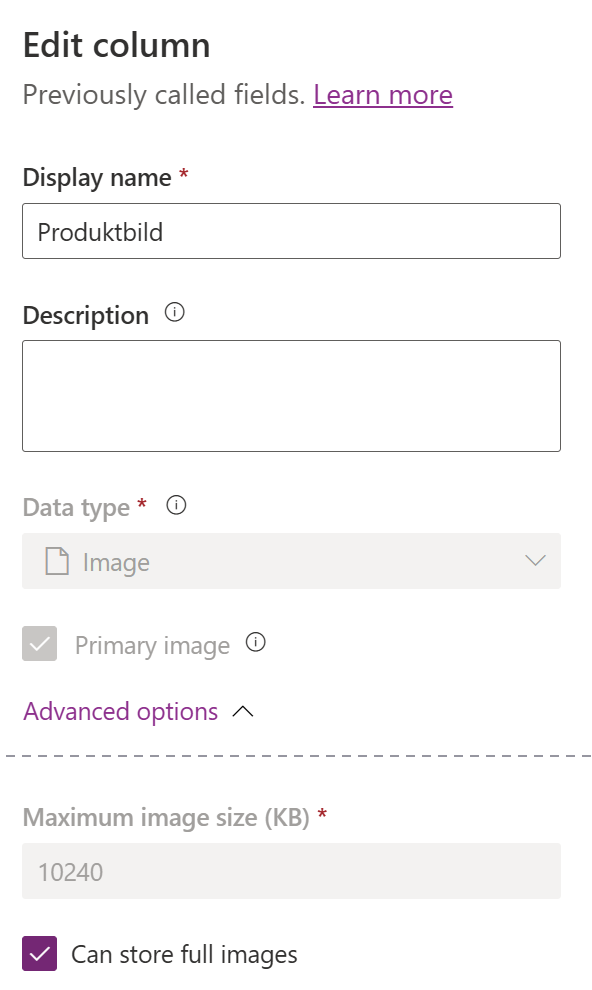
- 1The data type “Image”: The setting exists only on image columns.
- 2Expand “Advanced options”; when collapsed, the setting is not visible.
- 3“Can store full images” checked: Dynamics stores the whole image, not just the small preview image. Then save with “Save”.
The quality of the image must be set to “Original quality (recommended)”. That is the default and the same setting you make when choosing the image field with “Large image (recommended)” (see Images: Quality).
If Smart Templates still prints only the preview image, it usually reports that with the document. Which message appears when, what a button in Dynamics shows of it and what happens when no table is stored for the image is described under Images: Quality.