
Synchronization and entering the key by hand
In short
Smart Templates fetches its license key itself from our license service and stores it in every environment. Before every document it checks the stored key, without any connection to the outside. If your environment is not allowed to open a connection to the outside, switch off automatic synchronization on the “License & updates” page and paste by hand the key that we send you by email.
How the license key reaches you
The license key is a text signed by us. It names your organization, the type of license, how long it is valid and until when updates are included. Smart Templates stores it in every Dynamics environment in which it is installed and checks it there before every document. This check needs no connection to the outside (§ 7(2)).
Smart Templates fetches a new key from the license service by itself. We call this synchronization. You don’t have to enter anything for it: the first key arrives when the trial begins, a new one after your payment, after every renewal of your subscription and when you take out or renew a maintenance contract.
When Smart Templates asks the license service
With synchronization switched on, Smart Templates asks the license service (§ 7(3)):
- when someone opens the designer (for updates and news, at every opening; it fetches a new news item once per browser),
- when a news item is displayed in the designer or on the “License & updates” page, or “Details” is chosen for it (collected, after ten seconds at the latest or at the next opening of the designer),
- when someone opens the “License & updates” page or chooses “Check again” there,
- when an administrator orders,
- when a new key is due: in the background once a day, at night around 3 a.m. UTC, if the stored key is missing, not valid or ends in eight days at most; with a transitional or provisional key, every day. If the key has already been expired for more than 60 days, for example after a trial that was abandoned long ago, the background no longer asks; then only the other occasions ask. The jobs for keeping warm take care of this; Smart Templates creates them in an environment as soon as a template has been saved or the designer has been opened there. For a purchased license, the background does not ask, because its key does not expire; a new one with a later end of maintenance arrives at the next opening of the designer or the page,
- when no document could be created without a new key: before Smart Templates blocks a print, it asks once whether there is a new key by now. That one print then takes a few seconds longer.
As long as the stored key is valid, a print does not ask the outside.
What is transmitted in the process
Smart Templates sends the license service technical details: the identifiers of your organization and the environment, the installed version, the language of the user and the language chosen for invoices and emails, the occasion, the number of the stored key, whether the signed-in user may install solutions, a random value that binds the response to the request, for news the identifier of the news item that was fetched or displayed or for which someone chose “Details”, and when ordering the chosen product. With the first purchase, the details from the window “Billing details” are added: company and address, the country of the billing address, the VAT ID, the invoice email and, if you enter them, the administration email and your purchase order number. The license service passes them on to the payment service Stripe; there they are kept with your customer account and on your invoices. If you verify an environment, a public key of this environment and the code from the email are added; after that, the requests of the page are signed with the environment’s key, and when an invoice is retrieved, when canceling and when changing details, whatever the respective path needs is sent along, see Verifying an environment. Documents, templates and business data do not go out. For news by email, details about the user are added, see News by email. Binding are § 7(3) of the license terms and the privacy policy.
If the license service cannot be reached
As long as a valid key is stored in the environment, documents are created even if the license service cannot be reached (§ 7(4)). How long a key is valid depends on the license:
| Key | Valid |
|---|---|
| Trial | until the end of the trial |
| Subscription | until the end of the paid term and technically up to seven days beyond |
| Transitional key (renewal not yet paid) | until the end of the period: 21 days after the start of the new contract year, longer if we extend it in individual cases (§ 4(7)) |
| Provisional key (direct debit processing) | until the payment arrives, 28 days at most |
| Purchase | perpetual, for all versions released up to the end of your maintenance |
If the “License & updates” page cannot reach the license service, it shows the status of the stored key, for example “Subscription — stored key valid until …”, and the row “License service: currently unreachable”. Below it says that printing continues with the stored key and that buying, updates and news only work again once the service can be reached. With “Check again” the page asks once more.
If the service stays unreachable permanently because your policies block connections from Dynamics to the outside, you have two options: allow the connection, or switch off synchronization and paste the key by hand. If the license service has a fault on our side, we send you a key you need by email on request (§ 7(4)).
Switching off automatic synchronization
Switch off synchronization only if your policies forbid connections from Dynamics to the outside. Administrators and users with the role “Smart Templates – Lizenzverwaltung” may switch it off.
- In the environment, open the “License & updates” page.
- In the card “Your license”, clear the check mark at “Synchronize automatically with the license service”. The page saves immediately.
- The page now shows the status of the stored key, the row “License service: Synchronization switched off” and below it the card “Paste key by hand”.
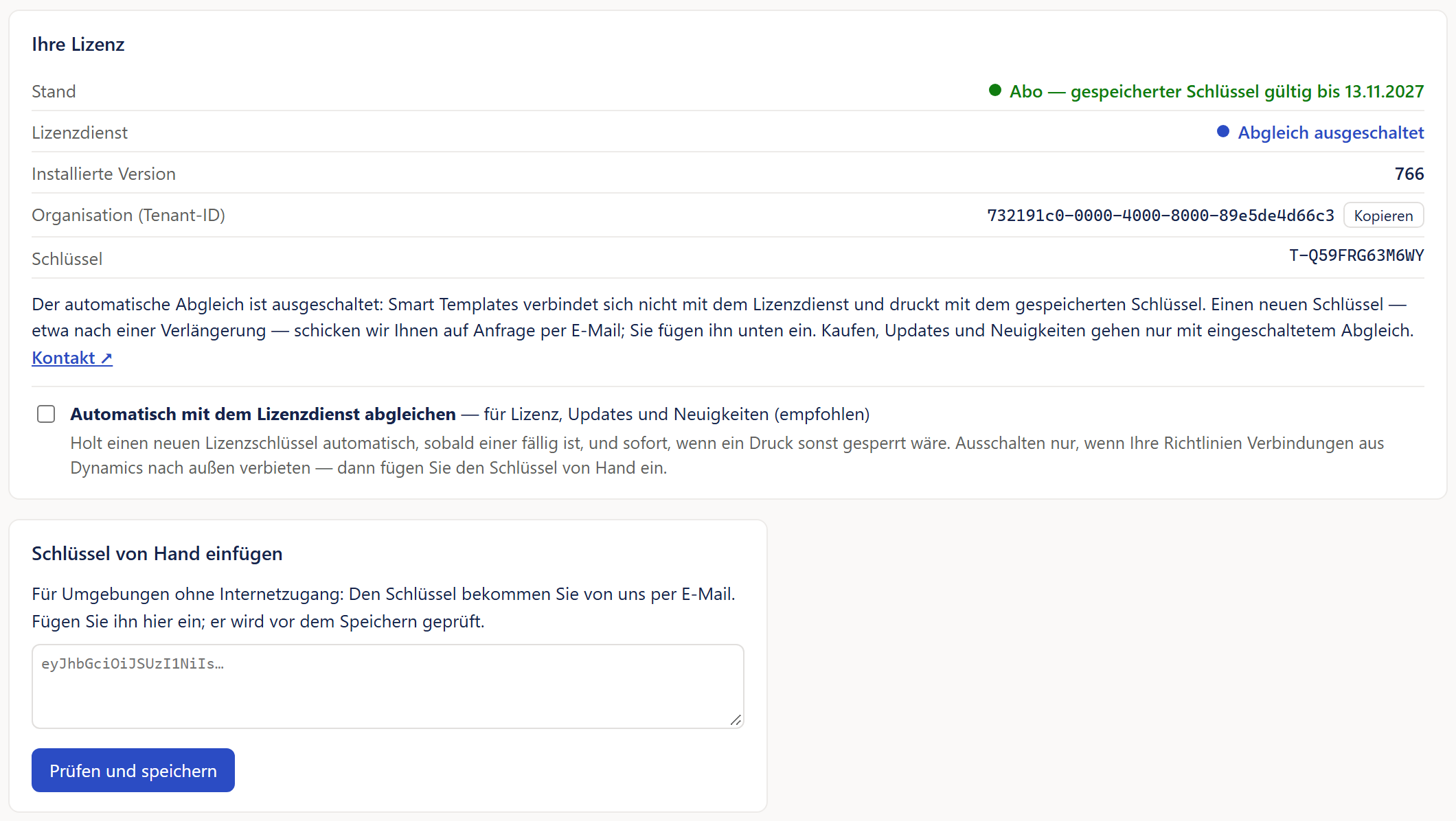
With synchronization switched off, the following applies:
- Smart Templates no longer connects to the license service in this environment, not when printing and not for news. It prints with the stored key.
- Buying, notes about updates and news only exist with synchronization switched on. The page therefore shows no offers and no card “News by email”, and the designer shows no news.
- We send you a new key, for example after the renewal of your subscription, by email on request; you paste it by hand.
- The switch applies to the environment in which you flip it. If you have several environments, switch it off in each one individually.
If a subscription, transitional or provisional key ends in 14 days at most, the page warns: “Your stored key is only valid until … — request a new one by email in good time, or switch synchronization on.” For the trial key, in the last seven days it shows it only in orange, without this sentence.
To switch it back on, check the box again. The page then immediately asks the license service and fetches a key that is due.
Pasting a key by hand
The card “Paste key by hand” is on the page if synchronization is switched off or the page cannot reach the license service. Administrators and users with the role “Smart Templates – Lizenzverwaltung” may paste.
- Request the key from us, for example via the contact form. Give the tenant ID of your organization; you copy it on the page in the row “Organization (tenant ID)” with “Copy”.
- We send you the key by email to your administration email or, if you have not entered one, to your invoice email, with the subject “Smart Templates: your license key to install”. It does not go to the address you ask from; if, for example, your IT department asks, ask the recipients of this address to forward it. The key is in the email as a block of text and begins with “eyJ”. If you have not yet paid via the payment page, for example during the trial, or if we set up your license by hand, we have no invoice email on file; in that case we send you the key personally.
- Copy the whole key from the email. Line breaks may come along.
- In the environment, open the “License & updates” page and paste the key into the field of the card “Paste key by hand”.
- Choose “Check and save”. The page checks the key before saving and reports “Key … has been checked and saved.” If no key was valid before, a green “The license key for this environment is now stored. You can print again.” also appears at the top.
- If you have several environments, paste the key in each one.
If it does not work, the page says why:
| Message | What to do |
|---|---|
| “This key (…) was already saved.” | Nothing. |
| “Key … has been saved. This version does not print with it, though — it was released after your updates ended (…).” | The installed version is not covered by your license, see Updates and new versions. |
| “Please paste the key from our email first.” | The field is empty. |
| “This is not a complete Smart Templates license key. …” | Copy the whole key again; it begins with “eyJ”. |
| “The key is damaged or was not issued by us. …” | Copy the key again in full from the email. |
| “This key belongs to a different Microsoft 365 organization. …” | Tell us the tenant ID shown on the page; we send the right key. |
| “This key expired on …. …” | Request a new key from us. |
| “This key belongs to a different edition of Smart Templates (test or customer build) …” | Write to us. |
| “Only administrators and the »Smart Templates – Lizenzverwaltung« role can change this. …” | Ask an administrator. |
Good to know
For a subscription with synchronization switched off, we send you a new key on request after every renewal. A key for a purchase is perpetual; you only need a new one if the end of your maintenance changes, for example after taking out or renewing a maintenance contract.