
At the page edge: keep together or split
In short
If an object no longer fits entirely on its page at the bottom, there are three ways it can go: it moves to the next page as a whole, it is split at the page edge and continues at the top, or it stays where it is and sticks out. Which way applies depends on the type of object, on the positioning behavior and on the checkbox “Keep together at page break”. The checkbox is checked at first, so the object moves as a whole. Only a text, an unrotated rectangle and a group can be split, and only if you uncheck the checkbox or the object is taller than a whole page. The first object on a page does not move on as long as it fits on a whole page. How the split happens is shown by the full preview and the PDF, not by the canvas.
When the content of a page grows, for example through a long line-item table or a long text, there is eventually not enough room left at the bottom. This page explains what happens to an object that no longer fits entirely: when it moves on as a whole, when it is split and when it stays where it is. How the objects below it move along is described under Positioning behavior. The page break as an object of its own and the header and footer are described under Page break and Header and footer.
What happens at the page edge
If an object no longer fits entirely on its page at the bottom, what happens next depends on its type and its positioning behavior. The edge is the lower end of the printable area, above the space for a footer. Three ways are possible:
- Keep together: The object moves to the next page as a whole, and the rest of the page stays empty.
- Split: The object fills the rest of the page and continues at the top of the next page.
- Stay where it is: The object stays where it is and sticks out at the bottom into the page margin or beyond it.
The table gives the way for each object. The middle column shows whether the object has the checkbox “Keep together at page break”.
| Object | Checkbox | What happens |
|---|---|---|
| Text, unrotated rectangle or group, directly in the document, with “Flowing on contact” or “Flowing” | yes | With the checkbox checked (default), the object moves to the next page as a whole. Without it, the object is split at the edge and continues at the top of the next page. If less than 6 mm remains free at the bottom, or if not even its first line fits in the rest, it moves as a whole even without the checkbox (see Without the checkbox: split and continue). |
| Image, code, line, arrow, circle/ellipse, triangle, star, polygon and every rotated object, flowing | no, a note | Cannot be split and moves to the next page as a whole, even if an older or imported template has saved it with keeping together switched off, unless it is the first object on its page (see The first object on a page). |
| Grid from older templates | no, a note | Moves to the next page as a whole, even with “Fixed position” and even if an older or imported template has saved the grid with keeping together switched off; only as the first object on its page does it stay where it is. Only a grid that is taller than a whole page is split, and only between two rows; the document reports it. Even in a group without the checkbox, a grid stays whole (see Images, shapes and lines in a split block). |
| All other objects with “Fixed position” | no, a note | Stays where it is and is never split. It sticks out into the bottom page margin; whatever sticks out past the edge of the paper is missing from the PDF, and the document reports it. |
| Header and footer and every area that appears on every page | no, a note | Is never split and appears whole on every page. |
| Data table, also with “Fixed position” | its own checkbox for the rows | Breaks row by row. If not even its header row fits in the rest, it starts at the top of the next page (see Tables across several pages). |
| Free-form table, also with “Fixed position” | no | Runs row by row across as many pages as necessary. A row stays whole unless it is taller than a page. If not even the header fits in the rest, the table starts on the next page (see Cells, header row and page break: Across several pages). |
| Text, image, code and shape in a group or cell | no, not even a note | They go with their group or cell. Whether it is split is decided by the checkbox on the group directly in the document (see Where the checkbox is). |
If a flowing object moves to the next page, it starts at the top there, and everything below it on the canvas moves along. Whether an object still fits is decided by the position it gets in print, not by its position on the canvas. The first object on a page is an exception; it is described under The first object on a page.
The checkbox “Keep together at page break”
The checkbox decides what happens to an object that no longer fits entirely on the page at the bottom: it moves to the next page as a whole, or it is split at the page edge and continues there. Two rules apply regardless of the checkbox: a text, an unrotated rectangle or a group that is taller than a whole page is split (see When the first object moves or is split after all). And the first object on a page does not move on as long as it fits on a whole page (see The first object on a page).
| Setting | What it does | Default |
|---|---|---|
| “Keep together at page break” (with ⓘ) | On: If the object no longer fits at the bottom, it moves to the next page as a whole, and the rest of the page stays empty. Off: A text fills the rest of the page and continues at the top of the next page. A group is split, and its content continues. A rectangle is split at the page edge. | on, also in old templates |
Where the checkbox is
- Directly in the document: only for a text, an unrotated rectangle and a group, not with “Fixed position” and not in headers and footers. For text and rectangle, the checkbox is below the positioning behavior; for the group, it is in the section “Behavior”. Otherwise a note appears there (see The note instead of the checkbox). What additionally applies to the rectangle is described under The rectangle at the end of the page.
- In a group or cell, text, image, codes and shapes have neither the checkbox nor a note. You set it on the group: if you uncheck it there, the text in the group also continues across the page edge. For the group to grow with the text, it needs “Automatic height (fit to content)”; with a fixed height, the text ends at its bottom edge (see The fixed bottom edge and where the PDF cuts off).
- Tables have their own checkbox, “Keep row together at page break” (see Tables across several pages).
Without the checkbox: split and continue
- The text fills the rest of the page and continues at the top of the next one. No single line is left alone at the page edge; how many lines remain at least is described under Minimum lines when text is split.
- If the text is too short to be split this way, or if not even its first line fits in the rest, it moves as a whole. Likewise, an object without the checkbox moves to the next page as a whole if less than 6 mm remains free at the bottom.
- If the text or its group has a background color or a closed border, the protection against single lines applies only to a limited extent (see the “Caution” box under Which texts the protection applies to).
- When split, each page gets its own piece of the background and border. What the border looks like at the page edge is described under Border and background across several pages.
- If an area that repeats on every page sits in the middle of the page, it never covers a split text. It keeps the full width of the page free, even if it is narrower and sits beside the text. On the page where the text begins, the text moves entirely below the area if it does not fit completely above it; the space above stays free. On every further page, the text fills the space above the area and continues directly below it. If the text is the first object on its page and fits on a whole page, it also moves below the area, but is not split: it sticks out at the bottom; whatever reaches past the edge of the paper is missing from the PDF, and the document reports it (see The first object on a page and Header, footer or free-standing).
Images, shapes and lines in a split block
Images and shapes in a split text or a split group are not lost.
- If an image or a shape sticks out over the edge, it begins the piece on the next page; whatever beside it already fit on the old page stays there. If a second image or a second shape beside it in a group also sticks out over the edge, it comes along in the same piece, at the same distance from the first one as on the canvas. Only if it no longer fits entirely on the page there does it begin a piece of its own on a following page.
- An unrotated rectangle, by contrast, is split along with it, one piece per page. Which shapes are split along and which begin a piece is described under Shapes: group across several pages.
- A grid in a split group stays whole. If it no longer fits in the rest of the page, it begins on the next page, and with it everything beside it that begins at its height or lower. If it is itself taller than a whole page, it is split only between two rows: every row stands entirely on one page, and the line between the two rows at the cut edge appears on both pages. If the grid has only an outer border, it is closed at the cut edge: the outer line appears below the last row of the old page and above the first row of the new one. Only a single row that is itself taller than a page is split within itself. For Minimum lines when text is split, each grid row counts as one line; if fewer lines remain above the grid than set, the whole rest moves to the next page. If the grid is at the very top of the block, the whole block moves on in this way; a background of the group then does not remain as an empty strip at the bottom.
- Lines do not follow this rule, and neither does the stroke of an arrow: a vertical or diagonal line that runs across the cut edge is not split and is missing from the PDF; the document reports it as a warning (see Problems and messages: Pages and space). Check a line at the page edge in the “Full preview”. The lines of a grid go with their row.
- Whatever lies at or above the upper edge of the block appears with the first piece, at the same distance as on the canvas: a horizontal line exactly at the upper edge, also the top stroke of a table at the very top of the group, and an object that in an older or imported template extends past the start of the group. If the first piece begins at the top of a page, it then stands in the page margin and is printed, as with a block that moves as a whole; for a text, a note says so.
- If an image or a shape other than the unrotated rectangle is taller than the space on a whole page, it is printed unsplit and sticks out at the bottom; if it covers a footer in doing so, the document reports a warning. Whatever reaches past the edge of the paper is missing from the PDF, and the document reports it. A warning that the image or shape was split does not appear here (see When the first object moves or is split after all).
The note instead of the checkbox
Directly in the document, objects that cannot have the checkbox show a gray note with ⓘ. It gives the reason and begins with “»Keep together at page break« is not available here: …”:
- Header or footer: “… an object that appears on every page is never split — it is shown whole on every page.”
- “Fixed position”: “… an object with »Fixed position« is never split — it stays where it is.” This does not apply to a grid; it gets the sentence on the next line.
- Grid: “… a grid is not split when the document is created — it always moves to the next page as a whole if it no longer fits at the bottom; only a grid that is taller than a whole page is split, and the document reports it. If it is the first object on its page and fits on a whole page, however, it stays where it is and sticks out at the bottom (see ⓘ).”
- Code: “… a code cannot be split at all when the document is created — it always moves to the next page as a whole if it no longer fits at the bottom. If it is the first object on its page and fits on a whole page, however, it stays where it is. It is never cut off: if it reaches past the edge of the paper, it is not printed, and the document warns (see ⓘ).” For the GiroCode, the sentence ends with “… the document is not created (see ⓘ).”
- Image, line, arrow, circle and ellipse, triangle, star and polygon: “… this object cannot be split at all when the document is created — it always moves to the next page as a whole if it no longer fits at the bottom. If it is the first object on its page and fits on a whole page, however, it stays where it is and sticks out at the bottom (see ⓘ).”
- Rotated rectangle: “… a rotated object cannot be split when the document is created — it always moves as a whole.”
A group in a group and a cell in the cell designer show a sentence of their own: “»Keep together at page break« only works for objects that are directly in the document and flow. If this text is inside a group, set the checkbox on the group — then it also continues across the page edge.” It speaks of a text, but here it applies to the inner group: you set the checkbox on the outer group, directly in the document. If the inner group is set to “Fixed position”, the sentence about “Fixed position” appears instead. For the cell of a free-form table: its row stays together unless it is taller than a page.
The first object on a page
Caution
The first object on a page does not move on, otherwise the page before it would stay empty. If there is nothing yet on the page above a text, a group, a shape, an image, a code or a grid, it stays where it is, even if it no longer fits at the bottom, as long as it would fit on a whole page. It then sticks out over the edge at the bottom: whatever is in the page margin is printed; whatever reaches past the edge of the paper is missing from the PDF, and the document reports it. A code is not cut off in this case: if it reaches past the edge of the paper, it is left out, and for a GiroCode the document is not created (see Barcode, QR code and GiroCode: Page edge and fixed bottom edge).
This applies with and without the checkbox “Keep together at page break”: even a text that could be split sticks out as the first object if it fits on a page.
Headers and footers and other repeated areas do not count as content above it, but an object with “Fixed position” does. If the object is to be on the next page, place it there on the canvas; otherwise move it up far enough that it fits. How this appears in print as a message is described under Something sticks out over the bottom margin or is missing at the bottom.
When the first object moves or is split after all
The rule has exceptions:
- Taller than a page: A text, an unrotated rectangle or a group that is taller than a whole page is split, even with the checkbox; if the checkbox is checked, the document reports the split as a warning. The same applies to a grid that is taller than a whole page: it has no checkbox, but the document reports the split there too; it is split only between two rows. If it is the first object further down the page and not even its first row fits in the rest, it begins at the top of the next page. The same applies if fewer lines fit in than are set under Minimum lines when text is split; for a group with a table, the rows of the table header count too (see Which texts the protection applies to). The page before then stays empty apart from header, footer and repeated areas.
- What cannot be split, such as an image or a circle (see the table under What happens at the page edge), is not split even if it is taller than a page. If it is not already at the very top of its page, it begins at the top of the next one; there it is printed whole and sticks out at the bottom. If it covers a footer in doing so, the document reports a warning; whatever reaches past the edge of the paper is missing from the PDF, and the document reports it. The warning that an object that was kept together has been split appears in this case anyway, although nothing is split.
- Tables break row by row. As the first object on a page, a table begins at the top of the next page if not even its header row fits in the rest.
- Narrower page because of a header with a page rule: If a header or footer that appears only on certain pages makes this page narrower than the next, for example a large letterhead on page 1 only, and the object fits entirely on the next page, it moves after all, provided it may not be split: a text, an unrotated rectangle or a group with the checkbox “Keep together at page break” checked, and an image, a line, an arrow or a shape always.
Minimum lines when text is split
If a text may be split at the end of a page, each page keeps at least that many lines of it. This way, no single line is left alone at the bottom or begins alone at the top of the next page. If the space at the bottom is not enough for that many lines, the whole text or its remainder moves to the next page; that is no harm. A text that is too short to be split this way also moves on together: with a setting of 2, three lines of which only two would fit at the bottom move to the next page together.
You set the number in the template settings on the “Font” tab, in the field “Minimum lines when text is split” (see Minimum lines in the template settings).
The field and its values
- Input: Empty means 2; then nothing is stored in the template. Possible values are 1 to 9, and 1 switches the protection off. A larger number becomes 9, 0 and negative numbers count as empty, decimal numbers are truncated (2.5 becomes 2). When you leave the field, it shows what applies: 12 becomes 9, 0 becomes an empty field.
- The gray note below the field reads: “Empty = 2; possible values are 1 to 9. Applies to texts where »Keep together at page break« is not checked — and, even when it is checked, to an object that is taller than a page and moves entirely to the next page (details in the ⓘ).”
- On the canvas the number has no effect, because no text is split there. You see it in the “Full preview” and in the PDF.
Which texts the protection applies to
- Texts without the checkbox “Keep together at page break” get the protection at every page edge, even if they begin at the top of a page and are longer than a page (see Without the checkbox: split and continue).
- Texts with the checkbox get it only if they are taller than a whole page and are therefore split despite the checkbox, and even then only after they have moved entirely to the next page. Such a text moves entirely to the next page if something is already above it on the page, or if it begins as the first object in the middle of a page and fewer of its lines fit at the bottom than are set here. If it begins at the very top of a page, however, or if at least that many lines fit at the bottom, it is split without this protection.
- An extra-long text as the first object in the middle of a page moves entirely to the next page if fewer lines fit at the bottom than are set here. The page before then stays empty apart from header, footer and repeated areas (see When the first object moves or is split after all). For a group with a table below the text, the rows of the table header count too, if the header still fits at the bottom. If text and header fit together, the text stays; if not even one row of the table fits below the header, it begins with its header on the next page (see Cells, header row and page break: Table in a group).
Caution
If the text or its group has a background color or a closed border, the minimum lines do not cause it to move to the next page as a whole. A single line can then be left alone at the page edge after all. Only a text that is longer than a page and begins as the first object in the middle of a page moves entirely to the next page even then, if fewer lines fit at the bottom than are set here.
What the canvas shows
- If an object moves to the next page because of the page edge, the canvas shows it at the top there, as in print; if necessary, it appends a page for this.
- Exception: If an object moves entirely to the next page in print only because less than 6 mm remains free at the bottom, because not even its first line fits in the rest, or because otherwise a page would carry fewer lines than set under “Minimum lines when text is split”, the canvas still shows it on the old page. Where it really sits is shown by the “Full preview”.
- An object that is split in print stays on one page on the canvas and sticks out over the edge. An orange hatched strip shows the overhang as soon as it exceeds 2 mm (see Markers and warning symbols on the canvas). The same applies to an object with “Fixed position” and to the first object on a page that stick out in print. While you drag, the strip is hidden.
- How the other objects make room and exactly where the split happens is shown only by the “Full preview” (see Differences between the canvas and the PDF).
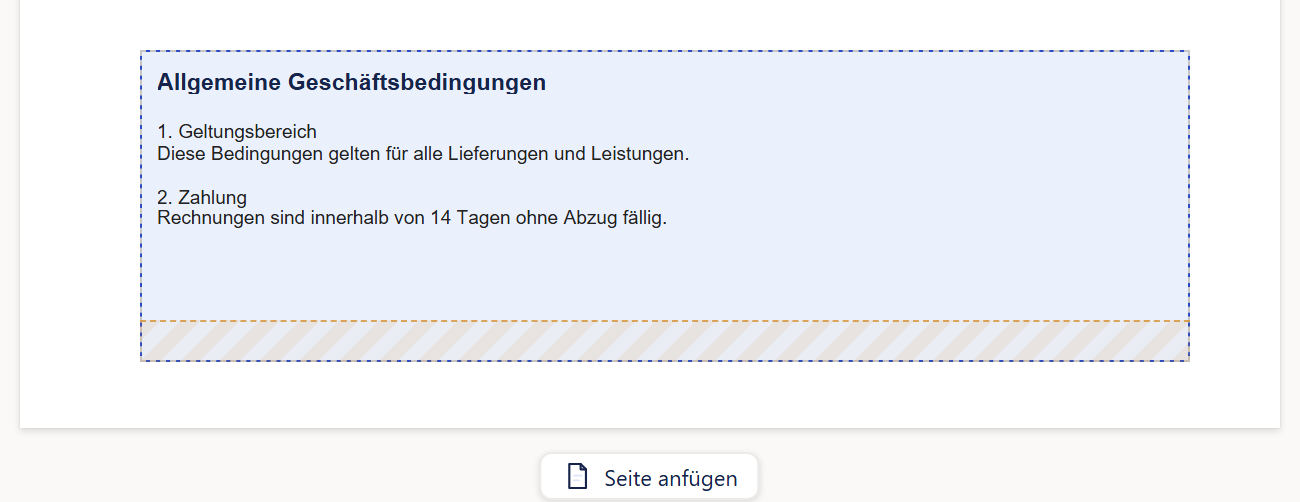
- 1The orange hatched strip shows the overhang; the dashed upper edge is the edge of the printable area.
- 2The group that reaches over the edge. For it, “Keep together at page break” is off: in print, it is split at the edge and continues at the top of the next page.
Recipe: a long text across several pages
A long text such as general terms and conditions is to continue across the page edge instead of jumping to the next page as a whole. Here is how:
- Select the text if it sits directly on the page. If it is inside a group, select the group.
- On the “Position & size” tab, uncheck “Keep together at page break”. For a text it is below the positioning behavior; for a group it is in the lower section “Behavior”. The text fills the rest of the page and continues at the top of the next one. No single line is left alone at the edge; exceptions are named in the section Minimum lines when text is split.
- If the text is inside a group, switch on “Automatic height (fit to content)” on the group. For a text directly on the page, it is already on at first. The group grows with the text. With a fixed height, the text ends at the bottom edge of the group, and the PDF prints only what fits into this height (see The fixed bottom edge and where the PDF cuts off).
- Check the result in the “Full preview” (see Full preview and PDF). There you see where the text is split. The canvas still shows it on one page, with an orange hatched strip at the overhang.
A text that is taller than a whole page is split even with the checkbox checked, and the document reports it as a warning. Without the checkbox, the warning does not appear.
Caution
If the text is the first object on its page and fits on a whole page, it does not continue: it stays where it is and sticks out over the margin at the bottom. Then place it on the next page on the canvas, or move it up far enough that it fits (see The first object on a page). If the text has a background or a border, also read the “Caution” box under Which texts the protection applies to.
What changes in the document?
On the canvas
An object that is split in print stands unsplit on its page and sticks out over the edge; an orange hatched strip shows the overhang. An object that moves entirely to the next page in print stands at the top there; if it moves on only because of the 6 mm, the first line or the minimum lines, it still stands on the old page. The minimum lines have no effect here. How it really looks is shown by the “Full preview”.
In the PDF
Every object moves as a whole, is split or stays where it is, depending on its type, positioning behavior and checkbox. The first object on a page stays where it is as long as it fits on a whole page. Whatever reaches past the edge of the paper is missing from the PDF, and the document reports it. A split object carries its piece of background and border on every page, and the minimum lines keep the lines of a split text together.