
Working with an external AI
In short
An AI can change your template even without Microsoft 365 Copilot: an external AI, such as an AI chat like ChatGPT, Claude or Gemini. With “AI package”, the designer creates a file with your template and all the information the AI needs for this. The AI answers with its changes, and you bring them into the open template with “Upload AI changes”, as a file or as pasted text, as with the AI assistant in Copilot. What you need for this is described under Working with AI: What you need.
What it is
An external AI works outside Dynamics. It knows neither your template nor your tables and has no access to your data. The AI package gives it everything it needs in one file, and with it, it can adapt your template. It is the alternative to the AI assistant in Copilot if you do not have Microsoft 365 Copilot.
The basic idea
An AI can change a template correctly only if it knows how templates are built and which tables and fields exist. This is exactly what is in the AI package: your template, the description of the template format and all tables that the template can reach, with fields and option values. On request, sample data and the images that the AI should know are added. Like the AI assistant in Copilot, the AI answers only with its changes. The designer checks them and takes them into the open template as one step. The structure of the file is described in the chapter AI package: structure of the file.
Advantages and limits
- Any AI chat: You use the one your company uses.
- Nothing to set up: Your administrator does not have to prepare anything, and you do not need a license for Microsoft 365 Copilot.
- No access to Dynamics: The AI sees only what is in the file. Real values are in it only if you check “Include sample data”.
- As with the AI assistant: The change arrives as one step in the open template. Ctrl+Z takes it back, and only “Save” makes it effective.
In return, there are more manual steps than with the AI assistant: creating the file, giving it to the AI and uploading or pasting its answer.
Creating the package
- In the template row, click “AI package”. The button is next to “Export”.

- In the “AI package” window, choose what the AI gets: at the top, if you wish, the check mark “Include sample data” , below it under “E-invoice” the standards for the e-invoice and under “Images for the AI” the images it should know. An image that is still missing you upload with “Add image …” . What the settings do is shown in the table below the steps.
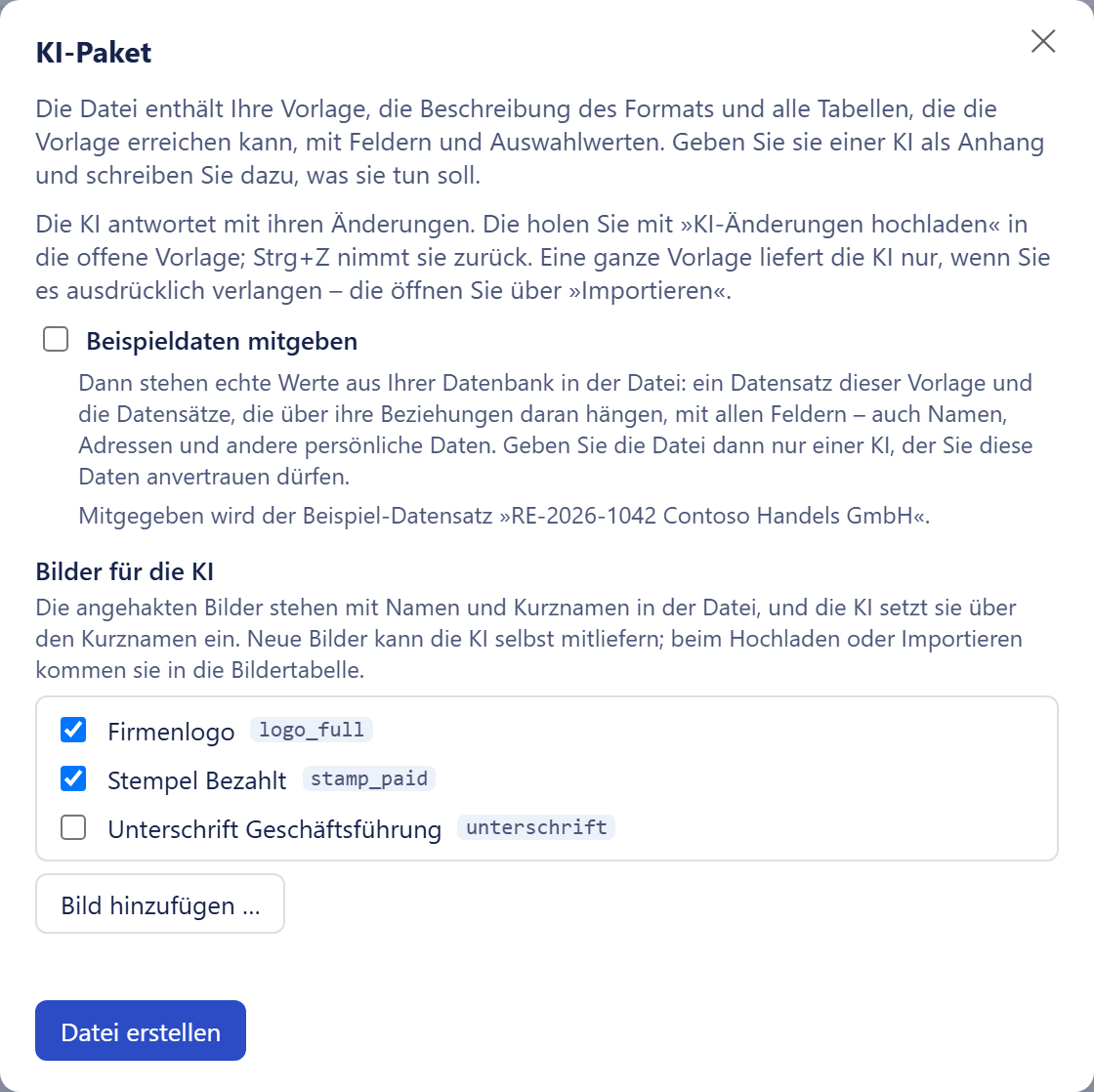
Sample record and images are examples. - Click “Create file” . The designer downloads the file and closes the window.
- Give the file to the AI chat as an attachment and write what it should change.
If the template contains building blocks, the section “Building blocks in this template” follows after the template: for each building block object, name, binding, prefix and its variables. The AI does not get the content of a building block; it may only move a building block object, set its visibility or remove it (see Building blocks: Building blocks and AI).
The settings in the “AI package” window
| Setting | What it does | Default |
|---|---|---|
| “Include sample data” | When checked, real values of one record and of the records attached to it are in the file (see the “Caution” note below the table). The window names the sample record. If none is chosen, the designer takes the most recently changed record of the primary source; which one that is, the window does not say. Works only in Dynamics. | off; never remembered |
| “Images for the AI” | One check mark per image in the image library; the checked ones are in the file with name and short name. | the images that the template uses |
| “Add image …” | Uploads a new image to the library and checks it (see Image library and fonts: Uploading a new image). | – |
| “Include the e-invoice standard” | When checked, the details of the standards that are checked in the list below are in the file, one section per standard: ID, name, type, mandatory and the common codes, for the Dynamics invoice also the suggestions and the description of standards of your own. The list names each standard with name, version and origin (supplied or standard of your own). ZUGFeRD is preselected, plus the standard the template has set if it is a different one. If you uncheck the last check mark in the list, this check mark goes off too; if you set it again, the preselection is back. Every standard makes the file larger, ZUGFeRD EXTENDED the most. This is how the AI can assign the e-invoice (see E-invoice: Assigning with AI). | on if the template has the e-invoice switched on or if you open the window with “Open AI package …” in the “Standards for the e-invoice” window or with “Download AI package” in the “E-invoice” tab; in the list ZUGFeRD and the template’s standard |
| “Create file” | Loads the format and table directory down to the sixth level, shows the progress, downloads the file and closes the window. If you close the window beforehand, no file is created. | – |
The file is named like the template, converted as for the PDF (see Full preview and PDF: The file name), with “-ki” at the end, for example “auftragsbestaetigung-ki.md”. In the English designer it is called “auftragsbestaetigung-ai.md”, and the task and the format description are then in English as well. The examples in the format description are in English in both languages; the task therefore asks the AI to write labels and texts in the template in the language of the template or in your language.
Caution
With the check mark “Include sample data”, real values from your database are in the file, including names, addresses and other personal data. In that case, give the file only to an AI to which you may entrust this data.
Taking over the AI’s answer
- The AI answers with a file that contains only its changes, or with a message in the chat in which the changes are a block of text. You do not have to save a message as a file: copy the whole answer, sentences and text block together, most simply with the chat’s copy button under the answer.
- In the template row, click “Upload AI changes”. The button is next to “AI package” and opens a small menu with two entries:
- “Choose file …” opens the file selection. Choose the AI’s file; an answer saved as a text file (“.txt” or “.md”) also works.
- “Paste text …” opens the “Paste AI changes” window with a large field. Paste the copied answer with Ctrl+V and click “Apply”. “Cancel” closes the window without changing anything.
- Check the result with “Full preview”. Ctrl+Z takes back the whole change; only “Save” makes it effective.
If the AI has supplied new images, the designer takes an identical existing image or creates the new one in the image library; this works only in Dynamics (see Managing templates: Images included). Afterward a note (“Images from the AI: …”) names what happened to the images.
If the answer brings along a standard of its own for the e-invoice (the AI does this only if you ask for it), the designer asks beforehand: “The AI’s answer brings an own standard for the e-invoice: … Upload it and apply the changes?” With “Upload”, it uploads the standard first, as described under E-invoice: Uploading a standard, and then takes over the changes. If the standard already exists with exactly this content, it does not upload it again. If it exists with different content or the check rejects it, the designer takes nothing over and names the reason in the window “Standard from the AI’s answer”; an existing standard can be replaced only via “Manage standards …”.
Caution
Do not change the template while the AI is working. Its changes refer to the state in the AI package; if they no longer fit the open template, the designer does not take them over.
Good to know
If you write the AI another request in the same chat, it assumes that you have applied its previous changes and builds on them. If you have not applied them, tell it so.
If the designer does not take over the changes
If a change does not fit the open template or does not result in a valid template, the designer takes over none of the changes; the template stays as it was. Also rejected are a change that rearranges a building block object, fills its content or creates a new one, a new reference of the template to something that only a building block brings along, and a change to the key bausteine, which only “Export” writes. What was already in the template like this beforehand does not stop a change. If a building block is open, the message after applying names in how many templates it is used. The designer then shows the window “The AI's changes cannot be applied like this” with the errors, each with the location. The sentences in it are addressed to the AI. Click “Copy list” and give the list back to the AI chat: besides the errors, it contains the request to correct exactly these places and to send the complete change list. The designer confirms with “List copied – give it back to your AI.” You upload or paste the corrected list as before. If you pasted the answer, the window says “Pasted text” instead of a file name.
If a test step (“test”) fails, as in the image, the open template does not match the state the AI assumes; usually it was changed since the AI package. The window then advises: “If you have changed the template since the AI package, create a new AI package and give it to the AI together with your request.”
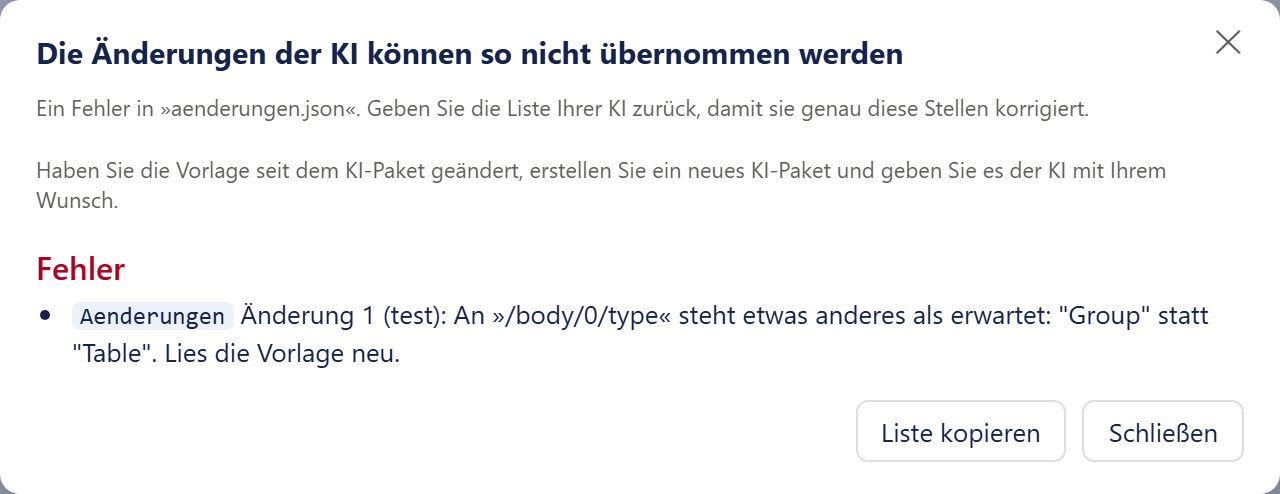
- 1The advice about a new AI package appears only if a test step has failed.
- 2“Copy list” puts the errors and the request to the AI on the clipboard.
Further messages:
| Message | What you do |
|---|---|
| “Open a template first.” | No template is open. Open the template for which you created the AI package, and then upload the file. |
| “Paste the AI’s answer first.” | The field in the “Paste AI changes” window is empty. The window stays open; paste the AI’s answer and click “Apply” again. |
| “The file contains 3 change lists. Please upload only one.” | The file has more than one change list; the number names them. The designer does not choose one and takes nothing over. Ask the AI for exactly one change list. |
| “The text contains 3 change lists. Please paste only one.” | The same for the pasted text. If you copied several answers from the AI at once, paste only the last one; otherwise ask the AI for exactly one change list. |
| “The file does not contain a change list but a whole template. Open it with »Import«.” | The file contains a whole template instead of changes. If you want the template, open it via “Import” (see A whole template instead of a change). If you want only changes, ask the AI for a change list. |
| “The text does not contain a change list but a whole template. Save it as a file and open it with »Import«.” | The pasted text contains a whole template. “Import” opens only files: save the template as a file, ideally with the extension “.json”, and then open it (see A whole template instead of a change). |
| “The file does not contain a change list from the AI.” | The designer finds no change list in the file. Check whether you chose the right file, and otherwise ask the AI for a change list. |
| “The text does not contain a change list from the AI.” | The designer finds no change list in the pasted text. Check whether you copied the AI’s whole answer, and otherwise ask the AI for a change list. |
| “This is the AI package itself. Upload the AI’s answer here.” | You chose the file that you gave to the AI. Choose the file with the AI’s answer. |
| “This is the AI package itself. Paste the AI’s answer here.” | You pasted the content of the AI package instead of the AI’s answer. Copy the AI’s answer and paste it. |
| “The AI’s change list only contains test steps and changes nothing.” | The list only secures what is in the template and changes nothing. Ask the AI for the actual change. |
| “The change list is not valid JSON (…).” | Appears as an error in the window “The AI's changes cannot be applied like this”. The file or the pasted text looks like a change list but cannot be read; the reason is in the parentheses. Save or copy the AI’s answer again in full; if it stays this way, ask the AI for a new change list. |
| “The check did not give a reason.” | Appears as an error in the window “The AI's changes cannot be applied like this”. The check rejected without naming an error. The template is unchanged. Upload the file again or paste the text again. |
| “The AI’s changes could not be checked right now; nothing was applied: …” | The check could not be reached; the reason is after the colon. The template is unchanged. Try again later. |
| “The file »Name« could not be read.” | The browser could not read the file. Choose it again or save it anew. |
| “The AI’s changes could not be applied.” | Something unexpected went wrong while applying. Try again. |
A whole template instead of a change
If you explicitly tell the AI that you want a whole template as a file, it answers with the complete template. You open it via “Import” as a new template:
- The AI answers with the whole template, as a file or as a block of text in the chat. You save a block of text as a file, ideally with the extension “.json”. How the designer deals with text files and with sentences around the template is described under Managing templates: Importing.
- Open the file in the designer via “Import”. The designer checks it before it opens it (see Managing templates: The report windows). If it finds errors, it shows them in a list. Copy it with “Copy list” and give it back to the AI chat so that it fixes exactly these places.
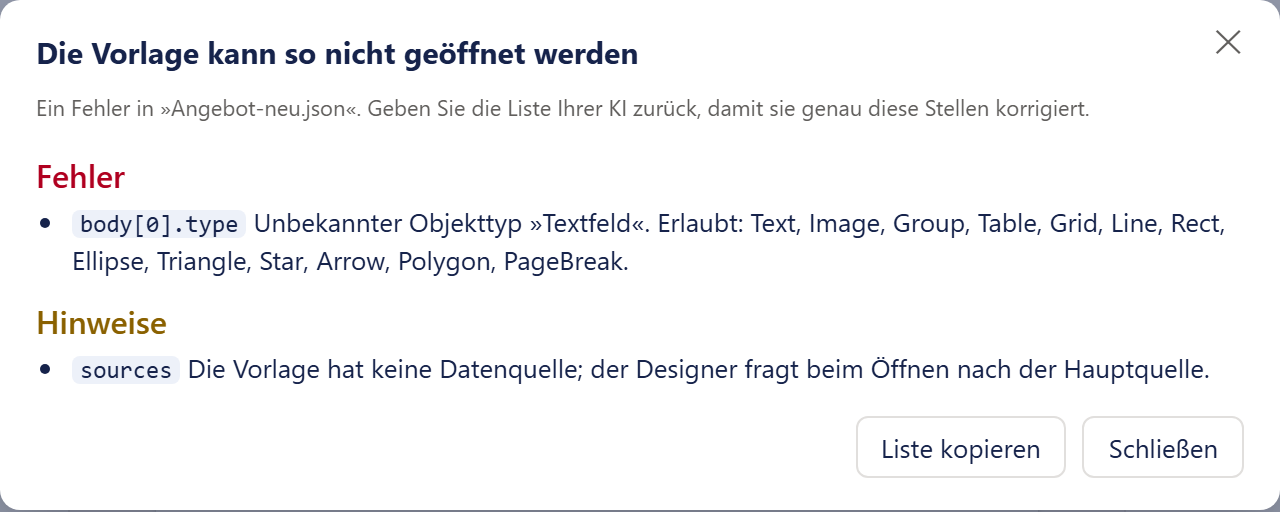
- Store the result in Dynamics with “Duplicate” (see Duplicating). This creates a new template with its own ID; the template you started from stays unchanged, and buttons and flows set up for it continue to print the original template. If a button or flow should print the result, set it up for the new template (see Buttons: the assistant).