
Numbers, currency and dates
In short
This page brings together everything that determines how the document writes date, time, numbers, amounts and Yes/No. The settings for the whole template are in the “Numbers & date” tab of the template settings: the template language, the date format, the currency symbol, the decimal places, the number style and the thousands separator. Currency symbol, decimal places, number style and thousands separator can be switched with condition branches depending on the customer, and the currency can come from the record. A single date field gets its format in the window “📅 Date format for this field”, a single number its own decimal places through a custom variable. Which kind of field is set where is shown right away by the first table.
How fields are printed: formats
When inserting, the designer chooses the format according to the kind of field. In the editor you see only the marker with the name; how the value looks is shown by the full preview and the PDF with the sample record. The table says what is printed and where you set it; the details are in the sections it refers to.
| Kind of field | What is printed | Where you set it |
|---|---|---|
| Text and all other fields | The value as it is in the record. | – |
| Number | Without a fixed number of places, as many decimal places as the number needs, at most four, without a thousands separator. With a fixed number of places, it is rounded to those places, and the thousands separator is added. What the switch “Thousands separator” changes about this is described under Currency & numbers; how long digit sequences are printed, under How the document prints numbers and amounts; when the designer enters a number of places on insertion, under Decimal places and symbol for a single field. | Currency & numbers (“Number style (comma/period)”, “Thousands separator”) |
| Money amount | Amount with the symbol and decimal places of the template. The symbol appears after or before the amount, depending on the number style, for example “1.234,50 €”, “$1,234.50” or “CHF 1'234.50” (see Where the currency symbol appears). How rounding works and what a currency code of its own on the field does is described under How the document prints numbers and amounts. | Currency & numbers (also with condition branches) |
| Date | The date format of the template; if none is set there, the short format of the template language. Month names appear in the language of the field or the template. If the value is not a date, it appears unchanged. Without a year it is not one: “07.11.” or “3/4” appears as it is and counts as text in conditions, also with a time (“07.11. 10:30”). | Date & time; for a single field “📅 Format” (see The date format of a single field) |
| Date with time | Date and time in the “Date + time format” of the template; if none is set there, short date and short time of the template language. This is how, for example, the system variable “Date & time” prints. For a date field from Dynamics that also carries a time, a reservation applies, and there is a way to print the time after all (see Date & time). | Date & time (“Date + time format”) |
| Yes/No | For a Yes/No field from Dynamics, the label stored there, for example “Ja” and “Nein” or “Bezahlt” and “Unbezahlt”, in the option label language (see Option label language). A custom Yes/No variable, a variable of a rule of the type Yes/No with a fixed value or a Yes/No result, and a Yes/No value without a label from Dynamics, for example in sample data without Dynamics, appear as “Ja” or “Nein” in the template language (see Template language). For a Yes/No field, what counts is whether it is set to yes or no, not its label: for “Unbezahlt”, “Nein” appears. The designer’s previews with the sample record show it the same way, for example “Result with the current sample data” in the window of a dynamic text (see Texts: Dynamic text); they do not know labels per language. The canvas itself shows the field name at that place. A value that is not set stays empty. | Option label language, Template language |
| Choice, multi-select choice, status, status reason | The label from Dynamics in the option label language; for a multi-select choice all chosen ones, separated by “; ”, for example “Kreditor; Debitor”. | Option label language |
| Custom variable | With the settings of the variable under “What should it look like?” (decimal places, number style, thousands separator, for currency the symbol); if left empty, those of the template apply. A variable that does not exist stays empty, and the document reports it. | Variables: What should it look like? |
You set how numbers and amounts are written (“1.234,56”, “1,234.56”, “1 234,56”, “1'234.56” or “1234.56”) under Currency & numbers. How rounding works, when thousands separators appear and how a number is read from a text field is described under How the document prints numbers and amounts.
“Numbers & date” tab
The basic settings for the whole template are in the window “Template settings”, “Numbers & date” tab. How you open, apply or discard the window is described under Template settings: Opening, applying or discarding the window. The tab determines in which language and number style the document prints date, time, numbers, amounts and Yes/No. It has four sections: “Template language”, “Date & time”, “Currency & numbers” and “Option label language”. On the canvas, fields appear as blue markers with their name, not with values; you see what these settings do in the blue “Example:” lines in the tab and then in the full preview and in the PDF.
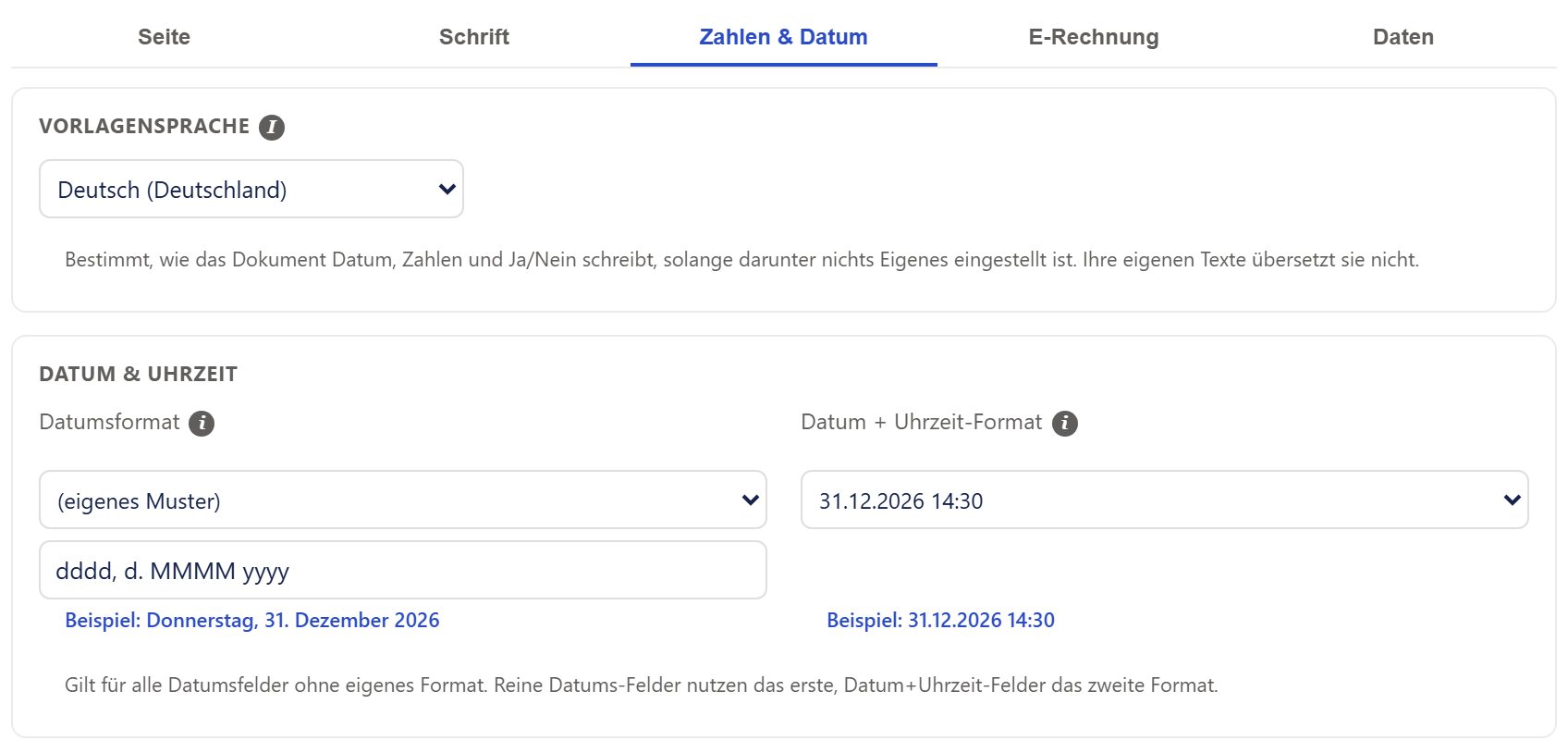
- 1The template language determines date, numbers and Yes/No as long as nothing of its own is set below.
- 2The presets for pure date values; “(custom pattern)” shows an input field.
- 3The custom pattern: upper and lower case matter (MM is the month, mm the minute).
- 4The blue example line calculates immediately with today’s date in the chosen format and in the template language.
- 5A list of its own for values with a time.
If something is set for a value in several places, the strongest entry applies:
- an entry on the individual field: a custom date format (see The date format of a single field), fixed decimal places on a number (see Decimal places and symbol for a single field) or a currency code of its own on a money field (see How the document prints numbers and amounts);
- the setting of a custom variable, if the value is printed through it (see Variables: What should it look like?); there are no condition branches there;
- the first matching condition branch of the template setting (see Condition branches);
- the fixed value of the template setting, and with “Take the currency from the record” checked, for symbol and decimal places the currency of the record;
- the built-in default: €, two decimal places, number style and date format according to the template language, thousands separator “As before”.
Template language
The selection under the heading “Template language” offers five languages: “German (Germany)”, “German (Austria)”, “German (Switzerland)”, “English (United States)” and “English (United Kingdom)”. Below it says: “Determines how the document writes dates, numbers and yes/no, as long as nothing of your own is set below. It does not translate your own texts.”
- Default: A new template gets the language in which the designer is displayed: English (United States) in the English designer, otherwise German (Germany). An older template without an entered language counts as German (Germany); something is written only when you choose.
- Other languages: If the template contains another language, for example from an imported file, its code appears as an additional first entry, for example “fr-FR”. If you choose one of the five once, this entry disappears. If printing does not know a code, it prints in German and records this as a note.
- After choosing, the window rebuilds itself so that the example lines and the month names in the date formats follow the new language. Nothing visible changes on the page.
| Language | Date “Default (regional)” | Date and time “Default (regional)” | Number “By template language” | Yes/No |
|---|---|---|---|---|
| German (Germany) | 31.12.2026 | 31.12.2026 14:30 | 1.234,56 | Ja, Nein |
| German (Austria) | 31.12.2026 | 31.12.2026 14:30 | 1.234,56 | Ja, Nein |
| German (Switzerland) | 31.12.2026 | 31.12.2026 14:30 | 1'234.56 | Ja, Nein |
| English (United States) | 12/31/2026 | 12/31/2026 2:30 PM | 1,234.56 | Yes, No |
| English (United Kingdom) | 31/12/2026 | 31/12/2026 14:30 | 1,234.56 | Yes, No |
- Month and day names come from the template language: Dezember or December, in Austria “Jänner” for January. The time alone (system variable “Current time”) appears as 14:30, in English (United States) as 2:30 PM.
- The template language does not change the currency symbol; it stays € as long as you set nothing else under “Currency & numbers”. Through the number style, however, it determines where it appears: for English before the amount (“€1,234.56”), for German (Switzerland) before it with a space (“€ 1'234.56”), otherwise after it (see Where the currency symbol appears).
- What the designer inserts anew after choosing also follows the template language: default texts such as “Neuer Text” or “New text” or “Spalte 1” or “Column 1” and column headers from the field names in Dynamics. It never changes existing texts.
- A field that carries a language of its own in the text, for example from an imported template, keeps it.
- Yes/No appears in the template language: Ja and Nein, in English Yes and No. If the template carries another language, for example from an imported file, French shows Oui/Non, Spanish Sí/No, Italian Sì/No, Dutch Ja/Nee, Polish Tak/Nie, and every other language that printing knows Yes/No; a language code that printing does not know prints German. An empty value stays empty. This applies to a custom Yes/No variable and to a Yes/No value without a label from Dynamics. A Yes/No field from Dynamics, by contrast, prints its label, including one of its own such as “Zulassen” and “Nicht zulassen”, namely in the option label language (see Option label language).
- Not to be confused: the template language and the language of the interface. The language of the interface is not the language of the template; you choose it in the header bar (see The header bar: Language choice). In a condition, by contrast, the designer compares with the display texts of choice fields and Yes/No fields, and these come in the language of the user who creates the document, not in the template language (see Conditions: Text, choice field and lookup). These fields are printed in the option label language (see Option label language).
Good to know
With German (Switzerland), numbers appear with a period before the decimal places (1'234.56), but the date still as 31.12.2026. If a template prints for customers in Germany and in Switzerland, leave the template language as it is and create under “Number style (comma/period)” a condition branch for Swiss customers with “1'234.56” (see Condition branches).
Date & time
The section has two selection lists side by side: “Date format” for pure date values and “Date + time format” for values with a time. Below them it says: “Applies to all date fields without a format of their own. Date-only fields use the first format, date + time fields the second.”
| Entry under “Date format” | Printed (example) | Note |
|---|---|---|
| “Default (regional)” | 31.12.2026 | Default. The short date of the template language; nothing is stored in the template. |
| “Same as the printing user (Dynamics)” | depending on the user | See below. |
| “31.12.2026” | 31.12.2026 | Day and month two-digit, year four-digit. |
| “2026-12-31” | 2026-12-31 | Year, month, day. |
| “31. Dezember 2026” | 31. Dezember 2026 | Month name in the template language; in an English template the entry is called “31. December 2026”. |
| “31.12.26” | 31.12.26 | Year two-digit. |
| “12/31/2026 (US)” | 12/31/2026 | Month first; the slashes stay slashes in every language. |
| “(custom pattern)” | as typed | See Custom pattern. |
| Entry under “Date + time format” | Printed (example) | Note |
|---|---|---|
| “Default (regional)” | 31.12.2026 14:30 | Default. Short date and short time of the template language. |
| “Same as the printing user (Dynamics)” | depending on the user | See below. |
| “31.12.2026 14:30” | 31.12.2026 14:30 | |
| “2026-12-31 14:30” | 2026-12-31 14:30 | |
| “31.12.2026 14:30:00” | 31.12.2026 14:30:00 | with seconds |
| “31. Dezember 2026, 14:30” | 31. Dezember 2026, 14:30 | Month name in the template language. |
| “(custom pattern)” | as typed | See Custom pattern. |
- Choosing: A preset applies immediately; “Default (regional)” takes the setting out again. Under each list, a blue line “Example: …” shows today’s date in the chosen format and in the template language.
- “(custom pattern)” shows an input field under the list (gray in the empty field: “e.g. dd.MM.yyyy” or “e.g. dd.MM.yyyy HH:mm”). If you come from a fixed preset, its pattern is in it as a starting point; from “Default (regional)” or “Same as the printing user (Dynamics)” it is empty, and the previous setting continues to apply until you type. Every keystroke applies immediately, and the example follows. If you empty the field, “Default (regional)” applies again, even if the list continues to show “(custom pattern)”. If your pattern equals a preset, the list shows that preset the next time it is opened.
- What “Date format” applies to: every date field without a format of its own, in text as in tables, the system variable “Current date” and variables of the type Date (see Variables: System variables).
- What “Date + time format” applies to: values with a time, certainly the system variable “Date & time”. Whether a date field from Dynamics that also carries a time follows this format is not certain; as far as we know, the designer inserts it as a pure date, and then the “Date format” applies. Check it in the full preview. If such a field is to show the time, give it its own pattern such as
dd.MM.yyyy HH:mmunder “📅 Format” (see The date format of a single field). - The time alone (system variable “Current time”) has no setting of its own; it always appears in the short time format of the template language.
- In the PDF: A point in time from Dynamics is converted to the time zone that is set in the Dynamics settings of the person who creates the document. The calendar day and, if the format shows it, the time follow from that. A value that cannot be read as a date is printed unchanged.
“Same as the printing user (Dynamics)” prints dates in the personal format of the person who creates the document: date, time, separators and AM/PM from their settings in Dynamics (“Personalization Settings › Formats”). Month and day names still come from the template language. For a flow, according to the designer’s help, the format of the account under which the flow runs applies. The example line shows your own format and after it “· in print: format of the printing user”. If the settings cannot be read when printing, “Default (regional)” applies, and the document records this as a note. Existing templates do not change because of this; the entry applies only when you choose it. A custom pattern cannot be edited further from it.
Tip
If you want to calculate with today’s date or compare a date with it, create a custom variable of the type Date and choose the system variable “Current date” in its first row. In the field pickers of conditions, the system variable itself is not available for selection; in the filter of a rule you therefore compare a date via “ƒx” with such a variable (see Conditions: Fixed value or value from the data). How to calculate with dates, for example a payment term 30 days after the invoice date, is described under Variables: Calculating with dates.
Custom pattern
You write a custom pattern with letters that stand for parts of the date. Upper and lower case matter: MM is the month, mm the minute. The examples show 31.12.2026, a Thursday, at 14:30:05 in a German template, in parentheses in an English one.
| Character | Meaning | Example |
|---|---|---|
d, dd | day without or with a leading zero | 31; on the 5th of a month 5 or 05 |
ddd, dddd | short or full day name | Do, Donnerstag (Thu, Thursday) |
M, MM | month as a number without or with a leading zero | 12; in March 3 or 03 |
MMM, MMMM | short or full month name | Dez, Dezember (Dec, December) |
yy, yyyy | year two-digit or four-digit | 26, 2026 |
H, HH | hour from 0 to 23 | 14 |
h, hh | hour from 1 to 12 | 2 or 02 |
m, mm | minute | 30 |
s, ss | second | 5 or 05 |
tt | AM or PM | (PM); do not use in a German template |
/ | date separator of the template language | . (/) |
: | time separator | : |
'Text' | text in apostrophes appears literally | HH:mm 'Uhr' gives 14:30 Uhr |
\ before a character | this one character appears literally | HH\h gives 14h |
%d | only the day (a single letter alone would be a finished format, see below) | 31 |
- If the pattern consists of only one letter, it is a finished format of the language, for example
dfor the short andDfor the long date. So for the day alone, write%d. - The short month name
MMMturns out differently depending on the language, in a German template for example “Dez” for December, in German (Austria) “Jän” for January. Check a pattern withMMMin the full preview. - AM and PM (
t,tt) exist only in an English template; do not use them in a German one. - If a pattern cannot be evaluated, for example because of an apostrophe that is not closed, the document prints the default format of the language without a message. The example line shows this already while you type.
The date format of a single field
A single date field can get a format of its own, independent of the template settings, wherever you edit it in the window “Edit text”: in a text, also in a table cell or column header that you design there (see The “Edit text” window: Markers in the text). A simple column value of a data table always follows the date format of the template.
- Open the text with a double-click and, in the window “Edit text”, click once on the date marker. “📅 Format” appears in the toolbar (when you point at it with the mouse: “Change the date format of this field (click the date chip, then here)”).
- Click “📅 Format”, or double-click the date marker right away. The window “📅 Date format for this field” opens.
- Choose “Custom format” and below it a preset, or “(custom pattern)” with your pattern. Click “Apply”.
- Then, in the window “Edit text”, click “Apply”. Only this one field shows the date in the new format. If you point at the marker with the mouse, it says “Format: …”.
When you point at it with the mouse, the date marker shows its name, “Data source: …” and “Format: …” (without a format of its own “template default”), plus “Double-click: change”.
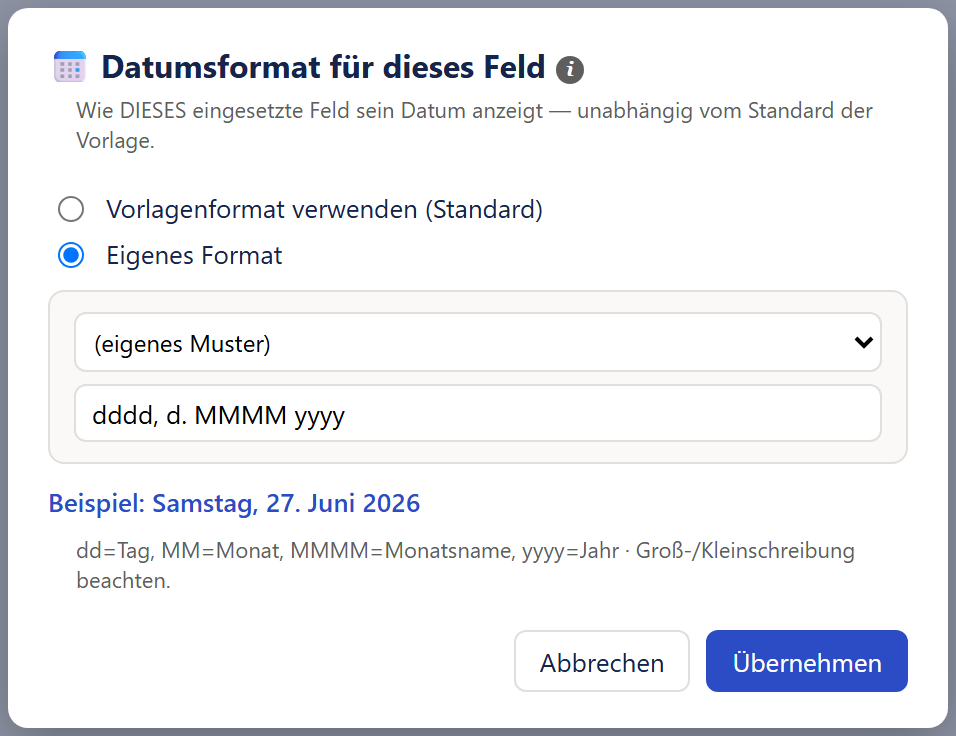
- 1Either follow the format of the template or use a custom format for this field only.
- 2Presets or “(custom pattern)”.
- 3The pattern field appears only with “(custom pattern)”; the same characters apply as in the template settings.
- 4The example takes the value of the field from the sample record.
- 5Writes the format to the marker; it becomes valid only with “Apply” in the window “Edit text”.
| In the window | What it does |
|---|---|
| Subtitle | “How THIS inserted field displays its date — independent of the template default.” If the field carries a language of its own, “The language of this field (…) is kept.” follows. |
| “Use template format (default)” | Default as long as the field has no format of its own. The field follows the “Date format” or “Date + time format” of the template settings, also after later changes. The box below is pale and cannot be operated; for information, the list shows the format of the template, for example “Default (regional)” or “Template pattern: …”. If the template is set to “Same as the printing user (Dynamics)”, the item is called “Use template format (format of the printing user)”. |
| “Custom format” | Enables the box. The format applies only at this place. If you choose or type nothing, the template format stays. |
| List in the box | For a date: “31.12.2026”, “2026-12-31”, “31. Dezember 2026”, “31.12.26”, “12/31/2026 (US)” and “(custom pattern)”. For date and time: “31.12.2026 14:30”, “2026-12-31 14:30”, “31.12.2026 14:30:00”, “31. Dezember 2026, 14:30” and “(custom pattern)”. Month names appear in the language of the field or the template. “Default (regional)” and “Same as the printing user (Dynamics)” do not exist here; “Use template format (default)” is there instead. |
| Pattern field | Appears only with “(custom pattern)” (gray in the empty field: “e.g. dd.MM.yyyy” or “e.g. dd.MM.yyyy HH:mm”). The same characters apply as under Custom pattern. The character “|” is not possible here. If a custom pattern is already saved, the cursor is in it when opened, and the text is selected. |
| “Example: …” (blue) | Shows the result in the chosen mode, in the language of the field or the template. As the value it takes the value of the field from the sample record, otherwise today’s date. If “|” is in the pattern, “⚠ The character »|« is not possible in a custom format (it separates the details in the placeholder). Only the part before it is printed — please use a different separator, e.g. »·« or »–«.” follows. |
| Gray note | “dd=day, MM=month, MMMM=month name, yyyy=year · upper and lower case matter.”, for date and time with “HH=hour, mm=minute”. Pale in the mode “Use template format (default)”. |
| “Apply” (blue) | Writes the format to the marker; with “Use template format (default)” it removes a custom format again. A language of the field is kept. |
| “Cancel”, Esc key, click next to the window | Close the window without any change; the window “Edit text” stays open. |
- The change belongs to the text: it applies only when you apply in the window “Edit text”. If you cancel there and confirm “Discard the changed text?” with “Discard”, it is gone.
- In the PDF, the field prints with its own pattern in the language of the field or the template. Without a pattern of its own, the format of the template settings applies, and if none is set there, the short format of the template language.
- There is no such window for number, money and Yes/No fields (see Decimal places and symbol for a single field). A custom variable of the type Date does not have one either: its marker does not offer “📅 Format”, and it always prints in the “Date format” of the template (see Variables: Type Date).
Currency & numbers
These settings apply to all amounts and numbers of the template for which nothing of their own is set. Under each of the four fields “Currency symbol”, “Decimal places (currency)”, “Number style (comma/period)” and “Thousands separator” there is a button of its own, “Condition branch”, for exceptions (see Condition branches).
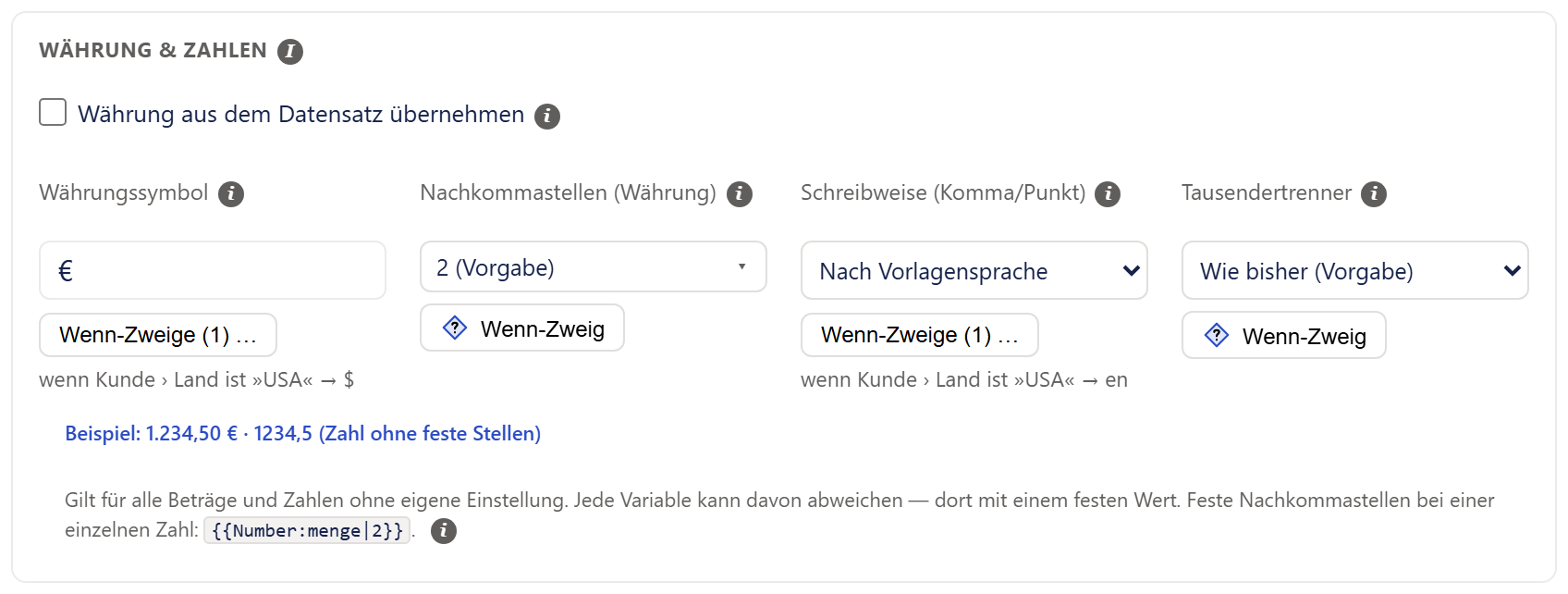
- 1The check mark: symbol and decimal places then come from the currency of the printed record (a section of its own further below).
- 2The fixed value if no condition branch applies. A click into the field opens a small list (see “Value or field”).
- 3“Condition branches (1) …”: There is one branch. A click opens the condition branches of this setting in a window of its own.
- 4The short version of the branch: at most two branches. If a branch does not fit on one line, the value (“→ …”) appears on a second line, and only the condition is shortened with …. Here $ applies if the country is USA.
- 5Each of the four settings has its own condition branch button; here still without a branch.
- 6A shared example line for all four fields; it calculates the condition branches against the sample record.
| Setting | What it does | Default |
|---|---|---|
| “Take the currency from the record” | Symbol and decimal places come from the currency of the printed record: an order in dollars shows $ and two places, one in yen ¥ and none. Both fields are then disabled (see Currency from the record). | off; for a new template on if the primary source has a currency |
| “Currency symbol” | The character on every amount, after or before it depending on the number style: “1.234,50 €”, “$1,234.50”, “CHF 1'234.50” (see Where the currency symbol appears). Free text without a length limit; a click into the field also offers a field or a variable (see Value or field). | empty = € |
| “Decimal places (currency)” | To how many decimal places money amounts are commercially rounded and printed. The list offers 0 to 4, plus a field or a variable. The same number applies when summing in variables and rules (see How the document prints numbers and amounts). Which values apply if the number comes from a field, a variable or an imported template is described under How many decimal places are possible where. A value that is not in the list is shown by the button as it is stored. | “2 (default)” |
| “Number style (comma/period)” | Which character separates the decimal places and which the thousands: “1.234,56” (German), “1,234.56” (English), “1 234,56” (French, with a narrow space that does not break), “1'234.56” (Switzerland) or “1234.56” (without thousands separator). “By template language” follows the selection above under “Template language”. The number style also determines where the currency symbol appears (see Where the currency symbol appears). | “By template language” |
| “Thousands separator” | “As before (default)”: separation happens only with a fixed number of places, that is, for amounts and numbers with fixed decimal places. “Always separate”: also numbers without a fixed number of places; this changes the printed document. “Never separate”: no separator even with a fixed number of places. Takes precedence over the number style: “1234.56” with “Always separate” prints 1,234.56. | “As before (default)” |
Under the four fields there is a shared blue example line, without further settings “Example: 1.234,50 € · 1234,5 (number without fixed decimal places)”. It shows the amount 1234.5 with symbol and decimal places and the same number without fixed places, as they apply for the sample record; condition branches are checked against it for this. Without a sample record, the line calculates with empty data, and a condition can then turn out differently than in print. If the symbol comes from the data and has not been loaded yet, “‹currency symbol of the record›” appears there.
Below it is the note “Applies to all amounts and numbers without a setting of their own. Any variable can differ — there with a fixed value. Fixed decimal places for a single number: {{Number:menge|2}}.” with an ⓘ. How you set fixed decimal places for a single number and what the designer enters when inserting a number field is described under Decimal places and symbol for a single field.
Where the currency symbol appears
Whether the symbol is before or after the amount depends on the number style that applies to the amount: on “Number style (comma/period)” with its condition branches, for “By template language” on the template language, for a variable with its own number style on that. There is no switch of its own for this; this applies to all templates, including existing ones.
| Number style | Amount | Negative amount |
|---|---|---|
| 1.234,56 (German) | 1.234,56 € | -1.234,56 € |
| 1 234,56 (French) | 1 234,56 € | -1 234,56 € |
| 1234.56 (without thousands separator) | 1234.56 € | -1234.56 € |
| 1,234.56 (English) | $1,234.56 | -$1,234.56 |
| 1,234.56 (English), code such as CHF | CHF 1,234.56 | -CHF 1,234.56 |
| 1'234.56 (Switzerland) | CHF 1'234.56 | CHF -1'234.56 |
- For English, a character such as $, € or £ appears directly before the amount without a space, also with letters before it: “$1,234.56”, “R$1,234.56”. A code that ends in a letter or period, such as CHF, USD, kr or Fr., gets a space there as well: “CHF 1,234.56”. That is how the Unicode standard has it, which, for example, browsers follow when writing amounts. For the other number styles, a space always separates amount and symbol. The line never breaks at this space.
- If the symbol comes from the data, for example with “Take the currency from the record”, the inserted symbol counts.
- A code in the placeholder such as
{{Currency:Betrag|USD}}changes only the character, not the side: in a template with German number style it appears as “1.234,56 $”, with English as “$1,234.56”.
Currency from the record
Every record in Dynamics has a currency, and it knows its character and its decimal places. With the check mark “Take the currency from the record”, the template takes both from there, without you having to change anything for each currency.
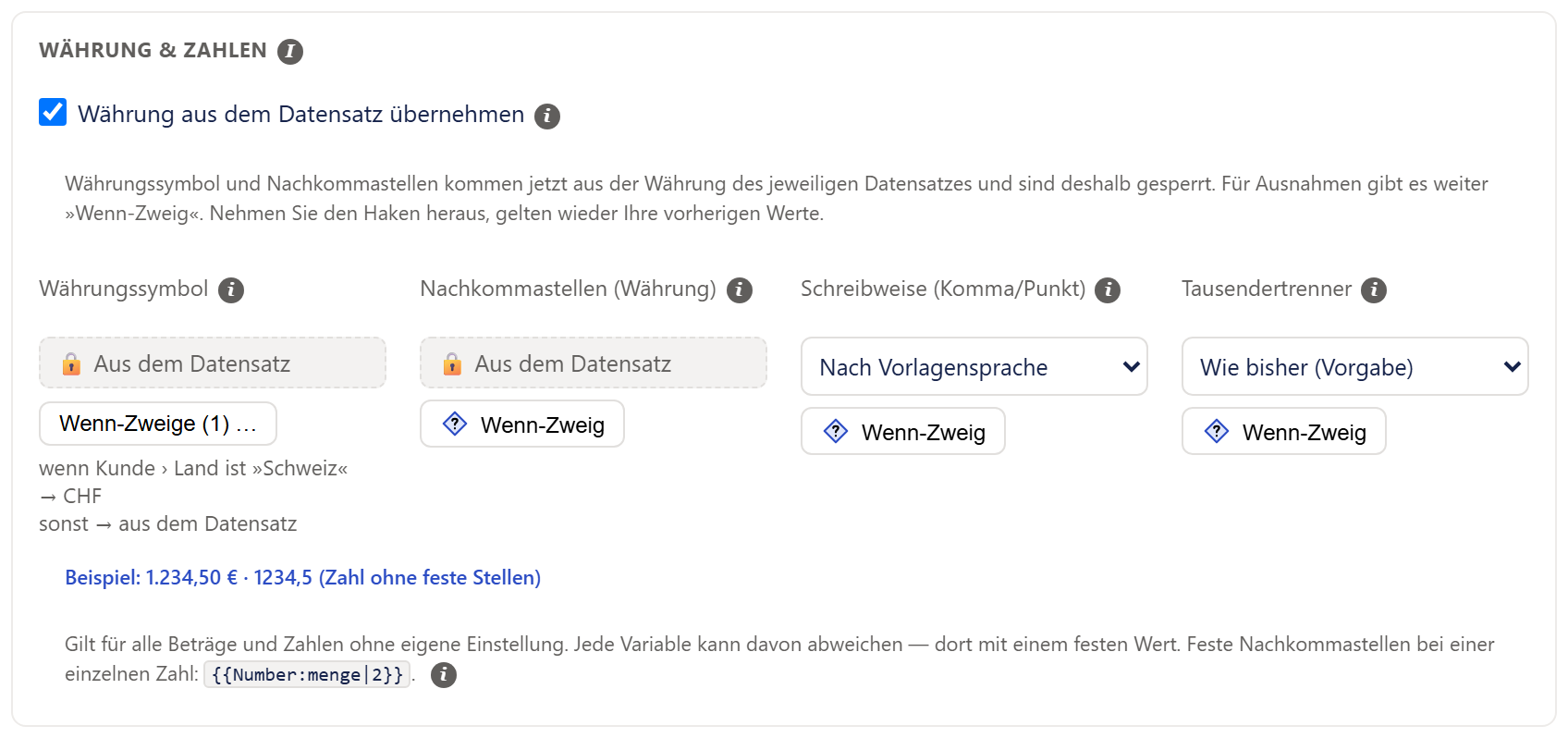
- 1The check mark switches symbol and decimal places to the currency of the printed record.
- 2Disabled: To change it, uncheck the box.
- 3The decimal places also come from the record.
- 4The note explains the lock and names the way to exceptions.
- 5Exceptions continue to exist; if none applies, the currency of the record applies (“otherwise → from the record”).
- Prerequisite: a primary source. Without one, the check mark jumps back, and the designer reports for about four seconds “There is no primary source yet — first set one under »Manage data sources«.”
- What the check mark creates: If there is no relationship to the currency under the primary source yet, it creates one; it is called “Währung” and appears in the data tree. It uses an existing relationship to the currency, whatever it is called. This costs no additional query.
- With the check mark, “Currency symbol” and “Decimal places (currency)” show a dashed box “🔒 From the record” instead of the input (when you point at it with the mouse: “Comes from the currency of the record as long as »Take the currency from the record« is on. Add exceptions with »Condition branch«; to change it, clear the checkbox above.”). Above it says: “Currency symbol and decimal places now come from the currency of the respective record and are therefore locked. For exceptions there is still »Condition branch«. Clear the checkbox and your previous values apply again.”
- After checking, the designer loads the currency of the sample record in the background; until then the example line shows “‹currency symbol of the record›”.
- Check mark removed: Symbol and decimal places get their previous values back, empty if there were none. The relationship and existing condition branches stay.
- Exceptions: you continue to create them with “Condition branch”. If none applies, the currency of the record applies. An applying branch with an empty value does, however, give € or two places, not the currency of the record.
- In the PDF, symbol and places of the currency of the printed record of the primary source appear; they apply in the whole document, also in table rows, and not the currency of an individual row. If the symbol of the currency is missing in Dynamics, the field reference in curly braces appears instead of the symbol; if the number of places is not readable, two places apply. The number of places from the record also applies to rounding before summing.
- For a new template, the check mark is already set in step 2 if the primary source has a currency. Existing templates stay as they are.
Value or field: the small list at symbol and decimal places
“Currency symbol” and “Decimal places (currency)” accept a fixed value or a value from the data. The same applies in the window “Condition branches” for “THEN” and “ELSE” of these two settings.
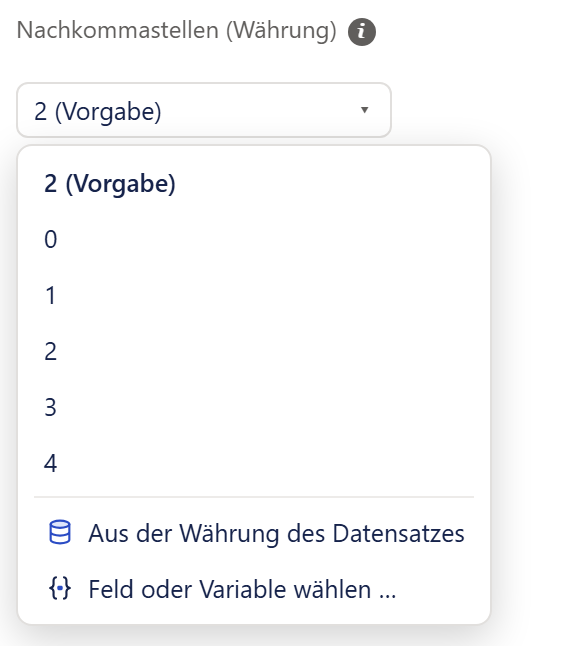
- 1A click on the button opens the list.
- 2Bold: the currently chosen value.
- 3Fixed values from 0 to 4.
- 4Appears only if the primary source has a relationship to the currency.
- 5Opens the window “Choose field”; for the decimal places only number fields.
- “Currency symbol” is a text field (gray in the empty field: “€”). A click into it or tabbing into it opens a small list; you can still just keep typing, and every keystroke applies immediately.
- “Decimal places (currency)” is a button with ▾ that shows the chosen number. A click opens the list with “2 (default)”, “0”, “1”, “2”, “3” and “4”.
- “From the record's currency” appears in the list if the primary source has a relationship to the currency. If you want symbol and places from the record at the same time, use the check mark “Take the currency from the record” instead.
- “Choose a field or variable …” opens the window “Choose field” (see Data tree and field picker: The “Choose field” window). For the symbol, all fields, the system variables and your custom variables are there; for the decimal places only number fields. A field from the data is read on the printed record.
- A chosen field appears as a marker with its name in the field, a custom variable as “@Name”. A click on the marker opens the list again; the ✕ next to it (“Remove field”) removes the field, after which the default applies again. A mixed text such as a field with a character after it remains ordinary text.
- The list closes as soon as you choose something, click next to it or the field scrolls out of view; in the symbol field also with the Enter key. Do not use the Esc key for this (see Template settings: Opening, applying or discarding the window).
For “Number style (comma/period)” and “Thousands separator” there is no such list; you choose from the fixed entries. If there is another value there from an imported template, it appears as an additional first entry, a value from the data as “From the data: …”. Printing replaces a number style it does not know, without a message, with the number style of the template language.
Decimal places and symbol for a single field
For number, money and Yes/No fields there is no format window of their own in the editor; the marker shows only name and source, and you do not see the number of places there. Decimal places, symbol, number style and thousands separator for the whole template are in the section Currency & numbers. An ordinary number, such as a quantity, shows as many decimal places as it needs, at most four.
If you need something different for a single value of the printed record, for example always two decimal places or a different currency symbol, create a custom variable that takes over the field, and set its decimal places, number style, thousands separator and currency symbol (see Variables: What should it look like?). This helps only for a value that occurs once in the whole document, such as a field of the printed record. For a field of a table row, such as the quantity of an item, this way does not work: a custom variable would have the same value in every row (see Variables: When a custom variable is calculated). For these settings a variable has no if-then branches; those exist only in the template settings.
- Number field: If you drag a number field newly into a text, the designer also enters the number of places stored in Dynamics; it is then rounded to these places, and the thousands separator is added, except with “Never separate”.
- Money field: For money fields the designer enters no number of places, no matter whether their precision in Dynamics depends on the field, the organization or the currency; their places come from the settings in the section Currency & numbers.
- Placeholder: The gray note under the four fields names the notation that is in the placeholder for this,
{{Number:menge|2}}; the window “Edit text” has no button of its own for it.
Option label language
Choice fields, multi-select choices, Yes/No fields, status and status reason from Dynamics print the label stored in Dynamics for their value, for example “Bezahlt” and “Unbezahlt” on a Yes/No field or “Offen” on a status. The last section of the tab, “Option label language”, determines in which language. It is built like a field under Currency & numbers: a selection list, below it the button “Condition branch” and a blue example line.
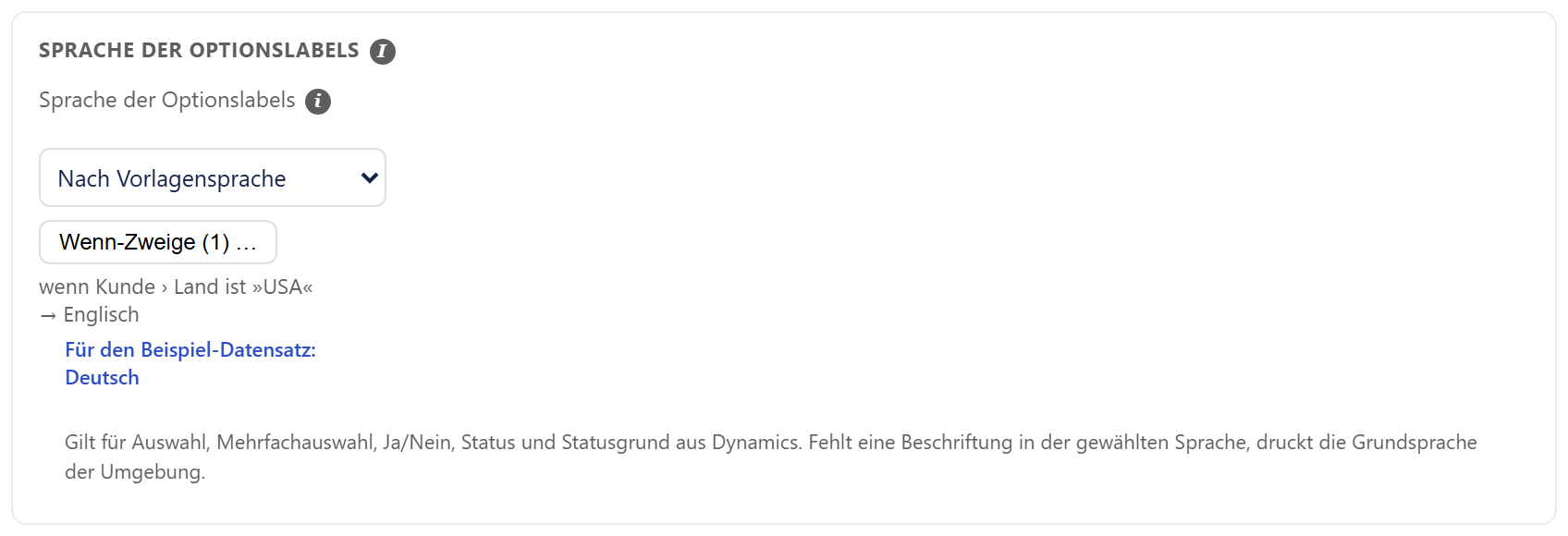
- 1The language that applies if no condition branch applies. “By template language” is the default; the list names the languages installed in Dynamics.
- 2“Condition branches (1) …”: There is one branch. A click opens the condition branches of this setting in a window of its own.
- 3The short version of the branch: for customers in the USA, English applies. If it does not fit on one line, the value appears on a second line; only the condition is shortened.
- 4The example line names the language that applies for the sample record. The branch does not apply here; the template language Deutsch applies.
- Offered: the languages installed in Dynamics, with their names. In the designer without a connection to Dynamics, Deutsch and English are available.
- Default: “By template language” takes the language set under Template language. German (Austria) and German (Switzerland) count as German, English (United Kingdom) as English, because Dynamics lists languages, not countries.
- If a label is missing in the chosen language, or the language is not installed in Dynamics, the base language of the environment is printed.
- Different per record: With “Condition branch” you choose, for example, English for customers abroad (see Condition branches). The short form under the button gives the language by its name, for example “if Kunde › Land is »USA« → English”.
- Example line: “For the sample record: …” names the language that applies for the sample record, calculated with condition branches. If Dynamics does not have this language, “(not installed in Dynamics, the base language is printed)” and its name follow.
Before this setting existed, a document printed the label in the language of the user who created it: someone who uses Dynamics in English got “Paid” instead of “Bezahlt” in a German template. With the default, the document looks the same no matter who creates it. A Yes/No field with its own label now also prints it through the format Yes/No; previously “Ja” appeared there, also for “Unbezahlt”.
Good to know
Conditions continue to compare with the label in the language of the user who creates the document (see Conditions: Text, choice field and lookup). Their result does not change because of this setting: “Status is Offen” applies for a user with a German interface, even if the document prints the status in English as “Open”. If you choose the value “by option value” in the building kit, the condition compares via the code and applies in every language (see Conditions: Choice fields).
- The setting affects values that Smart Templates loads from Dynamics itself: with the button, in the flow and in the full preview in Dynamics. In the designer without a connection to Dynamics and with sample data sent along, there are no labels per language: choice values appear as they are in the data, Yes/No fields as “Ja” and “Nein” in the template language.
- A custom variable of the type Text that inserts a choice field prints the chosen language; in conditions it has the text of the data. A rule variable from the “Calculate” tab, by contrast, is a value of the data and shows the label in the language of the user. A custom variable of the type Yes/No writes “Ja” or “Nein” in the template language; if it takes over a Yes/No field, it goes by the field’s value, not by its label (see Variables: Type Yes/No).
- For every language that the setting can yield, printing fetches the labels once per document from the table definitions of Dynamics, not per record. The feedback names this separately, for example “(+1 metadata query for option labels)”. The same addition also appears with the query plan (
Mode=plan) inMessageafter the line “PLAN: …” (see Actions and APIs: st_GenerateDocument: all inputs and outputs); it does not count there among the queries of the template. How many such queries are really made is stated only in the feedback after printing; if the document reads no choice field, they do not apply. If fetching the labels fails, every choice field prints in the language of the user, and the document reports it as a warning (see Problems and messages: Loading data).
How the document prints numbers and amounts
- Rounding: Rounding is commercial, from 5 upward, and exactly as the number is written decimally: 1.005 becomes 1.01, not 1.00. Negative numbers are rounded by their absolute value; what rounds to 0.00 appears without a minus.
- Round first, then sum: For sum and average, each individual value is rounded before adding so that the sum matches the printed rows; where this applies and to which places is described under Rules: Round first, then sum.
- Amounts appear with the symbol and the set decimal places, with a thousands separator, except with “Never separate”: 1.234,50 €, $1,234.50 or CHF 1'234.50; where the symbol appears is determined by the number style (see Where the currency symbol appears). If a value cannot be read as a number, it appears unchanged, without a symbol.
- Currency code on the field: If a money field in the template carries a currency code of its own, for example from an imported template, it takes precedence: EUR becomes €, USD $, GBP £, CHF stays CHF.
- Numbers without a fixed number of places show as many decimal places as needed, at most four, without a thousands separator, except with “Always separate”: 1234,5678. The decimal places (currency) do not change this. Numbers with more than 15 digits, such as EAN or serial numbers, appear unchanged, and the document reports it.
- Thousands separators appear only from four places before the decimal separator.
- Yes/No appears in the template language; the words per language and the behavior with own labels are described under Template language.
Reading numbers: comma and period
Wherever the designer reads a text as a number, it treats comma and period differently depending on the place. The table sets the three cases side by side.
| Where | How it is read |
|---|---|
| In print: a number that is a text in the data, for example “1.234,56” in a text field | The document first reads it as a number with a period as the decimal separator, for example “1234.5”, and only if that does not work, in the set number style. A text such as “1.234” is therefore read as 1.234 and not as 1234; check such values in the full preview. |
| In a condition: comparison with a number | A period always counts as the decimal separator: “1.000” is 1, not a thousand. A comma as the decimal separator is taken by the designer as a period: 1,5 is 1.5 (see Conditions: Numbers and amounts). |
| In a fixed value of a variable and in a formula | Write decimal numbers with a period. A comma is not converted: “1,19” cannot be calculated, and in a formula a comma turns the formula into text (see Variables: Fixed values and Template format: Formulas). |
How many decimal places are possible where
The template, the variables and the rules allow different numbers of decimal places. The table sets the ranges side by side.
| Where set | Possible values | What else applies |
|---|---|---|
| The list at “Decimal places (currency)” in the template settings | 0 to 4 places | In addition, the list offers a field or a variable. |
| “Decimal places (currency)” of the template, if the number comes from a field, a variable or an imported template | 0 to 10 places | More counts as 10; a negative, fractional or unreadable entry counts as 2. |
| A custom variable of the type Number or Currency, “What should it look like?” | 0 to 6 places | Default: for a currency “From template” with the number of places of the template, for a number “Automatic (up to 4)”, that is, as many places as needed, at most four. More under Variables: What should it look like?. |
| The calculation of a rule, “rounded to” … “Decimal places” | 0 to 6 places; a larger number that you type in or that an imported template brings counts as 6 | If the field stays empty, the “Decimal places (currency)” of the template apply. A negative number or an entry that is not a number (such as “abc”) counts in an imported template like an empty field; the check on import names it as a notice (see Managing templates: The report windows). If you type in a negative number, the designer deletes the entry. For count, minimum and maximum the field does not exist. More under Rules: Round first, then sum. |
| A number without a fixed number of places in the document | as many as needed, at most four | Printed without a thousands separator, except with “Always separate”. |
Condition branches: different per customer
Each of the four settings under “Currency & numbers” has its own condition branches: if the condition applies, its value applies in the whole document. For customers in the USA, for example, you create under “Currency symbol” a branch “Land is USA → $” and under “Number style (comma/period)” a second one with the same condition and “1,234.56”. By the same pattern, the option label language also has condition branches. For template language and date formats there are no condition branches. How condition branches are built in principle and how they are checked is described under Variables: Condition branches; here the particularities in the template are described.
- Under the setting, click “Condition branch”. The window “Condition branches: …” with the name of the setting opens, with a new, empty branch.
- Under “IF”, build the condition, and under “THEN” enter the value. You create further branches with “Condition branch” under the branches.
- Click “Done”. Under the setting there is now “Condition branches (1) …” with a short summary, and the example line includes the branch in its calculation.
- Click “Apply” and save the template.
The button under each setting is called “Condition branch” as long as there is no branch, otherwise “Condition branches (2) …” with the count. It also exists if the field is disabled by “Take the currency from the record”. Below it there are at most two branches in short form, for example “if Kunde › Land is »USA« → $”; from the third on, “… and 1 more” follows, and with the check mark at the currency from the record additionally “otherwise → from the record”. If a branch does not fit on one line, the value (“→ …”) appears on a second line, and only the condition is shortened with …; the tooltip shows the whole branch. A still empty condition is called “(no condition yet)” there, an empty value “(empty)”. In the short form, the value appears as it is stored: for the number style as a code (de, en, fr, ch, plain), for the thousands separator as “an” or “aus”, a field as a reference in curly braces. Only the option label language appears with its name (“English”), an empty value there as “By template language”.
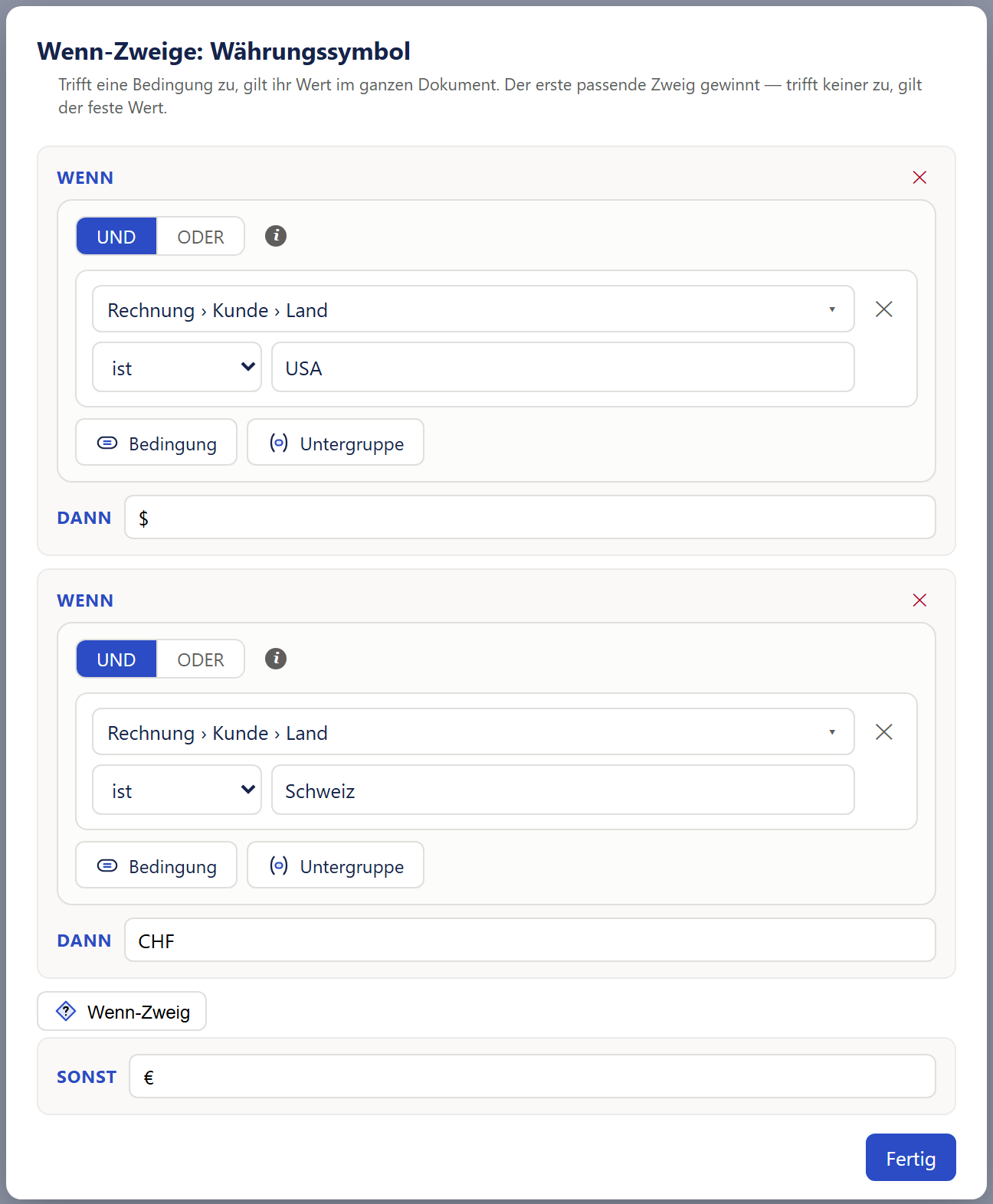
- 1The condition of the branch, built with the building kit.
- 2AND or OR: Must all conditions apply or only one?
- 3The red ✕ removes the branch immediately, without asking.
- 4The value that applies in the whole document if the condition applies.
- 5The fixed value: It applies if no branch matches. The branches are checked from top to bottom.
- 6Closes the window; a completely empty new branch is dropped in the process.
| In the window “Condition branches: …” | What it does |
|---|---|
| Subtitle | “If a condition is met, its value applies to the whole document. The first matching branch wins — if none matches, the fixed value applies.” With the check mark at the currency from the record, for symbol and decimal places it ends with “… the value from the record applies.” |
| “IF” | The condition of the branch, built with the building kit (see Conditions: The building kit). Unlike in the filter of a rule, there is no “123” / “ƒx” switch here; on the right there is always a fixed value. The field picker offers all fields of the data sources, fields from lists only summarized, for example as a sum, plus results of rules. If a field is chosen but no value yet, the red note “⚠ Value missing: without a value, this branch would always apply. Choose a value or remove the condition with ✕.” appears under the branch and, to the left of “Done”, “⚠ Condition incomplete: branch …”. If a field in “{{ }}” is in a condition, the note says “⚠ Typo: »{{ }}« does not belong in a condition; as written the field is not read at all. Rebuild the condition.”, to the left of “Done” “⚠ Typo in the condition: branch …”, and “Done” stays disabled. Under the condition there is then “Rebuild with the condition builder”: after a confirmation prompt the condition is empty, the value of the branch stays, and “Done” stays disabled (“⚠ Condition incomplete: branch …”) until the new condition is complete, even if you remove the chosen field again. This way a branch that applies to every document is never created silently here. Or you remove the branch with ✕ (see Conditions: Fields in “{{ }}”). |
| Gray box instead of the building kit | A condition from an imported or hand-written template that the building kit cannot show appears as an expression, with the sentence “Hand-written condition …” (see Conditions: Conditions written by hand). It cannot be changed here, only removed together with the whole branch. It is printed unchanged. |
| “✕” (red) on the right in the branch | “Remove branch”: Deletes the branch immediately, without asking, as with the variables (see Variables: Condition branches). |
| “THEN” | The value that applies if the condition applies. The input is the same as in the tab: for the symbol a text field, for the decimal places a selection button, both with the small list (see Value or field); for number style, thousands separator and option label language a list with the same entries. It can be set freely even with the check mark at the currency from the record. If “THEN” stays empty and the condition applies, the built-in default applies (€, two places, number style of the language, thousands separator as before, option labels by template language), not the fixed value. For a custom variable it is different: a branch with a condition but an empty value supplies an empty value there if it applies (see Variables: Condition branches). |
| “ELSE” | Under the branches: the fixed value of the setting, the same as in the tab and changeable here as well. With the check mark at the currency from the record, for symbol and decimal places “🔒 From the record” is fixed there. |
| “Condition branch” under the branches | Appends a new, empty branch at the bottom. |
| “Done” (blue), click next to the window, Esc key | Closes the window; the template settings below stay open. A branch created in this window that is completely empty, without condition and without value, is dropped in the process. A branch with a value but without a condition stays and always applies. Branches that were there before stay untouched. As long as a branch has a chosen field without a value, “Done” is disabled, and a click next to the window and the Esc key do not close it either: add the value, remove the condition with ✕ (then the branch explicitly always applies) or remove the branch. This way a half-built branch never silently becomes one that applies to every document. |
- The condition is checked once for the whole document, on the printed record of the primary source. The number style therefore never changes in the middle of a table, and the value of the branch applies to all amounts and numbers of the document.
- Order, rearranging and a branch without a condition behave as with the variables (see Variables: Condition branches). A faulty condition counts as “does not apply”.
- If a condition contains a sum, for example over the item amounts, or a custom variable, it is calculated with the fixed decimal places and the fixed number style of the template: which branch applies in the end is only decided afterward (see Rules: Round first, then sum).
- Every entry in the window is immediately in the template. The window has no “Cancel” of its own; you take your changes back with “Cancel” and “Discard” of the template settings. Merely opening this window can count as a change, even if you enter nothing; “Cancel” of the template settings then asks. If you have changed nothing else, “Discard” is safe in this case; nothing changes in the document.
- To close, use “Done” or a click next to the window, not the Esc key. If after the Esc key the confirmation prompt “Discard changes that were not applied and close?” appears, choose “Cancel”: with “Discard” all changes from the template settings are lost.
Good to know
Custom variables may appear in these conditions; the field picker offers them. Because the number format of the template is only determined by these branches, the condition calculates a variable with the decimal places and the number style that apply without a condition branch. For a variable such as the country or the customer type, this changes nothing. If the variable itself depends on the number format, for example a sum of amounts, and would choose a different branch when printed, the branch from the calculation with the fixed values applies. The same applies if the value of a setting, fixed or in a branch, reads such a variable, for example the decimal places from a variable that calculates with a sum of amounts: the value from the calculation with the fixed values is printed. The check before full preview and PDF names both cases, and the PDF reports them as a warning (see Problems and messages: Variables and conditions).
Before every full preview and every PDF, the designer also checks these condition branches (see Full preview and PDF: What is checked before creating). If it finds something, it asks in the window “Please confirm” with the text “Something is wrong with the custom variables:”, even if it concerns the template settings; the findings and the choice between “Cancel” and “Generate anyway” are described under Variables: The check before full preview and PDF and Full preview and PDF: Confirmation prompt for rules and variables. The confirmation prompt names the template settings “Currency symbol”, “Decimal places”, “Number style” (meaning “Number style (comma/period)”), “Thousands separator” and “Option label language”. Four findings occur for these settings. The first reports a branch without a condition before other branches; only branches with a value are counted, and a branch without a condition as the last one is not reported. The second reports a condition with a custom variable that does not exist; a branch with such a condition does not apply. The third reports a condition branch that reads a custom variable whose value itself depends on the number format and that would turn out differently when printed: “In template setting »Decimal places« a condition branch reads a custom variable whose value itself depends on the number format of the template — a circle. …” The fourth reports the same for the value of a setting, fixed or in a condition branch: “In template setting »Decimal places« the value reads the custom variable »@…«, whose value itself depends on the number format of the template — a circle. …” In both cases the value from the calculation with the fixed settings is printed.
What changes in the document?
On the canvas
Fields appear on the page as blue markers with their name, not with values. How a date, an amount or a number is printed is shown in advance by the blue “Example:” lines in the template settings and in the window “📅 Date format for this field”, for a custom variable also by the preview line in its window; the example line calculates condition branches in advance with the sample record. Choosing the template language changes nothing visible on the page; you see the effect in the document only in the full preview.
In the PDF
Every date, amount, number and Yes/No without an entry of its own appears in the format of the template, with condition branches depending on the printed record. Choice and Yes/No fields from Dynamics appear with their label in the option label language. A date field with its own pattern and a custom variable with its own settings print as set there. Which entry wins is described under “Numbers & date” tab.