
News
In short
We inform you about new versions, important fixes and notices in two ways: as a message in the designer and on the “License & updates” page, and by email on request. Every user sees the messages as long as synchronization with the license service is switched on. Each user switches news by email on and off for themselves.
News in the designer
If there is a message from us, the entry “News” with the number of unread messages appears at the top of the designer’s header bar. If an urgent one is among them, the number is red. If there is no message, the entry is missing.
- Short notices appear in a narrow row below the header bar, two at a time at most; urgent ones are red. With “×” you hide a notice. Some come back at the next start for as long as they apply.
- A click on “News” opens the list of all messages.
- Important messages open by themselves in a window of their own when the designer starts, one per start at most; others are in the list. Urgent ones have the title “Urgent notice” and a red edge. With “Close” you close the window.
- Some messages have a button such as “Details”; in the window it is at the bottom next to “Close”. It opens a page of our website in a new tab.
- Some messages appear only once, others at every start as long as they apply. When their period is over, they disappear by themselves.
- Some messages are addressed only to users who may import solutions, for example about an update. Other users do not see them.
If we correct a message that you have already seen, it does not appear again by itself. The designer also shows a new update in the row below the header bar, see How to recognize an update.
News on the “License & updates” page
On the “License & updates” page, the area “Your news” shows the three that are most important right now: unread first, then the newest. “Read in full” shows a message in full. If there are more than three, “All news” opens a window with everything your organization has received from us, the newest at the top, including messages that no longer apply (“ended”). There you find a particular one again with the search box and the selection “All”, “Unread” and “Important”. If there are very many, the window does not show the oldest; then it says below: “Older news items are not shown here.”
Messages in the previous form are still below that, in the card “News”.
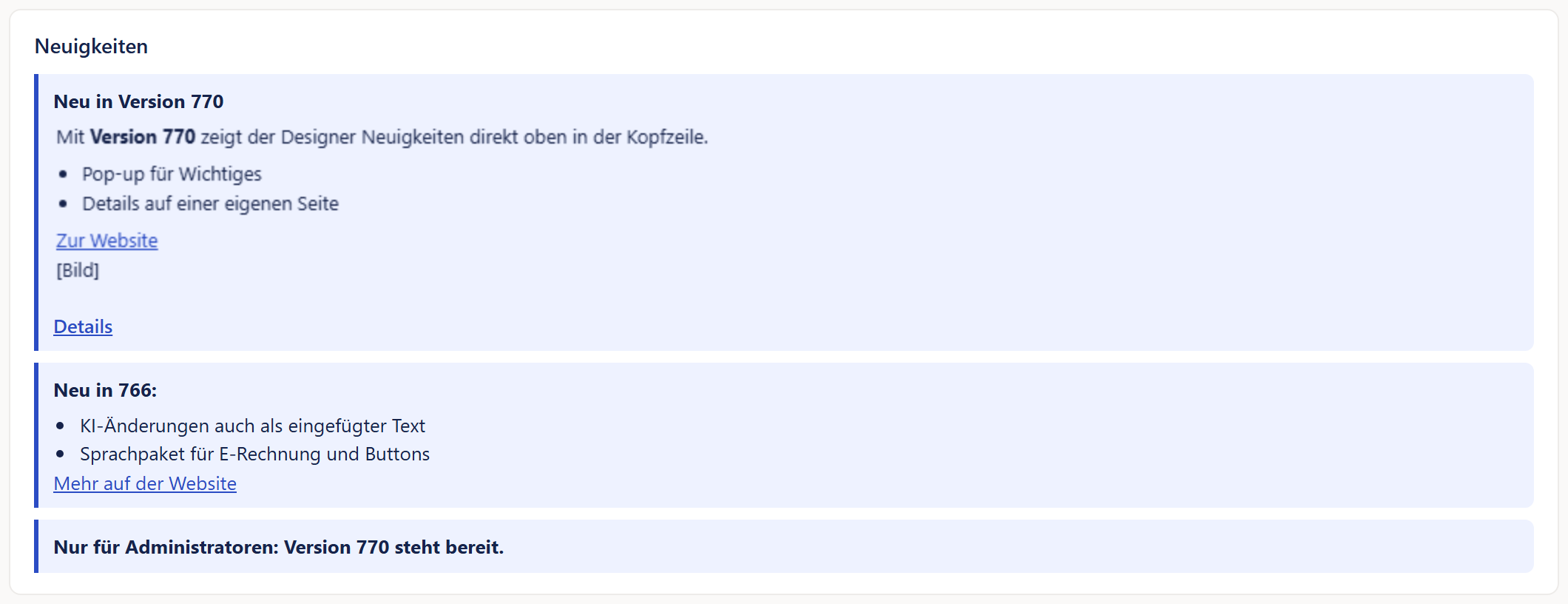
If automatic synchronization is switched off, Smart Templates does not connect to the license service. Then there are no messages, neither in the designer nor on the page, see Synchronization and entering the key by hand.
News by email
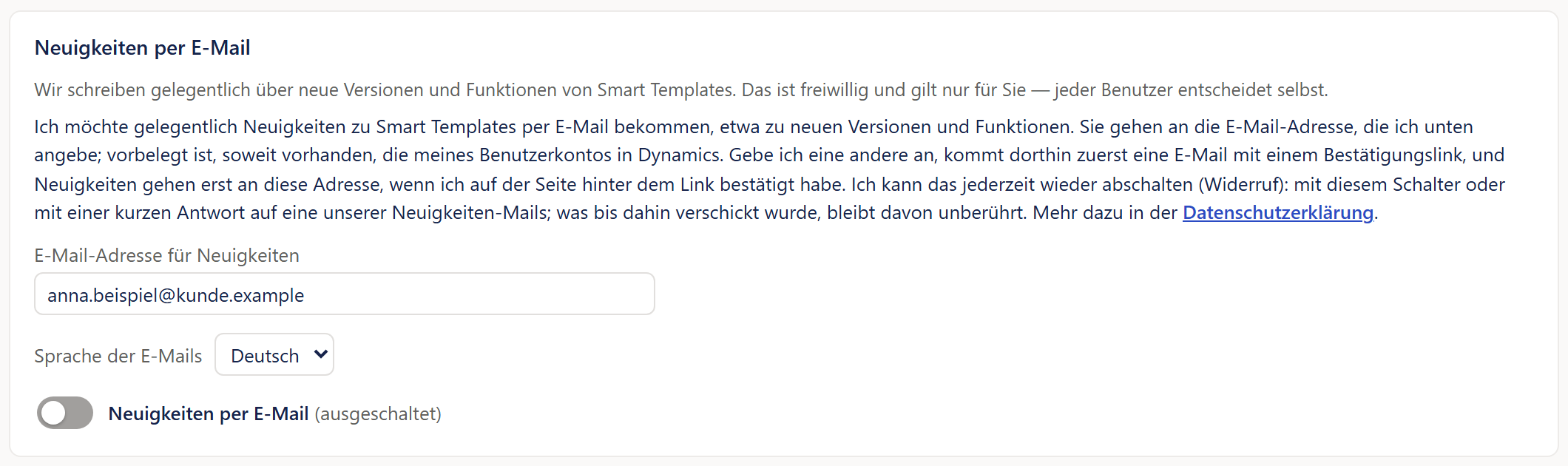
With the card “News by email” at the very bottom of the “License & updates” page, you subscribe to occasional emails about new versions and features of Smart Templates, and you unsubscribe again with it. This applies only to you: each user decides for themselves, even without administrator rights. Nothing changes for license, updates and documents.
The card appears if automatic synchronization is switched on.
Switching on:
- Open the “License & updates” page.
- In the card “News by email”, read the text above the switch. Below it, the field “Email address for news” shows the address the news is to go to, filled in with the email address of your user account in Dynamics. If you want to receive it at a different address, enter that one.
- Under “Language of the emails”, choose German or English.
- Switch on “News by email”. Below it appears “Switched on. You will receive our next news by email.”
If you keep the address from Dynamics, there is no confirmation email; what the page shows is switched on.
A different address: If you have entered a different address, we first send an email with a confirmation link there, and the card shows “Almost done: …”. Open the link and, on the page it opens, click “Yes, send news to this address”; only then is news switched on. The link is valid for seven days. No email received? Check the spam folder or choose “Send the email again”; with “Cancel” you withdraw the request. Addresses ending in “onmicrosoft.com” are usually not a real mailbox; the card points this out.
Switching off: Switch “News by email” off again on the same page. Below it appears “Switched off. We will not send you any more news by email.” You can also briefly reply to one of our news emails; we then remove you. That is the way if you can no longer reach the page, for example because you have left your company, or if automatic synchronization is switched off and the card is therefore missing.
A different language: With news switched on, choose the other language. Below it appears “Saved. News will come in … from now on.”; it applies from the next news item. “Switched on since” stays.
A new email address: If your address in Dynamics has changed, the card says so; until then the news keeps going to your previous address. With “From now on to …” it goes to the new one. You enter a completely different address with “Use a different email address …”; it, too, only applies after the click in the confirmation email, and until then the news goes to the previous one.
Address removed: If your user account in Dynamics no longer has an email address at all, the card says that too. The news then keeps going to your previous address; if you no longer want any, switch it off.
No address: If no email address is stored for your user account in Dynamics, the field is empty and the switch is grayed out. Enter an address; we then first send a confirmation email there (see “A different address”).
We get your name and email address only if you switch news on or change the address or language for it. What we store for this and for how long is described in the privacy policy.