
Updates and new versions
In short
You install new versions of Smart Templates yourself, first in a test environment. The “License & updates” page shows which version is installed and whether a newer one exists. There you also see whether a new version is covered by your license. Check this before installing: an installed newer version can usually not be replaced by an older one.
Version and update
Every released state of Smart Templates is a version with its own number. An update is a new version with bug fixes, adaptations to changes by Microsoft or new features. We decide what an update contains; there is no entitlement to particular new features (§ 8(2)).
Which version is installed in an environment is shown on “License & updates” in the row “Installed version”. If it is followed by “— up to date”, there is no newer one. In the designer, the tooltip on the heading “Smart Templates – Designer” shows which version is running.
You get updates as long as maintenance is running: with a subscription always, with a purchase in the first year and after that with a maintenance contract (§ 8(1)). In the trial, all versions that are released while it runs are included.
How to recognize an update
If a newer version exists, the card “Updates” appears on “License & updates”: during the trial, with a subscription until it has expired, and with a purchased license. Synchronization with the license service must be switched on for this. Once the first year of a purchase without maintenance contract is over, the card is always shown, with the offer for the maintenance contract. In the other states, for example after the end of the trial or while a direct debit is processing, the page shows no card “Updates”. Depending on the license, it says:
- “Version … is available.” The new version is covered by your license. Behind it, a short note says what it brings.
- “Version … is still covered by your license (released before your updates ended).” Your maintenance is over, but this version was released before that and is therefore covered by your license. If it is followed by “contains an important fix”, you should install it.
- “Version … is only available with a maintenance contract.” The version was released after the end of your maintenance. Below it, the card offers the maintenance contract.
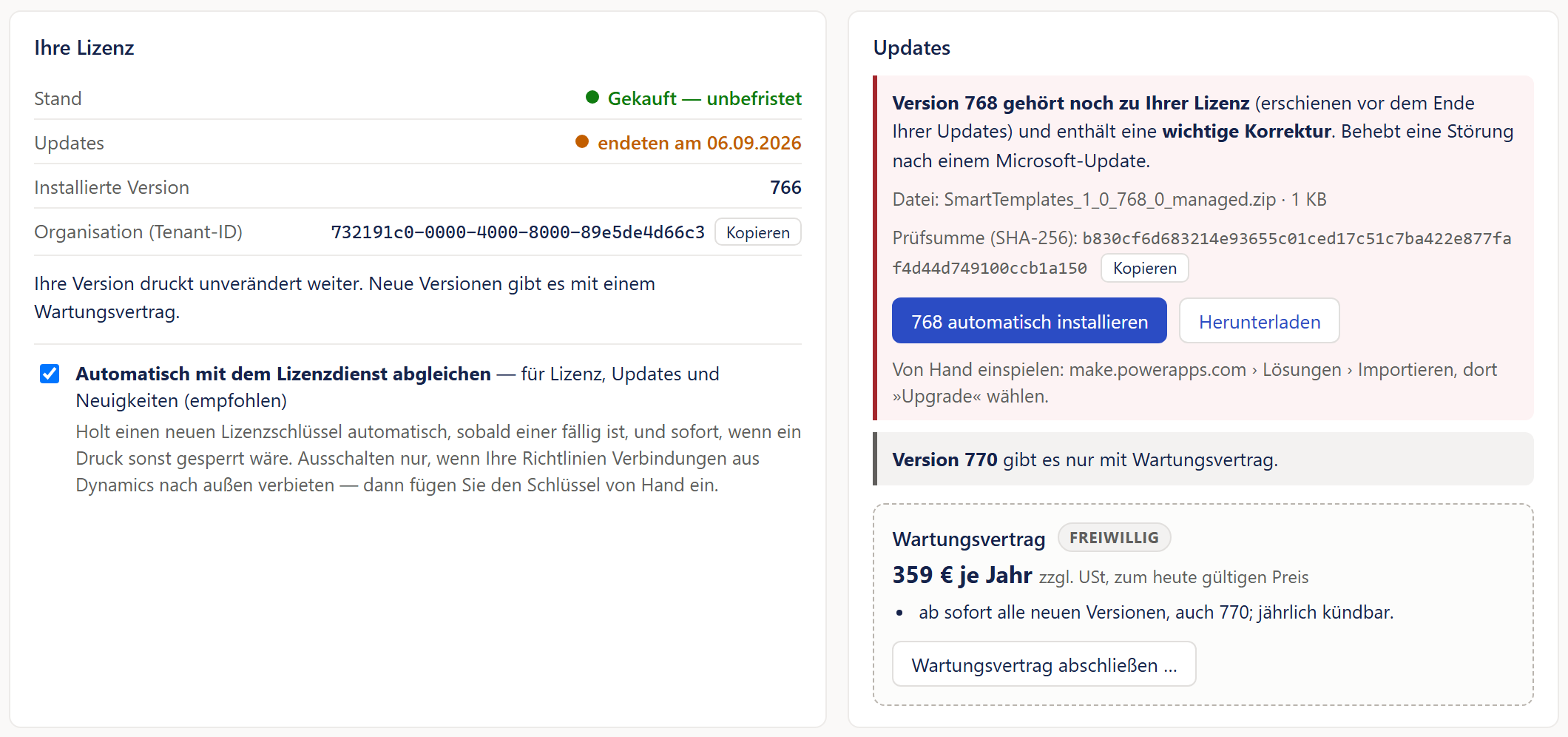
If a new version is covered by your license, the card has two buttons:
- “Install automatically now” (for a version that is still covered by your license: “Install … automatically” with its number) installs the version in this environment. A window asks for confirmation first. Only users who may import solutions can do this, for example system administrators. The installation usually takes a few minutes; during that time documents may briefly not be created.
- “Download solution file” (or “Download”) downloads the file that you import yourself, see “Installing an update” below. Above it are the file name, size and checksum (SHA-256). The link is valid for 60 minutes at most; if it has expired, choose “Check again”.
Even without a new version, you can fetch the file of the latest version that is covered by your license, for example for another environment: with a subscription and with a purchased license in the first year or with a maintenance contract, the page then shows the card “Solution file” with the button “Download version …”; once the first year of a purchase without maintenance contract is over, the button is in the card “Updates”. See What is on the page.
If the file of a version is not available yet, the card says so; in that case we send it to you on request (§ 7(1)). We also inform you about new versions with News.
Whoever may import solutions also sees a new update in the designer: below the header bar it says “New update available: version …”, and for an important fix, in red, “Important update available: version …”. The button “Open License & updates” opens the page in a new tab; the designer stays open. The note appears every time the designer starts until the update is installed; “×” hides it until the next start.
Is the version covered by your license?
| Your license | These versions are covered |
|---|---|
| Trial | all, as long as the trial runs |
| Subscription | all, as long as the subscription runs |
| Purchase in the first year without maintenance contract | all that are released up to the day under “Updates included until” |
| Purchase with maintenance contract | all, as long as the maintenance contract runs |
| Purchase without maintenance contract | all that were released up to the end of your maintenance; the day is named in the row “Updates” (“ended on …”) |
You may use a purchased version that is covered by your license perpetually, even without a maintenance contract (§ 8(5)). A version that was released only after the end of your maintenance does not create documents without a maintenance contract. The page then says: “This version was released after your updates ended (…) and therefore does not print. With a maintenance contract it prints again.” If you take out a maintenance contract, it prints as soon as the payment is confirmed, see The maintenance contract.
Caution
Before installing, check whether a version is covered by your license. In Dynamics, an installed newer version can usually not be replaced by an older one. If it is not covered by your license, it does not create documents without a maintenance contract.
Installing an update
- On “License & updates”, check whether the new version is covered by your license, see above.
- Install the new version in a test environment first: there on “License & updates” with the button “Install … automatically” or by hand with the downloaded file. You import it by hand exactly like the first one, see Installing the solution. Power Apps recognizes the existing solution and updates it; your templates, images and fonts are kept.
- Try out your most important templates, buttons and flows there (§ 8(4)).
- Then install the version in your production environment.
- Ask your users to reload the designer once with
Ctrl+Shift+R. Otherwise the browser may still show parts of the old version.
After that, “License & updates” shows the new number in the row “Installed version”.
Good to know
You don’t need a new license key for an update. A key is valid for all versions that are covered by your license.