
What happens on click
In short
The finished button takes the saved state of the template and the record on which it is clicked, and creates the document from them. What the user sees depends on the purpose: a new tab with the PDF, an email draft, a confirmation or, for an e-invoice, a downloaded file. If the button cannot work, it cancels with a message in a window. With several checked rows, it works through them one after the other; when displaying, a limit applies to the number of rows. If the browser blocks pop-ups, the end of this page explains how to allow them.
The finished button in the command bar
The finished button sits in the command bar of the place you chose in Dynamics. It takes the saved state of the template (see Full preview and PDF: Full preview and printing in Dynamics) and the record on which it is clicked, with a path, the record at the end of the path, and creates the document from them. What follows describes what your users see: windows, messages, limits, what happens with several rows, and what happens with blocked pop-ups.

- 1The button with the PDF icon. You choose the label yourself, here “Create PDF”; a click creates the document for the open record.
The eight entries for the field “Function”
In the command designer, you enter one of eight names in the field “Function”. They are in English. The names ending in All work through all checked rows in a loop; without All, the button works in a list only if exactly one row is checked. The column calls action names the Smart Templates action that the entry calls. It has nothing to do with the field “Action” in the command designer, where you choose “Run JavaScript”.
| Entry in the field “Function” | Purpose | calls action | Parameters after the first |
|---|---|---|---|
SmartTemplates.Button.showDocument | Show document, one record | st_GenerateDocument (with Mode = pdf) | Template, path, flow |
SmartTemplates.Button.showDocumentAll | Show document, all checked rows | st_GenerateDocument (with Mode = pdf), once per checked row | Template, path, flow |
SmartTemplates.Button.openEmail | Open email draft, one record | st_CreateEmail | Template, email template, path, recipient, flow |
SmartTemplates.Button.openEmailAll | Create email drafts, all checked rows | st_CreateEmail, once per checked row | Template, email template, path, recipient, flow |
SmartTemplates.Button.sendEmail | Send email immediately, one record | st_SendEmail | Template, email template, path, recipient, flow |
SmartTemplates.Button.sendEmailAll | Send email immediately, all checked rows | st_SendEmail, once per checked row | Template, email template, path, recipient, flow |
SmartTemplates.Button.downloadEInvoice | Download e-invoice, one record | st_GenerateEInvoice | Template, path |
SmartTemplates.Button.downloadEInvoiceAll | Download e-invoices, all checked rows | st_GenerateEInvoice, once per checked row | Template, path |
The first parameter is a type (PrimaryControl or SelectedControl); all others are strings. The flow carries the prefix flow:. It may stand at any position after the template; the instructions put it at the end. The recipient applies only to the four email entries and carries the prefix to:: to:_customerid_value for a lookup, to:emailaddress1 for an email field. Like the flow, it may stand at any position after the template; without it, the button passes no recipient, as before. The email template may be missing; then the template’s if-then cases decide, and the path moves to the third position, where the button recognizes it by <, > or a comma. The path stays empty if the button sits on the template’s table. The two e-invoice entries know neither flow nor recipient: a flow:… on the button is not silently swallowed but reported after saving (see The e-invoice), and a to:… is dropped.
What the actions accept and return is described under Actions and APIs: From a button in Dynamics.
The process for each purpose
| Purpose | What the user sees |
|---|---|
| Show document | A new tab opens right on the click, because the browser would not allow it later. It is called “Creating the document …” and, while you wait, shows “The document is being created …” and “The first document after a longer pause takes ten to seventeen seconds.” When warm, a usual document takes less than a second, measured at about 0.7 seconds; many images from the data make this longer (see Images: Time and size). For the first document after a pause, see Problems and messages: The first document takes a long time. How Smart Templates avoids the wait is described under Keep warm. After that, the PDF loads there; it is stored nowhere, so save it in the tab if you want to keep it. If the run fails, the tab closes again. If the PDF is unreadable, the button reports “The document could not be read.” If the record or template is missing, the button reports that before a tab opens. Dynamics shows no progress indicator for a single document, and for “all checked rows” only from two rows on. A success is not reported; the document itself is the feedback. |
| Prepare an email and present it | Dynamics shows “The document is being created and the email prepared …”; for “all checked rows” it begins with “The email is being prepared …”. Then the draft opens as an email form in Dynamics, in place of the current page. If there is a warning, it opens only after its window has been clicked away. If a recipient is set on the button, it is in the draft; if the field yields none, the draft opens as if the button had no recipient. If several records are checked with “all checked rows”, the final message states for how many records the field yielded no recipient (“⚠ For 2 records the field »customerid« gave no recipient — please check the recipient in these drafts.”). No tab opens. |
| Send email immediately | Dynamics shows “The document is being created and sent …”; after sending, the confirmation “The email was sent.” appears; if there are warnings, the window shows the whole feedback for them. If a recipient is set on the button and the field yields none, nothing is sent, no document is built and no flow is started; the message is under When the button cancels. No tab opens. |
| Download e-invoice | Dynamics shows “The e-invoice is being created …”. No tab opens. Afterward the browser offers the XML file for saving; it is in its download list. With “all checked rows”, all e-invoices come in one ZIP file. What happens in detail and which messages there are is described under The e-invoice. |
Window of the button. Messages appear in a notice window of Dynamics. The title is “Smart Templates” for notices and warnings and “Smart Templates — canceled” for errors. Error messages over 900 characters are shortened and end with “…”. If the window itself fails, a simple message window of the browser appears. The label of the confirmation button is set by Dynamics. If the feedback contains a warning, the window shows the whole feedback, each warning set off with a warning sign, for example that a flow was not started or that an if-then case checks a field that is not in the data. If the result is missing entirely, “No email was created.” or “No document was created.” appears, each with the message.
Language of the messages. The messages the button forms itself, including the page in the waiting tab, follow the interface language of your user in Dynamics: every German setting yields German, everything else English; if the setting cannot be read in the button, it stays German. This manual gives the English sentences and titles. The same rule applies when the e-invoice cancels: for the sentence the server delivers, and for the defects in the PDF with embedded e-invoice. Notes on the e-invoice for which the document is created nonetheless are, by contrast, always English. The other sentences of the server, for example for a missing read right, come in the language in which they are written there. Names and data are never translated.
The e-invoice
If the template has a switched-on e-invoice (see E-invoice: ZUGFeRD and XRechnung), the buttons deliver what the template sets. An e-invoice comes as a file, not as a tab. The sheet of the template does not change.
| Template setting | Button “Create and display the document” | Button “Download e-invoice” |
|---|---|---|
| no e-invoice, switched off, or “Only if …” does not apply | The document in the tab, as before. | No file. The button states the reason. |
| ZUGFeRD, “PDF with embedded e-invoice” | The PDF/A-3 in the tab. It is the e-invoice. | The XML alone as a file, the factur-x.xml from the PDF. |
| “e-invoice only (XML)” | The XML as a file to save. The tab that opens on the click closes again right away. | The XML as a file. |
| “e-invoice only (XML)” with reading copy | The PDF in the tab and the XML as a file. | The XML as a file. |
| Error in the e-invoice | The button cancels with the message from the core. No document and no reading copy is created. | The same. |
Download e-invoice: one record
The button shows “The e-invoice is being created …”, checks the e-invoice like printing does, and offers the XML file for saving. The name comes from the standard, for example XRechnung_R-2026-0042.xml, or, if the template has a PDF name, from that with .xml (see E-invoice: The file name). No PDF is created, and nothing is stored in Dynamics. If the e-invoice has a note, the button shows it after saving.
No tab opens, not even a briefly visible one. The browser’s pop-up blocker therefore does not affect this button (see When the browser blocks pop-ups). The file goes to the browser’s download list, at the top right or at the bottom, depending on the browser.
Several checked rows: one ZIP file
With downloadEInvoiceAll, one e-invoice is created per checked row, one after the other. All successful ones come together in one ZIP file; the browser would not allow several separate downloads after one click. The ZIP file is called E-invoices_, date and time, for example E-invoices_2026-10-23_1405.zip. With an English Dynamics interface it carries an English name. If two e-invoices carry the same file name, the second gets “ (2)” after the name. During the run, “Creating e-invoices — n of m …” counts along. There is no limit of 200 rows as with displaying, because there is no tab.
What goes wrong with one row does not stop the others. At the end it states what is missing, with the position among the checked rows. If only one row was checked or the button sits on a form, the XML itself comes and no ZIP file. With showDocumentAll and a template “e-invoice only (XML)”, the XML files likewise come in a ZIP file; the reading copies are in the tab like any document.
E-invoice messages on the button
They appear in the window “Smart Templates — canceled” unless stated otherwise, in the language of your Dynamics interface (the English sentences are given here). The messages that the e-invoice itself names (mandatory details, amounts, PDF/A) are under Problems and messages: E-invoice.
| Situation | Message and remedy |
|---|---|
| The template has no switched-on e-invoice (with “Download e-invoice”) | “The template does not create an e-invoice: »E-invoice« is not switched on in its template settings. No file was created.” Switch on the e-invoice and save the template; the button reads the saved template. |
| “Only if …” does not apply to this record | “No e-invoice is created for this record: the condition »Only if …« of the template (»…«) is not met. No file was created.” No action is needed if that is intended. |
| Something is missing in the e-invoice | The sentence from the core: “The e-invoice cannot be created – …” with the details and a note on who has to act. No file is created. |
| The action returned no file | “No e-invoice was created.”, followed by the action’s message. With several rows, if no e-invoice was created for any of them, the reason for each row follows. |
| The file did not arrive in readable form | “The e-invoice could not be read.” With several rows, it counts as an error of that row. Press the button again. |
| The e-invoice is ready, but saving fails | “The e-invoice is ready, but could not be saved: …”, with several rows “The e-invoices are ready, but could not be saved: …” with the rows that did not succeed. Nothing is lost in Dynamics; press the button again. |
| Some rows do not succeed (several checked) | “n of m e-invoices are in the ZIP file »…«.” and below it “Not successful:” with one line per row and its reason. If there were only notes, it reads “n e-invoices are in the ZIP file »…«.” with the notes; with no notes and no errors, it stays silent. |
| The button has a parameter “flow:…” | The file is saved, then “The e-invoice is ready.” follows, and: “⚠ A flow was NOT started: »Download e-invoice« delivers only the file. Remove the parameter »flow:…« on the button in the command designer — or use »Create and display the document« for the flow.” |
| With “Create and display the document”, neither a PDF nor an XML was created | “No document was created.”, followed by the message. The tab closes again. |
| When displaying, the XML did not arrive in readable form | “The e-invoice could not be read.” as an error of the row; with one record, the message “The e-invoice is ready, but could not be saved: …”. |
The flow message has a reason: the action behind the button has no input for a flow. If you need the e-invoice in a flow, choose the purpose “Create and display the document” with a flow (see E-invoice: The flow).
When the button cancels
These messages appear in the window “Smart Templates — canceled”. With “all checked rows”, the messages that concern a single record (path, flow, email) are collected in the final message (see Several checked rows). If the template is missing, no checked row can be read, or the form has unsaved changes, the button cancels beforehand with a window of its own. Unless stated otherwise, neither a document nor an email has been created up to that point.
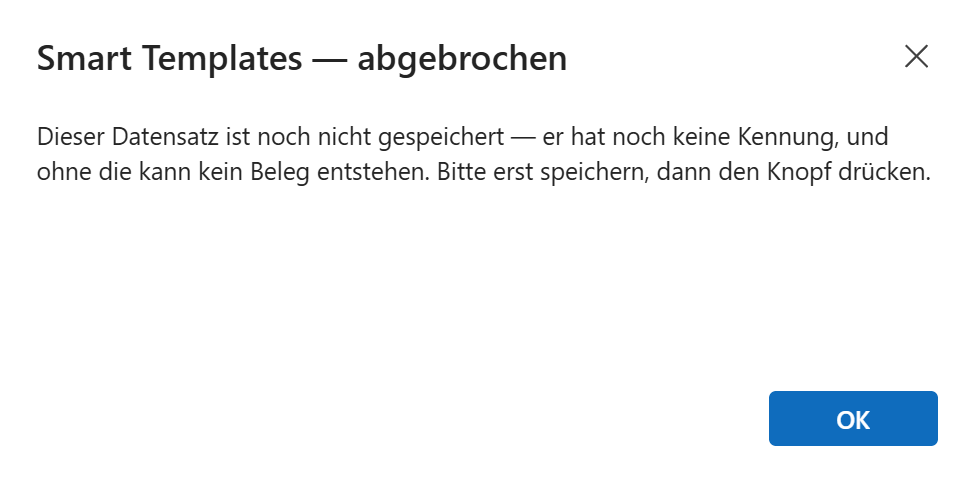
- 1The title says that nothing was created.
- 2The sentence names the reason in plain words and says what to do. “The button” means the button in the command bar.
| Situation | Message and remedy |
|---|---|
| The record has not been saved yet (on a form only) | “This record has not been saved yet — it has no identifier yet, and without it no document can be created. Please save first, then press the button.” |
| The form has unsaved changes | “This form has unsaved changes. The document is created from the saved state and would not show them. Please save first, then press the button.” The button never saves by itself. |
| In a list, not exactly one row is checked (simple button) | “Please select exactly one record. A document is always made for one.” |
| A button whose entry in the field “Function” ends in “All”, and no row is checked | “No row is selected. Select the rows on the left for which something is to be created — otherwise the button does not know what to work on.” |
| The checked rows cannot be read | “The selected rows could not be read. Please reload the list and select the rows again.” If only a single row cannot be read, it counts as an error with its position: nothing was created for it. |
| The record cannot be identified | “The record cannot be identified. Check in the command designer whether the first parameter of the button is »PrimaryControl« — for a button in a subgrid or an associated view »SelectedControl«.” Before that, the button tries a rescue: on a record page it takes the open record, in a list never. |
| No template is set (second parameter missing or consisting only of spaces) | “No template is set for this button. The second parameter must be the identifier of a Smart Templates template.” |
| The path is unreadable or does not lead to the target | The button follows the path step by step: lookups forward, collections backward with the chosen selection. Messages: the stored path is unreadable because a step has only a direction sign or does not follow the pattern “field>table” or “field<table:key:choice”; on this record the named field is empty, from here no path leads to the table; the field points to an entry in the wrong table; the return path lacks the key of the target table or the indication of which entry applies (genau1, neueste or aelteste); this record has no entry in the table, so there is nothing to print; the entry found has no readable identifier. If there is more than one entry although the path is set to genau1, the button cancels. The message ends with “Switch it in the designer to »the newest« or »the oldest«.” What is meant is this: in the command designer, in the parameter with the path, change the entry genau1 to neueste or aelteste, or put the path together again in the assistant (see Buttons: the assistant: The path) and enter the new path text. The assistant itself does not change an existing button. |
| The flow is switched off | The button cancels before the document or email is created. The message says that the flow is not switched on; switch it on in Power Automate, or delete the parameter with flow: on the button in the command designer (see Adding, changing and removing a button: Changing or removing a button). The assistant already warns when you choose the flow (see Buttons: the assistant: Notes below the selection). |
| The flow was removed or the identifier is wrong | The button cancels before the document or email is created. The message reads: “The specified flow was not found. Please check the flow identifier — it is in the address bar of the flow in Power Automate, after »/flows/«.” Users see the same message if the flow was removed in “Manage flows” and a button still points to it (see Flows: Removing a flow); no document or email is created then. So first delete the parameter with flow: on the button in the command designer (for how, see Adding, changing and removing a button: Changing or removing a button), or remove the flow only when no button points to it any longer. |
| The flow does not fit the button | The button cancels before the document or email is created. Messages: it is not a cloud flow; it is built for a different table, nothing was triggered; the flow specification is not a valid identifier; it is not on-demand, so it usually has the wrong trigger (what is needed is “When a row is added, modified or deleted”, not “When a row is selected”); it listens to the table “Smart Templates Auslöser” but not to new rows (set “Change type” to “Added” in the trigger). |
| The document is ready, but the flow was not started | If the document goes through and only starting the flow fails (no record, read right missing), it is just a warning that the flow was not started; it appears in the window “Smart Templates”, not in “… — canceled”. The document is not affected. |
| Email: recipient, email template or platform | Sending immediately with no possible recipient: “No recipient was found”. This affects a button with no recipient set on a table that is not itself a recipient. The message names two ways: in the assistant, the step “Who receives the email?” with the parameter to:… (see Buttons: the assistant: Who receives the email?) or “Prepare an email and present it”. The email template is missing in Dynamics: it was not found, please check the entry of the email template. Wrong table: the email template is built for a different table, its placeholders stayed empty, nothing was created; templates of the type “User” apply to every record. Neither a parameter nor an applicable case determines an email template: no email template was passed, and the template’s if-then cases have determined none (in substance). If Dynamics refuses to create or send, its message is shown along with the sentence that the document itself was completed. |
The button has a recipient (to:…), but the field yields none (“Send email immediately” only) |
Neither a document nor an email nor a flow is created. The message reads: “Nothing was sent: The field »customerid« is empty. This button takes the recipient from this field and does not guess another one. Enter it on the record and press the button again.” If a lookup points to an entry in a table that is not a recipient, the first sentence reads: “Nothing was sent: »customerid« points to an entry in »team«, which is not a recipient.” “customerid” and “team” stand here as an example for the name of the chosen field and of the table it points to. With “all checked rows”, the message appears per record under “Not successful”; the other emails go out. An email draft does not know this message: it opens as if the button had no recipient. |
| The user lacks a read right | No document is created; the English message begins with “NO ACCESS”. Its wording, also for the email purposes, and which read rights are needed are given in Rights and roles: When a right is missing. |
| Too many rows are checked when displaying | The button cancels, and no document is created. The limit and the message are under The limit of 200 rows. |
| The button points to a building block instead of a template | Nothing is created: “»…« is a building block and does not create a document on its own. Nothing was created. A building block is inserted into a template and printed with it – use the template that contains it.” (see Building blocks). |
| A building block area of the template stayed empty, or a building block switched off all rules | A button for an email cancels: “The document is incomplete because of a building block: … — no email was created.” A flow on the button is not started; the PDF comes, and the warning for it is in the window “Smart Templates”. An e-invoice is not created (see Building blocks: When the area stays empty). |
| The browser blocks the tab for the document | The messages are under When the browser blocks pop-ups; that is also where it says how to allow pop-ups. |
Some of these messages are worded a little differently (“Please check …”, “switch it on in Power Automate”); the same is meant. Further messages and how to fix them are under Problems and messages.
Several checked rows
The entries ending in All work through the rows one after the other, each with its path. What goes wrong with one row does not stop the others. The button collects errors with their position among the checked rows (“Record 3: …”); identical warnings are named only once. A flow runs per record: four invoices result in four runs.
| Purpose | What you see at the end |
|---|---|
| Show | All documents are listed one below the other in a single tab, each in a frame of its own with the heading “i of n”; the tab is called “n documents”. Paging, printing and saving work in it as usual. If there were errors, the top says that x of y documents could not be created and that Dynamics says which ones. If the tab cannot be written to: “The documents could not be shown: …”. Several tabs are not possible because the browser allows only one new window per click. During the run, “Creating documents — n of m …” counts along. At the end: “n of m documents are ready. Not successful: • …”, with only warnings “n documents are ready.” with the warnings, if all failed “No document was created. • …”. A success without a warning stays silent. |
| Present an email | With exactly one record and no error, the draft opens (after a warning, only after it has been clicked away). Otherwise “n of m email drafts were created — with the document attached. You find them on the respective record under »Timeline« or »Activities« and can check and send them there.” appears. “Preparing emails — n of m …” counts along. |
| Send email | “The email was sent.” if exactly one row was checked and it succeeded, otherwise “n of m emails were sent.”, with errors including “Not successful: …”. During the run, “Sending emails — n of m …” counts along. |
| Download e-invoice | A ZIP file with all successful e-invoices, with only one checked row the XML itself. If everything succeeds without a note, it stays silent; otherwise the final message names the counts and what did not succeed. See Several checked rows: one ZIP file. |
With the two email purposes, the final message appears as the error window “Smart Templates — canceled” only if nothing at all succeeded. When displaying, it carries this title as soon as even one document is missing; the successful documents are still in the tab.
The limit of 200 rows
When displaying, the limit of 200 rows applies. If more are checked, the button does not show the first 200 but cancels, and no document is created at all. The message appears in the window “Smart Templates — canceled” and reads: “N rows are selected. A single tab holds at most 200 documents — more becomes unwieldy and takes long. Please print in smaller groups.” Below it, in parentheses: “(This limit does not apply to emails — there every record gets a draft of its own, without a tab.)” So the two email purposes have no limit; the same goes for “Download e-invoice”, because there is no tab to which the limit could apply. The checks run in this order: template, selection, 200 limit, pop-up blocker.
When the browser blocks pop-ups
A button opens the document in a new browser tab. If the browser does not allow pop-ups for Dynamics, it does not appear. How to allow pop-ups is described under How to allow pop-ups; what the button reports when blocked comes after that. The button “Download e-invoice” opens no tab; the block does not apply to it.
How to allow pop-ups
Allow pop-ups for the address of your environment, that is, for the Dynamics page on which the button sits. This usually works via the pop-up icon on the right of the address bar: click it, choose “always allow” and then “Done”. Then repeat the action, with a button that means pressing the button. You need the same setting when the browser blocks a window that the designer opens, for example with the AI assistant (see Working with the AI assistant in Copilot: Opening the assistant).
What the button reports when blocked
- Single document without a tab: The button keeps running and then reports: the document is ready, but the browser blocked the tab for it. Allow pop-ups for this Dynamics page, usually via the pop-up icon on the right of the address bar with “always allow”, and then press the button again. If the button has a flow, it adds that every further press starts the flow again.
- Waiting tab closed in between: The document is ready, but the browser blocked the new tab because the waiting tab was closed in between. Please press the button again and leave the tab open. With a flow, it adds that this button starts the flow on every press and that a further press starts it again.
- “All checked rows” without a tab: The button cancels beforehand: the browser blocked the tab for the documents, nothing has been created yet.
- Collective tab closed during the run: Without a flow, it says that the tab for the documents was closed, nothing is lost, press the button again and leave the tab open. With a flow, the warning is added that every further press starts the flow again for every record.
What changes in the document?
On the canvas
Nothing. The finished button is a command in Dynamics; it does not change the sheet in the designer.
In the PDF
The button prints the same document as the button “PDF”, but from the saved state of the template and with the record on which it is clicked, instead of with the sample record; with a path, with the record at the end of the path. What else differs (user, time, messages) is under Full preview and PDF: Full preview and printing in Dynamics. The template’s email if-then cases and the flow have no influence on the document. If the flow is switched off or removed at the time of the click, no document is created at all (see When the button cancels).