
Managing templates
In short
The template row, the second bar in the designer (outlined in purple in the image below), always applies to the whole template. With it you choose a template, save it in Dynamics, create a new one, copy, rename and delete it, and back it up as a file. Buttons and flows in Dynamics always print the saved version.
The template row
The template row is at the top of the designer between the header bar and the ribbon; in the image it is outlined in purple.

| Button | What it does |
|---|---|
| “Template” (field) | Shows the open template and opens another one (see Choosing the template). |
| “Template settings” | Opens the settings of the whole template: page, font, numbers and date, tables and data (see Template settings). |
| “New” | Creates a new template (see New). |
| “Import” | Opens a template file, including a whole template that an AI has delivered (see Importing). |
| “Export” | Downloads the template as a file (see Exporting). |
| “AI package” | Downloads a file for an AI: the template, the description of the format and all tables (see Working with an external AI). |
| “Upload AI changes” | Brings the changes that an AI delivers in response to the AI package into the open template as one step; Ctrl+Z takes them back. A small menu asks where from: “Choose file …” or “Paste text …” for the copied answer from the chat. Also works for a template that has not been saved yet (see Working with an external AI: Taking over the AI’s answer). |
| “AI assistant” (only in Dynamics) | Opens the Copilot agent for templates next to the designer (see Working with the AI assistant in Copilot: Opening the assistant). |
| “Duplicate” | Creates the current state as a new template in Dynamics (see Duplicating). |
| “Rename” | Gives the template a new name and saves it in the process (see Renaming). |
| “Building blocks” | Opens the window with all building blocks: areas that are the same in selected templates (see Building blocks: The “Building blocks” window). |
| “Delete” (red text) | Deletes the template after a confirmation prompt in Dynamics (see Deleting). |
| “Save” (blue) | Stores the template in Dynamics (see Saving). |
Choosing the template
The “Template” field shows the name of the open template. This is how you choose another one:
- A click empties the field and opens the list of all templates, sorted by name. The open template is shown in bold.
- Typing filters the list by the name and by the ID of the template.
- A click on an entry opens the template; Enter opens the first match.
- Esc closes the list and restores the name.
In Dynamics, the list contains all templates that you may read. Building blocks are not in it; you open them in the “Building blocks” window (see Building blocks). If the open template has unsaved changes, the designer asks before the switch (see Prompt when leaving). If a template cannot be opened, for example because it has been deleted in the meantime or the read right is missing, the current one stays open, and a red note names the reason.
Saving
Click “Save” at the far right. The designer stores the open template in Dynamics and reports “Saved: Angebot” (with the name of your template). From then on, all buttons and flows print this version.
- What is saved is the state at the moment of the click. Every save replaces the previous version; the designer does not keep older versions.
- Ctrl+S does not save. Saving happens only with this button and with “Rename”.
- If saving fails, the message “Saving failed – …” names the reason.
- The button does not save an imported template; you store it in Dynamics with “Duplicate” (see After opening).
- The name in Dynamics is the name of the record. If someone renames the template in Dynamics, that name applies the next time it is opened.
New: creating a template
The “New” button creates a new template in two steps: first name and primary source, then page, font and numbers. How this works is shown with images in Creating a new template.
Until you click “Create template”, everything is a draft: nothing is created in Dynamics yet, and if you cancel, the template that was open before is back unchanged. If it has unsaved changes, the designer asks even before the first window (see Prompt when leaving).
Duplicating, renaming, deleting
Duplicating
“Duplicate” creates the current state of the template, including anything unsaved, as a new template in Dynamics and opens the copy. The original keeps its saved state. In the “Duplicate template” window you enter the name of the copy; the previous name with the suffix “copy” is prefilled.
The designer does not ask about unsaved work here, because that work is in the copy. If creating fails, for example because the right to do so is missing, the current template stays open unchanged. You also store an imported template in Dynamics this way (see After opening).
Renaming
“Rename” asks for the new name in the “Rename template” window. It also becomes the name of the record in Dynamics.
Caution
“Rename” saves the whole template including all open changes. If saving fails, the template keeps its old name. If the name appears as text on the sheet, you change it there yourself.
Deleting
“Delete” asks in the “Please confirm” window “Delete the template ‘Angebot’?” and then deletes the record in Dynamics. Afterward, the first template of the list opens.
- A deleted template cannot be brought back in the designer; Undo applies only to changes to the open template.
- If deleting fails, for example because of rights or the network, the template stays open unchanged, and a red note names the reason.
- If there is no template left afterward, the window “Welcome to Smart Templates” appears with the way to the first template (see If there is no template yet).
- If a building block is open, “Delete” deletes the building block. If it is still used in a template, it cannot be deleted; the message names the templates, and no confirmation prompt appears at all (see Building blocks: The “Building blocks” window).
As a file: exporting and importing
With “Export” you back up a template as a file, with “Import” you open such a file again, including a whole template that an AI delivers in response to the “AI package” (see Working with an external AI: A whole template instead of a change).
Exporting
“Export” downloads the current state of the template as a file, including anything unsaved, without asking. The file is always called “template.json”, not after the template; if you back up several templates, rename the files after downloading. If the template uses building blocks, they are included in the file, each one in full once (see Building blocks: Exporting and importing).
Good to know
The file contains the ID and the name of the sample record, that is, the name of a real record; field values are not in it. Keep this in mind before you pass the file on.
Importing
- Click “Import” and choose the file. The file dialog initially shows only files with the extension “.json”. You choose an AI answer saved as text by switching the file type in the dialog to all files. If the open template has unsaved changes, the designer asks now.
- The designer checks the file. If there are no findings, it opens the file immediately. Otherwise it shows a report (see The report windows). If the file brings along building blocks that exist here with different content, the window “Building blocks from the file” asks beforehand what should apply (see Building blocks: Exporting and importing).
The check runs in Dynamics; if it cannot be reached, the designer does not open the file. If the template is in a text between explanatory sentences, for example in the saved answer of an AI, the designer reads only the part with the template. What the check reports in detail is described for developers under Template format: What the check reports on import.
The report windows
If the check finds errors, the designer does not open the file and shows the window “The template cannot be opened like this”. If it finds only notes, it shows the window “The template can be opened – please note”; with “Open” you open the template anyway. In both windows, the findings are listed under “Error” (red) and “Notes” (ocher), each with the location. The sentences in them are technical because they are intended for the AI that generated the file.
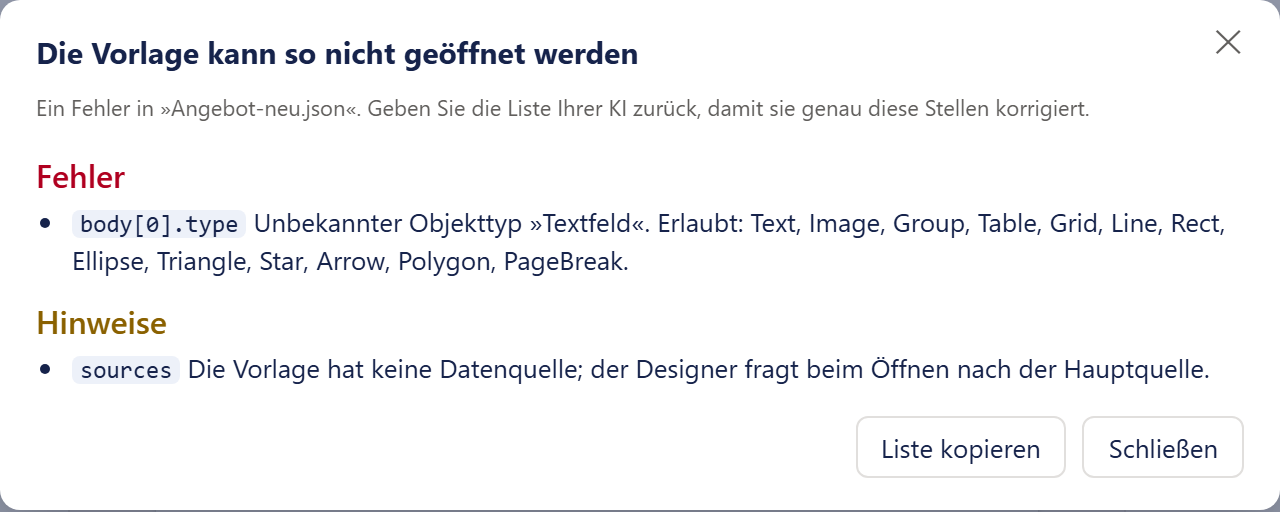
- 1The opening sentence names the number of errors and the file.
- 2One list item per finding: at the front the location in the template, followed by the sentence about it.
- 3“Copy list” puts the findings on the clipboard so that you can give them back to the AI.
Images included
If the file contains images, the designer compares them with the image library by content: an identical image gets the existing short name, a new one is created in the library immediately. This works only in Dynamics. Afterward, a note names which images were already present, which were newly created and which were not taken over; where an image could not be taken over, the place stays empty.
PNG, JPEG and SVG up to 5 MB are accepted. The designer converts an SVG into a PNG of at most 3000 px per side because printing does not read SVG. Which formats apply when uploading to the library is described under Images: Formats.
After opening
The imported template is open but is not yet in any record in Dynamics:
- It can be stored only with “Duplicate”. “Save” and “Rename” point to it with a note, “Delete” does nothing.
- The “Template” field is empty, and “Template settings” is missing until you have stored the template. “AI assistant” and “🖨 Manage buttons in Dynamics” also work only afterward (see Buttons: the assistant: The window “Not yet saved in Dynamics”). If you click “AI assistant” beforehand, the designer reports: “First store the template in Dynamics with ‘Duplicate’ – the AI assistant works with saved templates.” No window opens. “Upload AI changes” already works beforehand: the AI’s changes go into the open template (see Working with an external AI: Taking over the AI’s answer).
- Do not choose “New”: that creates an empty template and discards the loaded one. The designer warns beforehand in the window “Discard the loaded file?”; only “Create new anyway” discards it.
- When leaving, the designer always asks, and Undo has nothing to take back yet.
Starting and leaving
Which template opens
If you open the designer via the app’s navigation, the first template of the list sorted by name opens; it does not remember which one you edited last (see Opening Smart Templates).
The ID of the open template is, however, in the address in the browser. Reloading and a bookmark therefore open the same template again, and anyone you give the address to lands in the same template. If the template from the address no longer exists, the first one of the list opens with a note. If the opened template has no primary source, the designer asks for it right afterward (see Data sources and relationships: The “Primary source required” window).
If the designer does not start or the templates cannot be loaded, Problems and messages: The designer does not start or shows no template helps.
If there is no template yet
Right after installation, there is no template in Dynamics yet. The same applies if there are only building blocks. Then the designer opens the window “Welcome to Smart Templates”. It explains in one sentence what a template is, names the three steps to the first template and offers two buttons:
- “Create first template” opens the same window as “New”: first name and primary source, then page and font (see Creating a new template). If you cancel there, the welcome window is back.
- “Import template file” opens a backed-up template as a file, exactly like “Import” (see Importing).
The window cannot be closed, not even with Esc or a click next to it: the empty basic framework behind it belongs to no record, so work on it would be lost. The keyboard also stays in the window: when it opens, the focus is on “Create first template”, Enter chooses this button, and Tab switches only between the buttons of the window. The same window appears when you delete the last template. At the bottom is a note: if you see no template even though colleagues have already created some, your read right probably applies only to some of the templates, for example only your own. The role “Smart Templates Designer” reads all templates. If the read right is missing entirely, the message “The templates could not be loaded …” appears instead of the window (see Rights and roles: When a right is missing).
Prompt when leaving
There is no symbol for “unsaved”; the “Save” button always looks the same. But the designer asks before anything unsaved is lost:
- When switching the template, with “New”, with “Import” (after the file choice) and when switching the interface language, the window “Unsaved changes” appears: “This template has unsaved changes. If you switch now, they will be lost.” With “Cancel” you stay in the template, “Discard and switch” (red text) discards the changes.
- If you close the tab or reload the page, the browser asks with its own text.
- With “Duplicate”, “Export”, “AI package”, “Upload AI changes”, “AI assistant”, “Full preview” and “PDF”, nothing is lost; the designer does not ask there. “Delete” asks anyway whether the template should really be deleted.
Caution
If you switch to another area in Dynamics via the app’s navigation, for example to “Bild-Assets”, neither Dynamics nor the browser asks, and unsaved changes are lost. So save before you leave the designer.
What changes in the document?
On the canvas
Anyone who chooses another template, imports or duplicates sees that template on the canvas afterward; when creating with “New”, it already shows the basic framework.
In the PDF
“Full preview” and “PDF” build the document from the open template, even if it is not saved, with the values of the sample record. Buttons and flows in Dynamics, on the other hand, print the saved version: a change takes effect there only after “Save” or “Rename”; a new template and a copy from “Duplicate” are in Dynamics from the moment they are created.