
Keep warm
In short
After a longer break, the first document otherwise takes ten to seventeen seconds. To prevent that, Smart Templates keeps its templates warm. This sets itself up; you do not have to do anything.
How it works
As soon as a template is saved or someone opens the designer, Smart Templates creates 48 recurring bulk deletion jobs in your environment. They are named “Smart Templates keep-warm …”; each one runs once a day, together every 30 minutes. They delete only rows of the helper table “Smart Templates Wecker”, none of your data, and each deletion triggers a test document of the templates: with their sample record or, if none is stored, with any record of the main table. The test document is discarded immediately, is not sent anywhere and does not trigger a flow.
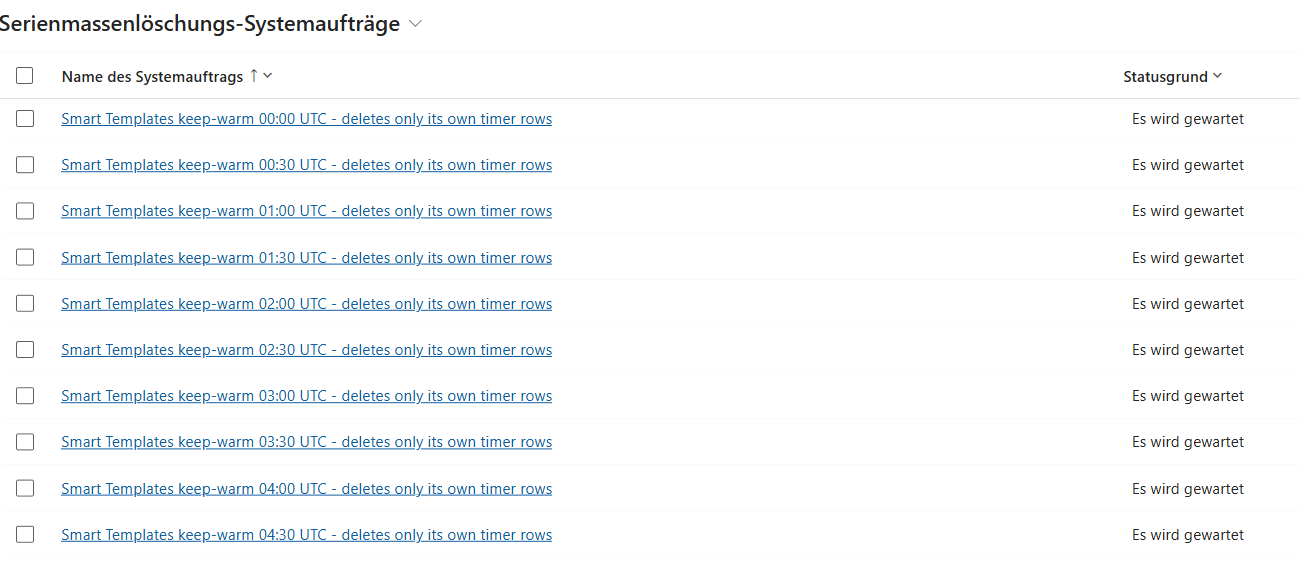
- 1The full name of a job. It says what the job does: It deletes only its own rows of the table “Smart Templates Wecker” (“timer rows”), none of your data.
- 2The time (UTC) in the name: Every job has its own, here 00:00 and 00:30; together they run every 30 minutes.
Turning it on and off per template
Per template, the check mark “Keep this template warm” turns keep-warm on or off. It is in the “Template settings”, “Data” tab; its default, the note below it and the button “🔧 Check keep-warm” are there as well (see Template settings: Keep warm). Every active template with a primary source whose check mark is set is kept warm. For an inactive template the check mark has no effect, and the window says so. Even with the check mark, a template stays cold if its main table is empty or not readable. Building blocks are not warmed separately and do not count in the check; they are warmed together with the templates they are part of (see Building blocks).
Keep-warm cannot be turned off completely: Even without a single check mark, the jobs stay in place and then warm nothing. Jobs you deleted by hand are created again by the next start of the designer or the next time a template is saved.
Checking
In the same tab, the button “🔧 Check keep-warm” checks the setup and sets up missing parts again. Normally you do not need the button: Keep-warm sets itself up (see After an update), and the check changes nothing in your data. If it cleans up a duplicate row of its helper table, the same test documents may be created once outside the usual schedule.
Below the button, the result then appears, with the duration in seconds. This is how the button shows the check:
- During the check the button is called “⏳ checking …” and is locked.
- If everything is there, it reports, for example: “All good: templates kept warm: 5, groups: 1, wake-up jobs running: 48 of 48.”
- If the license is not valid, Smart Templates does not warm, even if everything is set up. The check says so, for example: “Set up, but nothing is being kept warm right now: the license is not valid (expired). …; keeping warm resumes as soon as the license is valid.” In the parentheses is the reason, as in the name of the rows. What to do is described on the page “License & updates” (see When no license is valid).
- If the check fixed something, the answer begins with “Fixed:” and names what was newly created or removed.
- If the jobs are complete, but groups have not been woken for more than 45 minutes, the check asks you to look in the system jobs to see whether they are allowed to run.
- Findings and errors appear in red, for example “The check failed: …”.
- Outside Dynamics, for example in a local preview, the button is locked, and below it is “Not available in the local design service.”
Good to know
The check looks at whether everything is set up and the jobs are running, not at how fast the next document really is. How long Dynamics keeps Smart Templates ready after a document is not committed to by Microsoft. If that changes, the documents still come, only the first one after a break is slower again. Whether the last round really warmed is in the name of the rows of the table “Smart Templates Wecker”, for example “Gruppe 1 · … · 5/6 warm · 4.2 s”; “0/0 warm”, “kein Datensatz” or “Lizenz (…)” means that nothing was warmed; for “Lizenz (…)” the reason is in the parentheses, and warming resumes only when the license is valid. You will find the table in Power Apps among the tables of the environment.
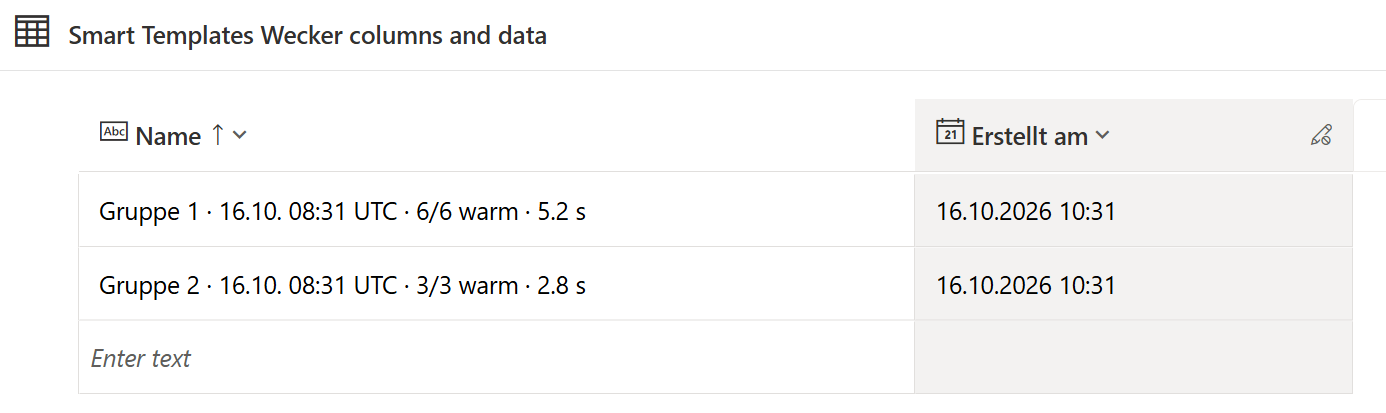
- 1“Gruppe 1”: the group. Every six templates make one row, further templates further rows; here there are two groups.
- 2“16.10. 08:31 UTC”: start of the last round of this group, in UTC.
- 3“6/6 warm”: In this round all six templates of the group were warmed. If one was not warmed, its name follows with the reason; if nothing was warmed because of the license, “Lizenz (…)” appears there.
- 4“5.2 s”: This is how long the round took. Whether warming took place is told by the number before it, not by the time.
After an update
After an update, click “🔧 Check keep-warm” or save a template. Smart Templates then checks the jobs and sets them up again if needed. Opening the designer also checks silently, but only once per browser session; reloading in the same tab does not check again.