
Problems and messages
In short
When creating a document, Smart Templates checks whether the PDF looks the way the template describes it. It reports whatever does not match: as a warning if the document looks different from the template, or as a note if something is noteworthy but nothing is missing. This page has three parts. First come the common problems, each with what helps and a link to the page that explains it. Then comes where and how the designer and the print report: cards, notes, windows and confirmation prompts, their colors and how long they stay. Last come all messages of the print with their wording, their meaning and the remedy. The messages of the print are mostly in English; some, such as those on variables and flows, come in German.
Common problems and what helps
Always check a document with the “Full preview”: it shows the real PDF with all the data, while the canvas shows only an excerpt. If there is a message you do not understand, look it up under All messages.
A table is empty in the PDF
- The rule delivers only one record. If the rule of the table says “Only the first”, “Only the last” or “The one at a specific position” under “Selection”, a table based on it stays empty. Choose “The first N” or uncheck “Keep only specific records” (see Rules: “Selection” tab: sorting and selecting).
- The rules read each other in a cycle. Then all rules are skipped, and every table based on a rule stays empty. The designer reports the cycle (see Rules: When rules read each other in a cycle).
- The filter lets no row through. Open the rule and check the conditions, ideally with a sample record that has matching rows.
- The row source is missing. If a source or rule was deleted, the table points to nothing. Select the table, in the section “Data” click “⚙ Data source & sorting” and in the window click “Change…”, and choose a new row source (see Data tables: Changing the row source).
A field stays empty
- The record contains nothing. Empty stays empty; check the field in Dynamics.
- The field no longer exists. In the area “Data” it carries the suffix “missing”. Insert a different field.
- A linked record could not be read. It was deleted, or the user who creates the document lacks the read right. The document reports this as a warning (see Rights and roles: When a right is missing).
- The field belongs to a rule. A field of a rule on a source shows a value in the text only if the rule delivers exactly one record, for example with “Only the first” under “Selection”. A field of a rule that sits on a list, for example on the line items, currently cannot be dragged onto the page. If you insert it in the window “Edit text”, it does appear as a marker in the text, but currently delivers no reliable value; the spot can stay empty in the PDF. Show a sum there as a total row or, in running text, through a custom variable with “Sum of” (see Rules: Using the result).
- A variable does not exist. The spot stays empty; before the full preview and the PDF, the designer reports this (see Variables: The check before full preview and PDF).
Text or table is cut off
The spots where the PDF cuts off are listed under Position, size, rotation and arrangement: Where the PDF really cuts off. For a group with a fixed height, turn on “Automatic height (fit to content)” (see Position, size, rotation and arrangement: Automatic height and limits). An object that begins entirely below the fixed bottom edge is missing, with a warning. If it only extends over the edge at the bottom, it is, depending on the object, cut off, shortened or refitted; cut-off or shortened text, shapes, lines and images are reported by the document with the missing millimeters; a table loses rows and reports it (see Position, size, rotation and arrangement: What the wall does to an object).
A text with a fixed height (without “Automatic height”) is cut off on the canvas, with a hatched strip below it. The PDF prints it in full and reports that it needs more space than its box. If it sits in a group, cell or table row with a fixed height, the bottom edge of that cuts it off in the PDF too (see Texts: Width and height).
Something extends over the bottom margin or is missing at the bottom
The first object of a page does not move to the next page if it fits on a page, but extends over the edge; whatever reaches beyond the paper edge is missing in the PDF. A code is not cut off there, but omitted; a GiroCode then prevents the document (see Barcode, QR code and GiroCode: Page edge and fixed bottom edge). Exceptions apply to tables, to a page that a letterhead makes narrower, and to objects that are taller than a page. Place the object on the next page on the canvas, or move it up far enough that it fits (see At the page edge: The first object on a page and At the page edge: When the first object moves or is split after all). An object with “Fixed position” also stays where it is drawn (see Positioning behavior: Fixed position).
Objects are in a different place in the PDF than on the canvas
If a text or a table grows with the real data, the objects below it move down, depending on their positioning behavior. If an object is to keep its distance from the table above it, choose “Flowing”; if it is only to move out of the way, “Flowing on contact” (see Positioning behavior: The three options).
A sum does not match the rows
- The canvas calculates with only the first 20 rows of a list. What counts is the full preview (see Data sources and relationships: What the canvas loads and what is printed).
- The rule of the sum filters differently from the rule of the table. Create the same filter in both.
- The sum comes from a custom variable with “Sum of”. It calculates over all rows of the list, without the filter of the table. If the sum is below a filtered table, use a total row with the same filter (see Rules: Example: the sum below the items table).
- Sums are formed from the rounded values so that they match the printed rows (see Rules: Round first, then sum).
Date or number in the wrong format
Date, numbers and Yes/No follow the template language and the settings in the “Numbers & date” tab (see Numbers, currency and dates: “Numbers & date” tab). The four settings under “Currency & numbers”, that is, currency symbol, decimal places, notation and thousands separator, can be switched per customer with condition branches (see Numbers, currency and dates: Condition branches: different per customer); there are none for template language and date format.
A single date field can have a format of its own (see Numbers, currency and dates: The date format of a single field). For a single number or amount there is no format window of its own; for a value of the printed record, you get other decimal places or another symbol through a custom variable; for a field in a table row this is not possible (see Numbers, currency and dates: Decimal places and symbol for a single field).
The font looks different
If a font is not uploaded, the template prints with Arimo. If a font lacks a style, such as italic, italic text appears upright (see Template settings: Default font). The designer reports both; upload the missing file (see Image library and fonts: The “Manage fonts” window).
A code is missing, or a document with a GiroCode is not created
- The code is missing, the spot is empty. Either its content is empty, in which case the spot stays silently empty with “print nothing”, or it is invalid, for example with a wrong check digit for an EAN. In the second case, the feedback contains a warning with the kind of code, its content from the template and the reason (see Barcode, QR code and GiroCode).
- The document with a GiroCode is not created. A visible, invalid GiroCode prevents the document; the reason names every defect, such as the check digit of the IBAN. Correct the data, or hide the GiroCode for this document with a visibility rule, for example for a credit note (see Barcode, QR code and GiroCode: What is checked).
- The code cannot be read. Check size and color: a bar at least 0.25 mm wide, a dot of the QR code at least 0.4 mm, dark bars on a light background and “White margin (quiet zone)” on (see Barcode, QR code and GiroCode: Fitted print-sharp). For codes that are too small, the document writes a note on the data.
A document with an e-invoice is not created
- A message appears that begins with “The e-invoice cannot be created”. An e-invoice is created only if it is complete and consistent; otherwise nothing is created, not even a normal PDF. The message names the details and says who must act: whoever maintains the record or whoever maintains the template (see E-invoice).
- You want to know what is missing before a user notices. Check the template in the “E-invoice” tab with “Check with sample record”, ideally with an invoice, a down payment invoice and a credit note (see E-invoice: Checking with a sample record).
- The full preview shows the PDF, but the button cancels. The full preview is milder: for gaps it shows the PDF without an e-invoice and a warning (see Full preview and PDF: With e-invoice).
- The document is created without an e-invoice and without a message. Then “Only if …” does not apply to this record, or the e-invoice is turned off (see E-invoice: “Only if …”).
The first document takes a long time
After a longer break, the first document takes ten to seventeen seconds; every further one is fast. Keep-warm helps against this (see Keep warm).
Header or footer is missing on a page
On the repeated group, check “Show on pages” and “Exclude these pages” (see Pages, header and footer: On which pages). If the group has a visibility rule that does not apply to the printed record, it is missing on all pages even though the canvas shows it (see Visibility: Per object).
There is a blank page at the end
A page added with “Blank page” or “Add page” sets a minimum number of pages: It is printed as long as the content alone fills fewer pages. Remove it with “🗑 Blank page” if you do not need it (see Pages, header and footer: Appending blank pages and removing pages).
A blank last page also arises when nothing follows after a page break (see Pages, header and footer: Page break: What it does). Then remove the break (see Pages, header and footer: Page break: Selecting, moving, removing).
The designer does not start or shows no template
Most messages at startup stay at the top as a persistent message (see Messages, prompts and windows).
- The designer does not start. Reload the page with Ctrl+Shift+R. If it stays that way, the exact message is in the browser console (F12). If it says the page was not opened within a Dynamics 365 app, open the designer through the app (see Opening Smart Templates).
- The templates cannot be loaded. The message “The templates could not be loaded – …” names the reason, and an empty document appears instead of a template. Reload the page as soon as the cause is fixed; open a saved template file through “Import”. If not a single template can be retrieved, the read rights are often missing (see Rights and roles: When a right is missing).
- There is no template yet. Then the window “Welcome to Smart Templates” appears, with “Create first template” and “Import template file” (see Managing templates: If there is no template yet). If you know that templates already exist, your read right probably applies only to a part of the templates, for example only to your own (see Rights and roles: When a right is missing).
- The link names a template, but none can be retrieved. A warning (yellow card) reports: “The link names a template, but none can be retrieved at all — are read permissions missing? An empty document is shown.” The card disappears after a few seconds; above it appears the window “Welcome to Smart Templates” (see Managing templates: If there is no template yet). Check the read rights (see Rights and roles: When a right is missing) and then open the link again.
- The time zone cannot be read. Dates on the canvas are then calculated in the time zone of your computer, the PDF in the one from Dynamics. The two can be a day apart.
Where the messages appear
The designer reports in two ways. It tells you itself what is happening right now or what it needs, with cards, notes, windows and prompts; the first four sections describe that. And it shows what the print reports about a created document; the sections after that describe that. Here the kinds, colors and durations of all messages are in one place.
Messages, prompts and windows
The designer communicates in three ways and uses four kinds of windows. All areas use the same messages and windows; they are described once here.
| Kind | Appearance and place | Duration |
|---|---|---|
| Note (card) | A small card at the top center that also lies over windows; several stack one below the other. There are four kinds with a colored left edge and an icon: error (red) and warning (yellow) with a warning triangle, success (green) with a check mark and information (blue) with a small “i”. With “×” you close them immediately. | Error 6.5 s, all others 4.2 s |
| Yellow note | A yellow note that lets clicks through. It floats in the middle just below the ribbon and moves nothing. Only one note is shown at a time; a new one replaces the previous one immediately. If a window is open, including the group designer, the note appears at the top of that window. | Default 2.8 s; other messages 3.5 to 12 s |
| Persistent message (main window only) | Looks like the yellow note, but stays until the next yellow note replaces it or an import hides it. It appears for startup errors (see The designer does not start or shows no template) and when the time zone is not readable. At startup it is at the top center and lets clicks through. | until the next note |
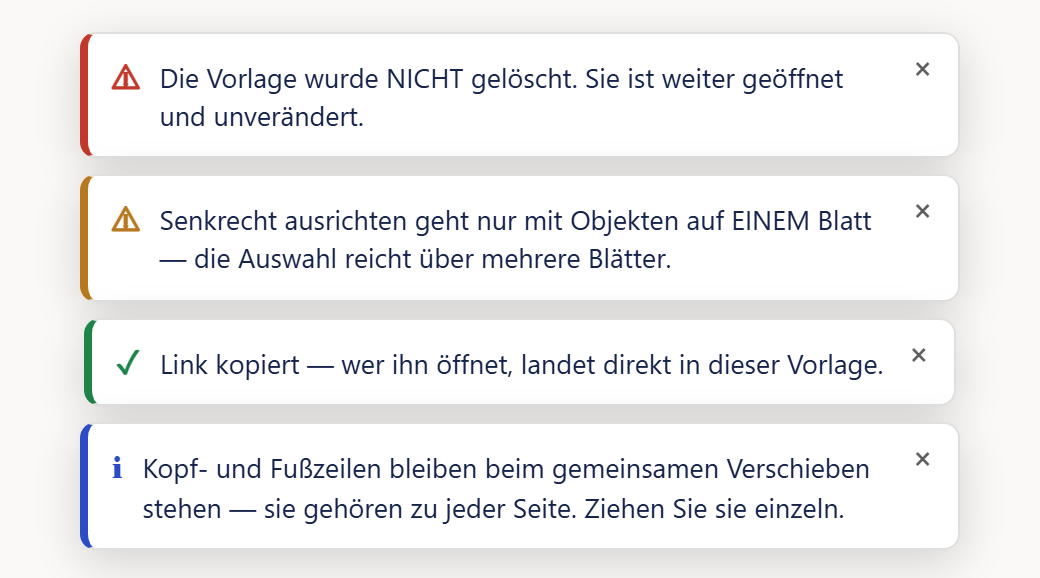
- 1Error (red): stays the longest, 6.5 seconds.
- 2Warning (yellow).
- 3Success (green).
- 4Information (blue). Warning, success and information stay 4.2 seconds; with “×” you close any card immediately.
The messages of the print after creating (red with the prefix “Warning: ”, yellow with “Note on the data: ”) are described in the section Notes and warnings; the text after the prefix is in English. What individual error texts mean and what you do then is described under All messages. That the card kind warning is not the same as the warning of the print is explained under Two meanings of “warning”.
Error texts from the service consist of a statement of what failed and the plain text of the service, for example “Saving failed – …”. If the plain text is missing, in Dynamics the advice “please reload the page (Ctrl+Shift+R). If it keeps happening, the exact message is in the browser console (F12).” appears. Technical error pages and texts over 600 characters are not shown by the designer as plain text.
The windows
| Window | Structure and operation |
|---|---|
| Confirmation window (prompt) | Title (default “Please confirm”), text and buttons: on the left “Cancel” or as named, on the right the main button, blue or, for dangerous actions, with red lettering. The focus is on the main button, Enter triggers it. Esc and a click next to the window count as “Cancel”. Pure notices have only one button, for example “Got it”. |
| Name window | Text, a prefilled and selected text field, an error line and the buttons “Cancel” and main button. An empty name is rejected with “Please enter a name.”, in a red line in the window. Enter confirms, Esc and a click next to the window cancel. |
| Selection window (card above the canvas) | Most dialogs are cards that stand in the middle. As soon as you work in them, they keep their position; the button you clicked does not jump away. Some have a ✕ at the top right (tooltip “Close”). On all edges you can resize them with the mouse, down to a smallest size and at most almost to the size of the browser window. If a window opens above another, it lies over the highest open one, and its veil is only light. |
| Loading window | A small card with a spinner and text without buttons, for example “Loading sample data...” or “Loading data source...”. It closes itself. |
The most important confirmation prompts at a glance
These windows ask before anything is lost or happens. Each one is described where its command is. Confirmation prompts when deleting or discarding individual objects, rules, variables and sources are described with those.
| Window | When it appears | More |
|---|---|---|
| “Unsaved changes” | When switching the template in the selection, at “New”, at “Import” (after choosing the file) and when changing the language, if the template has unsaved changes. | Managing templates: Prompt when leaving |
| “Discard the loaded file?” | Before “New”, if the open template comes from a file. | Managing templates: After opening |
| “The template can be opened – please note” | When importing, if the check finds only notes; buttons “Copy list”, “Cancel” and “Open”. | Managing templates: The report windows |
| “Discard new template?” | When canceling “New”, as soon as something has been entered. | Creating a new template: Canceling |
| “Please confirm” with “Delete the template ‘…’?” | At “Delete”. | Managing templates: Deleting |
| “Discard changes that were not applied and close?” | When closing the template settings with changes. | Template settings: Opening, applying or discarding the window |
| “Please confirm” for a rule cycle, for variable problems or for incomplete conditions | Before “Full preview” and “PDF”; buttons “Cancel” and “Generate anyway” (labeled in red). | Full preview and PDF: Confirmation prompt for rules and variables |
| “Choose sample record” | Before “Full preview” and “PDF”, if no sample record is stored or the stored one was deleted in Dynamics. | Full preview and PDF: Without a sample record |
| “Welcome to Smart Templates” | When the designer is opened and there is no template yet, and after the last one is deleted. | Managing templates: If there is no template yet |
| “Primary source required” | When the template has no primary source. | Data sources and relationships: The “Primary source required” window |
| “Not yet saved in Dynamics” | At “🖨 Manage buttons in Dynamics”, if the template is not stored in any record. | Buttons: the assistant: The window “Not yet saved in Dynamics” |
| “Discard the changed text?” | When closing the text editor with “Cancel” or Esc, if the text has been changed. | The “Edit text” window: Cancel, Apply and Esc |
| “Leave this window?” | When closing the window “Manage data sources” with “Close” or Esc, if something has changed there. | Data sources and relationships: Confirming, discarding, closing |
Messages of the canvas
The canvas also reports some things itself, as a yellow note under the bars, each message once for about nine seconds. These messages concern only the canvas, not the document:
- “Preview: »…« has more than 20 rows — the canvas loads only the first 20 of them. Rules, totals, »The first N« and conditions use only these on the canvas; the printed document uses all of them.”
- “Preview: the canvas shows at most 50 rows of »…«. All are printed — up to the upper limit, which the document reports when it is reached.” This concerns further sources.
- A message that the sample record or a further source could not be read just now. The canvas then shows no sample values there; the document fetches the data anew when it is created.
When a template is opened, the following also appear, if they apply: findings from converting older templates to today’s structure, such as old headers and footers to groups that repeat on every page, and the calm note “Data sources updated from Dynamics: 12 new field(s) and 3 new relationship(s) added.” This note appears at almost every opening and is not an error: Only the fields used are saved; the designer fetches the rest when opening.
What the limits of 20 and 50 rows mean is described under Data sources and relationships: What the canvas loads and what is printed. Further messages of the designer are where the operation is explained, for example when expanding in the data tree (Data tree and field picker: Expanding, loading, depth), when comparing with Dynamics (Data tree and field picker: Fields that no longer exist in Dynamics) and for the data sources (Data sources and relationships: The question “Additional data source without a condition”).
Notes and warnings
If the print notices something when creating, it reports it after the full preview and after every download at the top center, also above the window of the full preview. There are three kinds:
| Kind | What it looks like | What it means |
|---|---|---|
| Warning | White box with a red edge on the left and a warning sign; the text begins with “Warning: ”. Disappears after 6.5 seconds. | The document looks different from what the template promises: Something is missing, cut off, overprinted or shifted. |
| Note on the data | White box with a dark yellow edge on the left and a warning sign; the text begins with “Note on the data: ”. Disappears after 4.2 seconds. | Something noteworthy about the document that, in the print’s assessment, does not falsify it. |
| Error (in Dynamics only) | White box with a red edge on the left and a warning sign; the text begins with “FEHLER: ”. Disappears after 6.5 seconds. | No document was created (see When no document is created). |
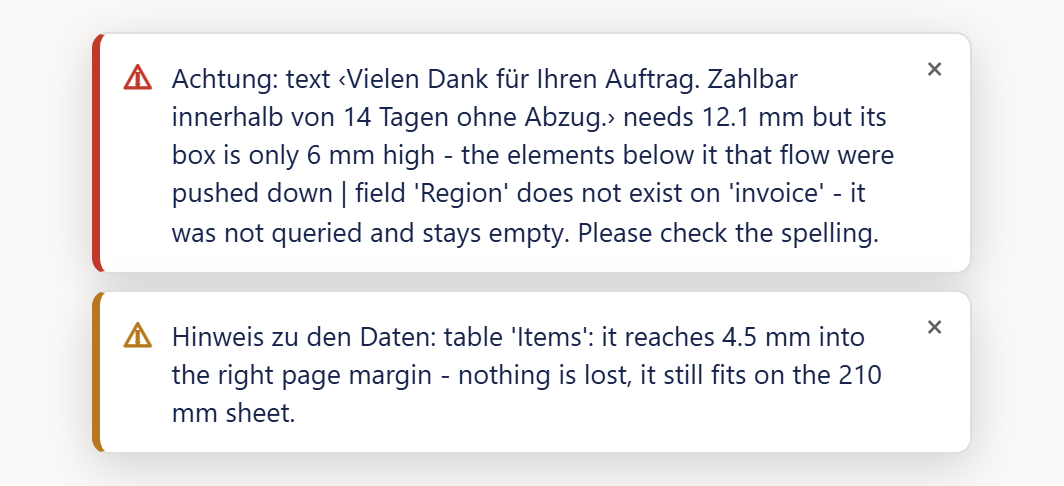
- 1Warning: The document looks different from what the template promises. The text begins with “Warning: ”; several sentences stand in one box, separated by “|”.
- 2Note on the data: something noteworthy that, in the print’s assessment, does not falsify the document.
- 3With the × you close a box earlier; after that, the feedback in Dynamics is only in the browser console.
- Several messages of the same kind stand in one box, separated by a vertical bar “|”. The warnings are always shown in full. At most six of the yellow notes appear; if there are more, the end says, for example, “(+3 more note(s))”.
- If you closed a box earlier with “×”, the feedback in Dynamics is only in the browser console (F12).
- The plain figures, such as how many pages the document has, are not shown by the designer.
Which warnings and notes exist and what you can do about them is described under All messages. Also read the yellow notes: A few of them name values that stay empty. Warning here means the message kind of the print, not the yellow card kind of the designer (see Two meanings of “warning”). What the message kinds of the designer generally look like is described under Messages, prompts and windows.
Good to know
The texts of these messages come from the print and are mostly in English. Some come in German, for example “Die Variable »…« ließ sich nicht berechnen: …” or messages on flows. The prefixes “Warning: ” and “Note on the data: ” are put in front by the designer.
Two meanings of “warning”
The word “warning” stands in this manual and in the messages for two different things. A message kind of the print is called warning, and a card kind of the designer is called warning. The two are not the same.
| What is meant | How to recognize it | Appearance and duration |
|---|---|---|
| The warning of the print about a document | The text begins with “Warning: ”. The document looks different from what the template promises. In the output “Message” of a flow, it comes after “WARNING:”. | The designer shows it as a card of the kind error: red edge, 6.5 seconds. |
| The card kind warning of the designer | A card with a yellow edge and a warning triangle. It carries either a message of the designer itself, for example “Vertical alignment only works with objects on ONE page — …”, or the note on the data that the print reports; it begins with “Note on the data: ” and, in a flow, comes after “NOTE:”. | Yellow edge, 4.2 seconds. |
A card with the prefix “Warning: ” is therefore a warning of the print, even if it is red and belongs to the card kind error. A yellow card is never a warning of the print. In the directory All messages, warning always means the warning of the print.
Where the feedback on a document arrives
Where you see the feedback on a document depends on how it was created:
| Where | What you see |
|---|---|
| In the designer, after “Full preview” or “PDF” | At the top center a red card “Warning: …” with the warnings and a yellow one “Note on the data: …” with the notes. What they look like and how long they stay is described under Notes and warnings. If no document is created at all, the reason is reported differently (see When no document is created). |
| Beforehand, in the designer | For rules that read each other in a cycle, for problems in the custom variables and for incomplete conditions, the designer asks before it creates the document: “Generate anyway” or “Cancel” (see Full preview and PDF: Confirmation prompt for rules and variables). |
| With the button in Dynamics | If there are warnings, a window “Smart Templates” opens with the whole feedback; notes alone are never shown by the button. With several checked rows, the warnings come together in the final message. If the button cancels, the window is called “Smart Templates — canceled” and names the reason. Which windows and final messages exist per purpose is described under What happens on click. |
| In a flow | In the output “Message” of the action (see Actions and APIs: Markers in Message). |
The feedback itself, for example the output “Message” in a flow, begins with “OK:”, the number of pages and bytes and the origin of the data. Then come the warnings after “WARNING:”, then the notes after “NOTE:” and at the end the times. How many of each appear and how they are separated is described under Notes and warnings. The same message appears only once.
When no document is created
| Where | What appears |
|---|---|
| Window “Full preview” | Instead of the document, in white lettering “PDF generation failed – …” with the reason. |
| Button “PDF” and “Download PDF” | A yellow note “PDF failed – …” with the reason, for six seconds: after “PDF” under the bars, after “Download PDF” at the top of the window of the full preview. No file comes. |
| In Dynamics additionally | At the top center the message “FEHLER: …” (see Notes and warnings). |
If Dynamics names no reason, the advice under Messages, prompts and windows applies. Common reasons and what you do then are described under Reasons when no document is created at all.
All messages
The tables give a piece of each message by which you recognize it, as it appears in the feedback. English messages are set as code, German ones in quotation marks. Where a name is inserted, “…” stands. What comes as a warning changes the document; what comes as a note only describes it (see Two meanings of “warning”). The designer already shows some of these messages on the canvas, then also in English, for example those on hand-written conditions.
Loading data
| Message | Meaning | What helps |
|---|---|---|
field '…' does not exist on '…' - it was not queried and stays empty. Please check the spelling. | A placeholder names a field that does not exist on the table, usually a typo. The spot stays empty. A summary over a list of the document within a row of that list ({{count(Positionen)}} in a line items table, also in a cell condition, a row of the e-invoice or an if-then text) is not a typo and is not reported. Still reported are the name in the wrong spelling (count(positionen) prints 0) and the bare list name in the row ({{Positionen}} prints nothing). Also still reported is the summary in an if-then text if the template otherwise does not use the list itself anywhere else, for example in a table on a rule; there it currently prints 0. | Insert the field again from the area “Data”. |
option labels in language … could not be read (…) - option fields of … show the label in the language of the user who creates the document | Warning: The labels of the option fields in the chosen language could not be read from Dynamics. The named tables print option fields in the language of the user who creates the document. | Create the document again; if it stays that way, check the rights on the table definitions (see Rights and roles: When a right is missing). |
… referenced record(s) could not be read (deleted or no access) | A linked record, such as the customer, is missing: It was deleted, or the user may not read it. | Check the record and the read rights (see Rights and roles: When a right is missing). |
… row budget 20000 reached - not all rows were loaded. …, for a further source source '…': row budget 20000 reached - loading STOPPED here … | A query, such as a very long list or a large further source, has more than 20,000 rows; the rest was not loaded. Sums and counts over it, in a table, a text or a condition, and the selection of a rule do not cover all rows; the document names the affected summaries individually. | For a list, a filter in its rule that already applies when loading, as long as nothing else needs the whole list; for a further source, a smaller table (see Data sources and relationships: What the canvas loads and what is printed). |
time budget … s for loading data reached | Loading took too long and was aborted; the document is incomplete. | Load less, for example with filters. |
depth limit 6 reached | Relationships deeper than six levels were not loaded. | Fetch the data by a shorter path. |
Building blocks
These messages name the building block by its name. The designer already shows most of them as a label on the building block object (see Building blocks: Labels on the building block object).
| Message | Meaning | What helps |
|---|---|---|
WARNING: Baustein-leer - … building block area stays empty (…) - the document is not complete; an e-mail action does not send it, and no flow is started. | Warning: A building block area stayed empty, or a building block switched off all rules (all rules of the document are switched off by a building block). The document is incomplete; it is not sent by email, and a flow is not started. | The message before it names the reason; see the rows below. |
building block '…' was not found - its area stays empty, … could not be read …, the building blocks could not be retrieved … | The building block no longer exists, or it could not be fetched. The space stays free. | Create or import the building block again, or delete the object from the template. |
building block '…' is bound to '…', which is not a lookup (N:1) relation …, … needs '…', but its binding points to '…' … | The binding is missing in the template or points to a different table. | Insert the building block again and choose the matching binding. |
… the prefix '…' is not valid …, … is already used by another building block …, … has the same name as a variable of the template … | The prefix is invalid, duplicated or has the same name as a custom variable. | Rename the custom variable or insert the building block again with a different prefix. |
building block '…': the name '…' already exists in the template - its area stays empty | A name that the building block brings along (a relationship, a rule, a further source or a variable, each with its prefix) already exists in the template. The area stays empty. The sentence names the name as the building block brings it (with its prefix); upper and lower case do not count in the comparison, so in the template it can be written differently. It names and compares the name of a rule in internal form: spaces become “_”, characters such as “-” or parentheses are dropped (“Chancenkopf_Produkte” for the rule “Chancenkopf Produkte”, “Chancenkopf_TopProdukte” for “Chancenkopf Top-Produkte”). | Rename the entry with the same name in the template or insert the building block again with a different prefix. |
a building block reference on an element of type '…' has no effect here - only a group can hold one | The entry “baustein” is on an object that is not a group (for example on a text, after a change made by hand to the file); only a group can hold a building block. The entry has no effect: The object itself is printed as before, a building block is not inserted there. The document is still considered incomplete (row “Baustein-leer”). | Remove the entry “baustein” from the object, for example in the template file (see Managing templates: Importing); do not delete the object itself. If a building block is to be there, insert it again at that place. |
building block '…': these references in its rules are not known in the building block: … - a rule may only read what the building block itself has, so its area stays empty. | A rule of the building block names a name that it does not have, or one that only the template puts on the record of the binding. The area stays empty. | Correct the rule in the building block (see Building blocks: What a building block may read). |
building block '…': each of these references is not known in the building block: … - inserted they stay empty. | A reference in the content of the building block does not resolve; it stays empty, the rest is printed. | Correct the reference in the building block. |
building block '…' contains a circular rule dependency (…) - all rules of the document are switched off | Rules of the building block presuppose each other. Then no rule of the document calculates, not even those of the template. | Correct the rules in the building block. |
building block '…' bound to '…' reaches the depth limit 6 - these relations are NOT loaded: … | Under the binding, a chain of the building block goes deeper than six levels; this part stays empty. | Choose a binding closer to the main record or shorten the chain in the building block. When inserting, “Choose binding” does not even offer such a deep binding. |
building block '…' could not be inserted safely (self-check: …) - its area stays empty | Smart Templates could not make sure that every reference was rewritten correctly and rather leaves the area empty. | Check the content of the building block, especially summaries in table cells. |
'…' is not a building block …, … does not consist of exactly one group …, … contains another building block, which is not supported …, … sits inside a table, which is not supported (not per row) … | The reference points to an ordinary template, the building block is damaged, contains a building block or sits in a table cell. | Move the object to a permitted place or check the building block. |
| “»…« ist ein Baustein und erzeugt allein keinen Beleg. Es wurde nichts erzeugt. …” | A button, a flow or an action points to a building block instead of a template. | Set the button or flow to the template that contains the building block. |
| “The document is incomplete because of a building block: … — no email was created.”, “The template is incomplete because of a building block: … — no file was created.” | The email action or the e-invoice aborts because a building block area is empty (see Building blocks: When the area stays empty). The sentences are in the language of your Dynamics interface; in a German one they read “Der Beleg ist wegen eines Bausteins unvollständig: … — es wurde keine E-Mail erzeugt.” and “Die Vorlage ist wegen eines Bausteins unvollständig: … — es wurde keine Datei erzeugt.” | Fix the reason from the message. |
Rules
| Message | Meaning | What helps |
|---|---|---|
circular rule dependency (… -> …) - rules were skipped | Rules read each other. All rules are dropped; tables on rules stay empty. | Take out one of the references (see Rules: When rules read each other in a cycle). |
rules '…', '…' and '…' could not be calculated in a valid order - '…' reads the result of '…' before it is ready; the rules were calculated in the order in which they are loaded | Rules read each other across neighboring lists in such a way that there is no valid order, without a cycle. The rules calculate anyway, in the order in which they are loaded; the named rule reads a result that is then still missing. | Take out one of the references (see Rules: When there is no valid order). |
rule '…': … was deleted - it reads rule '…' from a level ABOVE … | A rule reads a rule above it. The reference upward was left out, and this part is dropped: a part of the filter (the filter becomes looser), a sort level, the whole summary (the rows stay individual, their calculations are missing) or the formula of a variable (it stays empty). | Create the key figure as a rule of its own on the same level (see Rules: What a rule may read). |
rule '…': '…' is not a known field, relation or rule | A filter or a variable of the rule names an unknown name; it counts as empty. The list of a further source (count(Lager)) counts as known; it is reported only if the spelling is not exactly right (count(lager)). | Check the spelling; rebuild the condition in the builder. |
rule '…': '…(…)' reads '…' of the additional source '…' - for a rule on a relation this column is not queried and stays empty … (on a source: for a rule on the source '…') | A rule on a relationship (such as on the line items), on another further source or on the source itself, which only summarizes its own list, calculates with a column of a further source (min(Lager.menge)) that the document does not fetch for it. The summary sees no values there; the rule compares against empty. If … is not a field of that source … appears instead, the column does not exist in the source. | Bind the column in the document — the sentence names the summary itself as an example (such as {{min(Lager.menge)}}); for “is not a field”, check the spelling or open the template once and save it. |
rule '…': '…' reads a field of the list of the additional source '…' outside an aggregate … | A rule reads a field of a further source without a summary — in the filter (Lager.name == 'Nord') or in a rule variable ({{Lager.name}}). A further source is a LIST, it has no single field: The value is empty on every row, a comparison with a fixed value comes out the same on every row (with != always true). | Use a summary, such as first(Lager.name) (the first entry) or count(Lager) > 0. |
… has the same name as … | Two rules, variables or fields have the same name; one of the values is lost. | Rename one of them. |
rule '…' of relation '…' has the same name as its own relation '…', likewise … as the relation '…', … as the field '…' and … as the list of the source '…'; for a rule of the main source rule '…' of the main source has the same name as … at document level … | Warning: The rule has the same name as its own relationship, as another relationship or a field on the same record or, for a rule on the main source or on one of its relationships, as the list of a further source. Its result replaces the list or the field there: Tables, counts and sums under this name calculate only with the rows of the rule, and a field no longer shows its value there. When importing, the check gives a note about this (see Template format: What the check reports on import). | Rename the rule (see Rules: The name and renaming). |
rule '…': the sorting field '…' has no effect here … | After summarizing, the sort field no longer exists. | Sort by a grouping field or a calculation. |
rule '…': the rows of '…' under '…' were dropped … | A rule below it summarizes by itself. Its rows are left out of the summary. | Do the summarizing in the outer rule. |
rule '…': '…' under '…' selects a single record … | A rule below it delivers only one record (“Only the first”, “Only the last” or “The one at a specific position”). It stays empty in the summary. | In this rule, choose “The first N (e.g. the top 5)” or turn off the selection. |
rule '…': the merged list '…' has no sorting of its own … | A merged list was ordered by its first column. | If needed, set a sort order in its rule. |
rule '…': the calculation '…' has the same name as a grouping field … | A calculation has the same name as a grouping field and overwrites its value. | Rename one of the two. |
rule '…': the variable '…' has the same name as a field of the record … | A variable of the rule has the same name as a field of the row and replaces it. | Rename the variable. |
rule '…': the variables '…' and '…' both become the field '…' … | Two variables of the rule result in the same spelling; only the one calculated last is printed. | Distinguish the names more clearly. |
rule '…': the variables '…', '…' read each other in a cycle … | Variables of a rule presuppose each other; they stay empty. | Break the cycle. |
rule '…': the variable '…' reads '…', but after grouping … | A variable of a summarizing rule reads a field that no longer exists and stays empty. | Use a calculation or a custom variable of the document. |
rule '…': the calculation '…' … adds up whole records, not values - nothing was printed. | A sum or an average points to a list or a record instead of a number field; this occurs only in hand-edited templates. | Choose a number field. |
The messages that the designer shows when editing rules are described under Rules: Messages at a glance.
Variables and conditions
| Message | Meaning | What helps |
|---|---|---|
| “There are several variables named »…« — only the first one is used.”, “The variable »…« uses itself.” or “The variables depend on each other: …” | Two custom variables have the same name; only the first one is used. Or a variable uses itself, or several presuppose each other: A cycle between custom variables, all involved stay empty. The prompt of the designer before full preview and PDF names the same sentences. | Rename one or break the cycle (see Variables: The check before full preview and PDF). |
| “Die Variable »…« ließ sich nicht berechnen: …” | An unexpected error occurred while calculating. | Check the content of the variable. |
formula '…': division by zero | A calculation divides by zero; the value stays empty instead of 0. | Check data or calculation. |
formula token '{{…}}': '…' is a variable, but without '@' | In a calculation, the @ is missing in front of the name of a variable; it counts as 0. | Insert the variable again. |
placeholder '{{…}}': '…' is not a known format | Typo in the format of a placeholder; the spot stays empty. | Insert the field again. |
placeholder '{{@…}}': there is no variable with this name | A variable does not exist (any more); the spot stays empty. | Insert the variable again. |
variable '@…' in a condition: there is no variable with this name - every comparison with it counts as not true (also with '!=' and '!') | Warning: A condition names a custom variable that does not exist (any more). The condition does not apply, even with “!=” and “!”; an if-then takes the else branch. | Create the variable or rebuild the condition (see Variables: The check before full preview and PDF). |
variable '@…' is set to 'number' but … could not be calculated (for a currency variable: … is set to 'currency' …) | A number or currency variable contains text, often a number with a comma; the text is printed as it is. | Write decimal numbers with a point, for example 1.19. |
condition '…': a single '=' is not a comparison, … is not known - use '&&', the brackets do not match, a decimal comma is not a number here, condition '…': it is incomplete, condition '…': '{{' and '}}' do not belong in a condition, condition '…': 'isEmpty' is not known - write '!field' | A hand-written condition has a typo, for example a single “&”, a field in “{{ }}” (see Conditions: Fields in “{{ }}”) or a word such as “isEmpty” (see Conditions: Checking for empty in a condition written by hand), or a part is missing (“it is incomplete”, see Conditions: Incomplete conditions); it then never or uncertainly applies. The designer also shows these messages at the top of the canvas; the PDF reports the same. | Rebuild the condition in the builder (see Conditions: Conditions written by hand). |
the aggregate '…' has no rows here | Note: A sum in a condition runs over an empty or misspelled list; it counts as 0. | Check the names. |
summary '…' could not be calculated - '…' is not a field. A summary works over ONE field of a list … | Warning: In the parentheses of a summary there is a calculation, a comma or a second summary, for example sum(Positionen.netto * Positionen.menge). A summary works over only one field; it stays empty (count keeps counting the rows), and within a calculation it counts like an empty field as 0. This is reported in the text, in a condition (where it is empty, not 0), in a rule formula, in the value of a custom variable, also if the variable appears only in a condition, a condition branch or a rule filter, and in a detail of the e-invoice, there also if the calculation continues in the same placeholder ({{sum(a * b) * 2}}). In the text and in the value of a variable, this notation (the calculation within the same curly braces) currently stays silent. Continue calculating after a summary by writing the calculation outside the braces into the value of a variable of the type number or currency, for example {{sum(Positionen.netto)}} * 2, and insert the variable ({{@Name}}); the text itself does no calculating, there {{sum(Positionen.netto)}} * 2 prints the sum and, after it, “ * 2”. | Create the calculation per row as a variable of a rule and summarize over its result (see Rules: “Variables” tab). |
template setting '…' is circular: a condition in its branches reads a custom variable whose value itself depends on the number format of the template … | Warning: A condition branch of the template settings reads a custom variable that itself depends on the number format, such as a sum. Calculated with the fixed settings of the template, one value applies; with the printed format, the other would; the first is printed. | In the condition, use the field or give the variable its own decimal places (see Numbers, currency and dates: Condition branches). |
template setting '…' is circular: its value reads the custom variable '@…', whose value itself depends on the number format of the template … | Warning: The value of a template setting (currency symbol, decimal places, number style or thousands separator), fixed or in a condition branch, reads a custom variable that itself depends on the number format. Calculated with the fixed settings of the template, one value results; with the variable as it is printed, the other; the first is printed. The sentence names both. | In the value, use the field instead of the variable, or give the variable its own decimal places (see Numbers, currency and dates: Condition branches). |
Numbers, date and values
| Message | Meaning | What helps |
|---|---|---|
date calculation '…': … - nothing was printed | A date calculation delivered no date: The starting date is empty or not a date, the number is not a number, the unit is unknown, or the result would lie outside the calendar. | Check the variable (see Variables: Calculating with dates); if only the field is empty, there is nothing to do. |
… is a list, not a single value, … is a linked record | A placeholder points to a list or a whole record instead of a field; nothing is printed. If it points to an image, the message is under Images and fonts. | Use a table or a field of the linked record. |
color '…' in a text passage is not a known color code - the passage keeps the color of the text around it. | A passage in the text carries a fixed color that is not a color code, such as “red” (usually from pasted or hand-written markup). It is printed in the color of its surroundings. | Recolor the passage in the window “Edit text” or enter a code such as #C0392B (see Border, background and colors: Invalid color). |
background-color '…' in a text passage is not a known color code - the passage gets no highlight of its own. | A highlight in the text carries a color that is not a color code, such as “yellow” or “rgb(255,255,0)” (usually from pasted or hand-written markup). The spot is printed without a highlight of its own; a highlight around it stays. | Mark the spot again in the window “Edit text” with the box “Highlight” or enter a code such as #FFF59D (see The “Edit text” window: Highlight). |
color '…' is not a known color code - it was treated as no color: where it is used, no fill or no line is drawn (a line or arrow is left out), and a text in that color prints black. The other colors of the element stay. Use a code like #C0392B. | When creating the document, if a color field of a shape has a fixed value that is not a color code. Where the color is needed, the fill or the line is dropped, for a line or an arrow the whole object, and a text in this color is printed black. The other colors of the object stay. | Enter a color code (see Border, background and colors: Invalid color and Shapes: Colors for shapes). |
template setting 'optionLabelLanguage': '…' is not a known language - option fields print their labels in the template language instead | Warning: Under “Option label language” there is a value that is not a language, such as a typo from an imported file. The option fields print in the template language. | Choose the language again in the “Numbers & date” tab (see Numbers, currency and dates: Option label language). |
culture '…' is not a known language code | The template language is unknown; German is printed. | Choose the template language again (see Numbers, currency and dates: Template language). |
Pages and space
| Message | Meaning | What helps |
|---|---|---|
… element reaches past the bottom paper edge (up to … mm beyond the … x … mm sheet) - that part is cut off in the PDF. and … reach(es) past the … paper edge … - that part is cut off in the PDF | Something extends beyond the paper edge, for example a shape as the first object of a page or with “Fixed position”; that part is missing. What a fixed height (group, cell, “Max. height”) has already cut off does not count here; the message about the fixed height says that. | Move or shrink the object (see At the page edge: What happens at the page edge and Position, size, rotation and arrangement: Where the PDF really cuts off). |
… sits in the page margin | Note: A text extends into the page margin, but is printed. | Nothing, if it is intended. |
text ‹…› needs … mm but its box is only … mm high | A text with a fixed height needs more space than its box. The message can continue with … the elements below it that flow were pushed down: Whatever below it is set to “Flowing” was pushed down. If the text is set to “Fixed position”, for example in a group, it continues instead with … what is below is overprinted: The text overprints what lies below it. If the message says … was NOT printed, the fixed bottom edge of a group cuts off the rest. In a table cell it continues with … the row height decides what happens to the part that does not fit; if a fixed row, header row or cell height cuts off the rest, a message of its own says how much is missing (see Tables). | Increase the height or turn on “Automatic height”. If the message names the edge of a group, give the group more height or turn on “Automatic height (fit to content)” there; “Automatic height” on the text alone still lets the group cut off; that is then reported by group '…' has a fixed height of … mm, so … mm of the text in it was not printed …. |
text ‹…› is limited to … mm by its maximum height | The “Max. height” of the text cuts off; the rest is missing. | Increase “Max. height” or shorten the text (see Texts: Min. height and max. height). |
group '…' has a fixed height of … mm, so … mm of the text in it was not printed … | The fixed height of a group cuts off text; the number says how much is missing, the quote names the first cut-off line and so shows which group is meant; below half a millimeter, no message appears. Also applies to a group in a table or grid cell and to headers and footers; the fixed height of a cell itself is reported by a sentence of its own. If the fixed bottom edges of an inner and an outer group coincide, the message appears once: If the outer group itself cuts something off, it is named in the message, otherwise the inner one. | Turn on “Automatic height (fit to content)” on the group or make the group taller (see Position, size, rotation and arrangement: What the wall does to an object). |
group '…' has a fixed height of … mm, so a rectangle in it is cut off at that edge, up to … mm were not printed …, likewise … a line in it lies below that edge and was not printed … and … the box of a picture in it is cut off at that edge by up to … mm, so the picture is fitted into the shorter box … | The fixed height of a group shortens or cuts off a shape, a line, an image or the frame of an inner group; the number says how much is missing. Instead of the rectangle, the message names what is affected, for example “an ellipse”, “a line”, a rotated image as “a picture” or the frame of an inner group as “the background or border of group '…'”, the gray placeholder of an empty code as “a code placeholder”. An unrotated image is refitted into the shorter box. A line whose stroke lies below the edge is missing entirely. Below half a millimeter no message appears; a line that is missing entirely is always reported. As with the message about the text, it also applies to a group in a table or grid cell and to headers and footers; the fixed height of a cell itself is reported by a sentence of its own. | Turn on “Automatic height (fit to content)” on the group, make the group taller or move the object up (see Position, size, rotation and arrangement: What the wall does to an object). |
group '…' has a fixed height of … mm - the element '…' starts below that edge and was NOT printed. If the cutting edge is in a surrounding group or cell, the message is the element '…' in group '…' starts below the bottom edge of the SURROUNDING area … | An object begins below the fixed height of its group (or of the surrounding group or cell) and is missing in the PDF. | Turn on “Automatic height (fit to content)” on the group, move the object up or make the surrounding group or cell taller (see Position, size, rotation and arrangement: The fixed bottom edge and where the PDF cuts off). |
the rotated element '…' lies completely below the fixed bottom edge around it and was NOT printed. Move it up, or give its group more height. | A rotated object lies completely below the fixed bottom edge of its group. | Move the object up or make the group taller. |
block '…' is marked 'keep together' but is taller than the tallest page area | A kept-together object is taller than a page and was split. | Shrink the object or uncheck “Keep together at page break” (see At the page edge: The checkbox “Keep together at page break”). A grid does not have the check mark: There the only help is to make the grid shorter or split it into two grids. |
block '…' was split across pages, but … element(s) of it could not be placed on either side of a page break - … not printed (first: …) | A split block contains something that could not be placed on either side of the cut, usually a vertical or slanted line that runs across the cut. It is missing in the PDF; the parenthesis names the first of them and where it lies in the block. | Check “Keep together at page break” if the block fits on a page, or let the line end above the cut (see At the page edge: Images, shapes and lines in a split block). |
the repeating area '…' … grows down into the bottom margin | Note: With the real page numbers, the footer needs more space and grows into the bottom margin. | Make the field with the page number wider. |
the page exclusion '…' contains '…' | Under “Exclude these pages” there is something that is not a page number, such as “-1”. | Count from the front or choose “All except the last page”. |
Tables
| Message | Meaning | What helps |
|---|---|---|
table '…': the row source '…' was not found - no rows were printed. | The row source is missing: The table points to a rule that no longer exists and has no rows. | Choose the row source again, through “⚙ Data source & sorting” and “Change…” (see Data tables: Changing the row source). |
… is a SINGLE record, not a list … | The table is on a rule with a single record and prints no row. | Under “Selection” choose “The first N (e.g. the top 5)” or uncheck “Keep only specific records” (see Rules: “Selection” tab: sorting and selecting). |
… is an EMPTY record … | The table is on a rule with “Only the first”, “Only the last” or “The one at a specific position” that found nothing: The chosen position does not exist because the rule has fewer rows, or the filter lets no row through. Such a rule is then empty; no row is printed. | Check the selection and the filter of the rule. |
table '…' has no columns at all | The table has no column. | Create a column. |
table '…': not enough usable height | Header and footer leave no space for the table. | Shrink the header or footer. |
table '…': the row height is limited to … mm - … line(s) of a cell were not printed … | A fixed row height cuts off text that sits directly in the cell; the number says how many lines are missing. | Increase the row height or let it adjust automatically (see Data tables: “General” tab: “Cells” section). |
table '…': a line needs … mm, but the row leaves only … mm after padding and border (row height limit … mm) - it is printed but reaches beyond the row … | Already the first line of a text that sits directly in the cell needs more space than the fixed row leaves after padding and border, for example because of a large font. It is printed in full anyway and reaches into the row below; this comes as a warning. If the sentence ends with … it still fits inside the row …, it reaches only into the bottom padding and stays in the row; this comes only as a note. If the first line is empty because the text begins with a line break or consists only of spaces, this message does not appear. | Increase the row height, reduce the font or reduce the padding (see Data tables: “General” tab: “Cells” section). |
table '…', header cell '…': a line needs … mm, but the header row leaves only … mm after padding and border (header height limit … mm) - it is printed but reaches beyond the header row … | Already the first line of a header text that sits directly in the column needs more space than the fixed header row leaves after padding and border, for example because of a large font. It is printed in full anyway and reaches into the first data row; this comes as a warning. The message appears once per header cell. If the line reaches only into the bottom padding, it stays in the header row, and no message appears. If the first line is empty because the header text begins with a line break or consists only of spaces, this message does not appear either. | Increase the header row height, reduce the font or reduce the padding (see Data tables: “General” tab: “Header row” section). |
table '…', column '…': the row height is fixed, so … mm of the cell content was not printed … | A fixed row height cuts off the content of a designed cell: text, shapes, lines, images, rotated objects or the frame of an inner group. The number says how much is missing; the message appears from 0.05 mm on. A data table reports once per column for all rows and names the number of the first row in which something is missing; an extra row reports for itself (extra row 1), a free-form table per row and column (row 2). | Increase the row height or let it adjust automatically (see Position, size, rotation and arrangement: Where the PDF really cuts off). |
table '…': the header height is limited to … mm - … line(s) of the header were not printed … | A fixed header row height cuts off header text that sits directly in the column; the number says how many lines are missing. | Increase the header row height or let it adjust automatically (see Data tables: “General” tab: “Header row” section). |
table '…', header cell '…': the header height is limited to … mm, but the cell content needs … mm - the rest was not printed … | A fixed header row height cuts off the content of a designed header cell: text, shapes, lines, images, rotated objects or the frame of an inner group. The first number is the fixed height, the second the height the cell needs; what is missing is the difference. The message appears from 0.05 mm on, once per header cell. | Increase the header row height or let it adjust automatically (see Data tables: “General” tab: “Header row” section). |
… the cell content reaches … below the row, … past the column | Cell content reaches into the next row or column and overprints it. | Make the row taller or the column wider. |
… the cell has a fixed height of … mm, so … mm of the cell content was not printed …, likewise … so a line in it lies below that edge and was not printed … | The cell has a fixed height and cuts off what does not fit, also in a taller row. The number says how much is missing; a rectangle shortened at the edge or an image refitted counts. Below half a millimeter no message appears; a line that is missing entirely because its stroke lies below the edge or exactly on it is always reported. Applies to cells of free-form tables, in the cell designer and in the header designer. | Turn on “Automatic height (fit to content)” on the cell or make the cell taller (see Position, size, rotation and arrangement: Where the PDF really cuts off). |
table '…': a rectangle or background in the row is taller than the space left on the page - it was shortened, so its lower … mm were not printed …, likewise a line … | A row is taller than a page, and a rectangle, the background of a group or a line in it fits on no page: It is shortened to the space; the number says how much is missing. Reported once per table (data table) or per row (free-form table); for a free-form table the row follows the name, for example row 3. | Make the object lower than a page or split it into several. |
… ends … mm past the right paper edge | The table is wider than the page; the rest is missing. | Make the columns narrower. |
table '…': it reaches … mm into the right page margin - nothing is lost … | Note: The table reaches into the right page margin without anything being lost. | Nothing, if it is intended. |
table '…': a surrounding box has a fixed height | The table sits in a group with a fixed height; rows are missing. | Turn on “Automatic height” on the group (see Position, size, rotation and arrangement: What the wall does to an object). |
Images and fonts
The messages come in English, as a warning or as a note on the data. For data images, the sentences contain image from Tabelle.Spalte or image from a data field; for images of the library, the short name.
| Message (beginning) | Meaning | What helps |
|---|---|---|
image '…' was not found - the picture is missing in the document. | An image with this short name does not exist in the library, or its entry carries no file. With two entries with the same short name, it is enough that the one changed last carries no file. The box keeps its space, the spot stays empty. | Check the short name (see Image library and fonts: The image library) or upload the image. If only the file is missing, replace the image as for the message “could not be read by the PDF printer” in this table. |
image '…' has the same name as another image record. The most recently changed one is used; … | Two records of the library have the same short name. The one changed last applies. | Remove the duplicate image in Dynamics so that the document does not alternate between two runs. |
image '…' could not be loaded: … | An image of the library could not be loaded; the reason follows. | Read the reason, check rights and connection. |
image '…' could not be read by the PDF printer (unsupported format?) … | The file is not a PNG, JPEG or BMP (see Images: Formats) or is damaged. The spot stays empty. | Save as PNG or JPEG and replace the file. How to replace an image of the library is described under Fonts and images: Uploading your logo and images. For an image from the data, replace the file on the record. |
image from …: the file is not a printable image (only PNG, JPEG and BMP can be printed). | A file column contains something that is not a printable image. | Save a file in one of the three formats. |
image from …: only a small preview (at most 144 x 144 px) is stored - it was printed instead of the original and may look blurry. … | The image column does not store an original image. The preview image was printed; this comes as a note. | In Dynamics, turn on the setting “Can store full images” on the column and upload the image again, or choose “low quality” right away (see Fonts and images: Images from records). |
image from …: no full-size image stored - the column may not have 'Can store full images' enabled. | Neither the original nor the preview image is there, or a file column is empty; this comes as a warning. | Check the setting on the column, upload the image again. |
image from … could not be loaded (…) - the small preview … was printed instead of the original and may look blurry. | Fetching the original image is disrupted; the preview image steps in. | Read the reason; for many images choose “low quality”. |
image from … could not be loaded: … | Fetching is disrupted, and there is no preview image. | Read the reason, check rights. |
time budget … s for loading images reached - … | Loading the images took too long. The number is the time that remained for images, at most 30 seconds. Depending on the sentence, the preview image was printed instead of the original, or images without a preview image are missing. | Fewer or smaller images, low quality. |
one picture alone is … MB - the document may become hard to send. and the pictures in this document add up to more than 15 MB - … | An image takes up 4 MB or more in the PDF, or all images together add up to 15 MB or more in the PDF. It is measured after downsizing to print resolution. | Use smaller images. |
image: no picture is stored for this record - … | Only with “print nothing and report”: There is no image for this record. | No action needed. |
image shape '…' is not known - the image is drawn without a shape. Known shapes: … | The shape has an unknown value. The image is printed without a shape. | Choose the shape again in the interface. |
image fit '…' is not known - 'einpassen' is used instead. Known values: … | The fit has an unknown value. It is printed as with “fit”. | Choose the fit again in the interface. |
image position '…' is not known - 'mittig' is used instead. Known values: … | The position has an unknown value. The image is centered. | Choose the position again in the interface. |
image position has no effect here - it only works with fit 'einpassen', … The image stays centred. | A position has no effect with “fill” or “Original size”. | Set to “fit” or leave out the position. |
table '…', column '…': a picture from the data cannot be used in the header - a header row has no record. It was not printed. | An image from the data is in the simple header text of a table. The print never fills this text with data, not even with a field of the main record. | Put a fixed image into the header text, or design the header cell in the header designer and insert the image there as an image object of its own; it then refers to the row above it, on the page to the main record. |
an image in a text is … mm wide, but its box or column has only … mm - it was scaled down to … x … mm, keeping its proportions. | An image in the text is wider than its space and was scaled down. | Adjust the width in the window “Image in text”. |
field '…' holds a picture, not text - nothing was printed. … | An image field is in a text as a placeholder. | Use an image object or an image in the text. |
font '…' could not be loaded - a substitute was used (Arimo) | The font is not uploaded; Arimo is printed, line breaks can differ. | Upload the font (see Image library and fonts: The “Manage fonts” window). |
font '…' has no bold / italic face | A style is missing; the text is in the regular style. | Upload the missing style (see Image library and fonts: The “Manage fonts” window). |
The messages on unknown values for shape, fit and position come once per value, not per image. Such values do not arise through the interface; they can only be in a hand-written template (see Template format).
Barcode, QR code and GiroCode
The messages come in English. The code is named with its kind, for example barcode (EAN-13, content '{{productnumber}}'); if the object carries an identifier (id, for example from a template written with AI), it follows, for example barcode 'ean' (…) or GiroCode 'zahlung'. Codes created in the designer mostly have none; the content in ‹ › is a value from the document, the template in ' ' a placeholder. A barcode or QR code that cannot be printed comes as a warning; reasons that only make a remark, as a note on the data; an invalid, visible GiroCode (EPC QR code per EPC069-12, known in Germany as GiroCode) as an error. What a code otherwise does is described under Barcode, QR code and GiroCode: Empty and invalid.
| Message | Meaning | What helps |
|---|---|---|
barcode (EAN-13, content '…') was not printed: … - the space stays empty. | Warning. A barcode could not be formed with the data of a document or does not fit into its box. The spot stays empty and keeps its space. The reason is in the sentence; the common reasons are in the next table. QR code may stand instead of barcode; if the object carries an identifier, it follows, for example barcode 'ean'. | Read the reason, change the content or the box. |
… The same happened for … more value(s) of this code. | Hangs after the warning if the same reason occurred for several values of the same code, for example for many table rows. The warning comes once per object and reason. | Check the data of the rows, for example the EAN of the articles. |
QR code error correction '…' is not known - 'M' was used instead. Known values: L, M, Q, H. | Warning. The error correction has an unknown value. M is used for printing. | Choose the error correction again in the interface. |
barcode setting 'wennLeer' = '…' is not known - 'still' was used instead. Known values: still, notiz, platzhalter. | Warning. The setting for an empty content has an unknown value. It is printed as with “print nothing”. | Choose the setting again in the interface. |
barcode position '…' is not known - the code is centered in its box instead. Known values: … | Warning. The position in the box has an unknown value. The code is centered. | Choose the position again in the interface. |
barcode plain text size … pt has no effect here - … pt was used instead; possible are 5 to 14 pt. | Warning. The font size of the plain text is outside 5 to 14 pt; the limit is used for printing. | Enter a size from 5 to 14 pt. |
After was not printed: comes the reason, one of these sentences:
| Reason (after “was not printed:”) | Meaning | What helps |
|---|---|---|
unknown barcode type '…' | The kind of barcode is none of the five kinds. This can only be in a hand-written template. | Choose the kind again in the interface. |
Code 128 cannot show ‹…› - allowed are letters without umlauts, digits, space and the usual punctuation (ASCII) | The content has a character that Code 128 cannot do, such as an umlaut. An invisible character appears as U+…, for example a zero-width character as U+200B. | Remove the character from the field. |
Code 128 cannot show ‹…› - is there a formatter like {{Currency:…}} in the content? | The content has a character that Code 128 cannot do, and looks like the output of a formatter: It contains a €-sign, a non-breaking or narrow space (U+00A0, U+202F, U+2009, U+2007) or a number with thousands separator and decimal sign such as “1.486,91”. A currency formatter puts a non-breaking space before the €-sign; the message then usually names U+00A0. If the character is a letter such as “ü”, it does not come from the formatter: Then the question stands after the explanation of which characters Code 128 can do (… - allowed are letters without umlauts, digits, space and the usual punctuation (ASCII) - is there a formatter like {{Currency:…}} in the content?). | Leave out the formatter, for example {{totalamount}} instead of {{Currency:totalamount}}. |
Code 128 cannot show control characters (line break, tab) | The content has a line break or a tab. | Remove the break from the field. |
Code 39 cannot show lower-case letters (‹…›) - use Code 128, Code 39 cannot show ‹…› - allowed are digits, capital letters A-Z, space and - . $ / + % … | Code 39 accepts only digits, capital letters and a few characters. Lowercase letters are not silently capitalized. | Choose Code 128, or adjust the content. |
EAN-13 takes digits only - ‹…› is not one, ITF takes digits only - ‹…› is not one | An EAN or ITF content has a character that is not a digit, also a space (which appears as U+0020). | Check the number in the record. |
EAN-13 needs 12 digits (the check digit is added) or 13 including the check digit - found … | The EAN has the wrong length. For EAN-8 it is 7 and 8. | Check the number in the record. |
EAN-13 ‹…›: the last digit should be …, not … - probably a typo in the product data | The check digit of the EAN is wrong. The message names the correct digit and the one present. | Correct the number in the product master. |
ITF needs an even number of digits (found …) | ITF accepts only an even number of digits. No zero is prepended. | Check the number in the record. |
the content is too long for a QR code (… characters, at most … fit with error correction …) - shorten the content | The content fits into no QR code. The message names the length and the maximum for the chosen error correction. | Shorten the content or choose a lower error correction. |
the content contains a broken character at position … (damaged data) | The content contains a damaged character from broken data. | Check the field in Dynamics. |
the box has no size (width and height must be above 0 mm) | The width or height of the box is 0. | Enter width and height. |
the box is too small for this code - it needs at least … mm (one printer dot of 1/600 inch per module), the box has … mm, the box is only … mm high, the plain text below the bars alone needs … mm | The box is too small for bars or dots or too low for bars and plain text. The message names what the code needs at minimum. | Make the box larger, reduce the plain text or shorten the content. |
it would reach … mm below the fixed bottom edge of the group around it, and a cut code cannot be read safely - give the group more height | The code extends beyond the fixed bottom edge of a group or cell. A code is never shortened. | Turn on “Automatic height (fit to content)” on the group or make the group taller. |
it would reach … mm past the bottom paper edge, and a cut code cannot be read safely - move it so that it lies completely on the sheet | The code reaches more than 0.5 mm beyond the paper edge, for example as the first object of a page. top, left or right may stand instead of bottom. A code is never cut off. | Place the code so that it lies entirely on the page, or put it on the next page on the canvas. |
the content contains {{Page.Total}}, and the total number of pages is only known after the whole document is laid out - … {{Page.Total}} works in a code only in a group that repeats on every page (page header or footer) | The content contains the total number of pages, and the code is in the main part of the document. There the number is not yet known when drawing. | Put the code into the header or footer or take the page number out of the content. |
The notes on the data print the code anyway:
| Note on the data | Meaning | What helps |
|---|---|---|
barcode (…): one module is only … mm wide - below … mm hand scanners often fail to read it reliably; make the box larger. | Note. A bar is narrower than 0.25 mm (for EAN 0.264 mm). For a QR code it says QR code … and phone cameras, the limit is 0.4 mm. It is printed anyway. | Make the box larger. |
barcode (…): it is turned by …° - only right angles (0°, 90°, 180°, 270°) are safe to scan, many scanners do not read slanted bars; turn it by a right angle. | Note. A barcode is slanted; the template contains an angle other than 0°, 90°, 180° and 270°, for example written by hand or by an AI. It is printed anyway. A QR code and a GiroCode do not get the note; they stay readable when slanted. | Set a right angle (selection “Rotation”). |
barcode (ITF, …): it holds fewer than 6 digits (…) - many scanners read ITF only from 6 digits on, to avoid partial reads; … | Note. An ITF code carries only 2 or 4 digits; many scanners read ITF only from 6 digits on. It is printed anyway; with many table rows, the note comes once per object. | Check whether the scanner accepts the code, otherwise use Code 128. |
GiroCode is only … mm wide - the guideline for payment codes on invoices asks for at least 20 mm; make the box larger. | Note. The GiroCode, measured with the white margin, is narrower than 20 mm. It is printed anyway. | Make the box larger. |
…: the content is empty for this record - the box counts as 0 mm high: … | Note, only with “print nothing and report”: The content is empty for this record, the code takes up no space. | No action needed if it is intended. |
GiroCode: field '…': a line break or tab was replaced by a space (it would shift all following fields). | Note. A field of the GiroCode contained a line break or tab. It was replaced by a space; the code is created. | Remove the break from the field. |
GiroCode: field '…' contains ‹…› - many banks do not take over such characters. | Note. A field contains a character that many banks do not take over. An invisible character appears as U+200B. The code is created. | Remove the character from the field. |
A GiroCode does not make a warning but, if it is visible and invalid, an error. Then no document is created (see When no document is created):
| Error (no document) | Meaning | What helps |
|---|---|---|
GiroCode is not valid: … A visible GiroCode must be valid and printed in full, so the document was not created. Correct the data or the box - or, where nothing is to be paid (credit note, amount 0, another currency), hide the code with a visibility rule. | Error. A visible GiroCode is invalid; the reasons of all invalid GiroCodes of the document are in one message, the reasons of one GiroCode separated by ;, several GiroCodes by |. In Dynamics it is preceded by “Das Dokument konnte nicht erzeugt werden:”. For data protection reasons, values from the document, such as IBAN and amount, do not appear in the text but as ‹…›. | Correct the data or hide the GiroCode with a visibility rule (see Barcode, QR code and GiroCode: What is checked). |
GiroCode cannot be printed: … | Error. The data is valid, but the code does not fit into its place: The box is too small, or the code extends beyond the fixed bottom edge of a group or beyond the paper edge. The reason follows as with the barcodes and QR codes. If the GiroCode begins only at or below the fixed bottom edge of a group, it reads … cannot be printed: it starts below the fixed bottom edge of the group '…' around it and would be left out - give the group more height, or move the code up. | Make the box larger, the group taller, or place the code so that it lies entirely on the page and entirely above the bottom edge of its group. |
field '…' is empty - it is mandatory and gives nothing for this record | Recipient or IBAN result in nothing with this record. | Enter the field; for a variable, check whether it delivers a value. |
field '…' is … characters long, at most … are allowed | A field is too long: recipient and note 70, reference 35, remittance text 140 characters. | Shorten the text. |
IBAN ‹…› is not an IBAN (two letters, two check digits, then letters and digits), IBAN from ‹…›: this country is not part of SEPA - no SEPA credit transfer is possible, IBAN ‹…›: an IBAN from … has … characters, this one has …, IBAN ‹…›: the check digits are wrong | The IBAN is malformed, belongs to a country outside SEPA, has the wrong length for its country or a wrong check digit. | Check the IBAN. |
BIC ‹…› is not a BIC (8 or 11 characters, e.g. COBADEFFXXX), the BIC is missing - it is mandatory for an IBAN from … | The BIC is malformed, or it is missing for an IBAN from AD, AL, CH, GB, GI, MC, MD, ME, MK, RS, SM or VA. | Enter the BIC. |
amount ‹…› is not a number - insert the field without a formatter (e.g. {{totalamount}} instead of {{Currency:totalamount}}) | The amount is not a number with a point, for example because a formatter formats the amount, also in a variable of the type text. A variable of the type number or currency delivers its value and is not affected. | Insert the field without a formatter (see Barcode, QR code and GiroCode: The amount). |
amount ‹…›: at least 0.01 euro must be transferred - for credit notes and documents without payment, hide the code with a visibility rule, amount ‹…› is too large: at most 999,999,999.99 euro | The amount is 0, negative or too large. | For credit notes and documents without payment, hide the GiroCode. |
currency ‹…›: only euro can be transferred - for other currencies, hide the code with a visibility rule | The field “Currency (check)” results in something other than EUR. | For other currencies, hide the GiroCode. |
purpose code ‹…›: four capital letters are expected (ISO 20022, e.g. GDDS) | The purpose code does not have four capital letters. | Correct the purpose code or empty the field. |
reference ‹…› is not a valid RF creditor reference (RF, two check digits, up to 21 letters or digits), reference ‹…›: the check digits of the RF creditor reference are wrong | A reference that begins with RF is not a valid RF creditor reference or has wrong check digits. | Check the reference. |
reference and remittance text are both filled - only one of them is allowed | Reference and remittance text are both filled. | Empty one of the two; the selection “Purpose of payment” switches. |
the content is … bytes long, at most 331 are allowed - shorten the remittance text (umlauts count twice) | All fields together are longer than 331 bytes. | Shorten the remittance text. |
the field '…' contains {{Page.Total}}, and the total number of pages is only known after the whole document is laid out - … | A field of the GiroCode contains the total number of pages, and the code is in the main part of the document. | Remove the page number from the field. |
E-invoice
If the e-invoice is not created, the document aborts with a sentence in the language of your Dynamics interface (see When no document is created; the English sentences are given here): a head, one entry or value per line, at the end a sentence on who must act. In the assignment window, the same sentences appear during the check, there in groups (see E-invoice: Checking with a sample record). If the message would become longer than 900 characters, the remaining lines appear before the closing sentence as “… and n more”. Where a name or a value is inserted, “…” stands.
Head and closing. The head names the kind of defect, the closing says who must act:
| Message | Meaning | What helps |
|---|---|---|
| “The e-invoice cannot be created – one entry is missing:”, “… n entries are missing:” | All defects are missing mandatory entries. | Read the lines below. |
| “The e-invoice cannot be created – the amounts do not add up:” | All defects are arithmetic checks of the standard that do not add up. | Check the assigned totals and taxes. |
| “The e-invoice cannot be created:” | The defects differ, for example an invalid code and a negative unit price. | Read the lines below. |
| “Please complete the entries on the record.” | The defect lies in the data of the document. | Fill the field on the record. |
| “Please have the template adjusted under »Template settings › E-invoice«.” | The defect lies in the template, for example a missing assignment. | Have the template adjusted (see E-invoice: Assigning entries). |
| “Please complete the entries on the record or have the template adjusted under »Template settings › E-invoice«.” | Both occur. | Check both. |
| “Please have the assignment checked.” | Only arithmetic checks are affected. | Have the assignment of the totals and taxes checked. |
| “Please report this to the vendor of Smart Templates.” | A fault in the program, not a defect of the data or the template. | Report the fault. |
The lines. The names are in everyday language, for an item with its number, for example “Unit, line 2”:
| Message | Meaning | What helps |
|---|---|---|
| “…: empty on the record” | A mandatory entry is assigned but empty in the record. If it applies only under a condition, “(required …)” follows. | Fill the field on the record. |
| “…: not set up in the template” | Nothing is assigned to the mandatory entry. In a list, the entry the line comes from counts: If the entry is missing, for example, in a fixed entry or in the part “If …” that applies to this document, this sentence appears, even if another entry has it. | Assign something in the assignment window, in a list in exactly this entry (“Next open mandatory entry ›” jumps there). |
| “…: the template provides no value for this case (if-then)” | The entry has an if-then, and for this document a branch without a value applies, or “ELSE” is empty. This is set up that way in the template, for example so that a reminder never goes out as an invoice. For a list within a list, such as a discount per item, this sentence appears only if it is so for all items; if the entry is empty in the record for one item, it says “empty on the record”. | Look at the if-then of the entry in the assignment window (see E-invoice: If-then on an entry). If no e-invoice is to be created for such documents, exclude them under “Only if …” at the switch. |
| “…: the summary »…« cannot be calculated — its brackets hold a calculation instead of a field, so the entry stays empty. …” | A mandatory entry is assigned to a summary in whose brackets a calculation is done, such as {{sum(Positionen.preis * Positionen.menge)}}. A summary works over only one field; the entry stays empty, and that is due to the template, not the record. | Create the calculation per item as a variable of the rule and summarize over its result (see Rules: “Variables” tab). |
| “…: the condition »…« cannot be evaluated as written: …” | A condition in the if-then of an entry is misspelled or names a custom variable that does not exist, for example “the variable »@…« does not exist in the template”. All branches are checked, also those that do not apply to this document. | Correct the condition in the assignment window. |
| “… cannot be evaluated as written: »{{ }}« does not belong in a condition: there the field is written without curly braces, e.g. »betrag > 100« instead of »{{betrag}} > 100« (as written the field is not read at all, and the condition is usually never met)” | In a condition of the e-invoice, a field is in double curly braces: in “Only if …”, on a list, on a fixed entry or in a branch of an if-then. Until now such a condition silently counted as “no” (with “is not” as “yes”). | Rebuild the condition in the assignment window (see Conditions: Fields in “{{ }}”). |
| “… cannot be evaluated as written: »isEmpty« does not exist in a condition: for »is empty« write »!field«, for »is filled« »field« (as written a field is read that does not exist, and the condition is usually never met)” | In a condition of the e-invoice, there is a word such as isEmpty, notEmpty or isNotEmpty: in “Only if …”, on a list, on a fixed entry or in a branch of an if-then. A condition does not know such words; until now it silently counted as “no” (with ! in front as “yes”). | Rebuild the condition in the assignment window, for “is empty” with !field (see Conditions: Checking for empty in a condition written by hand). |
| “… cannot be evaluated as written: a single »=« is not a comparison, you probably mean »==« …”, likewise “… »<>« does not exist in a condition, you probably mean »!=« …”, “… »UND« does not exist in a condition: write »&&« for AND and »||« for OR …”, “… the brackets do not match …”, “… a number with a decimal comma is not a number here …” and “… it is incomplete: …” | A condition of the e-invoice written by hand or by an AI has a typo: in “Only if …”, on a list, on a fixed entry or in a branch of an if-then. Until now the English sentence of the print stood here (“condition '…': a single '=' is not a comparison …”); in the print itself it stays so (see Variables and conditions). | Correct the condition in the assignment window or rebuild it in the builder. |
| “… cannot be evaluated as written: »[BT-3]« is an entry of the e-invoice — a condition only asks for fields of the sources and own variables (as written nothing is read there, and the condition is usually never met); use the field or variable the entry comes from” | In a condition of the e-invoice, there is the identifier of an e-invoice entry, such as [BT-3] == '381' or BT-3 == '381', also in lowercase, a group such as count([BG-3]) >= 1 or a list such as L-BT-29: in “Only if …”, on a part “If …” of a list, on a fixed entry or in a branch of an if-then. A condition, however, reads only fields of the sources and custom variables; at the identifier it reads an empty value. Until now such a condition therefore silently never applied, with “is not” (!=) silently always. The designer does not write such a thing; it comes from a file written by hand or by an AI. | Use the field or the variable it comes from instead of the entry, such as @Rechnungsart == '381' instead of [BT-3] == '381'. When opening a file or an AI answer, the designer rejects it: correct the condition in the file and import again. For a template that is already saved like this (the message then comes from the check, a button or a flow, and no document is created): rebuild the condition in the assignment window. |
| “eRechnung.listen.BG-21.eintraege[0].Wenn: unknown key; a fixed entry only knows »name«, »wenn« (the condition), »werte« and »listen« — did you mean »wenn«? …”, likewise “… a list only knows »itemsPath« …” and, on a case of a list, “eRechnung.listen.BG-3.faelle[0].Wenn: unknown key; a case only knows »name«, »wenn« (the condition of the case), »itemsPath« …” | In the template file, there is on a list, a case or a fixed entry a key that does not exist there, usually a mistyped “wenn”. Until now no condition then applied, and the entry appeared in every e-invoice. If, instead of “did you mean »wenn«”, the message says “the template contains »Wenn« in addition to »wenn«”, the mistyped one is next to a valid “wenn”: Its condition stays, only the additional key must be removed. The designer writes only the known keys; such a thing comes from a file written by hand or by an AI. | When opening a file or an AI answer (the designer then rejects it): correct the key in the file (upper and lower case count) and import again. For a template that is already saved like this (the message then comes from the check, a button or a flow): in the assignment window open the list (in the result of the check, “to the entry ›” leads there) and, in response to the red note, choose “Use as condition” or “Remove” (on a fixed entry under its row or in its window), then “Apply” and save the template (see E-invoice: “Only if …”). |
| “eRechnung.listen.BG-3.faelle: must be a list of cases ([ { … } ]).”, likewise “… faelle[0]: must be an object …” and “… faelle[0].faelle: a case cannot have cases of its own; »faelle« belongs to the list itself.” | In the template file, faelle is not a series of cases, or a case is not an object or itself carries faelle. This comes from a file written by hand or by an AI. The e-invoice is not created until it is corrected. | When opening a file or an AI answer (the designer then rejects it): correct the file and import again. For a template that is already saved like this: in the assignment window open the list (in the result of the check, “to the entry ›” leads there) and, in response to the red note, choose “Remove”, then save the template (see E-invoice: Different depending on the case). |
| “eRechnung.Wenn: unknown key; the section »eRechnung« only knows »aktiv«, »standard«, … and »zuPruefen« — did you mean »wenn«? …” | At the top of the e-invoice of the template there is a key that does not exist there, usually a mistyped “wenn” for “Only if …”. Until now no condition then applied, and every document got an e-invoice, also one that the condition was meant to exclude. If, instead of “did you mean »wenn«”, the message says “the template contains »Wenn« in addition to »wenn«”, the mistyped one is next to a valid “wenn”: Its condition stays, only the additional key must be removed. Without one of these suffixes it is another unknown key. | When opening a file or an AI answer (the designer then rejects it): correct the key in the file (upper and lower case count) and import again. For a template that is already saved like this: in the template settings, “E-invoice” tab, in response to the red note, choose “Use as condition” or “Remove” and save the template (see E-invoice: “Only if …”). |
| “eRechnung.wenn: must be a text — a condition is written in quotes, e.g. "statecode_code == 0"; here it is false without quotes. …”, likewise on a list (“eRechnung.listen.BG-23.wenn: …”) and on a fixed entry (“eRechnung.listen.BG-21.eintraege[0].wenn: …”) | At “wenn” there is no condition in quotes but a yes/no (false, true), a number, an object (“an object ({ … })”) or a list (“a list ([ … ])”). Such a thing comes from a file written by hand or by an AI; with false, “no condition” is often meant. Until now it silently counted as a condition that never applies: No e-invoice was created, without anyone saying so. | When opening a file or an AI answer (the designer then rejects it): put the condition in the file in quotes or, if it is always to apply, leave out “wenn” and import again. For a template that is already saved like this: in response to the red note “⚠ The condition in the template is not a text but …”, choose “Remove” (in the “E-invoice” tab under “Only if …”, on a list in the box “Where do the entries come from?”, on a fixed entry under its row or in its window) or set a new condition with “Change condition …”, then save the template (see E-invoice: “Only if …”). |
| “eRechnung.werte.BT-3.rules[0].when: must be a text — a condition is written in quotes, e.g. "statecode_code == 0"; here it is true without quotes. If the branch should always apply, write "when": "". …”, likewise in a list (“eRechnung.listen.BG-23.werte.BT-118.rules[0].when: …”) | In the branch of an if-then there is no condition in quotes but a yes/no (false, true), a number, an object or a list. Such a thing comes from a file written by hand or by an AI. Until now true silently counted as “always” and false as “never”, without anyone saying so. | When opening a file or an AI answer (the designer then rejects it): put the condition in the file in quotes or, if the branch is always to apply, write "when": "" and import again. For a template that is already saved like this: in the assignment window, in response to the red note under the branch, choose “Remove” or, in the window “If-then …”, set the condition again with “Rebuild with the condition builder” or remove the branch with “✕”, then save the template (see E-invoice: If-then on an entry). |
| “…: no entry — the source returned nothing for this record” | A list that needs at least one entry, such as the items, has none for this record. | Check the record and the rule of the list. |
| “…: not set up in the template” for a list | Neither a rule nor a fixed entry is assigned to the list. | Choose a source for the list (see E-invoice: Lists). |
| “…: too many entries (…)” | The list has more entries than the standard allows. | Reduce the entries. |
| “…: »…« is not a valid code (list EINHEIT) — please correct the value or add a mapping in the template.” | A country, a unit or another code is unknown. It is never guessed. | Correct the value or set it under “Countries and units” (see E-invoice: Countries and units). |
| “…: »X9« is not a valid code (list STEUERART) — it is fixed in the template; please correct the code in the template.” | The unknown code is fixed in the template, also as the value of a branch of an if-then. It cannot be fixed on the record; therefore the closing sentence names the template. If the same code comes from the data at a place, it reads as above. | Correct the code in the assignment window. |
| “…: …” with the reason of the standard | A value has a wrong format, for example a date that does not exist, or is too long. | Correct the value on the record. |
| “line 3: The unit price is negative (−50.00). In an e-invoice a price is never negative; a reduction is a negative quantity or an allowance.” | A unit price is negative. | Show the reduction as a negative quantity or as an allowance. |
| “… (BR-CO-14). Involved: Total tax 1,190.00; …” | An arithmetic check of the standard does not add up. Before the parenthesis is the sentence of the rule, in the parenthesis its identifier, then the entries involved with their values. | Compare the named entries, for example whether the tax per rate matches the total tax. |
| “The list BG-25 (Positionen) comes from the rule »…«, which selects only part of the rows (»first N«, N = 2). An e-invoice must not leave out rows — …” | The rule of a list leaves out rows. For the items, the same applies to a rule that selects exactly one row. | Take the selection out of the rule or create a copy without limit. |
| “While loading the data the limit of 20000 rows was reached, and the e-invoice reads from the truncated set (…). An e-invoice with missing rows is never created — …” | A query reached the limit; some of the rows were missing. | Narrow the amount of data in the rule with a filter. |
| “Internal error of the e-invoice: …” | A fault in the program. | Report the fault. |
The PDF with embedded e-invoice. With “PDF with embedded e-invoice”, the head “The PDF with embedded e-invoice (PDF/A-3) cannot be created:” appears, after it one line per defect (see E-invoice: The PDF with embedded e-invoice):
| Message | Meaning | What helps |
|---|---|---|
| “The character »✓ (U+2713)« in the text »Bezahlt ✓« (page 1) does not exist in the font »…«; a PDF with e-invoice (PDF/A) must not contain missing characters. Please remove or replace the character, or choose a font that contains it.” | A text contains a character that the font does not have. For several characters it says “The characters …”, a control character as “control character U+…”. The message names the beginning of the text and the page. | Remove or replace the character, or choose a font that has it. |
| “… is saved in CMYK for printing; ZUGFeRD requires RGB. Please save the image as RGB (e.g. as PNG) and upload it again.” | An image is saved in CMYK. | Save the image as RGB and upload it again. |
| “The font »…« must not be embedded in documents according to its license information (fsType 0x0002); a PDF/A must embed every font. Please choose another font in the template.” | The license of the font forbids embedding. | Choose another font in the template. |
| “… and n more places with characters the font does not contain.” | More than ten places with missing characters; the first ten are named. | Fix the named characters and check again. |
On the button and in the action st_GenerateEInvoice. The sentences appear in the window “Smart Templates — canceled” (see What happens on click: The e-invoice), in the language of your Dynamics interface; the English ones are given here:
| Message | Meaning | What helps |
|---|---|---|
| “The template does not create an e-invoice: »E-invoice« is not switched on in its template settings. No file was created.” | The button “Download e-invoice” or the action hits a template without the e-invoice switched on. This also happens if it is only switched on in the designer, but the template is not yet saved. | Turn on the e-invoice in the template settings and save the template. |
| “No e-invoice is created for this record: the condition »Only if …« of the template (»…«) is not met. No file was created.” | The condition of the template excludes this record. | No action needed if it is intended; otherwise check the condition (see E-invoice: “Only if …”). |
| “The e-invoice could not be created: …” | The call that builds the document failed. The sentence after it names the reason. | Read the sentence after it. |
| “The e-invoice would not have been created from the real data: … — no file was created.” and “The template does not match the record: … — no file was created.” | The action builds the e-invoice only from a real record of the table the template is meant for. | Use the right record and the right template; with a path, check the path. |
| “No e-invoice was created.” | The action delivered no file. The message below it names the reason. | Read the message below it. |
| “The e-invoice could not be read.” | The file arrived damaged. With several checked rows, it counts as a failure of that row. | Press the button again. |
| “The e-invoice is ready, but could not be saved: …” and “The e-invoices are ready, but could not be saved: …” | The file was created, but Dynamics or the browser refused to save it. | Press the button again; allow downloads for the Dynamics page. |
| “n of m e-invoices are in the ZIP file »…«.” with “Not successful: …” | With several checked rows, some failed; the others are in the ZIP file. | Check the named records individually. |
| “⚠ A flow was NOT started: »Download e-invoice« delivers only the file. …” | On the button there is a parameter “flow:…”. | Remove the parameter, or use the purpose “Create and display the document” with the flow. |
In the designer. When saving, in the assignment window, in the full preview and when uploading a standard:
| Message | Meaning | What helps |
|---|---|---|
| “Warning: For the e-invoice 1 assignment is still missing: … You can save anyway; documents with e-invoice are only created once everything is assigned.” | When saving: With the e-invoice turned on, something is not assigned to all mandatory entries. For more than eight, eight names and “and n more” appear. The template is saved anyway. | Assign the missing entries. |
| “The standard »…« does not exist in this environment – please upload it. Until then no e-invoice is created.” | The template names an own standard that does not exist here, for example after an export to another environment. | Upload the standard (see E-invoice: Own standards). |
| “Your document shows 3 decimal places; the e-invoice rounds amounts to 2. Totals can then differ by a cent, and the arithmetic check reports it.” | When saving, a note: The template prints amounts with a different number of decimal places than two. The e-invoice rounds its amounts to two; the template is saved anyway. | Nothing, if the totals are right. Otherwise round totals in the rule to two places (see E-invoice: Taxes and totals). |
| “With this record no document is created.” | In the assignment window: The check found errors. | Read the groups below it and choose “to the entry ›”. |
| “»Only if …« does not apply to this record. The document is created as before, without e-invoice.” | In the assignment window: The condition on the switch excludes this record. | No action needed if it is intended. |
| “Discard assignments not applied and close?” | Prompt when closing the assignment window with changes. | “Discard” or keep working. |
| “Not saved — 2 errors:” with locations | When uploading: The file has errors; nothing was saved. Each line names the location (file, row, column) and the finding. | Correct the file and upload it again. |
| “To upload a standard, you lack the right on the table »st_erechnungstandard« (create or write; included in the role »Smart Templates Designer«). Nothing was saved.” | The user lacks the right on the table of own standards. | Assign the role “Smart Templates Designer” (see Rights and roles: Designing templates). |
| “Warning: … e-invoice: the PDF was made WITHOUT e-invoice. The e-invoice cannot be created: …”, if only the PDF/A fails: “… WITHOUT e-invoice - the PDF/A could not be created: …” (in English, as a warning) | In the full preview and with the button “PDF”: The e-invoice has gaps; the PDF was created without it. The sentence after it names the reason. | Look with “Check with sample record” at what is missing. |
Call and flow
| Message | Meaning | What helps |
|---|---|---|
| “… → Client-Daten …” | The document was created without a real record, for example because the template has no data source. | Check the call and the primary source. |
| “Fremde-Tabelle — diese Vorlage ist für … gebaut …” | Template and record belong to different tables. | Choose the matching template on the button. If the button is deliberately on a different table than the template, it needs a path to the record of the template (see Buttons: the assistant: The path). |
| “Der Flow … wurde NICHT …”, “Der Flow … ließ sich nicht anstoßen: …” | The flow was not started; the reason is in the sentence. The document itself is not affected. | Fix the named reason (see What happens on click: When the button cancels; for a call from a flow, Actions and APIs: Starting a flow). |
| “Nothing was sent: The field »…« is empty …”, “Nothing was sent: »…« points to an entry in »…«, which is not a recipient …” | A button for “Send email immediately” with a stored recipient found none in the field. For this record, neither a document nor an email nor a flow was created. | Enter the recipient on the record and press the button again (see What happens on click: When the button cancels). |
Reasons when no document is created at all
Then the print aborts and names the reason, for example: The template is set to inactive, it has no content, the record was not found, or the user lacks the right to read the data (NO ACCESS; see Rights and roles: When a right is missing). A flow named in the call that cannot be used (not found, switched off, wrong table) also aborts the print before a document is created. Where you see the message is described under When no document is created and, for the button, under Where the feedback on a document arrives. The cancellations of the button and what helps against them are described under What happens on click: When the button cancels.
Common reasons in the designer:
- The sample record is deleted, and you chose “Continue without a sample record”. The reason says, in English, that the record was not found and no document was created. Choose a different record, or take the old one out with “Remove”.
- A visible GiroCode is invalid: In Dynamics the reason begins with “Das Dokument konnte nicht erzeugt werden:” and names, in English, the GiroCode and every defect, such as wrong check digits of the IBAN. Correct the data, or hide the GiroCode for this document (see Barcode, QR code and GiroCode).
- Something is missing for the e-invoice: The reason begins with “The e-invoice cannot be created” or “The PDF with embedded e-invoice (PDF/A-3) cannot be created”, is in the language of your Dynamics interface (German or English) and names the entries (see E-invoice). Complete the entries on the record, or have the template adjusted.
- A read right is missing: The reason begins with “NO ACCESS”. It does not name which table is affected. Contact your administrator (see Rights and roles: When a right is missing).