
Rules
In short
A rule turns a list into exactly what is to go on the document: It filters the rows, groups them, calculates sums, sorts them and, if you wish, selects particular records, such as the newest. Every data table sits on a rule. A rule has a name and appears in the “Data” area with the sign ƒ directly after its list. You edit it in the “Edit rule” window; its four tabs work in the same order as printing.
Creating a rule
A rule comes into being in one of four ways. In all of them the “Edit rule” window opens right away.
- With a data table: Drag a list (1:N) from the “Data” area onto the page or into a table cell, or choose a relationship when creating a data table. The designer creates the rule for the rows of the table at the same time. It is named like the table in Dynamics, such as “Angebotsposition”. After “Save” the column selection opens. “Cancel” in the rule window removes the rule again, and no table is created; if you cancel the column selection, the designer also removes the rule again. The steps and all ways to the table are under Data tables: Creating a data table.
- On a relationship: In the “Data” area, click the sign ƒ on the right of a relationship. Its tooltip is “Add rule / view (filter, calculate, selection…)”. If the fields of the relationship have not been loaded yet, the designer fetches them first (“Loading fields...”). The rule is first called “Neue Regel”.
- On a source: The sign ƒ on the header of a source (“Create a rule / view on THIS data source (filter, calculate, selection…)”, with an ⓘ next to it) creates the rule on the source itself. It works with what the source delivers: for the main record with its one row, for an additional source with its whole list. This is typical for an additional source: With a filter and “Only the first” you get exactly one record from it, or you put a table on the rule (see Data sources and relationships: Additional sources).
- When assigning: If in the “Assign variables” window you confirm a list as the row source (see Data sources and relationships: The “Assign variables” window), the designer also creates a rule. Its name follows the list, if necessary with the suffix “(Regel)”. After “Save” it is taken over as the row source; “Cancel” removes it, and nothing is assigned.
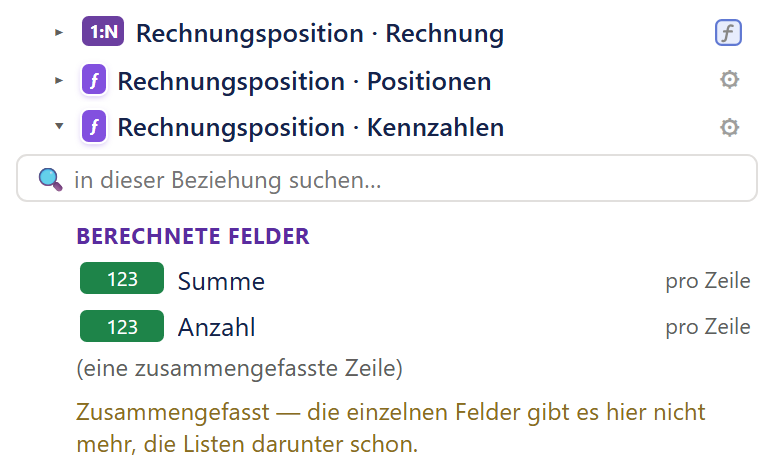
- 1The sign ƒ on a list creates a rule for exactly this list.
- 2A rule appears as “Table · name of the rule” directly after its list.
- 3The gear opens the “Edit rule” window.
- 4The calculations of a rule appear as “Calculated fields” at the very top below it.
If a name already exists in the template, the designer keeps counting, such as “Neue Regel 2”. Counting is across the whole template, so that no two rules are ever named the same. A rule you have just created stays only if you close the window with “Save” (see Saving, canceling, deleting).
The sign ƒ is found not only in the “Data” area but also in the selection windows, such as in “Choose field” or in the “Edit text” window. If you create a rule there, the rule window opens over the selection window; after closing, the new rule is in its list. In the assistant for buttons, no rules are available to choose.
Reopening a rule
In the “Data” area each rule sits directly after its relationship, as “Table · name of the rule” with the sign ƒ, such as “Angebotsposition · Offene”. You can open it in three ways:
| Where | What you click | What happens |
|---|---|---|
| “Data” area and the windows “Choose field” and “Choose a field of this row” | ⚙ on the right of the rule entry (tooltip “Edit rule (filter, calculate, selection, variables)”) | Opens the rule. From a selection window the rule window opens over it; after closing, all open lists show the new state. |
| Properties of a data table, section “Data” | “⚙ Filter & sorting (rule)” | Directly opens the rule the table sits on (tooltip “Opens the rule »…« — filter, sorting, calculations, selection”). The button “Data source…” next to it opens the “Data source & sorting” window instead (tooltip “View or change the row source of this table”; see Data tables: The “Data source & sorting” window). When which button appears is described under Data tables: “General” tab: “Data” section. For a table in a table cell it says “⚙ Data source & sorting” there; you open its rule in the “Data” area with ⚙ on the rule below the list (see Cells, header row and page break: Table in a table cell). |
| Window “Data source & sorting” | “⚙ Edit rule” below the sentence “Filter, sorting, grouping and selection are in the rule …” | Opens the rule. This window deliberately does not offer filter and sorting again, so that filtering is not done in two places. |
The “Edit rule” window
At the top is the “Rule name”, below it four tabs, at the bottom the buttons “Delete rule”, “Cancel” and “Save”, at the top right a ✕. The tabs follow the order in which printing works through a rule. A rule without settings lets all rows through.
| Tab | What you set there | When it takes effect in printing |
|---|---|---|
| “Filter” | Which rows come into the rule | first |
| “Calculate” | Group rows and calculate sum, count, average, minimum or maximum | after the filter |
| “Selection” | The order and, if you wish, particular records, such as the first or the top five | after grouping |
| “Variables” | Custom values that are calculated for each row of the rule | last |
When it opens, the “Filter” tab is always in front; the active tab is underlined in color. You can make the window larger or smaller on all four edges. If the content is longer than the window, it scrolls, and the buttons at the bottom stay in place. As long as the fields of the table have not been loaded yet, the tabs “Calculate”, “Selection” and “Variables” briefly show “Loading fields…” and then build themselves.
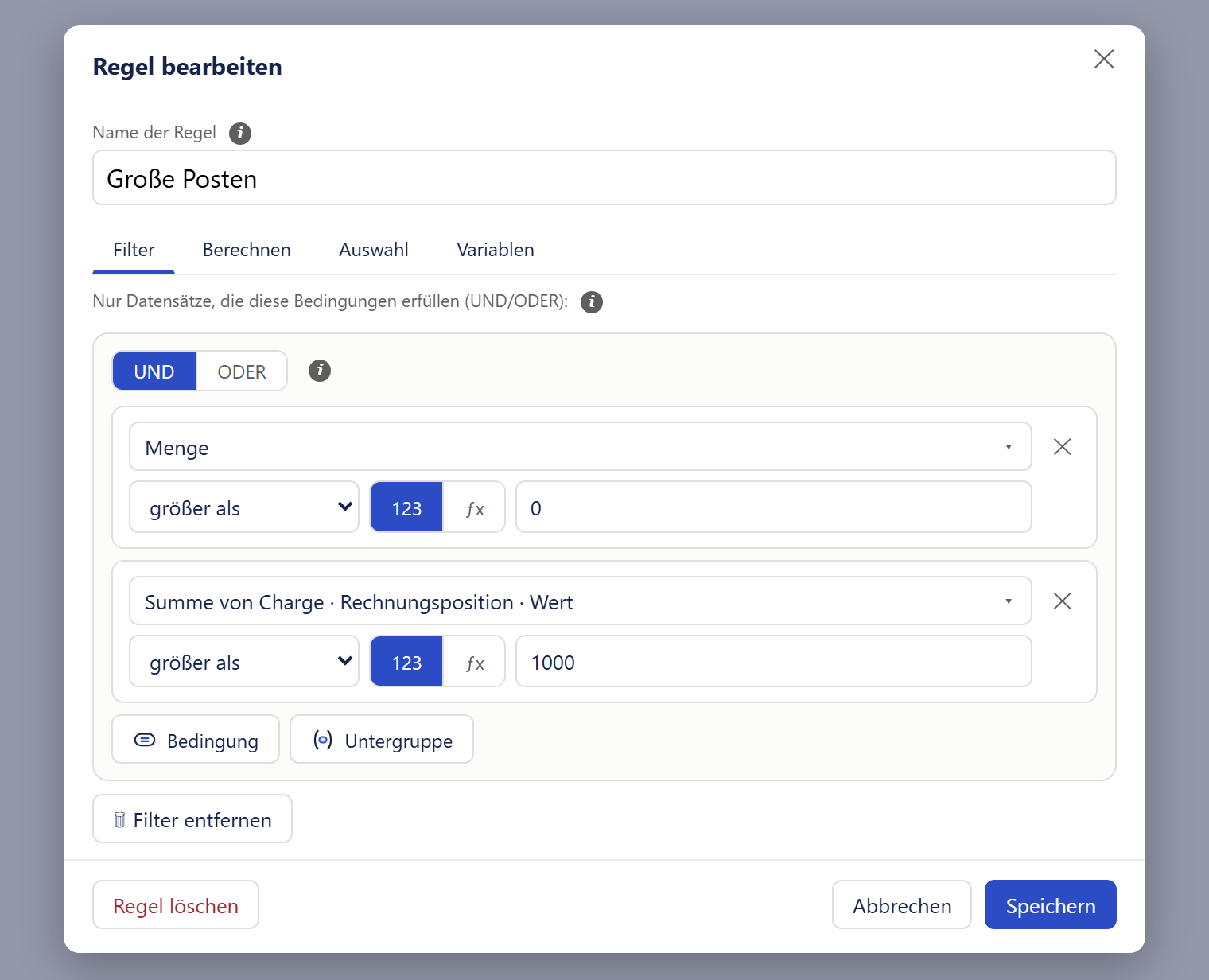
- 1The name of the rule. Under this name tables and fields find the rule.
- 2Four tabs, in the order in which printing works through the rule. When it opens, “Filter” is in front.
- 3AND: All conditions must be met. OR: One is enough.
- 4A condition: field of the row, comparison, value. With 123 | ƒx you compare with a fixed value or with a value from the data.
- 5Here you add a further condition or a subgroup.
- 6The bar stays in place when scrolling. A changed filter takes effect on the sample data only after “Save”.
The name and renaming
The “Rule name” (with ⓘ) is the display name in the “Data” area and at the same time the designation under which tables and fields find the rule. The default is the name the designer assigned when creating it. The “Data” area shows a new name while you type.
- References move along: As soon as you leave the field, the designer moves all references to the rule along: tables, fields, images, conditions and texts in the document, the custom variables, the conditional settings of the template and other rules. It reports how many there were: “Renamed: … reference(s) to this rule moved along …”.
- Duplicate names: If another rule of the template already has this name, the field jumps back to the old name, and the designer suggests a free one: “Another rule is already called »…«. The name was not accepted — … A free one would be, for example, »…«.” Names that are the same in the spelling used for references (see the next point) count as equal, such as “1. Mahnung” and “1 Mahnung”: Both become “1_Mahnung”. “Mahnung 1” and “Mahnung1”, by contrast, are different, as are “Offene” and “offene”.
- Names on the same record: Likewise the designer does not accept a name that a field or a relationship at the same place already has, also its own, for a rule on a source or on a relationship directly below the primary source also the list of an additional source. The result of the rule would replace it there: A rule “Positionen” on the relationship “Positionen” would make every table, count and sum under “Positionen” calculate only with the rows of the rule. The field jumps back to the old name, and the designer names who has the name and suggests a free one: “The name »…« is already taken at the same place: the relationship »…« is called that. The name was not accepted — … A free one would be, for example, »… 2«.” Comparison is made as for duplicate names in the spelling used for references; uppercase and lowercase count. Checking is done when renaming; a rule that is already called that, for example from an import, stays as it is, and the document reports it (see Problems and messages: Rules).
- Spelling: For references, spaces become underscores, punctuation and special characters are dropped; umlauts, accented letters and digits stay. “1. Mahnung” thus becomes “1_Mahnung”. If you leave the field empty, the rule is called “Regel”.
- Taking back: “Cancel” also reverses a renaming together with all references moved along.
Saving, canceling, deleting
What you change in the window is immediately in the opened template. When it becomes visible depends on the tab: Changes in the tabs “Calculate”, “Selection” and “Variables” recalculate the sample data immediately, and the “Data” area and the canvas follow. A changed filter takes effect on the sample data only when you click “Save”.
| Button | What it does |
|---|---|
| “Save” | First checks whether rules anywhere in the template read each other in a cycle (see When rules read each other in a cycle). If something has changed or the rule is new, it recalculates and creates an undo step of its own (Ctrl+Z, see Working on the canvas: Undo). Then it closes the window and continues a flow that was begun, such as the column selection of a new table. |
| “Cancel” | Tooltip “Don't apply anything — a rule that was just created is removed again”. If you changed something, the designer asks “Discard unsaved changes and close?”: “Cancel” stays in the window, “Discard” closes. A rule that was just created disappears completely. For an existing rule the designer restores the state from when it was opened, together with renamings and their references, and recalculates. Without a change the window closes immediately. |
| ✕ at the top right | Tooltip “Cancel / close”. Works like “Cancel”. |
| Esc key | Works like “Cancel”, with the same confirmation question. |
| “Delete rule” | Asks “Delete this rule?” (“Cancel” or “Delete”). After that the rule is gone, everything is recalculated, and the window closes. Ctrl+Z brings the rule back. If a table was just about to be created from the rule, it is no longer created. |
What merely opening changes does not count as a change, such as the empty first condition in the filter or older variables of the rule that the designer converts once to today’s form. A click next to the window is also meant as canceling; “Cancel” and ✕ are more reliable.
Good to know
“Save” in the rule window closes the window with the new state in the opened template. The rule is stored in Dynamics only with “Save” of the template (see Managing templates: The template row).
Caution
When deleting, the designer does not count what points to the rule. Tables and fields on it stay on the canvas; in the PDF such a table prints no row, and fields of the rule stay empty. Before deleting, check whether a table still sits on the rule.
Good to know
As in every confirmation question, the Enter key triggers the right-hand button, here “Discard”, “Delete” or “Close anyway” (see Problems and messages: The windows).
“Filter” tab: which rows come in
The filter determines which rows come into the rule, for example only items with a quantity above zero. Without a condition, all rows are included. The filter checks each row on its own; what does not match drops out before anything is grouped, counted or selected. Above the builder it says “Only records that meet these conditions (AND/OR):” with an ⓘ.
- In the “Filter” tab there is already an empty condition. Click “Choose field …” and choose a field of the row, then the comparison and the value.
- For each further condition click “Condition”. At the top you use “AND” or “OR” to set whether all conditions or only one of them must be met.
- Click “Save”. Only now does the designer calculate the sample data with the new filter.
The filter uses the same condition builder as visibility and variables. How it works, with AND and OR, with subgroups and with a condition without a value, is described under Conditions: The builder and Conditions: AND, OR and subgroups.
In the filter of a rule some things are different from other conditions:
- Choosing fields per row: “Choose field …” opens the “Choose a field of this row” window. It shows only the fields of the row, its relationships and lists together with their rules and your custom variables, no system variables (see Data tree and field picker: The “Choose a field of this row” window).
- Fixed value or value from the data: To the right of the comparison is the switch “123” | “ƒx” (see Comparing with a list, a variable or another rule).
- Note lines: Below a condition, gray or red lines explain how a custom variable works here or why a reference does not work.
- Only its own list: A filter takes effect only on the rows of its list. A rule on the batches of an item filters batches; the items above them all stay.
“🗑 Remove filter” below the builder (tooltip “Removes all conditions of this rule — the rule then lets all rows through again.”) takes out all conditions without a confirmation question, also a filter written by hand. The sample data is recalculated immediately, and the designer reports “Filter removed — the rule lets all rows through again.” “Cancel” brings the filter back.
A filter that was not built with the builder, for example from an import, is kept and continues to take effect; as soon as you create a condition here, the builder replaces it. How the designer shows it is described under Conditions: Conditions written by hand; how it checks it for typing errors is described under Conditions: Notes and warnings.
Good to know
Printing checks the filter for each row after loading. Simple comparisons in the rule of a list, such as “Menge greater than 0”, it also passes on to Dynamics already when loading; fewer rows then arrive, and the result stays the same. Printing still loads the whole list if something else needs it unfiltered (see Data sources and relationships: How the document fetches the data). Which comparisons take effect already when loading and which only afterwards is described under Conditions: Conditions and loading the data. An additional source is always loaded in full, even with a filter (see Data sources and relationships: What the canvas loads and what is printed).
Which comparisons there are
Which comparisons are available and what each one checks depends on the kind of the field: text, number and amount, date or yes/no. The complete list is under Conditions: The comparisons.
Comparing with a list, a variable or another rule
In the filter of a rule more can be compared than in other conditions:
- Over a list: If a list (1:N) hangs on the row, in the “Choose a field of this row” window choose on the right of the field a summary such as “Sum” or “Count” and then click the field. The example with the batches and the rules of the summaries are under Conditions: Sum, count and so on over a list. In this, rounding is done first, then summing (see Round first, then sum).
- With a custom variable: A custom variable (“@Name”) has the same value in every row, because it is calculated once for the whole document before the first rule runs (see Variables: When a custom variable is calculated).
- With a value from the data: With the switch “123” | “ƒx” to the right of the comparison you compare with a field, the result of a rule below it or a custom variable instead of a fixed value; the switch exists only in the filter of a rule and in the condition branches of its variables (see Conditions: Fixed value or value from the data and What a rule may read).
Against the result of a rule below: If a rule of its own hangs on a list under the row, such as a sum only over certain batches, the field picker also offers its fields. For this the designer recommends setting the lower rule under “Selection” to “Only the first”. Whether such a comparison takes effect correctly in the document is currently not assured. Check the result in the full preview (see Full preview and PDF: The full preview) before you rely on it. For a sum over all rows of a list, the way through the summary above is the reliable one.
System variables such as page number and user are not available in the filter: The page number comes into being only when the document is distributed across the pages, long after it is settled which rows are printed. A condition on it would never apply.
“Calculate” tab: grouping and calculating
In the “Calculate” tab the rule calculates one value from many rows, for example the sum of all amounts. Each calculation becomes a new field that you then drag into the template like any other field. Without grouping, the calculation covers all rows, with grouping once per group. The sentence at the top of the tab says the same.
- Under “Calculated fields” (with ⓘ) click “Calculation” (tooltip “Create a new field that calculates one value from several rows”). A new card appears: “is Sum of” with the first number or amount field; the name is still empty.
- At the top of the card give the new field a name, such as “Nettobetrag”.
- Choose the kind of calculation and the field: “is Sum of Betrag”. With “Count” you need no field.
A calculation without a name does not count: It is not calculated and groups nothing. As soon as the first calculation has a name, the rule groups. Without a characteristic under “Group rows by (optional)”, everything then becomes a single row, even if there are no rows at all.
| Setting | What it does | Default |
|---|---|---|
| “Group rows by (optional)” (with ⓘ) | The characteristics by which rows become groups (see Grouping rows). “Field” adds a characteristic, preset with the first field of the list. Each characteristic is a selection list with all fields of the table, sorted by their display name. If a saved characteristic no longer exists in the table, the list shows the first field; in the rule, however, the old characteristic is still there. Then choose the field you want again. The ✕ next to it (“Remove this field from the grouping”) takes a characteristic out without a confirmation question. | no characteristic |
| Name of the calculation (“Name of the new field, e.g. Net amount”) | The name of the new field. For references the same spelling applies as for the name of the rule. | empty |
| “is” … “of” … | The kind of calculation and the field (see The kinds of calculation). For “Count”, instead of the field there is “of the rows — needs no field”. | Sum of the first number or amount field |
| “rounded to” … “Decimal places” (with ⓘ) | Only for sum and average: to how many places each value is rounded before calculating (see Round first, then sum). | empty, so “as in the template” |
| ✕ at the top right of the card | Tooltip “Remove this calculation”. Deletes the calculation after a confirmation question that counts what points to it: “… place(s) are bound to it and print nothing afterwards.” or “Nothing is bound to it — nothing changes in the document.” | – |
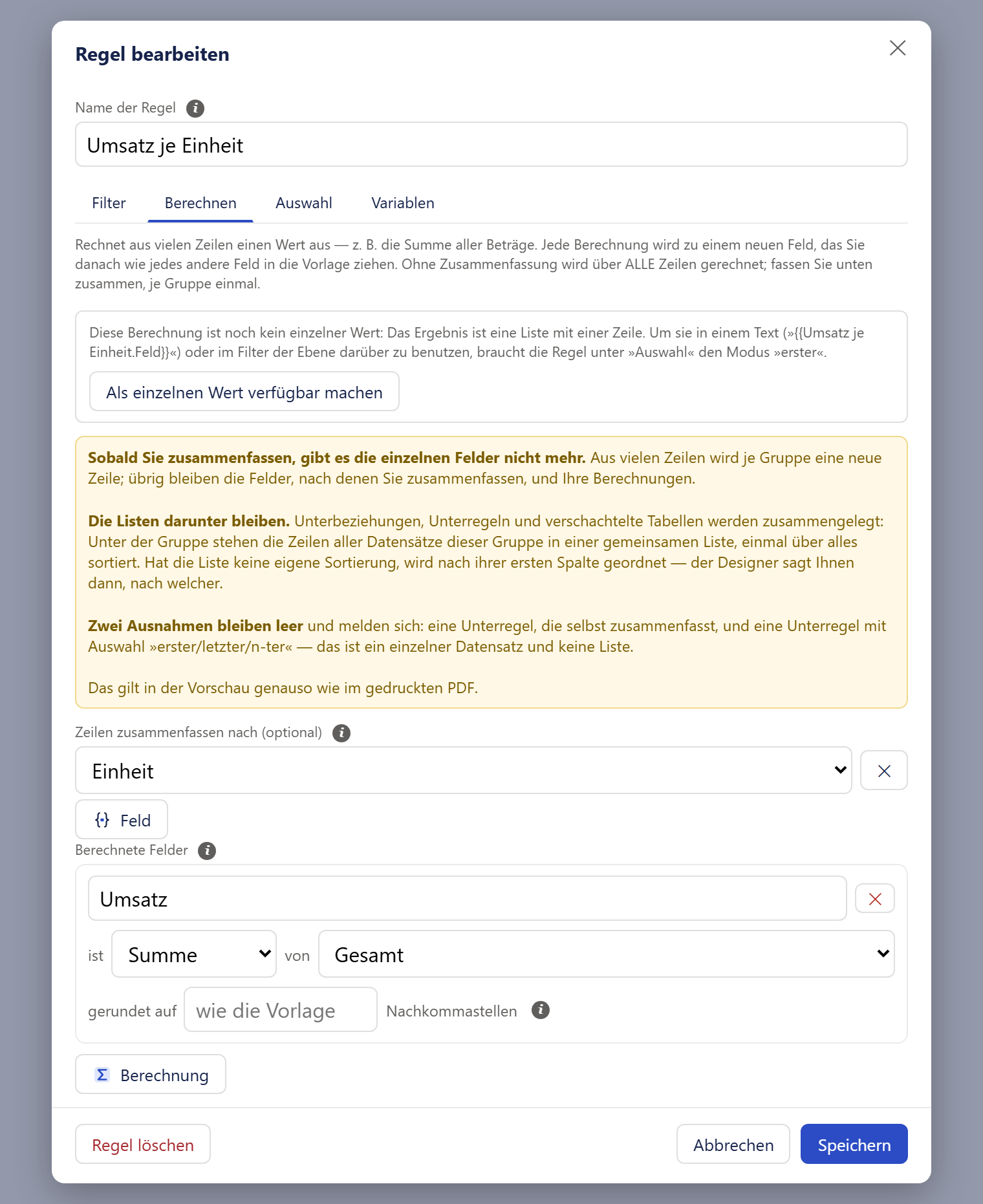
- 1This box says: The result is still a list. For a table, such as a totals row, this is right; then do not click the button.
- 2The yellow box explains what happens when grouping: The individual fields drop out, the lists below stay.
- 3The characteristic by which groups are formed. Without a characteristic everything becomes a single row.
- 4The name of the new field. A calculation without a name does not count.
- 5The kind of calculation (sum, count, average, minimum, maximum) and the field that is calculated over.
- 6Each value is first rounded to these places and then summed. Empty means: the places of the template.
The calculations then appear in the “Data” area under the rule in the section “Calculated fields”, at the very top.
- Renaming: If you change the name of a calculation and leave the field, the designer moves the references to it along: in the document, in the columns of tables on this rule, in conditions and in the variables of the rule. It reports “Renamed: … reference(s) to »…« moved along …”. If several tables have the same rule name and cannot be assigned unambiguously, it changes nothing there and says so: “Caution: … table(s) have the same rule name and could not be assigned unambiguously …”. Then check the columns of these tables by hand. “Cancel” takes the renaming back.
- Duplicate names: If another calculation or variable of this rule already has the new name, it jumps back: “A field »…« already exists in this rule. …”. This check exists only when renaming, not when naming for the first time. Therefore make sure yourself that each calculation has its own name: If two are named the same, only the later one counts in printing. If a calculation is named like a characteristic, it replaces its value; the document reports this.
- Field no longer in the list: If a calculation has a field that the list no longer offers, it appears as “… (not in the list)” and stays until you choose another.
The kinds of calculation
| Kind of calculation | Result | Empty values |
|---|---|---|
| “Sum” | all values added up; only numbers and amounts are available to choose | do not count |
| “Count” | how many rows there are; needs no field | count |
| “Average” | the mean; only numbers and amounts are available to choose | stay out, also from the denominator |
| “Minimum”, “Maximum” | the smallest or largest value; all fields are available to choose, also text and date, compared according to the kind of the value | are skipped; if there is no value at all, the result is 0 |
“Empty” means: nothing in it. If the cell contains a word such as “n/a”, it is not empty: It counts as 0 and, for the average, is included. If you change the kind of calculation and the chosen field no longer fits, the designer takes the first one that fits. “First” does not exist here: You choose the first record in the “Selection” tab with “Only the first”.
Round first, then sum
For sum and average, each individual value is rounded before calculating. That way the document adds up: Four rows with 0.005 each appear as currency four times as 0.01 EUR, and the sum is then 0.04 EUR, not 0.02 EUR. This applies in three places:
| Place | Rounded to | Own setting |
|---|---|---|
| Calculation in the “Calculate” tab of a rule (sum, average) | the places you set on the calculation under “rounded to” … “Decimal places”; 0 to 6 places are possible, a larger number counts as 6 | If the field stays empty, the “Decimal places (currency)” of the template apply (see Numbers, currency and dates: Currency & numbers), normally 2. If you empty the field, the template applies again. The setting applies only to this calculation. |
| Custom variable with “Sum of” or “Average of” | the decimal places of the variable | Without a setting of its own on the variable, the “Decimal places (currency)” of the template apply. |
| “Sum” or “Avg” in a condition, also in the filter of a rule, such as over the batches of an item | always the “Decimal places (currency)” of the template | none; there is no field there for places of your own |
In all three cases the decimal places of the template apply even if they come through a condition branch or from the record. Only a sum in the condition of a condition branch of the template itself calculates with the fixed places of the template, because which branch applies is only settled afterwards (see Numbers, currency and dates: Condition branches). Rounding also applies to quantities and weights: With two places, 1.234 + 1.234 therefore gives 2.46. You need a setting of your own only for exceptions, such as a quantity with three decimal places. For count, minimum and maximum the field does not exist: No new number is created there.
Grouping rows
Under “Group rows by (optional)” you choose a characteristic with “Field”. All rows with the same value in it become one row, and the calculations run per group. Example: three items, twice Apfel at 100 and 300, once Birne at 50. Grouped by product with the sum of the amount, this gives two rows: Apfel with 400 and Birne with 50.
- If you choose no characteristic but create a calculation, everything becomes a single row. This is the way to a grand total.
- With several characteristics, the rows that match in all characteristics form a group.
- Uppercase and lowercase count: “Apfel” and “apfel” give two groups. Rows without a value in the characteristic form a group of their own.
- Without sorting, the groups are in the order in which their first record occurs.
- If the characteristic is a choice or yes/no field, the grouped row also knows its value from Dynamics. A condition whose value you choose among the options (for a choice field “by option value”) therefore applies there as for every individual row, such as “Art is Ware” for a choice field or “Bezahlt is no” for a yes/no field: in a table on the rule as well as in the variables of the rule. The group of rows without a value in the characteristic counts as empty here.
Caution
After grouping, the individual fields of the rows no longer exist; what is left are the characteristics and the calculations. A table on this rule can therefore show only these fields. For the table of the individual items and for their sum, use two different rules.
If the rule groups and further relationships or rules hang on its table, a yellow box in the tab explains what happens. For tables from Dynamics this is almost always the case, because even a lookup counts as a relationship. The box begins with “As soon as you group, the individual fields no longer exist.” and says four things:
- A new row is created per group; what is left are the characteristics and the calculations.
- The lists below stay: Under a group are the rows of all records of this group in a common list, sorted once across everything. If the list has no sorting of its own, it is ordered by its first column, and the designer says by which.
- Two exceptions stay empty and report themselves: a rule below it that itself groups, and a rule below it with “Only the first”, “Only the last” or “The one at a specific position”.
- This applies in the preview just as in the PDF.
A list with one row or a single value
Even if a rule groups everything into one row, its result is a list, just with one row. For a table this is right, for example for the totals row. As a single value, such as in a text, a rule on a source by contrast needs the selection “Only the first”. For a rule on a list, such as on the items, this currently does not help, although the box in the tab suggests it (see Using the result). A box in the tab points to the selection: “This calculation is not yet a single value: The result is a list with one row. …” It appears if the rule has a calculation and does not select a single record. Right after creating the first calculation it is still missing; it appears as soon as you switch to another tab and come back.
The button “Make available as a single value” in the box sets the selection to “Only the first” and recalculates. You achieve the same in the “Selection” tab via “Keep only specific records”. If a table already sits on the rule, the designer warns, because it would stay empty in the PDF afterwards. For a totals row, therefore, do not click the button.
“Selection” tab: sorting and selecting
The tab sets the order and, if you wish, selects particular records: the first, the last, the one at a specific position or the top N. Without a selection, all rows remain, and sorting works even without a selection. Sorting and selecting are done after grouping.
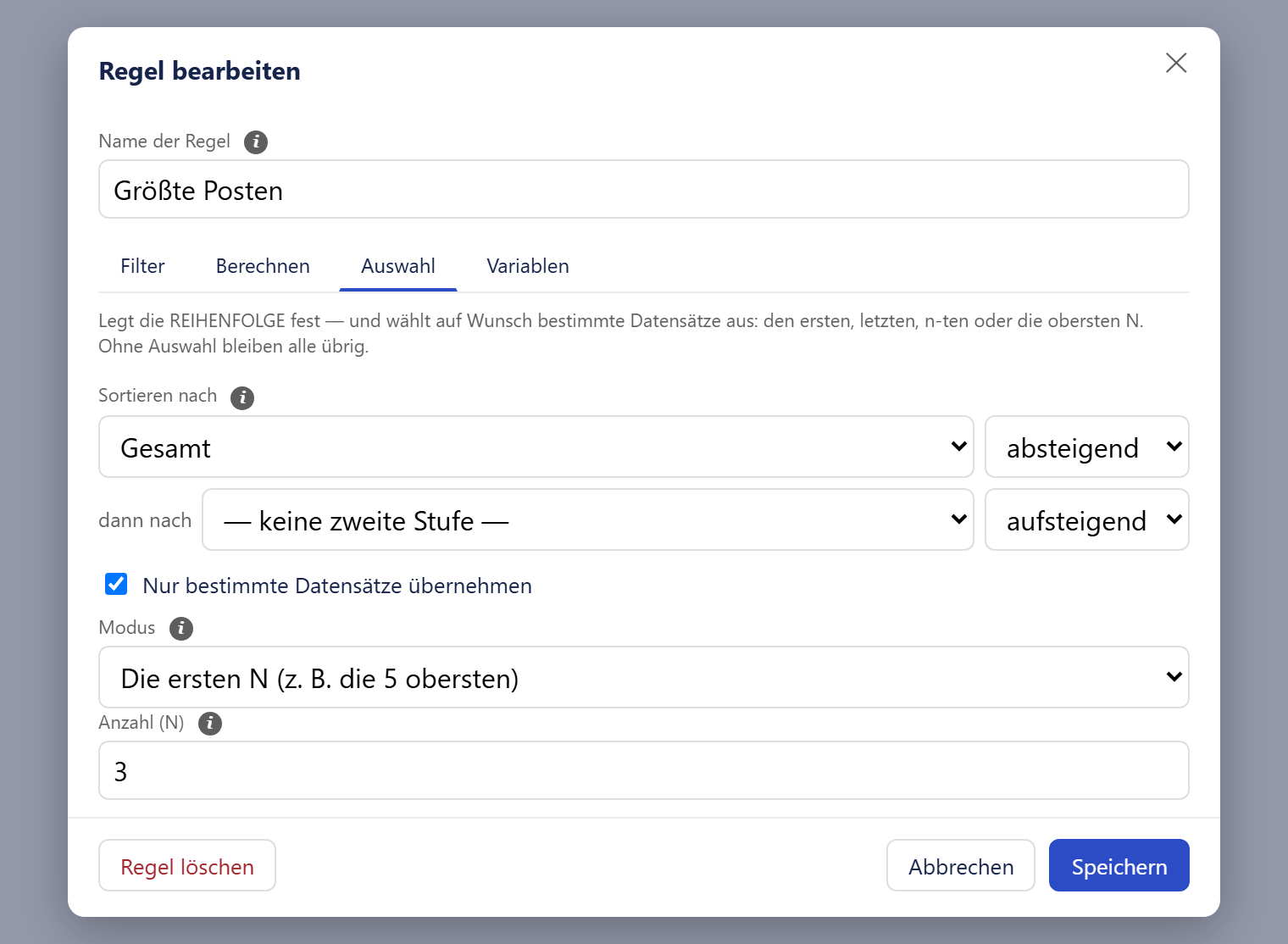
- 1Sort by: the field and the direction. The sorting also determines what “first” or “last” means.
- 2A second level decides only for equal values in the first. There are no more than two levels.
- 3Switches the selection on. The checkmark immediately sets “Only the first”; without the checkmark all rows remain.
- 4Which records remain: the first, the last, the one at a position or the top N.
- 5The number for the mode, counted from 1: 3 means the top three records.
Sorting
| Setting | What it does | Default |
|---|---|---|
| “Sort by” (with ⓘ), first row | The field and the direction, “ascending” or “descending”. Available to choose are the fields of the table, sorted by their display name. “— unsorted (database order) —” takes the sorting out; the second row then also drops out. | “— unsorted (database order) —”, ascending |
| “then by”, second row | Decides only for equal values in the first row, such as first by product and, for the same product, by date. Appears only once the first row has a field. There are no more than two levels. | “— no second level —”, ascending |
- Without sorting, the order in which Dynamics delivers the rows applies. It is random; anyone who needs a particular order sets it here. The sorting also determines what “first”, “last” or “position 3” means.
- The rule orders numbers by their size, 2 before 10. Whether, for example, “1,5” counts as a number depends on the “Number style (comma/period)” in the template settings (see Numbers, currency and dates: Currency & numbers).
- If a field contains different kinds of values, numbers come first, then dates, then text and last empty values; “descending” only reverses the order within these groups. Empty values are therefore always at the end, whichever the direction.
- If there is still a tie after the second row, the rows keep their original order.
- After grouping, only the characteristics and the calculations are available to choose, the calculations as “… (calculation)”. This is how, for example, “the 5 customers with the largest revenue” comes about: sort by the calculation “Umsatz” in descending order and choose “The first N (e.g. the top 5)” with 5. A field chosen earlier that no longer exists afterwards appears in the list as “⚠ … — does not exist after grouping”. It sorts by nothing; replace it. The document reports it too.
- The variables of the rule are not available to choose, because they only come into being after sorting.
Keeping specific records
| Setting | What it does | Default |
|---|---|---|
| “Keep only specific records” | Switches the selection on. The checkmark immediately sets the mode “Only the first”: One click is enough, and the list becomes a single record. Without the checkmark all rows remain again; a sorting stays. | off |
| “Mode” (with ⓘ) | Which records remain, see the table below. Appears only with the checkmark. | “Only the first” |
| “Position (n)” or “Count (N)” (with ⓘ) | The number for the mode, counted from 1: 3 is the third record or the top three. Appears only for “The one at a specific position” and “The first N (e.g. the top 5)”. Whole numbers from 1 to 2,147,483,647 are allowed. A smaller or empty input counts as 1, a larger one as the maximum number; the field itself does not show this correction. | 1 |
| Mode | Result |
|---|---|
| “Only the first” | exactly one record: the top one after sorting |
| “Only the last” | exactly one record: the bottom one |
| “The one at a specific position” | exactly one record, such as the third; the number is under “Position (n)”. If there are fewer rows, the record stays empty. |
| “The first N (e.g. the top 5)” | the top N records as a list; the number is under “Count (N)”. If there are fewer, all stay. |
Example: Sorted by date in descending order, “Only the first” gives the newest record. A record without a date is never “the newest”, because empty values are at the end. Sorted by revenue in descending order with “The first N (e.g. the top 5)” and 5, you get the five largest.
Caution
A rule with a single selection as a row source prints no row. “Only the first”, “Only the last” and “The one at a specific position” deliver a single record, not a list. A table on such a rule prints no row in the PDF; on the canvas its sample row is still there. For a list, choose “The first N (e.g. the top 5)”. The designer warns if you switch a rule with tables on it to a single record (“This rule now returns only ONE record — …”), if you do so when creating a table, and if you choose such a rule as a row source (confirmation question “This rule returns only one record” with “Use it anyway”).
Good to know
The selection shortens the result, not the loading: All rows are loaded, selecting is done afterwards. Less can be loaded only with a filter on a list, and only with comparisons that already take effect when loading (see Filter). If the template also uses the list itself, such as for a sum over all items in the text, printing additionally loads it in full for that. If the upper limit of 20,000 rows per query is reached, sums and selection are no longer correct; what the canvas loads and that an additional source is always loaded in full are described under Data sources and relationships: What the canvas loads and what is printed.
“Variables” tab: values per row
In the “Variables” tab you create, under “Custom variables of this rule” (with ⓘ), values that are calculated separately for each row of the rule, such as a discount per item: a fixed value, a calculation or an if-then. Calculation is done last, after the rule has filtered, grouped and selected; a variable therefore sees only the rows the rule has kept. Afterwards the variables appear as new fields under the rule, in the section “Calculated fields”.
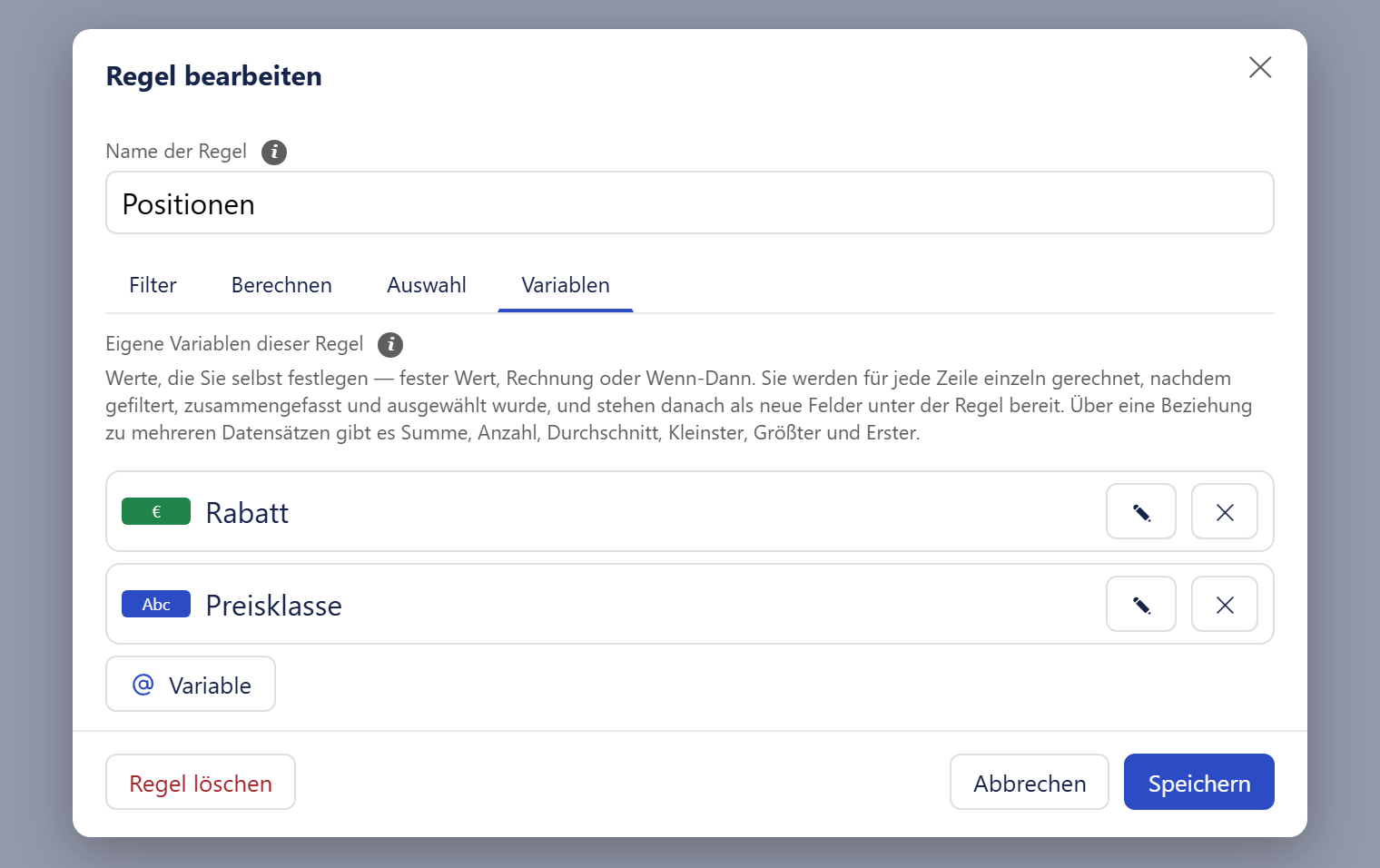
- 1The badge shows the type of the variable: 123 number, € currency, date, yes/no, otherwise Abc.
- 2The name of the variable. If you point at it, you see the content, for condition branches for example “1 condition branch(es), otherwise: …”.
- 3The pencil opens the “Edit variable” window over the rule window.
- 4The ✕ deletes the variable after a confirmation question that counts what points to it.
- 5The button opens the “New variable” window; you choose the type there yourself.
| Control | What it does |
|---|---|
| Badge | The type of the variable: “123” number, “€” currency, “Date”, “Yes/No”, otherwise “Abc”. |
| Name | The name of the variable; without a name it says “(no name)”. If you point at it, you see the content, for condition branches for example “2 condition branch(es), otherwise: …”. |
| ✎ (“Edit variable”) | Opens the “Edit variable” window over the rule window. After saving there, it is recalculated. |
| ✕ (“Remove variable”) | Deletes the variable after a confirmation question that, as for calculations, counts what points to it (wording under Preview, saving, renaming and deleting). |
| “Variable” | Opens the “New variable” window; you choose the type there yourself. |
What is different for a variable of the rule
“Variable” and ✎ open the same window as for a custom variable (see Variables: Creating a custom variable), with the row as the point of reference. Here too you choose the type yourself. Older rule variables that consist only of a formula are converted by the designer once to today’s form when the rule is opened. What is different:
| Point | Custom variable | Variable of a rule |
|---|---|---|
| Value | one for the whole document | one per row, calculated after the rule has filtered, grouped and selected |
| Name | unique in the template | unique in this rule; otherwise “A variable with this name already exists in this rule.” |
| Where to find it afterwards | under “Custom variables” as “@Name” | as a field under the rule, in the section “Calculated fields”; not under “Custom variables” |
| “What should it look like?” | for number and currency | missing; a note appears in its place (see What the value looks like) |
| Field picker for the value | “Choose field”, the whole data tree | “Choose a field for the variable”, only the row and what lies below it |
| Condition of a condition branch | on the printed record | per row |
| Type yes/no that takes over a yes/no field from Dynamics | is set to yes or no, like the field; with the label “Unbezahlt” it prints “No” | prints the label of the field, such as “Unbezahlt”; in conditions, as with the field, what counts is whether it is set to yes or no: “is no” applies to “Unbezahlt” (see Conditions: Yes/No) |
| Type yes/no with a fixed value or a yes/no result | prints “Yes” or “No” in the template language | likewise; in conditions what counts is whether it is set to yes or no (see Conditions: Yes/No) |
| Preview row | with the sample record | on the first row of the rule |
| Saving | applies immediately in the template | applies in the rule; final only with “Save” in the “Edit rule” window |
| Deleting | confirmation question without a count | confirmation question with a count |
Choosing fields in a variable of the rule
The button “Choose field …” opens the “Choose a field for the variable” window here, with a ✕, a search box “🔍 Search…” and the note “The variable is calculated for each row separately. Through a relationship you reach its fields; for a relationship to several records, choose the summary (sum, count, …) on the right of the field. A rule cannot see upwards.” The header says “Row from »…«”. Below it are the fields of the row, its relationships, lists with the summary on the right of the field and the rules below; nothing from further up. The type of the variable restricts the fields as for a custom variable (see Variables: The “Choose field …” button). After the choice the button shows, for example, “Produkt · Preis” or “Sum of …”.
This picker does not offer custom variables of the template and system variables. The variable can still use custom variables, today’s date and the user: Write them in via “ƒx as formula”, for example {{@Rabattsatz}}. Custom variables are also available to choose in the field picker of the condition of a condition branch. This picker is called “Choose a field of this row” here and is described under Data tree and field picker: The “Choose a field of this row” window.
What the value looks like
What the value looks like in the document is determined by the place where you insert it, together with the template settings. Instead of “What should it look like?” there is therefore a note:
- for currency: “How it looks — currency symbol, decimal places, country style — is decided by the template settings. For this one place it can also be done on the placeholder, e.g. in francs:
{{Currency:Name|CHF}}.” - for number: “How it looks — country style and thousands separator — is decided by the template settings. It shows as many decimal places as it needs (at most four); you set fixed places on the placeholder, e.g. two:
{{Number:Name|2}}.”
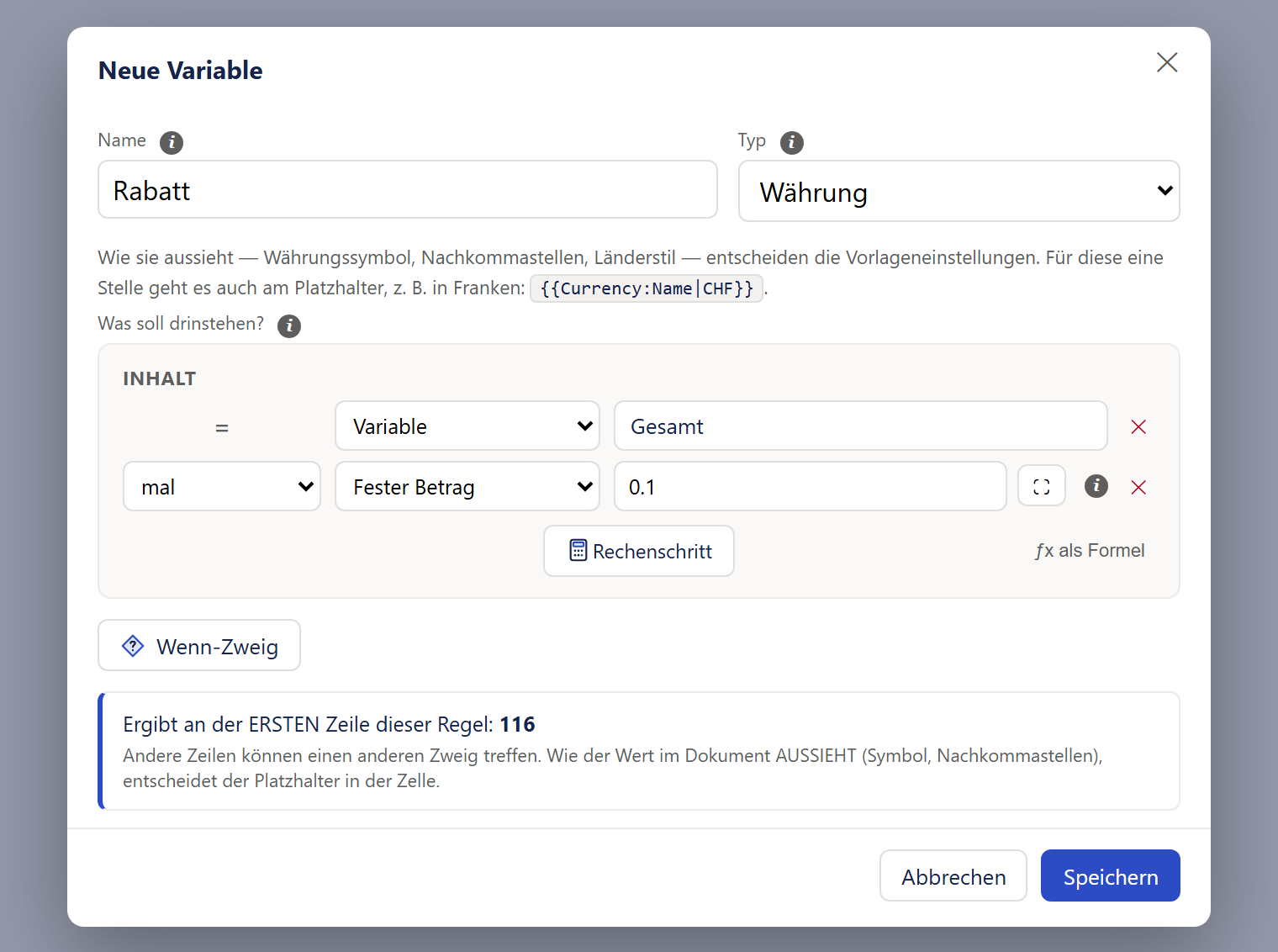
- 1Instead of “What should it look like?” there is a note here: The appearance is determined by the template settings or the placeholder at the place where you insert the value.
- 2A click on the chosen field opens “Choose a field for the variable”. There are only the row of the rule and what lies below it, nothing from further up.
- 3The preview calculates on the first row of the rule. Other rows may hit another condition branch.
- 4“Save” writes the variable into the rule. It becomes final only with “Save” in the “Edit rule” window.
If you drag the variable from the “Data” area into the document, the designer sets the matching formatting itself for number, currency and date. If the display is to depend on a condition, such as a different currency symbol per country, set that in the template settings (see Numbers, currency and dates: Condition branches).
Preview, saving, renaming and deleting
- Preview row: “Results on the FIRST row of this rule: …”, below it “Other rows may hit a different branch. How the value LOOKS in the document (symbol, decimal places) is decided by the placeholder in the cell.” If the rule does not deliver a row yet, it says “No sample row for this rule yet — the preview can only calculate once the rule returns rows.” If the variable belongs to a cycle or reads a field that the row no longer has after grouping, the preview shows “(empty)” with the reason.
- Saving: “Save” in the variable window writes the variable into the rule and recalculates the sample data. “Cancel” in the “Edit rule” window with “Discard” also takes back new, changed and renamed variables (see Saving, canceling, deleting).
- Renaming: As for a calculation (see “Calculate” tab), the designer moves the references along and then reports in the window of the rule “Renamed: N reference(s) to »Alt« moved along (document, table columns, conditions, custom variables of the template and the other variables of this rule).” If several tables have the same rule name, the same “Caution” message is added: “Caution: N table(s) have the same rule name and could not be assigned unambiguously — NOTHING was changed there. Please check the columns of these tables by hand.” This message stays longer.
- Deleting: The confirmation question counts what points to the variable: “Really delete the variable »Name«? 2 place(s) are bound to it and print nothing afterwards.” or “… Nothing is bound to it — nothing changes in the document.”
What a variable of a rule can read
Number and currency are calculated, text stays text: “01069” keeps the leading zero.
- A variable sees only downwards, like every rule (see What a rule may read): its own row, linked data such as the product of an item and the rules below, plus the custom variables of the document and the system values date and user.
- If the rule has grouped, the row has only the characteristics and the calculations left. If a variable then reads fields of the individual rows or summarizes a list of the level above, it stays empty, and the document reports it. Use one of the calculations of the rule instead, for a sum over the whole document a custom variable.
- If a variable reads another variable of the same rule, printing calculates it in the right order. They must not read each other in a cycle, not even indirectly; otherwise all those involved stay empty, and the document reports the cycle.
- If a variable is named like a field of the row, its value replaces this field; the document reports it. If two variable names give the same spelling for the references, such as “Netto Betrag” and “Netto_Betrag”, only one of the two applies; the document also reports this.
Using the result
In the “Data” area, under the rule there is first the section “Calculated fields” with its calculations and variables. Below it, without grouping, follow all fields of the table and its relationships. If the rule groups, there are only the characteristics, without a characteristic the sentence “(one summarized row)”, plus “Summarized — the individual fields no longer exist here, but the lists below still do.” and the lists. This gives these ways:
- As a table: Drag the rule from the “Data” area onto the page or choose it as the row source of a data table. No new rule is created in the process; you go straight to the column selection. The table shows one row per record of the rule.
- As a single value: For a rule on a source, such as on an additional source or on the main record, drag a field of the rule into a text. For it to show a value, the rule must deliver exactly one record: Under “Selection” it then says “Only the first”, “Only the last” or “The one at a specific position”.
- For a rule on a list, such as on the items, its fields in the “Data” area count as “per row”. If you drag one of them onto the page or into a text, the designer currently refuses it: “»…« applies per row and needs a table cell — …”. If you insert it in the “Edit text” window, it does appear as a marker in the text but currently delivers no reliable value; the same applies to a click into an input box. The place may stay empty in the PDF without the document reporting it. This also applies in a group. Fields of rules on the primary source or on an additional source are not affected.
You therefore show a sum over such a list in one of two ways:
- As a one-row totals table: A second rule on the same list groups all rows into one, and a table on it appears as a totals row below the items table. Step by step it is described under Example: the sum below the items table.
- As a custom variable with “Sum of”: For a sum in running text, such as “Gesamtbetrag: …”, use a custom variable of type currency that calculates “Sum of” over the items (see Variables: The kind of value). It calculates over all items, without a filter; if the table filters, this sum therefore differs from the totals row.
Where the result sits
The result of a rule belongs to the level to which its list is attached. A rule on the items of a quote has one result per quote. A rule on the batches of an item has one result per item; in a table of the items it therefore appears in every row, like a field of that row. The rule of a source, on the main record as on an additional source, belongs to the whole document.
Example: the sum below the items table
- In the “Data” area, click the sign ƒ on the relationship of the items and name the new rule “Summen”.
- If you filtered in the rule of the table, such as only items with a quantity above zero, create the same filter here too.
- In the “Calculate” tab, create the calculation “Gesamt is Sum of Betrag”, without a characteristic under “Group rows by (optional)”. The rule groups all items into a single row.
- In the “Selection” tab, leave the checkmark at “Keep only specific records” unchecked, and do not click “Make available as a single value”. Click “Save”.
- Drag the rule “Summen” from the “Data” area directly below the items table and in the column selection choose the column “Gesamt”. A table with exactly one row is created: the sum. Even without items there is one row there, then with 0.
- Design it as a totals row: Uncheck “Show header row” (see Data tables: The properties of the whole table). Give the column under “Width (mm)” the width of the amount column, right-align it and place the table with “X (mm)” exactly under this column. Place it below the items table with the positioning behavior “Flowing” so that it moves down with it (see Positioning behavior: Flowing).
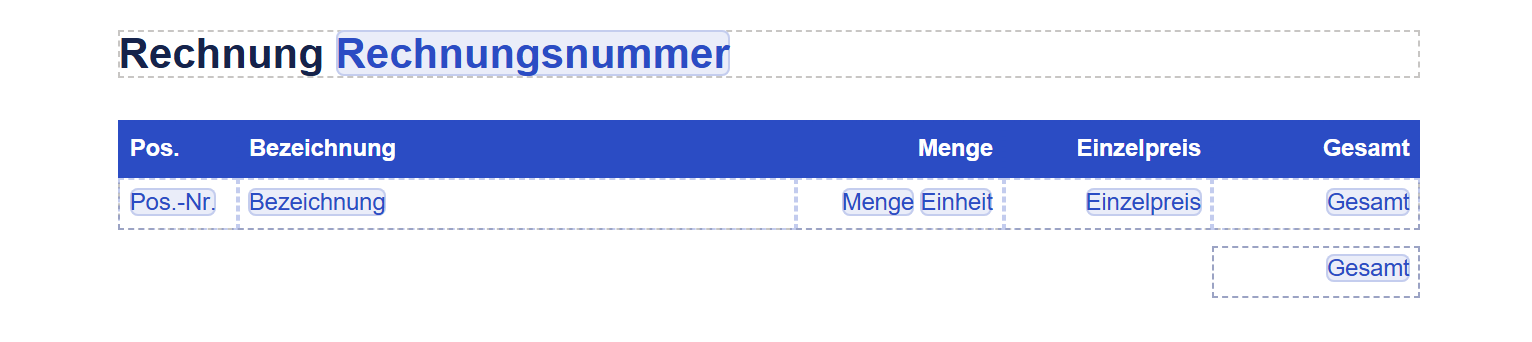
- 1The amount column of the items table.
- 2The totals row: Width, alignment and position match the amount column above it.
- 3On the canvas there is a sample row with field names. One row per record is printed; in the totals row the sum appears.
For a sum in running text, use a custom variable (see Using the result).
What a rule may read
A rule sees only downwards. This is fixed so that the order of calculation is always unambiguous.
- Allowed are the fields of its own row, fields via relationships (also via a lookup upwards, such as from the item to the quote), sum, count and the like over the lists below the row, the results of rules below, on the same list and on a neighboring list (for a rule on a source also those of the rules on other sources) and the custom variables of the document.
- Not allowed are the results of rules further up, the rule itself and everything that closes a cycle: A reads B, and B reads A. Rules on a source, on the main record as on an additional source, also count as further up, because their result belongs to the whole document (see Where the result sits). A rule on a list must therefore not read it.
Calculation is therefore done first in depth and then upwards: first the rules on the lowest lists, last those on the top level. If a rule on a source reads the result of a rule on another source (or a rule on a list that of a neighboring list), the document calculates the one that is read first, regardless of the order in which the sources were created. Where the result of a rule sits is described under Where the result sits.
If a rule nevertheless has a reference upwards, such as from an older template, the designer removes it from the opened template the next time it recalculates and reports it: “Deleted: rule »…« — …. A rule may read only its own row and everything BELOW it, nothing from above. …” If you save the template afterwards, the reference is also gone in Dynamics. The document likewise leaves it out and reports it as a warning. The principle is: rather too many rows than too few.
- If the filter on the top level is joined with AND, the part concerned drops out: the single condition or the whole subgroup in which the reference sits, whether it contains AND or OR. In “paid AND (… OR …)” the bracket therefore drops out; “paid” stays.
- If the filter on the top level is joined with OR, the whole filter drops out, and the rule lets all rows through.
- A variable of the rule that reads upwards is emptied completely.
In the document the following also applies: If a sort level reads upwards, this level drops out. If a characteristic under “Group rows by (optional)” or the field of a calculation reads upwards, the whole grouping drops out: The rows stay individual, and the calculations are missing. The designer does not remove these two cases from the opened template; the canvas continues to show sorting and grouping.
Instead, create the key figure as a rule of its own on the same level and compare against it.
Cycles and messages
When rules read each other in a cycle
If two rules read each other or a rule reads itself, there is no order in which they can be calculated. Then all rules of the template are skipped, not only those involved: Places with rule results stay empty, and tables on rules print no row until the cycle is resolved. The designer warns in three places:
- on “Save” in the rule window, as long as there is a cycle in the template, even if the rule just being edited is not involved: “The rules presuppose each other: A → B → A.” or “The rule »X« reads itself — but its result only comes into being through it.”, with “Back to the rule” or “Close anyway”;
- as a message on the canvas: “Cycle in the rule references: …”; the canvas then also calculates no rule;
- before the full preview and the PDF, with “Cancel” or “Generate anyway”.
If you generate the document anyway with a sample record, it also reports the cycle, as a warning. Without a sample record it does not name the cycle; a table on a rule then reports only that it did not find its row source and printed no row. Take out one of the two directions.
When there is no valid order without rules reading each other in a cycle
A rule on a list may read the rule of a neighboring list. If a rule deep in a list (such as on the batches of the items) reads the rule of a neighboring list, which in turn reads the rule above exactly this list (such as on the items), there is no order that satisfies everything: The rule above the list must calculate after the rule below it, and that one reads a result that only comes into being afterwards. There is no cycle between the rules here, so no rules are skipped. The document calculates them in the order in which they are loaded and reports it as a warning; one of the rules then calculates against a result that is still missing. The canvas shows the same message: “The rules »…«, »…«, »…« cannot be calculated in any valid order: …”. Take out one of the references, or read the value where it is already finished.
Messages at a glance
While you work, the designer reports in the language of its interface. Some notes at the top of the canvas are in English because they correspond word for word to the note in the document, such as the notes on typing errors in a filter written by hand, which begin with “condition '…':” (see Conditions: Notes and warnings), or “the aggregate '…' has no rows here” for a summary in a condition over an empty list (see Problems and messages: Variables and conditions). The messages about rules:
| Message | When | What you do |
|---|---|---|
| “Renamed: … reference(s) to this rule moved along …” | after renaming a rule | nothing |
| “Another rule is already called »…«. …” | the new rule name is already taken | choose another name, such as the suggested one |
| “The name »…« is already taken at the same place: the relationship »…« is called that. …”, likewise “… the field »…« is called that. …” and “… the list of the source »…« is called that. …” | the new rule name already belongs to a field, a relationship or a source list on the same record (see The name and renaming) | choose another name, such as the suggested one |
| “Renamed: … reference(s) to »…« moved along …”, plus “Caution: … table(s) have the same rule name …” | after renaming a calculation | for “Caution”, check the columns of the tables concerned |
| “A field »…« already exists in this rule. …” | the new name of a calculation is already taken in the rule | choose another name |
| “Filter removed — the rule lets all rows through again.” | after “🗑 Remove filter” | nothing; “Cancel” brings the filter back |
| “This rule now returns only ONE record — …”, “This rule returns only ONE record — the table you are just building from it therefore stays empty. …” or “The rule »…« has the selection »first/last/nth« and returns exactly ONE record. …” | a rule with a table is set to a single record | choose “The first N (e.g. the top 5)” |
| “Deleted: rule »…« — …” | a rule reads from above | create the key figure as a rule of its own on the same level |
| “Cycle in the rule references: …” | rules read each other in a cycle | resolve the cycle (see When rules read each other in a cycle) |
| “The rules »…«, »…« cannot be calculated in any valid order: …” | rules read each other across neighboring lists so that no order fits (no cycle) | take out one of the references (see When there is no valid order) |
| “»…« applies per row and needs a table cell — …” | a field of a rule on a list was dragged onto the page | build a totals row (see Using the result) |
The document itself reports in English after the full preview and the PDF. The messages about rules, with meaning and remedy, are under Problems and messages: Rules. The messages belonging to a table on a rule are under Problems and messages: Tables, those for a list with very many rows under Problems and messages: Loading data. Where the document shows them is described under Problems and messages: Notes and warnings.
What changes in the document?
On the canvas
The canvas shows the fields of a rule as blue markers with their name, and a table on a rule shows a sample row, even if the rule delivers only one record. Filter, calculations and selection calculate with the sample data, but only with the excerpt that the canvas loads (see Data sources and relationships: What the canvas loads and what is printed). With a cycle, the canvas also calculates no rule.
In the PDF
Calculation is done afresh from all loaded data, in the order filter, group and calculate, sort, selection, variables. A rule that nothing in the template points to, no table, no field, no condition, no custom variable and no other rule, is not calculated by printing at all. Only a rule on a list whose filter already takes effect wholly or partly when loading gets a query of its own at Dynamics (see Filter), at most one per rule; the others calculate over the rows that are loaded anyway. Printing loads the whole list only if something needs it unfiltered (see Data sources and relationships: How the document fetches the data). Tables show exactly the rows of the rule in their order; calculated fields show the values over all rows the filter lets through, when grouping per group, first rounded, then summed. A table on a rule with a single record stays empty. With a cycle, all rules are dropped.