
Buying or subscribing
In short
An administrator chooses the offer in Dynamics on the “License & updates” page, enters the billing details the first time (company, address, country, VAT identification number and invoice email) and pays on the Stripe payment page. With the payment and your confirmation of the license terms, the order is placed; there is no signature on paper. After the payment your license key arrives by itself, and you receive the invoice as an e-invoice by email.
Before you order
- Rights: Administrators and users with the role “Smart Templates – Lizenzverwaltung” can order, see Who sees the page and who may buy.
- Synchronization: The switch “Synchronize automatically with the license service” must be switched on, because the purchase runs through the license service.
- Quote: If your purchasing department needs a formal quote beforehand, request it with the form Request a quote, see Quote and payment.
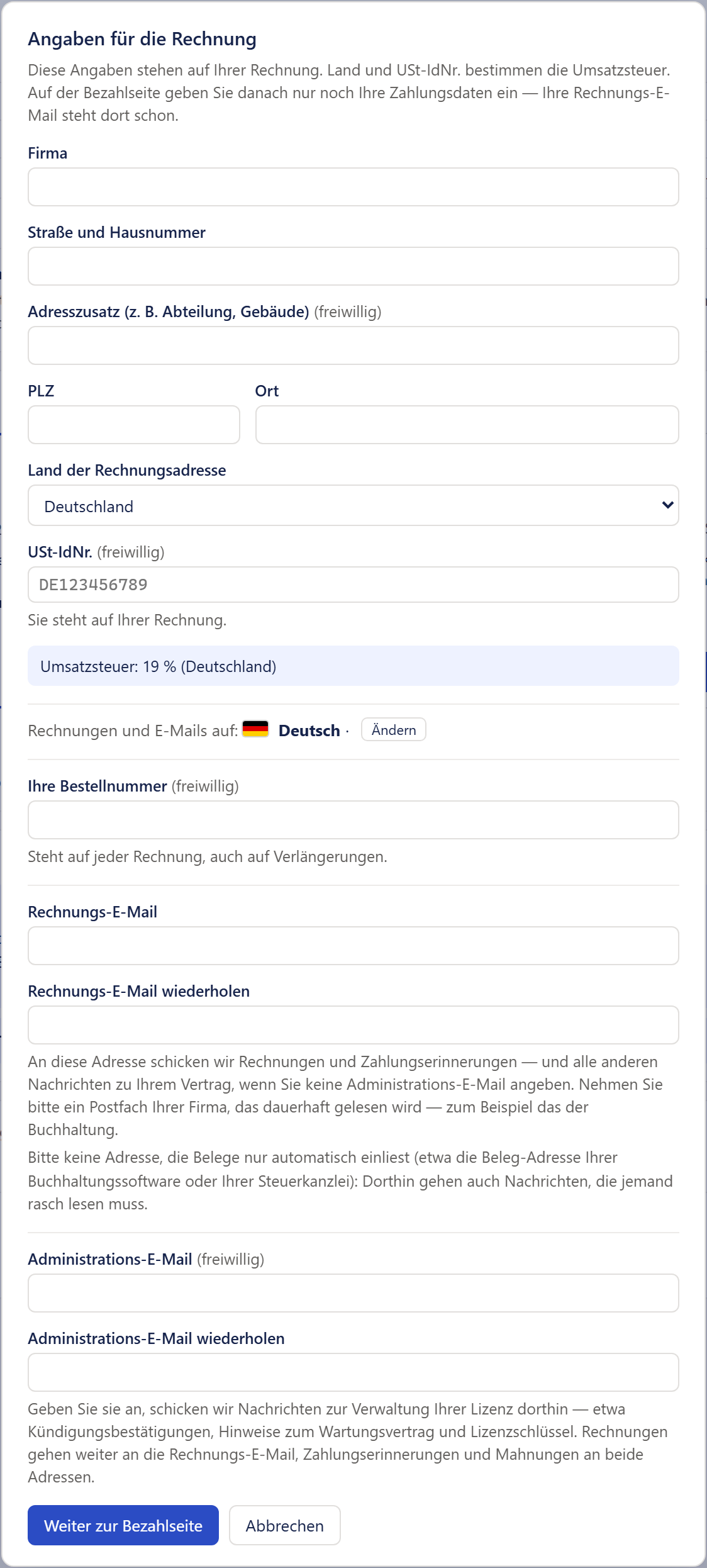
- Billing details: Have your company name and address, the country of your billing address and your VAT identification number ready. For companies in an EU country other than Germany, the number is mandatory.
- Purchase order number: If your purchase order number is to appear on the invoices, have it ready as well. You enter it with your first purchase in the window “Billing details”.
- Invoice email: Decide beforehand which email address you will enter. Invoices, payment reminders and all messages about your contract go there, and you use it to sign in to the customer portal. You enter it twice in the window “Billing details”. Do not use an address that only imports documents automatically, such as the document address of your accounting software: messages that someone needs to read promptly also go there.
- Administration email: Optional. If you enter it, messages about managing your license go there, such as cancellation confirmations, notes on the maintenance contract and license keys. Invoices still go to the invoice email, payment reminders and dunning notices to both addresses. You enter it twice as well.
- Payment method: With a card, the payment is confirmed immediately. With a direct debit, your bank confirms it only after a few days, see below.
Tip
As the invoice email, use a mailbox that is not tied to a single person, for example accounting@contoso.com. That way invoices and reminders still arrive when someone leaves the company. If an address is to be changed later, you can do that on “License & updates”, see Changing details and email addresses.
Step by step
- In the app “Smart Templates”, open the page “License & updates”.
- In the card “Continue with Smart Templates”, choose your offer: “Buy with maintenance contract”, “Buy” or “Subscribe”.
- With your first purchase, the window “Billing details” opens. Enter company, street and number, postal code and city, and optionally an address line 2. Choose the country of your billing address and enter your VAT ID: mandatory for companies in an EU country other than Germany, optional in Germany; outside the EU the window does not ask for it. The window shows which VAT applies and in which language invoices and emails will come; with “Change” next to it you switch the language. Below that you optionally enter “Your PO number”, which then appears on every invoice, including renewals. Then enter your invoice email twice and, if you like, an administration email, also twice. Choose “Continue to payment page”.
- The Stripe payment page opens in a new tab. If your browser blocks the tab, choose the link “Open payment page” on the page.
- On the payment page, check the product, price, VAT and term.
- Choose the payment method and enter your payment details, see What you enter on the payment page. Direct debit is not an instant payment: your bank usually confirms it within 8 business days. With a card, the payment is confirmed immediately.
- Check the box “I am ordering as a business or public body (not as a consumer) and accept the license terms”.
- Complete the payment with Stripe’s button. Its label depends on the offer.
- Then return to Dynamics. The “License & updates” page fetches your key by itself as soon as you return to it; otherwise choose “Check again”.
Caution
Direct debit is not an instant payment. If you pay by SEPA direct debit, your bank usually confirms the payment within 8 business days, sometimes later. Only then is your order complete. With a card, the payment is confirmed immediately. What applies during the wait is described under Direct debit: not an instant payment.
Good to know
A payment page is valid for one hour. If it has expired, start the order on “License & updates” again. If you click twice or order in a second tab, you get the same payment page.
What you enter on the payment page
- Email address: Your invoice email is already filled in there and cannot be changed on the payment page.
- Billing address: Company, address, country and VAT ID come from the window “Billing details”; the payment page does not ask for them again. If the VAT is not right, we correct the invoice, see VAT.
- Payment method and payment details: Card or SEPA direct debit, see The payment methods.
The payment page appears in the language you chose for invoices and emails: German or English, see The language for invoices and emails. You enter your card or account details only at Stripe. They do not touch our pages, and we do not receive them.
How the contract is concluded
You don’t need a signature, neither for the subscription nor for the purchase nor for the maintenance contract. The contract is formed online (§ 1(4)):
- You order in Dynamics on the “License & updates” page.
- On the payment page you see the product, price and term and confirm the license terms.
- The contract is concluded when we confirm your order in text form or make the license key available to you. Normally that is the key that arrives by itself after the payment.
You take out the maintenance contract the same way: with a purchase via “Buy with maintenance contract” or later, see The maintenance contract.
The invoice you receive by email serves as the document for your records. You can view, print and save the license terms in the version valid at the time of the contract on the website.
Quote and payment
- Quote: Via Request a quote you receive a formal quote with a quote number, valid for 30 days, with prices net and with VAT. You still order in Dynamics afterwards. What is expressly agreed in the quote takes precedence over the license terms.
- Paying: After a quote too, you pay on the Stripe payment page, by card or SEPA direct debit. We do not offer payment on account. You enter your purchase order number with your first purchase in the window “Billing details” (step 3 above); it then appears on every invoice.
After the payment
- Confirmation page: After the payment, Stripe redirects you to our website, in German or English depending on the language of the payment page. It says what happens next. If you canceled the payment, it says that nothing was charged. You can close this tab.
- Key: Your key arrives by itself. In the environment where you ordered, the “License & updates” page fetches it as soon as you return to it, or with “Check again”; the top of the page then shows in green that the key has been stored. Every other environment fetches it when the designer is opened or, at the latest, with the next print that would otherwise be blocked.
- Invoice: The invoice comes as an e-invoice (PDF with embedded invoice data) by email: to your invoice email. We send older invoices again on request.
- Trial: If a trial was still running, it ends now. The term of the subscription and, with a purchase, the first year of maintenance begin with the conclusion.
- Direct debit: If you paid by direct debit, the order is only complete once your bank has confirmed the payment, usually within 8 business days. What applies in the meantime is described under Direct debit: not an instant payment.
If “License & updates” still shows the old status a quarter of an hour after the payment, write to us using the contact form. Give us your invoice email and the tenant ID of your organization; it is shown on “License & updates”. We don’t need payment details, so please don’t send any. In this case, do not buy a second time before we have replied.
If you are already a customer
If your organization has already paid with us, for example for an earlier subscription or a purchase, the page does not open the payment page in the browser. It sends the payment link to your invoice email, with the subject “Smart Templates: your payment link”, and reports: “We have sent the payment link to your invoice email.” The link is valid for 24 hours. You can request a new link after an hour has passed. This way nobody who only knows the identifier of your organization sees your name or address.
The page then does not ask for the billing details; your details from the last order apply. If you filled in the window anyway, for example because the page still took your organization for a new customer, we do not take the details over and tell you so on the page. If your details have changed, change them before the order on “License & updates” in the card “Billing details”, see Changing details and email addresses; we change only the country for you, write to us.
If the page rejects the purchase
The page says in one sentence why a purchase is not possible right now. The most common reasons:
- Your organization has already bought Smart Templates. A second purchase is not needed.
- A subscription is already running for your organization. A second one is not needed. If you want to buy instead, read From subscription to purchase; from a subscription you switch to the plain purchase, and you take out the maintenance contract afterwards.
- A maintenance contract is only available with a purchased license.
- You already received a payment link within the last hour. Check your mailbox.
- A detail in the window “Billing details” is missing or was not accepted, for example company, address, VAT ID or invoice email. Check the details there; if something is missing, the page reopens the window by itself.
- A payment of your organization is still processing, for example a direct debit. Wait for the confirmation.
- Automatic synchronization is switched off. Buying works only with synchronization switched on; switch it on on the page or request a quote.
- The payment service or the license service cannot be reached right now. Try again a few minutes later.