
Full preview and PDF
In short
The canvas shows fields only by their names. How the document really looks is shown by two buttons at the top of the header bar: “Full preview” opens it in a window, “PDF” downloads it right away. Both create the real PDF in the same way that Dynamics creates it later. They use the values of the sample record and all changes, including those not yet saved. Beforehand, the designer checks the primary source, sample record, rules and variables. Anything the print notices, the designer reports afterward at the top center. This page also says what is different when printing in Dynamics and where the canvas differs from the PDF.
The full preview
“Full preview” is at the top of the header bar, between “↷” and “PDF” (see The header bar). The button creates the real PDF from the open template and shows it in a window over the whole designer. The document is created in the same way, with the same checks and the same values as with “PDF”; every click creates the file anew. The values come from the template’s sample record. What that is and how you choose it is described under Data sources and relationships: The sample record.
- At the top of the header bar, click “Full preview”. The designer first checks a few things (see What is checked before the document is created). If everything is in order, the window “Full preview” opens with the text “Generating PDF…”.
- Wait until the document appears. Next to the title it says “real PDF (identical to the export)”. If the print has anything to report, it appears at the top center (see Problems and messages: Notes and warnings).
- Page through and zoom with your browser’s PDF viewer. You can print from there as well.
- If you want the document as a file, click “Download PDF”.
- Close the window with “Close” or the Esc key. You are back in the designer. Nothing has changed in the template, unless you set a primary source or a sample record during the check (see What changes in the document?).
- How long creating takes depends on Dynamics and on the template. After a longer pause, the first document can take ten to seventeen seconds (see Keep warm).
- In the group designer you cannot reach “Full preview” and “PDF”, because its window covers the header bar. Close it first: a click on “📄 Document” in the path at the top left closes it completely; “✕ Close” goes back only one level at a time (see Groups: Opening, going deeper, going back).
- There is no keyboard shortcut for either button.
The “Full preview” window
The window covers the whole designer. At the top is a white bar with a title and two buttons, below it the document on a darkened background.
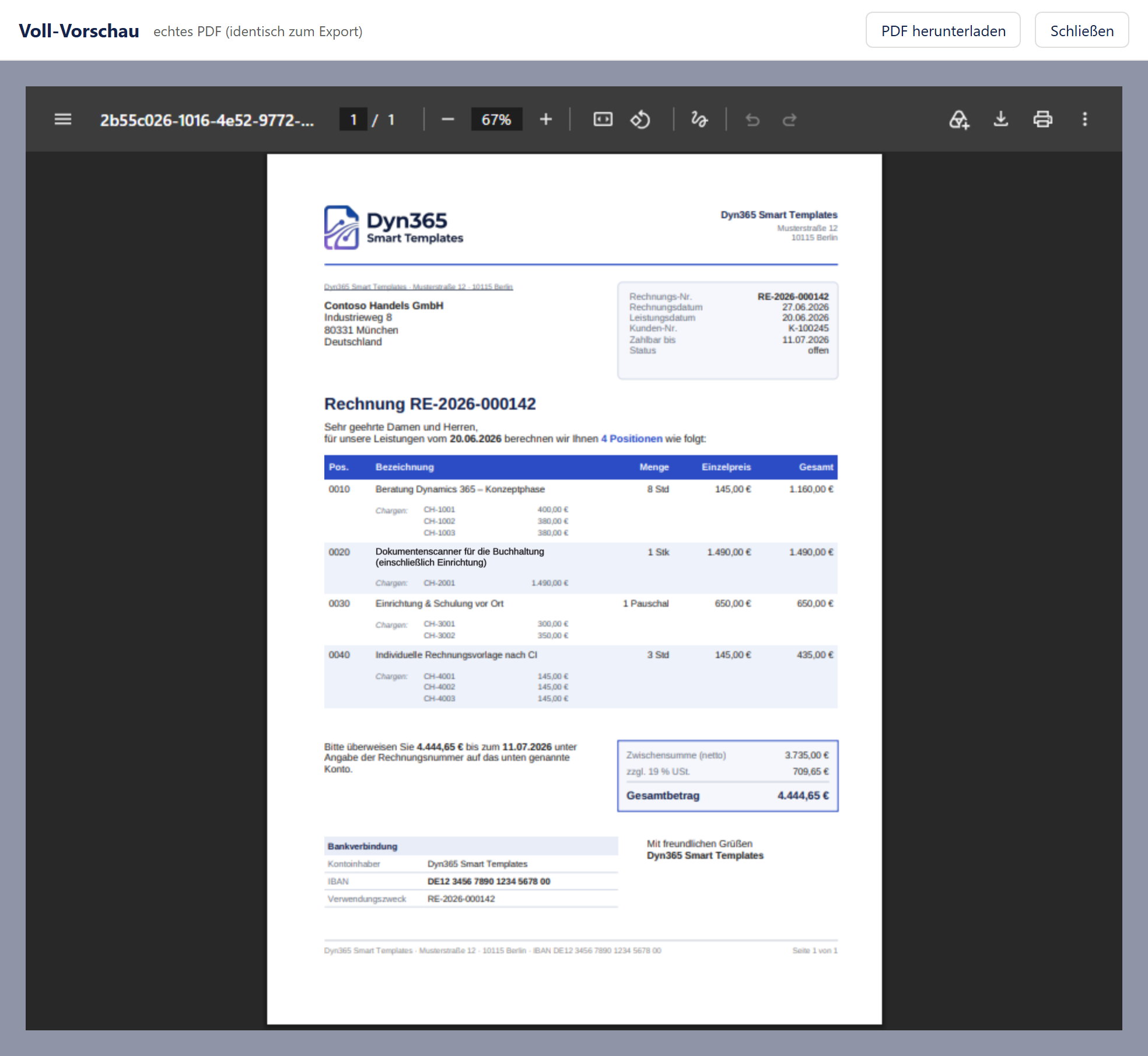
- 1Title and addition. The addition appears as soon as a document has succeeded for the first time.
- 2The bar of the PDF viewer: Paging, zooming and printing are handled by the browser’s viewer; how it looks depends on the browser.
- 3The document: created in the same way as with “PDF”, with the values of the sample record.
- 4Creates the document a second time and downloads it; the window stays open.
- 5Closes the window; the Esc key does the same.
| Part of the window | What it shows or does |
|---|---|
| Title “Full preview” and addition “real PDF (identical to the export)” | The addition appears as soon as a document has succeeded for the first time. It stays afterward until you reload the designer, even above a later error message. It therefore does not say whether the document shown right now succeeded; you see that below it: there is either the document or “PDF generation failed – …”. |
| “Generating PDF…” | Appears in white type on the darkened background while the document is being created. There is no progress bar. |
| The document | Your browser’s PDF viewer shows it. Paging, zooming and printing are handled by this viewer; how it looks and which buttons it has depends on the browser. The window has no zoom controls of its own. Ctrl+mouse wheel enlarges the viewer or the browser view here, not the canvas behind it. |
| “Download PDF” | Creates the document a second time and downloads it, exactly like the button “PDF” in the header bar: with the same checks, the same file name and the same messages; a prompt about rules or variables therefore comes once more. What is downloaded is not the PDF shown but a newly created one. The window stays open. |
| “Close” | Closes the window. The Esc key does the same. If you clicked into the document beforehand, the Esc key may reach the PDF viewer instead of the designer; then the window stays open, and you use “Close”. |
| “PDF generation failed – …” | Appears instead of the document when none was created, with the reason after it (see Problems and messages: When no document is created). |
As long as the window is open, changes from the Copilot agent do not arrive in the open template. They follow a few seconds after you have closed it (see Working with the AI assistant in Copilot: What happens then).
Full preview and printing in Dynamics
The full preview creates the document in the same way as a button or a flow in Dynamics. In Dynamics, it fetches the values of the sample record fresh from the database and calculates the rules as in the real print. Some differences remain:
- Version of the template: Full preview and PDF take the template as it is currently open, including unsaved changes. Buttons and flows always print the saved version. What you see in the full preview applies there only after “Save”.
- Record: The full preview prints the sample record. A button prints the record on which it is clicked, in a list the checked rows (see What happens on click: Several checked rows); if it sits on a different table than the template, it prints the record at the end of its path (see Buttons: the assistant: The path). A flow prints the record that it passes (see Actions and APIs: From Power Automate).
- User: What depends on the printing user, the full preview shows as it applies to you: the system value “User”, the date format “Same as the printing user (Dynamics)”, the time zone in which a point in time becomes a calendar day (for both see Numbers, currency and dates: Date & time), and your read rights. Someone with other rights may get a different document; details are under Rights and roles.
- Point in time: The system values “Current date”, “Current time” and “Date & time” name the moment at which the document is created. The full preview of today therefore shows today’s date, a button tomorrow that of tomorrow.
- Messages: In the full preview you see warnings and yellow notes. A button in Dynamics shows the print’s feedback only if a warning is among it (see Problems and messages: Where the feedback of a document arrives). It never shows yellow notes alone, not even in the message “The email was sent.” that appears after “Send email immediately”. So check these here.
With e-invoice
If the e-invoice is switched on for the template (see E-invoice: ZUGFeRD and XRechnung), “Full preview” and “PDF” in Dynamics work more leniently than a button:
- With “PDF with embedded e-invoice” and a valid e-invoice, the PDF is a PDF/A-3 with embedded XML. Pages and texts look as usual; images appear without smoothing, a greatly enlarged small image may look somewhat more jagged.
- With “e-invoice only (XML)”, the preview shows the ordinary PDF. You see the XML in the assignment window under “Result of the check” with “Download e-invoice as file”.
- If something is missing in the e-invoice, the preview shows the PDF without e-invoice and a warning. It is in English in the message “Warning: …” and begins with “e-invoice: the PDF was made WITHOUT e-invoice”, followed by the reason. A button, an email and a flow cancel in this case, and no document is created at all.
- If “Only if …” does not apply to the sample record, the PDF is created as without an e-invoice.
The “PDF” button
“PDF” is in the header bar right next to “Full preview”. It creates the same document with the same checks (see What is checked before the document is created), but does not display it; it downloads it right away as a file. Where the file goes is determined by your browser.
- While the document is being created, the designer shows nothing: there is no waiting message, and the button stays clickable. Click once and wait until your browser reports the download.
- If the print has anything to report, it appears as with the full preview at the top center (see Problems and messages: Notes and warnings).
- If no document is created, the yellow note “PDF failed – …” appears below the bars for six seconds (see Problems and messages: When no document is created).
The file name
If the template has a PDF name (see Template settings: PDF name), the file is called that, calculated with the sample record as in the document, for example Rechnung_R-2026-0042.pdf. If the PDF name yields nothing, it is called like the template, with - instead of the characters that are not allowed in file names.
Without a PDF name, the file is called like the template. The name is transformed as follows:
- Everything is written in lowercase.
- ä, ö and ü become ae, oe and ue, ß becomes ss.
- Every run of other characters, that is, spaces, punctuation and letters with accents such as é, becomes one hyphen. At the beginning and at the end the hyphen is dropped.
- “.pdf” is added.
| Name of the template | Name of the file |
|---|---|
| Auftragsbestätigung | auftragsbestaetigung.pdf |
| Angebot 2026 (Entwurf) | angebot-2026-entwurf.pdf |
| Café Müller | caf-mueller.pdf |
| (no name) | dokument.pdf |
| only special characters, for example “– – –” | vorlage.pdf |
The file from “Download PDF” in the full preview gets the same name. If a file of this name already exists in the download folder, your browser decides how to name the new one.
What is checked before the document is created
For “Full preview”, “PDF” and “Download PDF”, the designer checks four things beforehand, in this order:
- Primary source: If the template has none, “Primary source required” opens (see Without a primary source).
- Sample record: If none is set or the one that was set has been deleted in Dynamics, “Choose sample record” opens (see Without a sample record).
- Rules: If rules read each other in a cycle, the designer asks in the window “Please confirm” (see Confirmation prompt for rules and variables).
- Variables and condition branches: If something is wrong in your own variables or in the condition branches, it asks as well (see Confirmation prompt for rules and variables; the individual findings are described under Variables: The check before full preview and PDF).
Only after that does the full preview window open or the download begin. If everything is in order, you see nothing of the checks.
Without a primary source
If the primary source is missing, the window “Primary source required” opens; how to use it and how to continue afterward is described under Data sources and relationships: The window “Primary source required”.
Without a sample record
If no sample record is set or the one that was set has been deleted in Dynamics, the window “Choose sample record” opens, with the name of the primary source added to the title. How to search in it and choose a different view is described under Data sources and relationships: The window “Choose sample record”. For full preview and PDF the following applies:
| What you do | What happens |
|---|---|
| Click a row, or move to it with the Tab key and press the Enter key or the Space bar | “Loading sample data...” appears briefly. After that, the full preview or the download continues by itself. The record is now in the open template; it is stored in Dynamics only with “Save”. |
| “Continue without a sample record” | If none was set yet, the document is created without the values of a record: the fields of the main record stay empty. Further sources appear only with the rows that the design also loaded (at most 50 per source), and rules and sums are based only on these. For a first check of the layout that is enough; check quantities and sums with a real sample record. The next time, the designer asks again. If the record that was set had been deleted in Dynamics, however, no document is created. |
| Esc key or a click next to the window | The window closes, and nothing happens: no document, no message. This window has no ✕. |
What happens when the record that was set has been deleted or Dynamics has just not delivered it, and how you then replace or remove it, is described under Data sources and relationships: When the sample record is missing or cannot be read.
Confirmation prompt for rules and variables
Three kinds of errors in the template do not stop the print but change the document. That is why the designer asks beforehand in the window “Please confirm”. If several occur, it asks one after the other.
| Prompt | When it appears | What “Generate anyway” means |
|---|---|---|
| “The rules depend on each other: A → B → A.” or “The rule »X« reads itself — but its result only comes into being through it.” | Two or more rules read each other, or a rule reads itself. There is no order in which they can be calculated. | The print then calculates not a single rule of the template, not even the uninvolved ones. Places with rule results stay empty. What else happens and how you resolve the cycle is described under Rules: When rules read each other in a cycle. |
| “Something is wrong with the custom variables:” with one bullet per finding | Something in your own variables is wrong, also in the if-then cases of the template settings. All findings are described under Variables: The check before full preview and PDF. | The document is created with the error. Most items of the prompt name their consequence themselves; variables that depend on themselves or on each other stay empty in the document. |
| “Some conditions in the template are incomplete:” with one bullet per condition | A condition of the template is missing a part, for example the second side of an AND or OR, also in a visibility rule. What counts as incomplete is described under Conditions: Incomplete conditions. If a condition contains a field in “{{ }}” or a word like “isEmpty”, the heading reads “Some conditions in the template are written incorrectly:”; if both occur, “Some conditions in the template are incomplete or written incorrectly:” (see Conditions: Fields in “{{ }}” and Checking for empty in a hand-written condition). | The document is created as set; the missing part is never considered met, a condition with “{{ }}” does not read its field, one with “isEmpty” reads a field that does not exist, and the PDF reports the condition as a warning. |
On the left is “Cancel”: no document is created. On the right is “Generate anyway” in red type. This button is preselected; the Enter key therefore creates the document despite the error. Otherwise the window works like any prompt (see Problems and messages: The windows). If the prompt after “Download PDF” appears over the full preview window, choose “Cancel”: the Esc key may first close the full preview behind it there.
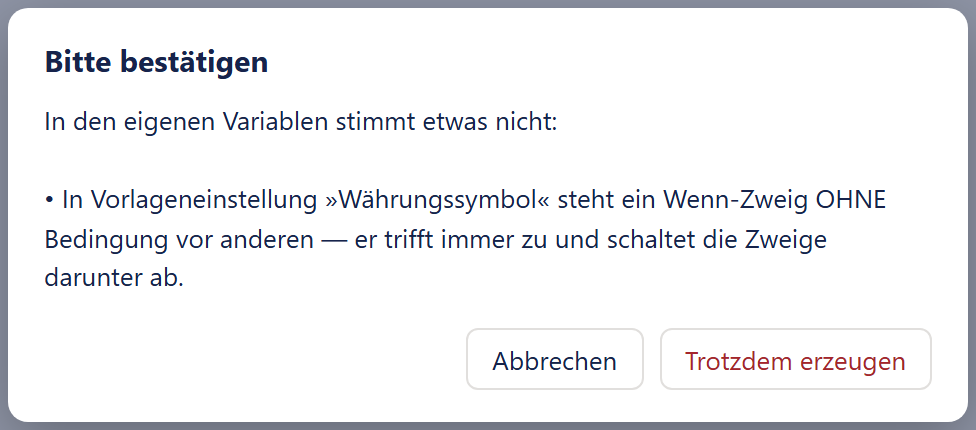
- 1One bullet per finding; it names where the error is and what follows from it.
- 2“Cancel”: No document is created.
- 3“Generate anyway” creates the document with the error. The button is preselected: the Enter key chooses it.
Only what can be recognized from the template itself is checked. Errors that arise only with the data are reported by the document afterward (see Problems and messages: Notes and warnings).
What is reported after the document is created
If the print notices something while creating, the designer reports it at the top center. What the notes and warnings look like, how long they stay and what they mean is described under Problems and messages: Notes and warnings.
If no document is created at all, the reason is under Problems and messages: When no document is created.
The messages that concern only the canvas and not the document are under Problems and messages: Messages of the design.
What the canvas shows differently from the PDF
The canvas calculates by itself and shows the sheet as precisely as possible. At the following places it differs, partly on purpose, partly because it knows only an excerpt of the data. The PDF is always authoritative; check these places in the full preview.
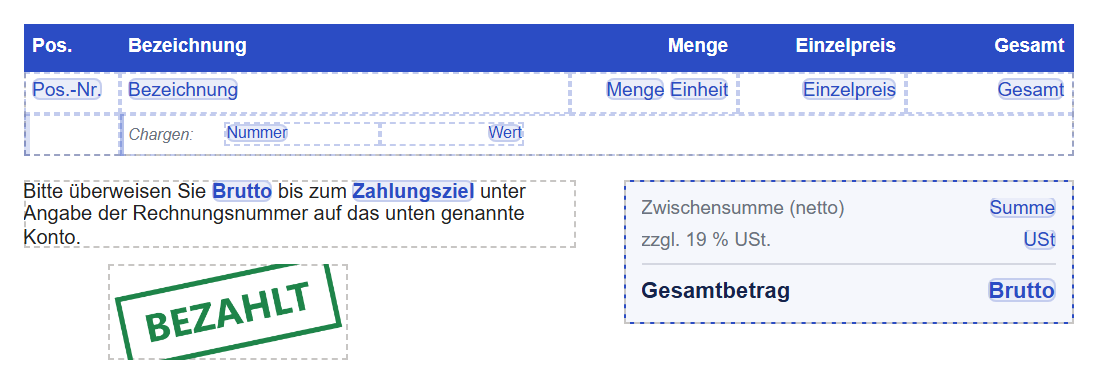
- 1The sample row: Of the rows from the data, the design shows only one, with field markers instead of values.
- 2The stamp “BEZAHLT” has a visibility rule and is still always there in the design.
- 3Guides: The dashed outline shows the totals block; guides exist only in the design.
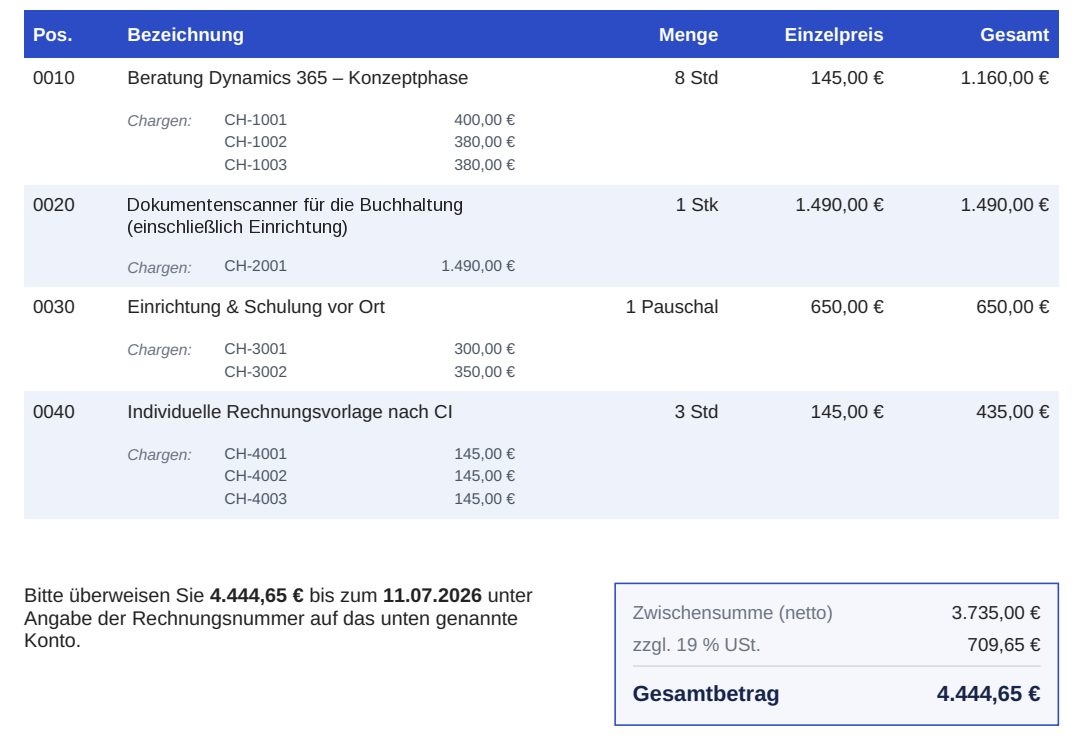
- 1In the PDF, all rows of the list are there with their values and their batches.
- 2The totals block moves down as far as the table has grown.
- 3Here the design shows the stamp “BEZAHLT”. The invoice is not paid: the visibility rule hides it.
| Topic | On the canvas | In full preview and PDF |
|---|---|---|
| Fields, variables, system values | Blue markers with the name, never with the value. Your own variables appear without @, system values as “Page #”, “Pages ∑”, “Current date”, “Time”, “Date & time” and “User”. A display name you assigned yourself takes precedence. If you point at one with the mouse, you see which field is meant. | The values of the sample record, in the format of their kind and of the template settings. See The “Edit text” window: Inserting fields. |
| Length of the texts and position of the objects | Each marker takes the space of its name; the lines of a text are based on that. Each object sits where you put it (for the page edge see below). | Values are often longer or shorter than their names; a text therefore gets more or fewer lines. If something grows, objects below it move down according to their positioning behavior; they never move up. See Positioning behavior. |
| Visibility rules | Have no effect. The object is always visible, and no sign reveals that it has a rule. | A hidden object is missing; directly in the document, its place stays free. A sheet on which only hidden things stand is not printed. See Visibility: What happens in the PDF and Visibility: Per object. |
| Texts and images that depend on conditions | A text with versions shows the version that matches the sample record. A dynamic text appears as a green pill with its label and is not evaluated. An image with “Except when” rules shows the image that matches the drawn sample row. | The first version whose condition applies is printed; if none applies, the text stays empty. Of a dynamic text, the matching branch is printed, never its label. An image with rules shows, per record, the matching image. See Texts: Content depending on a condition, Texts: Dynamic text and Images: A different image depending on a condition. |
| Text with a fixed height | If the content does not fit in, it is cut off, and below the box an orange hatched strip shows the overhang. The mouse pointer on it explains the difference from the PDF. | The whole text is printed; border and background become as tall as the text. What stands below it on “Flowing” moves down; if the text has “Fixed position”, it overprints whatever lies below it. The document reports both as a warning. See Texts: Width and height, Position, size, rotation and arrangement: Automatic height and limits and, for all places where the PDF cuts off, Position, size, rotation and arrangement: Where the PDF really cuts off. |
| Groups and table rows with a fixed height | Cut off at their edge. A data table inside shows only its sample row. | Cut off as well. What happens with each object and what is reported is described under Position, size, rotation and arrangement: What the wall does to an object; in a table row or cell with a fixed height, cell content that is too long is cut off and reported. See Position, size, rotation and arrangement: The fixed bottom edge and where the PDF cuts off, Groups: Settings of the group, Data tables: The properties of the whole table and Cells, header row and page break: Tables in groups and cells. |
| Page edge | An object that the print splits at the edge stands unsplit on its sheet on the canvas and extends beyond the bottom margin, as does an object on “Fixed position” and the first object of a sheet; an orange hatched strip at the end of the sheet shows the overhang (different only with free-form tables, see below). If an object moves as a whole to the next sheet because of the page edge, the canvas shows it there at the top, as in print; an object that may split and moves on whole only because too little of it fits on the old sheet still stands on the old sheet in the design; this concerns mainly split texts, because “Minimum lines when text is split” works only in print. See At the page edge: keep together or split: What the canvas shows. | An object is split at the edge or moves as a whole to the next page, depending on its kind and “Keep together at page break”. An object on “Fixed position” is not split; whatever extends beyond the paper edge is missing and is reported. Likewise, the first object of a sheet usually stays where it is and extends beyond. See At the page edge: keep together or split: What happens at the page edge and At the page edge: keep together or split: The first object of a sheet. |
| Number of pages | As many sheets as your design occupies, including those that the canvas attaches itself when an object moves to the next sheet at the page edge or a free-form table runs over the end of the page. Sheets attached with “Blank page” or “Add page” set a minimum number, as in print: if the content fills them later, no further sheet is added. Above each sheet is a label such as “Page 1 / 2”. | As many pages as the data needs. Sheets attached with “Blank page” or “Add page” set a minimum number: if the content needs fewer pages, they are printed empty; if it needs more, no empty ones are added. A sheet on which only hidden things stand is dropped (see Visibility: What happens in the PDF). See Pages, header and footer: Sheets in the design and in the document and Pages, header and footer: Adding blank pages and removing pages. |
| Header, footer and repeated areas | On every designed sheet for which they apply according to their settings. “Last page only” and “All except the last page”, as well as a page frame with “Different last page”, apply to the last drawn sheet. | On every printed page for which they apply. Which page is the last is known only when the document is created. See Pages, header and footer: Header and footer. |
| Page numbers | Markers “Page #” and “Pages ∑”. | The real numbers. See Pages, header and footer: Page numbers. |
| Data tables | Header row and one sample row with markers; with extra rows, one record with its rows. This also holds if the rule behind it returns exactly one record, for example with “Only the first”. | All rows, with page breaks, repeated header row and zebra stripes. Rounded corners remain only if the whole table fits on one sheet; otherwise it is square-cornered, even if the design shows it rounded (see Border, background and colors: What the fields do). A table on a rule that returns exactly one record prints no row (see Rules: Taking certain records). See Cells, header row and page break: Across several pages. |
| Free-form tables | All rows as they are printed; if the table runs directly on the sheet over the end of the page, also the following page with the repeated header row. Only fields appear as markers. | The same rows, fields with their values. See Free-form tables. |
| Amount of data | The design loads at most 20 rows per list and 50 per further source. What it calculates in the background, such as rules, sums, “The first N” and conditions, it calculates only with these. | All rows, up to the upper limit of 20,000 rows per query; if it is reached, the document reports a warning. See Data sources and relationships: What the design loads and what is printed. |
| Images from the data | The first image that the design finds in the sample record for this field, in a table the same in every row. For a field with “first(…)” or “last(…)”, on the other hand, it shows exactly the image that is printed, in a table row that of the drawn row. If it finds none, outside a table a blue dashed placeholder with 🖼 and name appears; in a table row the design then draws nothing, except with “show placeholder”. If “Show image on the canvas” is off, the blue placeholder always appears. | Each record and each row with its own image. If one is missing, the setting of the image for this case applies. See Images: Images from the data; what the design shows is described under Images: What the canvas shows. |
| Images that the print cannot read | A blue dashed box “not printable” in place of the image. | The place stays empty and keeps its space; the document reports it. Only PNG, JPEG and BMP are printed. See Images: Formats. |
| Images that the design could not retrieve just now | An amber dashed box “not loaded” for an image from a file column, if retrieval was disturbed. It stays until you change the sample record. | The print fetches the image anew and prints it if that succeeds then. If it does not succeed, the place stays empty, keeps its space, and the document reports it. |
| Position of the border | For rectangle, group and table cell, the border lies completely inside; for text, line and the other shapes it is centered on the edge. | Always centered on the edge, half outside and half inside. A rectangle with a thick border is therefore somewhat larger on the outside in the PDF. See Border, background and colors: Where the line lies. |
| Colors from variables | The color that results with the sample data; if none results, the color of the else branch of the variable. | The color that results with the printed record. If none results, only what this color was supposed to draw is missing in print, and this is not reported; only the canvas takes the else branch as a substitute. See Border, background and colors: Color from a variable and Border, background and colors: Invalid color. |
| Date and time zone | Only if a message at the start says that the time zone could not be read: dates in the design then calculate in your computer’s time zone. | Calculates with the time zone from Dynamics. With different zones, design and PDF can be a day apart. |
| Window “Edit text” | Shows the line spacing only in part; on the canvas itself it works as in print. | The set line spacing. See Texts: Line spacing. |
| Aids of the designer | Selection frames, handles, guides, the grid, the blue ⇕, orange warning signs, hatched strips, the label above each sheet, the buttons next to the sheets, the marker “✂ Page break · new page starts here” and the magenta snap lines while dragging. | None of this is printed, not even the zoom. A page break takes effect; only its marker is missing. See Working on the canvas: Markings and warning signs on the canvas and Working on the canvas: Grid, snap lines and guides. |
Tip
Open the full preview after every larger change, especially with long texts, tables over several pages, visibility rules and objects near the page edge. Also look at the messages at the top center.
What changes in the document?
On the canvas
Full preview and PDF change neither the template nor the canvas. Exempt is what you set yourself during the check: a primary source via “★ Set primary source” and a sample record. Both are afterward in the open template, and the design calculates with the sample record in the background; it is stored in Dynamics only with “Save”. If the template already has content, the window “Assign variables” may open after setting the primary source (see Data sources and relationships: Setting the primary source).
In the PDF
The PDF shows the current state of your template, including unsaved things, with the values of the sample record. In Dynamics, neither button stores anything. Which version buttons and flows print is described under Full preview and printing in Dynamics.