
The “License & updates” page
In short
On the “License & updates” page in the app “Smart Templates” you see the status of your license, the installed version and the identifier of your organization. Administrators subscribe, buy, open the customer portal and set up synchronization with the license service there. What the page shows depends on your status.
Opening the page
- In Dynamics 365, open the app “Smart Templates”.
- Expand the navigation on the left and, under “Templates”, choose the entry “License & updates”. It is listed under “Smart Templates” and has a key with a blue arrow as its icon.
- When it opens, the page asks the license service for your current status. Until the answer arrives, it shows “Checking your license …”.
With “Check again” at the top right, the page asks again, for example after a payment. When you come back from the payment page, it asks by itself.
If a user prints in another app and no license is valid, they also open the page directly from the message, see When no license is valid.
When it is first opened, a system administrator or someone with the role “Smart Templates – Lizenzverwaltung” chooses the language for invoices and emails, see The language for invoices and emails. The page then appears in that language for all users. As long as none has been chosen, it appears in the language the user has set in Dynamics: German for German, English otherwise.
Who sees the page and who may buy
All users of the app “Smart Templates” see the entry “License & updates”. The page shows everyone the status of the license and the reason if something is missing. Everyone can choose “Check again”.
Only administrators (system administrators and system customizers) and users with the security role “Smart Templates – Lizenzverwaltung” may subscribe, buy and open the customer portal. The same applies to the switch “Synchronize automatically with the license service” and to pasting a key by hand. Everyone else sees these buttons grayed out and, at the top, the note “Only administrators and the »Smart Templates – Lizenzverwaltung« role can subscribe, buy, or manage payments. Please contact your administrator.”
- “Request a quote” stays available to everyone.
- Each user switches news by email on or off for themselves, even without administrator rights, see News.
- The role “Smart Templates Designer” is not enough for buying. How to assign a role is described under Assigning a security role.
What is on the page
The page consists of cards. Which ones you see depends on your status. This is what it looks like during the trial:
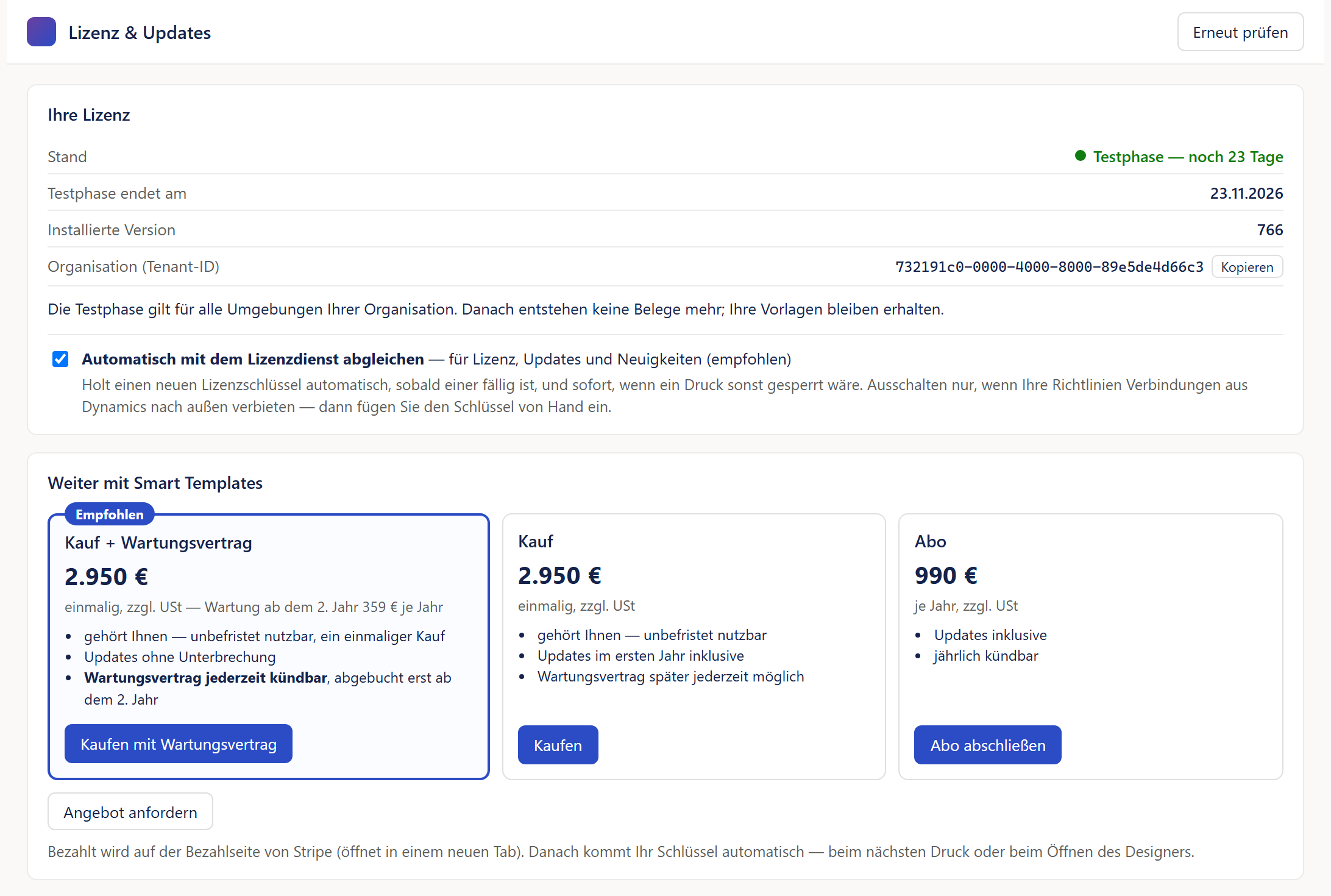
- “Your license”: the status, the installed version and the important dates, for example “Runs until” or “Updates included until”. This is also where the identifier of your organization (tenant ID) is shown with “Copy”, and, for a subscription, the number of your key. Below it is the switch “Synchronize automatically with the license service”, see Synchronization and entering the key by hand. It is missing as long as the trial has not begun, after the trial has ended, after a subscription has ended and with the status “No valid license”.
- “Continue with Smart Templates”: the three offers with prices and the buttons “Buy with maintenance contract”, “Buy” and “Subscribe”, below them “Request a quote”. What happens next is described under Buying or subscribing.
- “Payment and contract”: with a running subscription, even if the renewal has not been confirmed yet, and while a payment by direct debit is processing. In a verified environment, the button “Change payment method ↗” opens the Stripe page for exactly your contract, otherwise the sign-in page of the customer portal. With “Cancel subscription …” you cancel here, with “Withdraw cancellation …” you withdraw a cancellation, see Canceling and the customer portal. If the renewal has not been paid yet, a verified environment shows “Pay now ↗” there, otherwise a note about the link in our payment reminder.
- “Maintenance contract”: with a purchased license in the first year and as long as a maintenance contract is running. Here you see whether a maintenance contract is running and take one out with “Take out maintenance contract …”. If one is running, “Change payment method ↗” opens the same here as under “Payment and contract”, and “Cancel maintenance contract …” cancels it, see The maintenance contract.
- “Invoices”: in a verified environment. Here you download your invoices, credit notes and cancellation invoices and pay an open invoice, see Your invoices.
- “Rather buy?”: with a subscription, even if the renewal has not been confirmed yet, with “Switch to purchase …”, see From subscription to purchase.
- “Updates”: during the trial, with a subscription and with a purchased license, as soon as a newer version exists, and whether it is covered by your license. Once the first year of a purchase without maintenance contract is over, the card is always shown, with the offer for the maintenance contract, see Updates and new versions.
- “Solution file”: with a subscription and with a purchased license in the first year or with a maintenance contract, if synchronization is switched on and the card “Updates” is not already offering the file of a new version. The card names the latest version that is covered by your license and offers it with “Download version …”, for example to import it into another environment, such as a new test or production environment. It has no “Install”: this version is already installed here. Once the first year of a purchase without maintenance contract is over, this card does not exist; the same button is then in the card “Updates” if no newer version is covered by your license anymore. If the file is not available yet, the card says so, and we send it to you on request. See Updates and new versions.
- “News”: messages from us, see News.
- “News by email”: at the very bottom if automatic synchronization is switched on; here you switch it on or off for yourself.
- “Paste key by hand”: if the page cannot reach the license service or automatic synchronization is switched off, see Pasting a key by hand.
- “Invoices and billing details”: if automatic synchronization is switched on; system administrators and license management can use it. Here you verify the environment once, see Verifying an environment. After that the cards “Invoices” and “Billing details” are shown there, see Changing details and email addresses.
- “Language for invoices and emails” (before the purchase “Language for your future invoices and emails”): the chosen language, for all users. The same language is shown with its flag at the top right of the header bar. Only system administrators and license management can change it, see The language for invoices and emails.
With a running subscription the page looks like this:
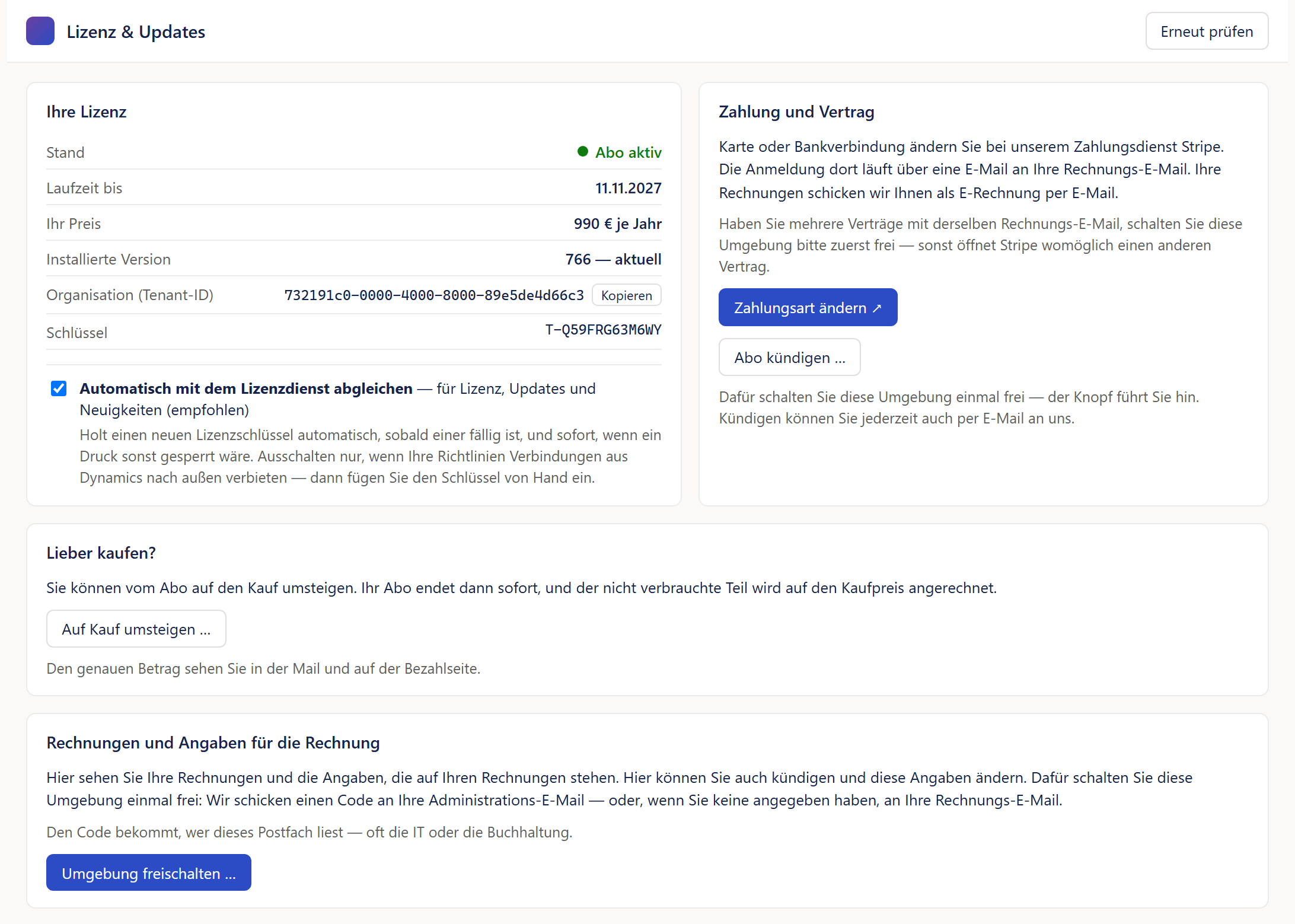
If the page has just stored a new key and none was valid before, for example after your payment, a green message appears at the top: “The license key for this environment is now stored. You can print again.”
The language for invoices and emails
When a system administrator or someone with the role “Smart Templates – Lizenzverwaltung” opens the page for the first time, the window “Sprache wählen · Choose your language” appears, even during the trial. It is shown in German and in English. Choose “Deutsch” or “English”. The window can only be closed after you have chosen. If the choice cannot be saved, “Später wählen · Choose later” appears below the message: then you keep working, and the window asks again the next time the page is opened. Other users do not see the window.
We send you invoices, credit notes and cancellation invoices and all emails about your contract in this language, including payment reminders and dunning notices. Stripe gets it as well: the payment page and the PDF that Stripe offers for an invoice appear in it. The “License & updates” page then appears in this language for all users. News by email keeps the language that each user has chosen there for themselves. The designer stays in the language the user has set in Dynamics.
At the top right of the header bar, the chosen language is shown with its flag. A click on it changes it just like “Change …” in the card. If that is not possible right now, for example without the necessary role or in an environment that is not verified, the click leads to the card, and the card says why.
- Before the purchase you can change the language at any time: in the card “Language for your future invoices and emails” with “Change …”, at the top right via the flag, or in the window “Billing details” with “Change” next to “Invoices and emails in:”. Until then it applies only to this environment. With the first purchase it becomes the language of your contract, with direct debit once your payment has arrived.
- After the purchase you change it only in a verified environment, see Verifying an environment: choose “Change …” or the flag at the top right and confirm the question with “Switch”. The new language then applies to your whole organization. We send a message about it, in German and English, to the address that also receives the codes. Invoices we have already sent you stay unchanged.
- If this is not possible on the page, for example because automatic synchronization is switched off or your direct debit has not been confirmed yet, write to us. We then switch the language for you.
Good to know
The Stripe invoice page, for example behind the payment link in a payment reminder, and the sign-in to the customer portal appear in the language of your browser. The PDF that Stripe offers there comes in the chosen language. The page that “Change payment method ↗” opens in a verified environment also appears in the chosen language.
Verifying an environment
On the page, you can only view invoices, cancel and change the billing details once you have verified the environment. This way only authorized people see your invoices.
- Open “License & updates” in the environment you want to verify. For this you need the role “System Administrator” or “Smart Templates – Lizenzverwaltung”.
- In the card “Invoices and billing details”, choose the button “Verify this environment …” and then “Send code”.
- We send a code with eight digits to your administration email. If you have not entered one, it goes to your invoice email. Tell whoever reads that mailbox beforehand.
- Type the code into the window and choose “Verify”. The code is valid for 60 minutes. After five wrong entries, request a new one.
- After that we send a message to the same address saying that the environment is verified. It contains a link with which you remove the verification again.
You can close the window and continue later. The page remembers that a code is on its way and opens the window right at the input field. Do not request a new code then, otherwise the first one stops working.
Caution
Whoever has the code can view invoices, cancel and change details for your company, even without access to your Dynamics. Pass it on only to colleagues who have just clicked “Send code” themselves. We never ask for this code.
A verification stays valid as long as the environment uses it. It ends after twelve months without use and when the address that receives the codes changes. After that you simply verify the environment again. You verify each environment individually; a copy of an environment does not take over the verification.
Once the environment is verified, the card shows:
- since when it has been verified and when it was last used,
- the list “Verified environments” of your organization; an environment that has only been reporting for a few days is marked,
- “Remove verification …” for this environment and “Remove all others …” for all the others; we send a message about this,
- the list “Who did what here”. It is stored only in your Dynamics, we do not see it.
Changing details and email addresses
You change the details on your invoices yourself, in a verified environment and with the role “System Administrator” or “Smart Templates – Lizenzverwaltung”. The card “Billing details” shows company, address, country, VAT ID, purchase order number, invoice email and administration email as they currently stand at our payment service Stripe.
Company, address, VAT ID and purchase order number:
- Choose “Change details …”.
- Change the fields and choose “Save”.
The change applies immediately to all future invoices; invoices we have already sent stay as they are. After that we send a message with “before → after” to the address that also receives the codes, with a link that removes all verifications in case you did not initiate the change. We change the country for you because it determines the VAT; write to us. Stripe checks a new VAT ID with the EU; if it is invalid, we get in touch with you.
Good to know
Stripe creates the invoice for a renewal about an hour before the charge. If you change your details during exactly that hour, this one invoice still carries the previous ones. We see this and get in touch with you.
The invoice email:
- Choose “Change invoice email …” and enter the new address twice.
- Choose “Send code”. We send a code with eight digits to the new address; this is how we know it is correct.
- Enter the code and choose “Continue”.
- We send an email with a link to the previous address. Whoever reads that mailbox opens it within seven days, types the part of the new address after the @ to confirm, and chooses “Confirm”.
Until then, the card says that the new address is awaiting confirmation; with “Discard change” you cancel. If the page reports that the email asking for confirmation may not have arrived, the change is still waiting. If the email did not arrive, discard the change with “Discard change” and try again later. The link only works as long as the environment in which you requested the change is verified; if you remove its verification, for example with the link in the email, nothing changes. After confirmation the new address applies immediately: invoices, payment reminders and, if you have not entered an administration email, all messages go there. Both addresses receive a message; the previous one with a link that undoes the change for 30 days. It restores both addresses to what they were before the change and ends all verifications. During these 30 days the addresses cannot be changed again on the page, so that the link stays effective; if it is urgent, write to us.
The administration email: With “Enter administration email …” you add one, with “Change administration email …” you change it, with “Remove administration email …” you remove it. Entering and changing work like the invoice email: code to the new address, then confirmation by link. When you enter it for the first time, your invoice email confirms; when you change or remove it, the previous administration email does; removing needs no code.
Caution
You can change an address at the earliest 72 hours after this environment was verified. This gives whoever reads the mailbox time to see our message about the verification. If the address that receives the codes changes, all verifications end except for the environment in which you requested the change.
If nobody reads the previous address anymore, write to us. We then change it following a fixed procedure: the new address confirms a link, the previous one receives a message, and after seven days without objection the new one applies. All verifications end in the process.
What the status means
| Status on the page | What it means | What you do |
|---|---|---|
| “Trial not started yet” | Nobody in your organization has opened the designer yet. | Open the designer if you want to test, or subscribe right away. |
| “Trial — 12 days left” | The trial is running. From seven days remaining, the status appears in orange. | Subscribe in good time if you want to keep working. |
| “Trial expired” | No more documents are created. Templates and settings are kept. | Subscribe or buy. |
| “Subscription active” | The subscription runs until the day under “Runs until” and then renews by one year unless canceled. If you have canceled effective at the end of the term, “Subscription active” is also shown until then, with the addition “canceled, does not renew”; we have confirmed the cancellation to you by email, see Canceling the subscription. | Nothing. |
| “Subscription — renewal not confirmed” | The payment for the new year is still processing, for example by direct debit, or it has failed. Smart Templates keeps printing with a transitional key until the day the page names. | With direct debit, wait; otherwise check the payment, see If a renewal has not been paid. |
| “Subscription — term ended” | The term is over, for example after a cancellation. The stored key remains valid for up to seven more days. | Subscribe again if you want to keep working, see Coming back. |
| “Subscription expired” | No more documents are created. Templates and settings are kept. | As above. |
| “Payment processing” | You subscribed by direct debit, and the bank has not confirmed the payment yet. Smart Templates prints with a provisional key; the row “Provisional key valid until” names its end. | Nothing, see Direct debit: not an instant payment. |
| “Payment not received” | The direct debit your provisional key belongs to has not been received. The provisional key remains valid until the day the page names and then ends by itself. | Check the payment or subscribe again, see If the direct debit is not received. |
| “Purchased — perpetual” | You have bought. In the first year, the row “Updates included until” shows until when you get new versions; with a maintenance contract, the card “Maintenance contract” (“Runs until”) does; after that, the row “Updates” (“ended on …”) does. | Take out a maintenance contract if needed. |
| “No valid license” | Neither a trial nor a license is valid, for example after an aborted purchase. | If your organization has not used the trial yet, it starts as soon as you open the designer. Otherwise subscribe or write to us. |
If the page cannot reach the license service or automatic synchronization is switched off, it shows the status of the key stored in this environment, for example “Subscription — stored key valid until …” or “No valid key stored”, and below it a row “License service”. What applies then is described under Synchronization and entering the key by hand.
Good to know
If your subscription has expired, you see two different days. In the row “Term ended on”, the page names the end of the paid term. The message when printing names the day on which the stored key expired; it remains valid for up to seven days longer (§ 5(6)).