
E-invoice: ZUGFeRD and XRechnung
In short
An e-invoice is the document as a file in a standardized format: an XML file with the invoice data that your customer’s software reads in by itself. Smart Templates produces it according to ZUGFeRD 2.5.2 (EXTENDED), in which case the XML is embedded in a PDF, or according to XRechnung 3.0, in which case only the XML is produced. You turn on the e-invoice in the template settings, in the “E-invoice” tab, and assign a field, a variable or a fixed value to each entry of the e-invoice; if the value should differ depending on the document, for example for a credit note, the entry gets an if-then. An AI can fill in the assignment for you. Smart Templates calculates nothing itself in the process: totals and taxes come from your template. If a mandatory entry is missing or the amounts do not add up, no document is created, but a message that says what is missing and who fixes it. Button, email and flow deliver what the template specifies.
What is produced
Whether and how an e-invoice is produced is specified in the template. The sheet itself does not change as a result: the e-invoice has no object on the sheet (see What changes in the document?).
| Standard | What is produced | For whom |
|---|---|---|
| “ZUGFeRD 2.5.2 (EXTENDED)” | A PDF in which the XML is embedded (PDF/A-3), or the XML only. The customer reads the PDF, their software reads the data. The EXTENDED profile contains all entries of the European standard and many additions, such as sub-items, further parties and down payments. | Invoices that the recipient should receive both as a readable PDF and as data. |
| “XRechnung 3.0” | Only the XML file, with the recipient’s Leitweg-ID. | Invoices to German public authorities and public-sector clients. |
This is how you proceed:
- Turn on the e-invoice and choose the standard and the output (see Turning on and “Only if …”, The standard and The output).
- Assign something to every mandatory entry, yourself or with an AI (see Assigning entries, Lists and Assigning with AI).
- Check with a sample record whether an e-invoice would be produced with its data (see Checking with a sample record).
- Save the template. After that, button, email and flow deliver the e-invoice (see Button, email and flow).
Good to know
Which standard applies to your customers is a tax question. Smart Templates gives no legal or tax advice; the statements on this page describe what the program does.
Turning on and “Only if …”
Open the template settings and click the “E-invoice” tab (see Template settings: “E-invoice” tab). At the very top is the box “The AI can fill in the assignment for you” (see Assigning with AI). Below it are the sections “E-invoice” with the switch and the assignment, “Standard”, “Output” and “Only if …”, and at the end the explanation of the standard.
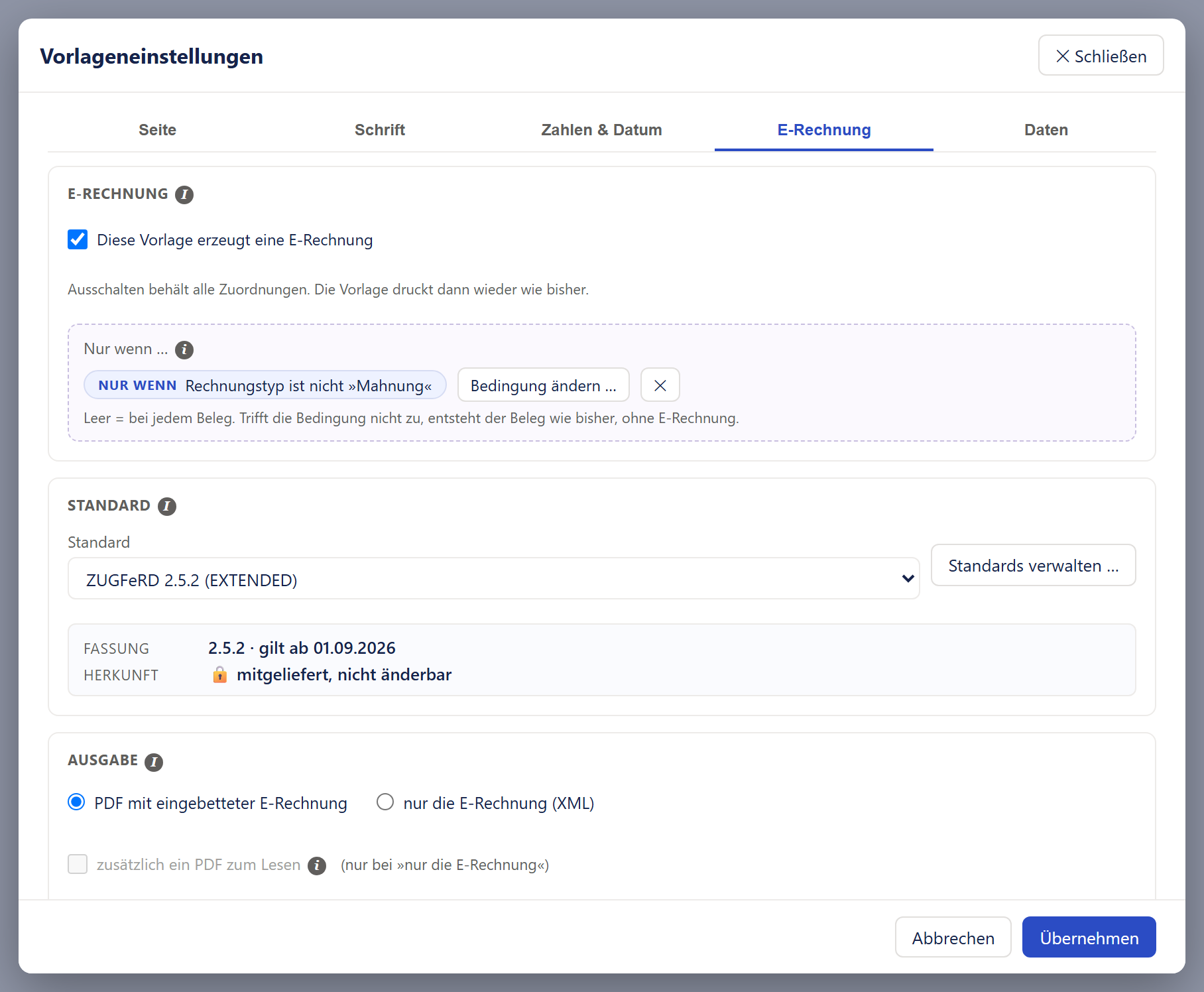
- 1The box “The AI can fill in the assignment for you” with the buttons for the AI and the steps up to the finished e-invoice (see Assigning with AI). Outside Dynamics, only “Download AI package” appears there.
- 2The checkbox turns the e-invoice on. Turning it off keeps all assignments; the template then prints as before.
- 3The bar counts the mandatory entries that already have something assigned.
- 4“Assign entries …” opens the assignment window (see Assigning entries).
- 5“Check with sample record” opens the window straight with the check (see Checking with a sample record).
- 6The selection of the standard.
- 7“Manage standards …” opens the list of standards (see Own standards).
- 8Version and origin of the chosen standard.
When you turn it on for the first time, Smart Templates chooses “ZUGFeRD 2.5.2 (EXTENDED)” with the output “PDF with embedded e-invoice” and enters the entries that the standard itself specifies; for ZUGFeRD, that is the invoice type “Invoice” (yellow until you assign a choice field; see The invoice type). If you switch to XRechnung, its specifications are added, such as the business process and the payment type. Everything you set in the tab and in the windows behind it first applies in the open template; it is stored in Dynamics with “Save”.
“Only if …”
The e-invoice is produced only for documents to which the condition applies. If it does not apply, the document is produced as before, without an e-invoice and without a message. “Check with sample record” tells you for the sample record. You build the condition like any other: field, comparison, value, linked with AND or OR (see Conditions). Without a condition, the e-invoice is produced for every document.
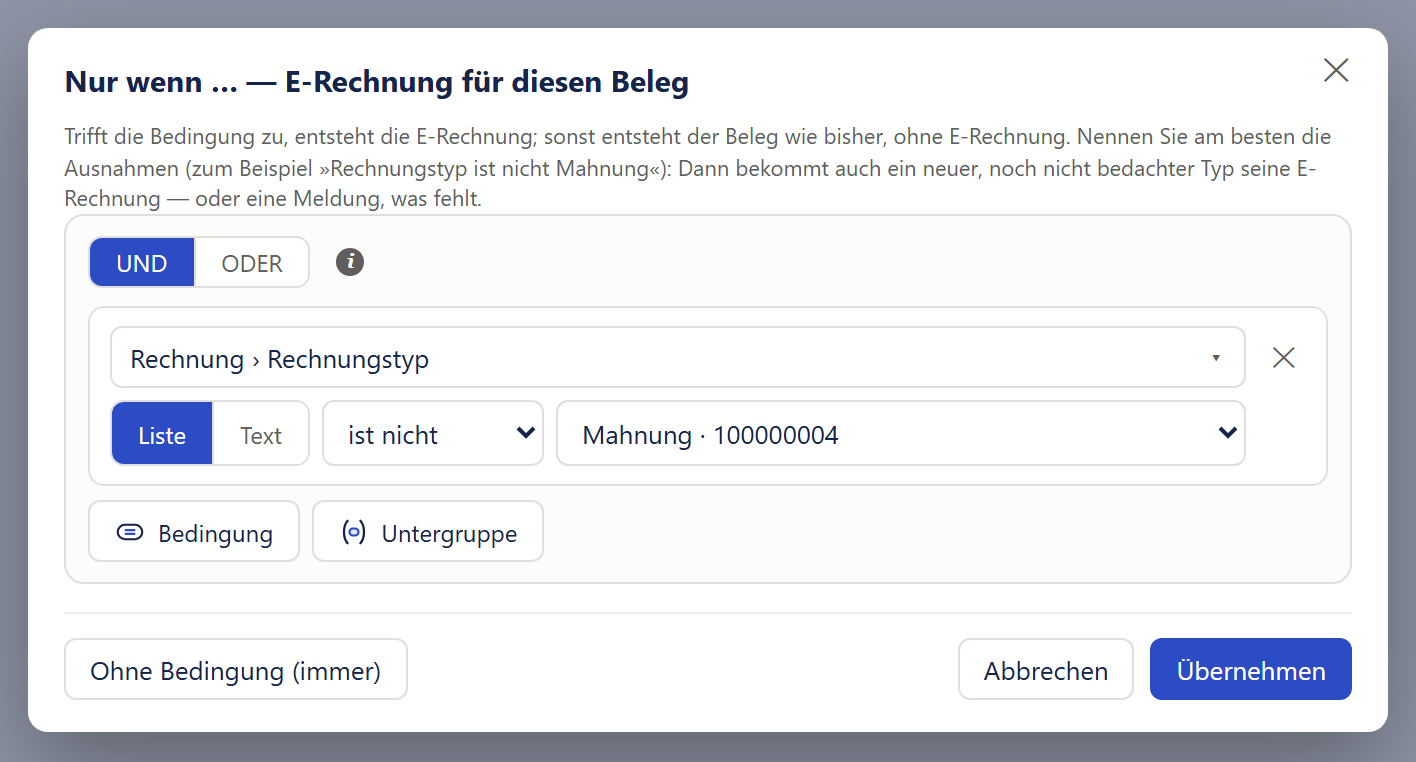
Tip
Name the exceptions, not the cases with an e-invoice, such as “Rechnungstyp is not Mahnung”. If a new invoice type is added later, it then gets its e-invoice or a message saying what is missing, and does not go out silently without an e-invoice.
The same “Only if …” exists on a list (except for the line items) and on a fixed entry (see Lists). There it decides whether the rows or the entry are included.
If “wenn” is misspelled in the template, such as “Wenn” or “when” (from a hand-edited file or a change by the AI), the e-invoice would apply to every document that way. That is why this is an error: no e-invoice is produced until it is corrected, and under “Only if …” it says in red “⚠ The template contains »Wenn« instead of »wenn« — as written the e-invoice would apply to every document. Until this is corrected, no e-invoice is created.” with the button “Use as condition”. If “Wenn” is additionally next to a “wenn” with a condition, the note reads “⚠ The template contains »Wenn« in addition to »wenn«. Until it is removed, no e-invoice is created.”, and the button reads “Remove”; the condition in “wenn” stays. If there is something else at the top of the e-invoice that Smart Templates does not know, a red note below the switch says so, likewise with “Remove” (see Problems and messages: E-invoice).
The same applies on a list and on a fixed entry. If it says “Wenn” instead of “wenn” there, no condition applies as written: the rows of the rule would come with every document, a fixed entry would be present on every document. No e-invoice is produced until it is corrected. In the assignment window it then says in red “⚠ The template contains »Wenn« instead of »wenn« — as written the entry would be present on every document. …” (on a list with a rule “… as written the rows of the rule would be present on every document. …”; on a list without a rule a condition has no effect at all, there it says “… on a list a condition only applies to the rows of a rule, and this list has none. …”), on a list at the top in the box “Where do the entries come from?”, on a fixed entry below its row and in the window of the entry under “Only if …”. “Use as condition” turns it into the condition; for the line items (there is no “Only if …” on the rule there) and on a list without a rule the button reads “Remove”. If “Wenn” is additionally next to a “wenn” with a condition, the note at all three places reads “⚠ The template contains »Wenn« in addition to »wenn«. Until it is removed, no e-invoice is created.”, likewise with “Remove”; the condition in “wenn” stays. Anything else that Smart Templates does not know on a list or an entry is named by a red note such as “⚠ The entry contains something that Smart Templates does not know: »notiz«. …”, likewise with “Remove”. Nothing is changed until you click; whatever you do not click stays in the template. In the window of the entry, the click takes effect only with its “Apply”, and “Cancel” in the assignment window undoes everything. In the result of the check, “to the entry ›” on this message leads to the list, and on the left the error counts at the section of the list. The designer already rejects a file or an answer from the AI with such a key when it is opened; you then correct the key in the file (see Problems and messages: E-invoice).
A condition is always a text. If “wenn” instead holds false, true or a number without quotes, an object or a list (from a hand-edited file or a change by the AI), this is likewise an error: no e-invoice is produced until it is corrected. At the top under “Only if …”, on a list and on a fixed entry it then says in red “⚠ The condition in the template is not a text but false without quotes. It cannot be evaluated like this; until it is corrected or removed, no e-invoice is created.” with the button “Remove”. After that it always applies; you create a new condition with “Set condition …”. Below it, the row continues to show what is in the template, such as “ONLY IF false”. If you choose “Change condition …” there, the same red sentence also appears in the window; “Apply” changes nothing until you have built a condition.
The standard
The standard determines how the e-invoice is structured. The selection in the section “Standard” lists the supplied standards first, then your own.
| Name in the selection | Version | Valid from | Output |
|---|---|---|---|
| “XRechnung 3.0” | 3.0.2 | February 1, 2024 | e-invoice only (XML) |
| “ZUGFeRD 2.5.2 (EXTENDED)” | 2.5.2 | September 1, 2026 | PDF with embedded e-invoice or e-invoice only (XML) |
- Supplied means: the standard is built into Smart Templates and cannot be changed. The lock in the box “Origin” shows it. New versions come with an update.
- Own standards are uploaded under “Manage standards …” (see Own standards). They permanently carry the note “Own standard – not checked by Smart Templates”.
- When you change the standard, the assignments stay as far as the entries also exist in the new standard. If some do not exist there, a confirmation prompt names them before they are removed: “The standard »…« does not have 3 of the previous assignments (…). They are removed when changing.” With “Cancel” everything stays as it was. The output follows the default of the new standard.
- If the standard is missing in this environment, for example one of your own after an export, it says in red below the selection: “The standard »…« does not exist in this environment – please upload it. Until then no e-invoice is created.”
- New versions. The template remembers the standard and its version. If a newer version of the same standard expressly names the remembered one as its predecessor and the day from which it applies has been reached, the template works with the newer one by itself, without you changing anything. A version that does not report itself as a successor is never taken silently; then you switch the template to the new version yourself (see When you change the standard). If the validity of the version in use has expired, the e-invoice is still produced; the check mentions it as a note and asks you to switch to a newer version.
The output
The section “Output” determines what comes out when the document is generated.
| Choice | What comes out | When possible |
|---|---|---|
| “PDF with embedded e-invoice” | A PDF/A-3 document in which the XML is embedded as the attachment factur-x.xml. The customer reads the PDF, their software reads the data. |
only with ZUGFeRD |
| “e-invoice only (XML)” | The XML file alone. With XRechnung this is fixed: an XRechnung is handed over as an XML file; no recipient reads it as an e-invoice in a PDF. | with both standards |
| “additionally a PDF for reading” | The reading copy: the PDF as the template prints it, without embedded data, for reading and filing. It is produced only if the e-invoice is produced too. | only with “e-invoice only (XML)” |
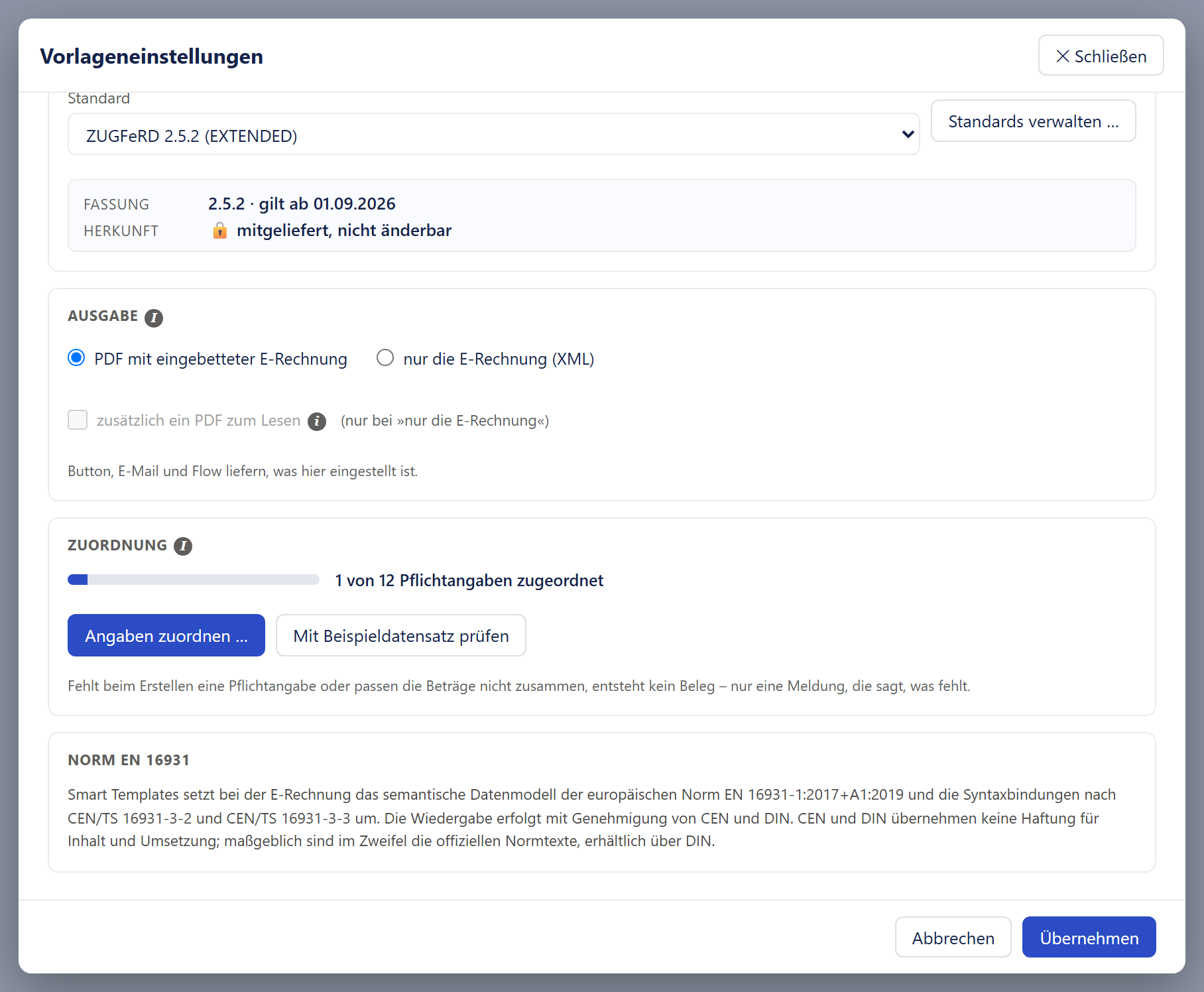
- 1The output. The second choice, XML only, exists with every standard.
- 2The reading copy. The checkbox is available only with “e-invoice only (XML)”.
- 3“Only if …”: the condition under which the e-invoice is produced. None is set here: for every document (see “Only if …”).
- 4The explanation of the standard (see The standard EN 16931).
With XRechnung, “e-invoice only (XML)” is the only choice and carries the note “fixed”.
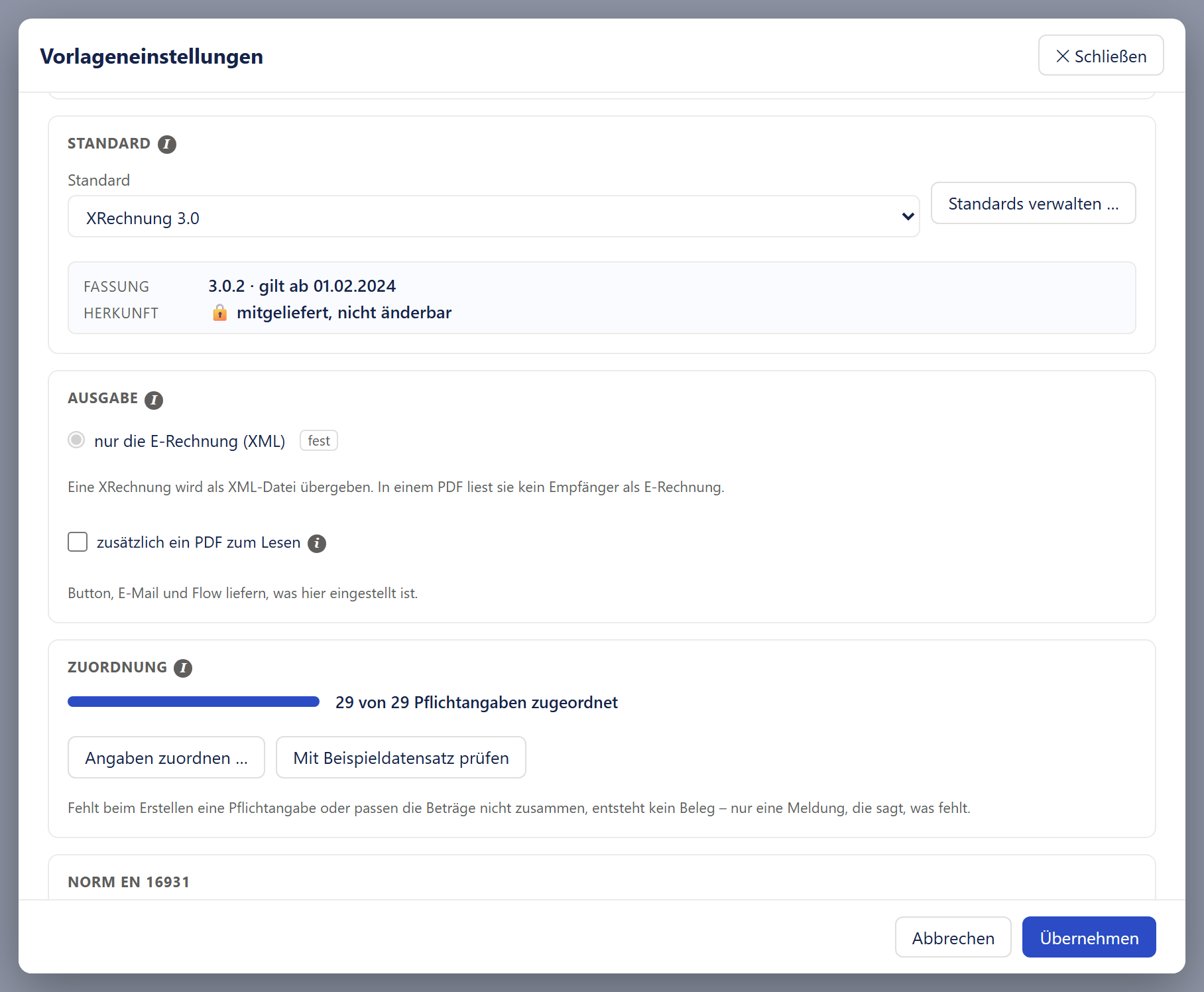
- 1The output is fixed to “e-invoice only (XML)”.
- 2The reading copy can be switched on.
The PDF with embedded e-invoice
This PDF is a PDF/A-3. Pages and texts look like in the normal PDF; in addition, the XML is embedded in the document as an attachment. A PDF/A shows images without smoothing (as the standard requires): a small image, such as a logo, that is greatly enlarged may look somewhat more jagged in the PDF viewer. So that the PDF is valid, Smart Templates checks it before it is produced. A document is not produced if
- a text contains a character that the font does not have, such as a check mark ✓ or an emoji,
- an image is stored in CMYK (RGB is required),
- a font may not be embedded in documents according to its license information.
The message names the character and the place, the image or the font (see Problems and messages: E-invoice). If the image or the character comes from the record, such as a product photo or a character in the product name, the line below says “To be fixed by whoever maintains the record.”; if it is fixed in the template, “To be fixed by whoever maintains the template.” A character counts as coming from the record only if it comes from a field that the template prints at this place; if it is also in the template (even written as “☃”), it says “Template”. Without an embedded e-invoice, that is with “e-invoice only (XML)” and in templates without an e-invoice, these rules do not apply.
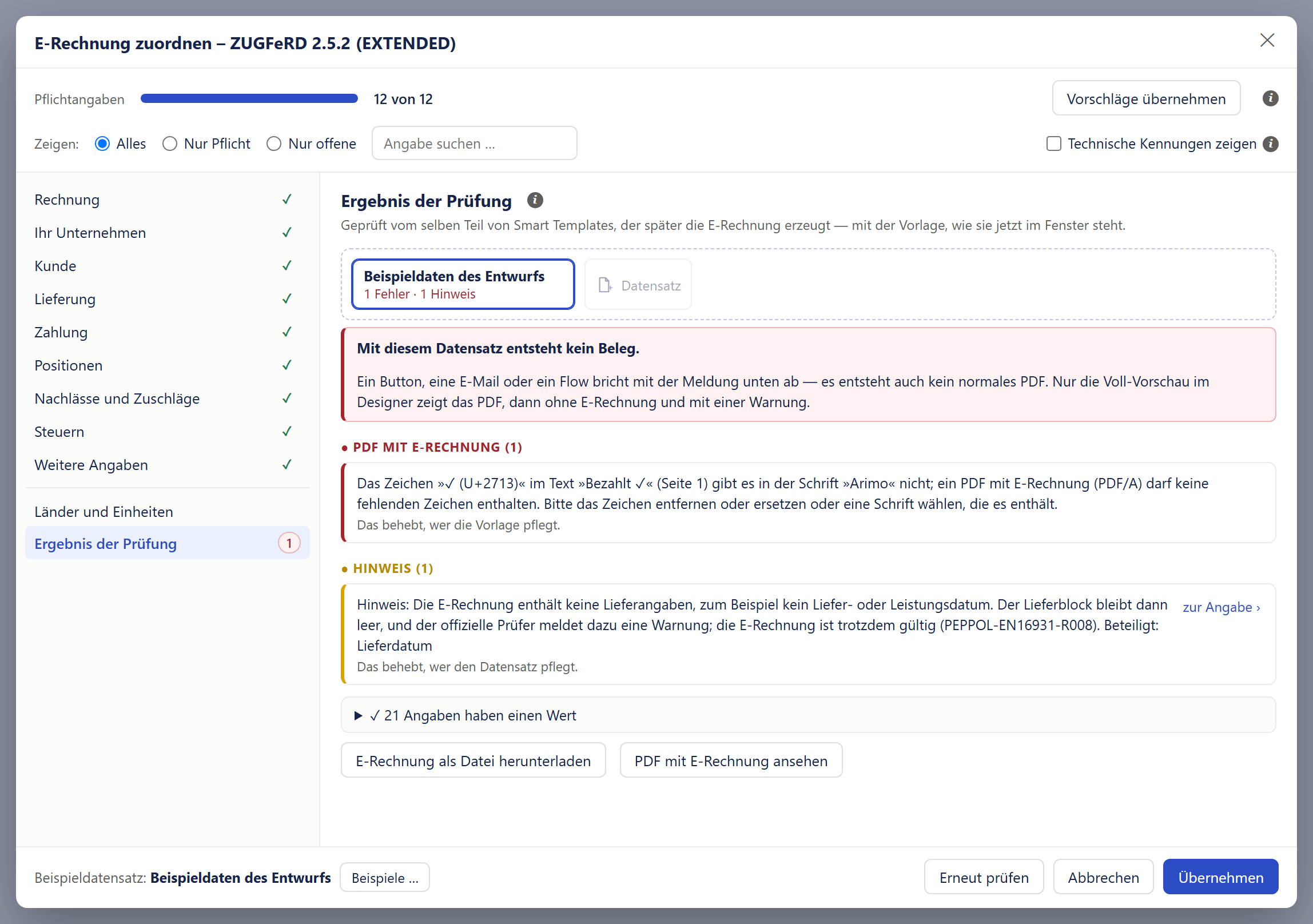
- 1Defects that affect only the PDF/A are in a group of their own.
- 2The message names the character, the text, the page and the font, and who fixes it.
- 3The XML itself is valid: it can still be downloaded as a file.
The file name
The name of the XML comes from the standard: XRechnung_ or ZUGFeRD_, the invoice number and .xml, such as XRechnung_R-2026-0042.xml. Whitespace in the invoice number becomes an underscore; characters that are not allowed in a file name are dropped.
If the template has a PDF name (see Template settings: PDF name), the XML is named the same, with .xml, such as Rechnung_R-2026-0042.xml: on download, on the button, as an email attachment and in XmlFileName or FileName of the actions. The XML in a ZUGFeRD PDF is always named factur-x.xml; the standard requires this.
Assigning entries
Every entry of the e-invoice, such as invoice number, invoice date, buyer address or total, needs a value. Which one, you set in the window “Assign e-invoice”. You reach it in the “E-invoice” tab with “Assign entries …”. The name of the standard is in the title of the window. An AI can fill in most of the assignment for you (see Assigning with AI); the window then serves mainly for reviewing and touching up.
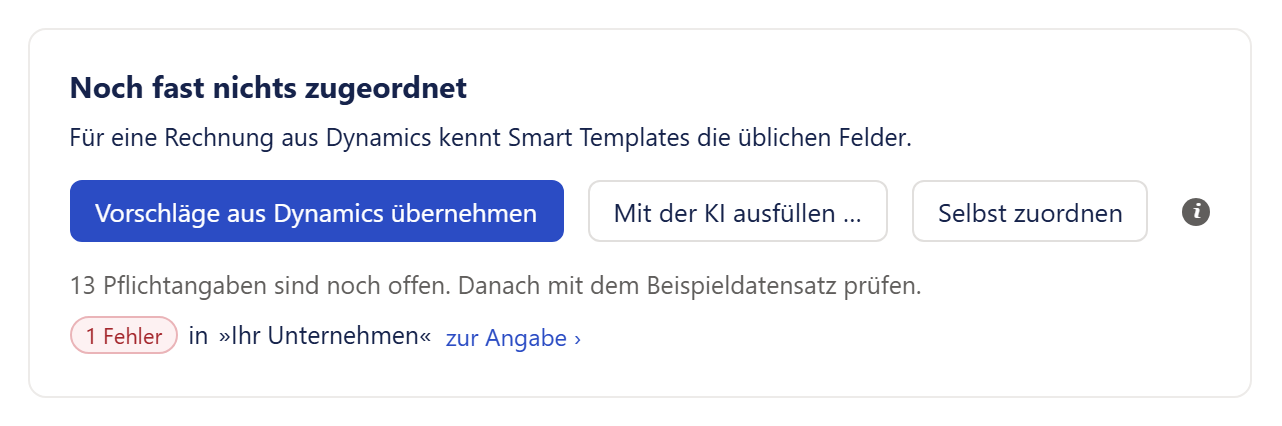
As long as nothing but the specifications of the standard is assigned, below the tabs there is first “Almost nothing assigned yet” with three buttons: “Apply suggestions from Dynamics” (see Applying suggestions), “Fill in with the AI …” (see Assigning with AI) and “Assign yourself”. Below it, it says how many mandatory entries are still open and, if the check has already found errors, how many: a single error with its section and “to the entry ›”, otherwise “view ›”, which leads to the result of the check. “Assign yourself”, a click on a tab, the search or a jump shows the entries.
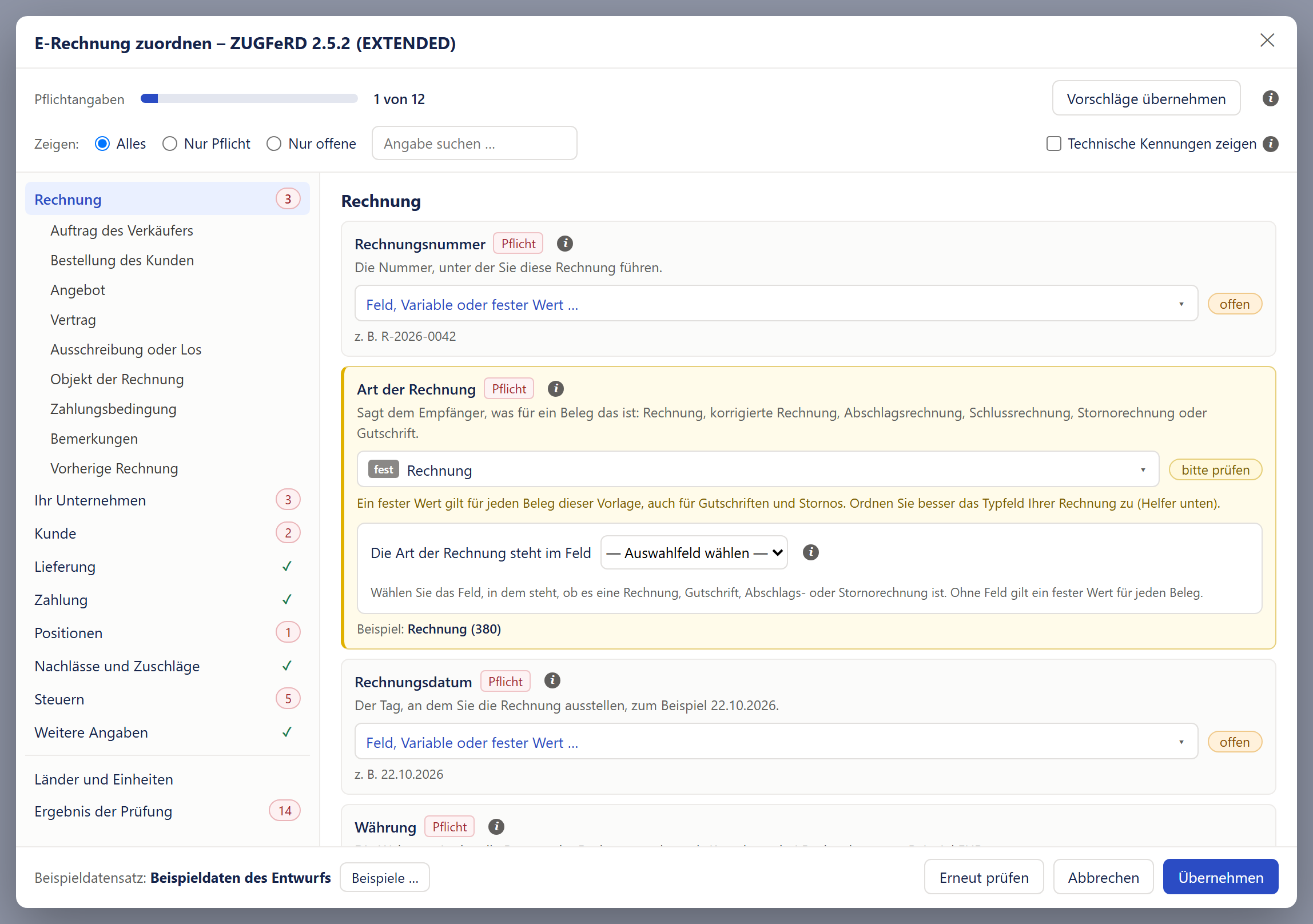
- 1The bar counts the mandatory entries that already have something assigned.
- 2“Next open mandatory entry ›” jumps to the next mandatory entry without an assignment.
- 3“n to look at ›” (in the menu “⋯”) jumps to the next yellow entry.
- 4The search finds every entry, also in the lists. There is no filter: every entry of the section is there.
- 5The tabs, each with at most one red number: open mandatory entries and errors of the check together.
- 6The jump links to the lists of the section.
- 7The selection field of an entry. A click opens the menu.
- 8The status: “open”, yellow “please check” or gray “Note”; if something is assigned, it stays empty.
- 9The sample record with which the window calculates and checks.
The window
- At the top. The bar counts the mandatory entries that must always be filled and the lists that need at least one entry, such as the line items. What is counted is whether something is assigned to them; whether the value is filled in the individual document is shown only by the check. This includes the entries that are mandatory only under a condition (“Mandatory if …”) as soon as the condition certainly applies to your template, such as the type of the electronic address when an electronic address is assigned. If the condition depends on data that is only known in the individual document, the entry is not counted; the check reports it if it is missing in the document. The template check on saving names the same entries (“For the e-invoice … assignments are still missing …”). On the right are “Apply suggestions” (see Applying suggestions), “Countries and units …” (see Countries and units) and the menu “⋯” with “n to look at ›” and “Show technical identifiers”. All of this is in one line.
- Next open mandatory entry. The button “Next open mandatory entry ›” next to the bar jumps to the next mandatory entry without an assignment, tab by tab from left to right; if it is in another section, the tab changes too. The entry is then outlined in blue and expanded. With the keyboard the focus stays on the button; Enter jumps on. It also jumps to the mandatory entries that are still open in a list, right after the list on its tab, part by part and source by source: it opens the list and in it “Edit fields …” or the window of the fixed entry, with the entry marked. For a list per row, such as “Allowance on the line”, this window is in the list’s pop-up. If something is assigned to all mandatory entries, also in the lists, the button is gray. The bar continues to count only the mandatory entries in the header and the mandatory lists; what is still open in the fields of a list is named by the button “Edit fields … · n open” and the pop-up (see The fields of a list).
- To look at. As long as an entry is on “please check”, the menu “⋯” at the top right carries a yellow dot, and in the menu “n to look at ›” counts these entries. Each click jumps to the next one and expands it; there “Fine as is” removes the yellow, or you choose a different value. Counted are suggestions and prefilled values (the template remembers what you have confirmed) and entries in the header whose field is empty in the sample record; in the lists, “Empty in the sample record” appears only at the entry itself. If a whole list is suggested, such as “VAT per rate”, the entry jumps to its tile; there is “Fine as is”.
- Tabs and search. At the top the sections are shown as tabs in one line, always in the same order: “Invoice” (with the further entries), “Your company”, “Customer”, “Delivery & payment”, “Lines” and “Totals & taxes” (allowances and charges, taxes and the totals). A tab that carries several sections shows them one below the other, each with its heading. On the right, set apart a little, as soon as a check has been made, comes “Check” with the result of the check. A click on a tab shows its entries. The search “Search entry …” sits at the top right in the band and finds every entry, also in the lists; a hit in a list opens the list and its fields with the entry marked. There is no filter: every entry of the section is there, also the optional ones.
- The red number on a tab says how much is still to do there: the mandatory entries that have nothing assigned yet and, after a check, the errors it found there. A mandatory entry without an assignment counts only once, even if the check reports it as missing. The tooltip on the number names both separately, such as “2 mandatory entries open, 1 error”; on the tab itself it names, for example, “2 of 4 mandatory entries assigned”. If nothing is to be done on a tab, there is no number.
- Below the tabs is the name of the section with the number of its open mandatory entries, such as “3 open”. If a section has several groups or lists, you jump there with the jump links below the heading. Below that, each entry has a row with the columns “Entry”, “Value”, “Example” and “Status”: name and marker, the selection field, the example and, where necessary, “open”, “please check” or “Note”. The marker says whether the entry is mandatory, “Mandatory if …” or optional; with “Mandatory if …” the condition follows right after it, such as “Mandatory if … as soon as an electronic address is given”. What is mandatory at this moment carries a red asterisk after the name: every mandatory entry and every “Mandatory if …” whose condition applies to your template. If the condition cannot be judged without data, for example because the entry depends on a field that can be empty, there is no asterisk, and the entry does not count as open; the check reports it if it is missing in the document. If an entry with an asterisk lacks its value, “open” appears under “Status”. The ⓘ on the row shows the explanation already when you hover over it. A click in the row expands it: below it are then the short explanation, notes from the check and, where something is to be looked at, “Fine as is”. Only one row is expanded at a time. A click on the selection field opens the menu at the same time. Errors of the check appear in red on every row, even collapsed. A note from the check is shown by the collapsed row with the gray word “Note” under “Status”; a click on it expands the row. All entries of the section are there, in the order of the standard, mandatory and optional mixed; nothing is hidden and nothing is collapsed behind a “more …”. The red asterisk shows what is mandatory. A “Mandatory if …” whose condition cannot apply to your template appears without an asterisk, such as the “Country” of an address as long as nothing is assigned to it.
- Technical identifiers. With the checkbox “Show technical identifiers” in the menu “⋯”, the numbers of the standard appear after the names (BT-1 invoice number, BG-25 line items …) and the codes after the plain texts (380 invoice, DE Germany). You do not need them for working in the window; they are helpful in conversation with support, the tax advisor or the recipient. The browser remembers the setting.
- At the bottom are the sample record with which the window calculates and checks, and “Samples …” (see Up to three sample records).
- Apply and Cancel. You work on a copy of the assignment. “Apply” writes it into the open template, in one step that Ctrl+Z undoes completely; it is stored in Dynamics with “Save”. “Cancel”, the cross, Esc and a click next to the window discard it; if something has changed, the designer asks “Discard assignments not applied and close?” with “Discard”. The variables and rules that were created in this window are discarded too: with “Apply suggestions”, with “Create variable …” or as a rule that is created by itself when you choose a relationship.
Choosing a value
The selection field in the row of an entry shows what is assigned. If nothing is assigned yet, it says “Fixed value, field, variable or if-then …”. A click opens a menu. Which items it has depends on the entry:
| Item | What it does |
|---|---|
| Default of the standard | If the entry has a default, it is at the top of the menu. |
| “Fixed value …” | A value that applies to every document of this template, such as your company name. An amount or percentage is written with a period as the decimal separator, such as 19 or 100.00; you choose a date in the calendar. |
| Codes in plain text | For entries with fixed codes, such as the currency, the common codes appear under “Common” with name and code instead of “Fixed value …”. You fetch rare ones with “Search further codes …”; hits appear as you type. On the invoice type, a question appears instead of this menu (see The invoice type). |
| “running number (1, 2, 3 …)” | Only in a list and only where the standard provides for it, such as for the line item number. |
| “Choose a field or variable …” | A field of the record, also through a relationship, or a custom variable of the template, such as a calculated total (see Variables). The familiar field picker opens. In the header it offers only number and currency fields for an amount, only date fields for a date, and only choice and text fields for the invoice type (see The invoice type); the custom variables are always all available. In a list it shows the fields of the row, their relationships, the rule variables of the rule and the custom variables, and below them the button “Field of the main record …” (see The line items and Data tree and field picker). In these pickers the custom variables are only available to choose, without “+ New” and ✎: you create a new one with “Create variable …”, and you change an existing one at the variables. |
| “If-then …” | A different value depending on a condition, such as 381 for a credit note and otherwise 380 (see If-then on an entry). |
| “Create variable …” | Creates a variable and inserts it right here, for a value that is calculated or composed. In the header, the same button is at the bottom of the field picker. In a list from a rule, the item is called “Create variable … (on the rule)” and creates a rule variable (see Creating a variable). |
| “— no value —” | Removes the assignment again, also a whole if-then. It appears as soon as something is assigned. |
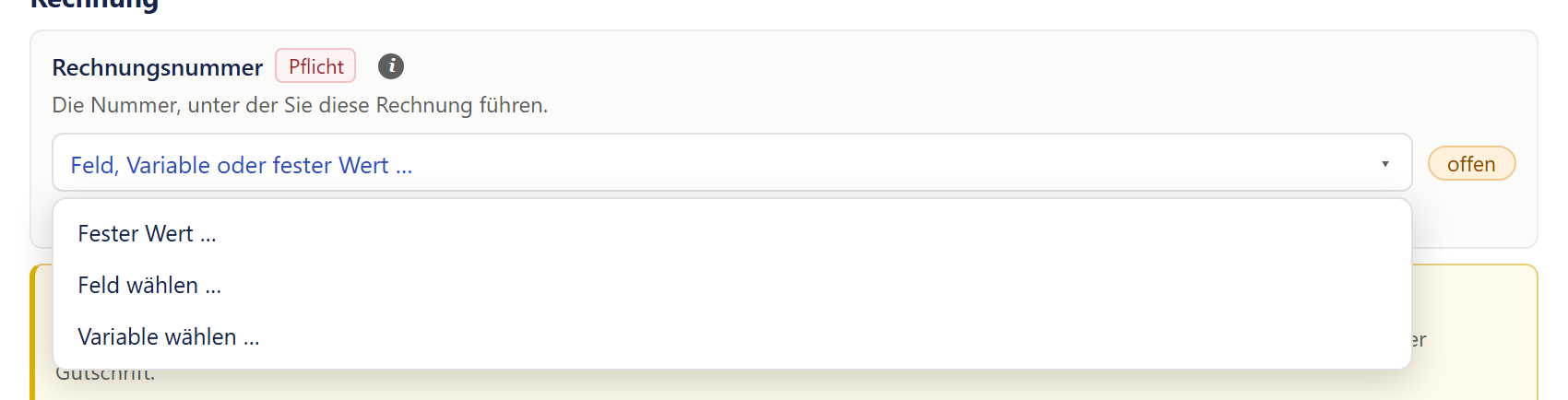
After the choice, the field shows what is assigned. A field appears with the gray word “Field” and its name. A custom variable appears as a blue placeholder, as on the canvas and in the content of a barcode; a rule variable of a list likewise, with “ƒ” in front, such as “ƒ Netto”. “fixed” stands for a fixed value, “Text” for a value in which text and fields appear together, “1 2 3” for the running number, “Rule” for the rule of a list and “If-then” for an if-then. To the right of the field is the status of the entry:
| Status | Meaning |
|---|---|
| “open” | A mandatory entry without an assignment. No e-invoice is then produced with the document. Open does not count as an error of the check (it is already in the number at the section); the word appears neutral, without color. |
| (empty) | Something is assigned to the entry, also an if-then. It does not need a word of its own: the example next to it shows the value. |
| “please check” (yellow) | The entry is assigned, but a person should look at it: a suggestion that Smart Templates could only guess, the prefilled invoice type (“It is always an invoice”) or a field that is empty in the sample record (“Empty in the sample record — please check whether the field is right.”). In the expanded row there is then a button “Fine as is”. For a suggestion and for the prefilled invoice type, the template remembers the yellow until you confirm it; for “Empty in the sample record”, “Fine as is” applies to this value as long as the window is open. |
| “Default: …” (gray) | Without an assignment, Smart Templates writes the named value because the format requires a value at this place. |
| “Note” (gray) | The last check has a note on this entry, for example on a branch of an if-then that always applies. The note itself is in the expanded row; a click on “Note” expands it. A note does not prevent the document. If the entry has a second status at the same time, such as “please check”, both appear one below the other. |

Next to the selection field, in the column “Example”, there is an example. “R-2026-0042” shows the value that the assignment yields in the sample record; “e.g. …” set in gray is only an invented pattern as long as nothing is assigned or no check has been made yet. After a change, “(changed, please check again)” appears there until the next check.
Formatters such as {{Currency:…}} or {{Date:…}} are allowed only with texts. For an amount or date, assign the field without a formatter.
If-then on an entry
Some entries depend on the individual document. The invoice type is 381 for a credit note, otherwise 380; a credit note that Dynamics stores with negative amounts needs positive ones in the e-invoice. For this, the entry gets an if-then: if a condition applies, its value applies, otherwise the value under “ELSE”. The if-then sits on the entry itself; you do not need a custom variable for it. You know the window from the condition branches of the variables and from the content of a barcode (see Variables: Condition branches).
- In the assignment window, click the selection field of the entry and choose “If-then …”. The window “If-then for »Invoice type«” opens with an empty branch under “IF”. Under “ELSE” is the value that was assigned so far.
- Build the condition under “IF”: field, comparison and value. You attach a second one with “Another condition”; AND/OR and “Subgroup” then appear (see Conditions: The builder). For a choice field, choose the value “by option value” among its options: there is the name, such as “Gutschrift”, with the code of the chosen option small and gray next to it; the comparison uses the code, whatever language Dynamics supplies the label in (see Conditions: Choice fields: by option value).
- Under “THEN”, choose the value for this case, with the same menu as on the entry: for an entry with codes a code, otherwise a fixed value, a field or a variable. “— no value —” means: in this case the template supplies nothing.
- You create further cases with “Condition branch”. Under “ELSE”, choose the value that applies when no branch is met.
- Click “Apply”. The selection field of the entry shows the marker “If-then”, the number of branches and the value under “ELSE”, such as “2 branches · else fixed Invoice”. Below it there is one row per branch, “if … → …”, with the condition in words. The codes of the values, such as 381, appear there only with “Show technical identifiers” after them; the example always names the code, such as “Invoice (380)”. You open the window again via the selection field and “If-then …”.
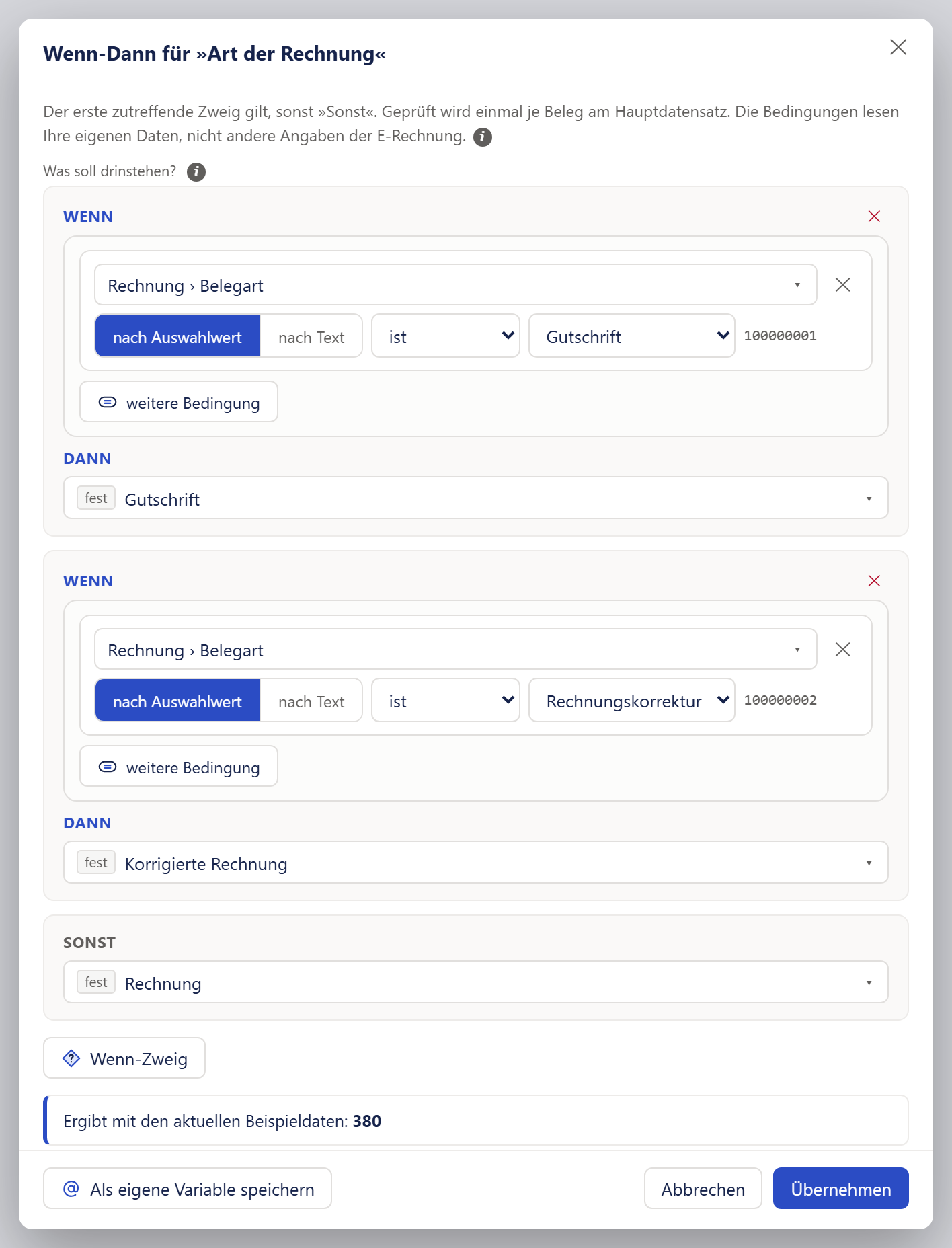
- 1A branch begins with “IF”: here a condition on a choice field.
- 2For a choice field, you choose the value “by option value”.
- 3The code of the chosen option is small and gray next to it; the comparison uses it.
- 4Under “THEN” the value for this case, here from the codes of the invoice type.
- 5“ELSE” applies when no branch is met.
- 6“Condition branch” creates a further case.
- 7The preview: what the if-then yields with the sample data (380 = invoice).
- 8“Save as custom variable” turns the branches into a variable in which you may calculate.
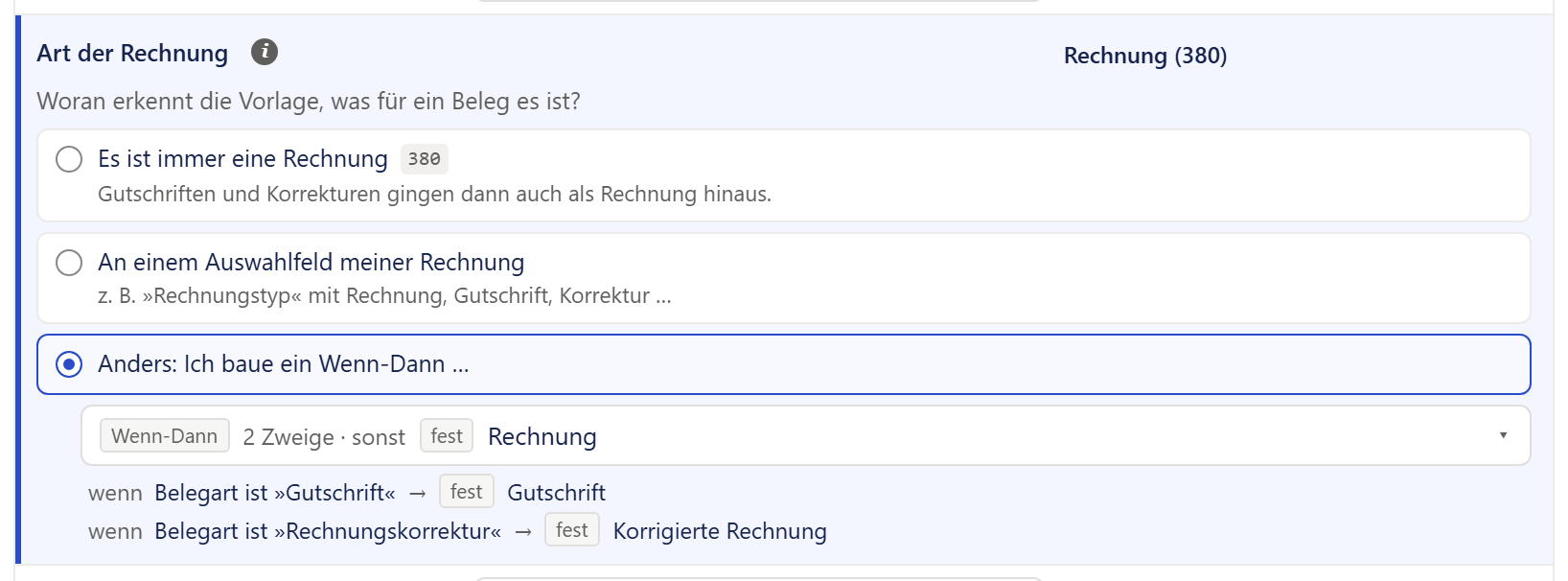
- 1The marker “If-then”, the number of branches and the value under “ELSE”.
- 2One row per branch with the condition in words.
- The first branch that applies wins. If none applies, “ELSE” applies. A branch without a condition always applies; below the selection field it appears as “always → …”, and the branches after it and “ELSE” then never come into play. “Check again” (under “Note” in the result of the check, with “to the entry ›”) and, after saving, the message “Warning: …” already point this out, for example with “Branch 3 has no condition and therefore always applies; »else« is never reached. If that is not intended, add the condition.” If a field is chosen in a branch but no value yet, the red note “⚠ Value missing: without a value, this branch would always apply. Choose a value or remove the condition with ✕.” appears below the branch, and until you add the value or remove the condition with ✕, “Apply” stays locked. This way a half-built branch never silently becomes one that applies to every invoice. If a condition contains a field in “{{ }}”, for example from an AI change, “Apply” is locked likewise, and no e-invoice is produced until the condition is corrected (see Conditions: Fields in “{{ }}”).
- A branch chooses a value, it does not calculate. If you want to calculate, for example to flip the sign, create a variable for it: “Save as custom variable” at the bottom of the window, in a list “Save as rule variable”, turns the branches into a variable in which you may calculate, and inserts it on the entry. “Create variable …” works too (see Creating a variable).
- The conditions read your own data, not other entries of the e-invoice. In the header, that is for an entry outside a list, it is checked once per document on the main record: its fields, also through relationships, and the custom variables. In a list it is checked per row: the fields of the row, their relationships, the rule variables of the rule and the custom variables, which have the same value in every row.
- No value is intentional. If a branch with “— no value —” applies, the entry gets no value in this document. If it is mandatory, no document is produced, and the message says “…: the template supplies no value for this case (if-then)”. This way, for example, a reminder never silently goes out as an invoice. If no e-invoice at all should be produced for such a document, exclude it at the switch under “Only if …”.
- Errors in a condition. If a condition is recognizably misspelled, for example with an open bracket or a single “=”, or names a custom variable that does not exist, no document is produced, and the message names the entry. All branches are checked in the process, also those that do not apply to this document. The check with the sample record already shows it in the window (see Checking with a sample record). What you click together in the condition builder is spelled correctly. A condition written by hand or by an AI, you additionally look at with one example per case (see Up to three sample records), because not every typing error is noticed.
- A condition is always a text. If a branch holds
false,trueor a number without quotes, an object or a list instead of a condition in quotes (from a hand-edited file or a change by the AI), this is an error as with “Only if …”: no e-invoice is produced until it is corrected. Below the selection field, the row of the branch shows what is in the template, such as “if false”, and below it it says in red “⚠ The condition in the template is not a text but false without quotes. It cannot be evaluated like this; until it is corrected or removed, no e-invoice is created.” with the button “Remove”; what it does is shown when you point at it with the mouse. If another branch or “Else” with a value follows this branch, the button removes the whole branch; the other branches and “Else” continue to apply, and if no branch remains, only the value of “Else” is left. Only on the last branch without “Else” does it remove the condition alone: the branch then always applies and appears as “always → …”, like a fixed value; if it should not apply at all, remove it in the window “If-then …” with “✕”. You also create a new condition in this window: the branch appears there with the same red sentence and the button “Rebuild with the condition builder”. As long as you do not rebuild this condition, it stays in the template as it is, even if you change something else in the window. - Preview. At the bottom of the window it says what the if-then yields with the sample data, in a list on the first row of the rule. A branch without a condition and without a value, such as the empty one when opening, does not count in this; the preview then shows the value under “ELSE” straight away.
- Queries. An if-then is not a query of its own. If a condition reads a field through a relationship, it is joined into the query and may cost further queries, as may a summary over a list, such as the number of line items.
- Taking it out. “— no value —” in the menu of the entry takes out the whole if-then. If you remove all branches in the window, the value under “ELSE” stays as a simple value.
- If-then exists on individual entries, not on groups or whole sections. A group is created in the e-invoice anyway only if one of its entries has a value.
Tip
The invoice type from your own choice field, such as “Belegart”: IF “Belegart is Gutschrift” THEN “Credit note 381”, IF “Belegart is Rechnungskorrektur” THEN “Corrected invoice 384”, ELSE “Invoice 380”. If the field is on the primary source, the answer “From a choice field of my invoice” builds such an if-then for you, one branch per value of the field and without a value under “ELSE” (see The invoice type). A type without a branch, such as a reminder, then gets no value instead of silently going out as invoice 380.
Creating a variable
If an entry needs a value that you have to calculate or compose, such as an amount with the sign flipped, you create a variable. “Create variable …” in the menu of the entry opens the variable window, already prefilled: name and type come from the entry (amount, price, quantity and percent give number, a date gives date, yes/no gives yes/no, everything else text). In the variable you may calculate and build condition branches (see Variables). After “Save” the variable is on the entry; “Cancel” changes nothing.
| Where | What is created | Title of the window |
|---|---|---|
| in the header, that is for an entry outside a list, such as under “Invoice” or “Taxes” | A custom variable of the template. It is calculated once per document on the main record and then appears with the variables. | “New variable for »…«” |
| on an entry of a list from a rule, such as the line items; the item is called “Create variable … (on the rule)” there | A rule variable of this rule: a new column, calculated per row. It then appears under “Choose a field or variable …” and in the column bar at the line items. | “New rule variable on »…«” |
- If you close the assignment window with “Cancel”, the new variable is discarded too. That is why the custom variables in the pickers of this window are only available to choose, without “+ New” and ✎ (see Choosing a value).
- From the if-then window, “Save as custom variable” or “Save as rule variable” creates a variable with the branches of this window.
- The variable changes nothing in the printed document as long as you do not drag it into the document yourself.
Applying suggestions
For the Dynamics invoice, that is the table “Rechnung” as the primary source of the template, Smart Templates knows the usual standard fields: invoice number, due date, currency, billing and delivery address, comment, totals, line items with quantity and price, discounts and freight. “Apply suggestions” assigns all of those for which there is a field in the sources of your template. Entries that already have something assigned stay unchanged. With a different primary source the button is locked.
After the suggestions, a line appears at the top, such as “34 entries suggested.”, followed by how many mandatory entries are still open and how many errors the check found, each with a jump, and “Undo”. What the yellow means is explained by the ⓘ next to “Apply suggestions”. For an assigned entry, the column “Example” shows the value from the sample record; “Status” stays empty.
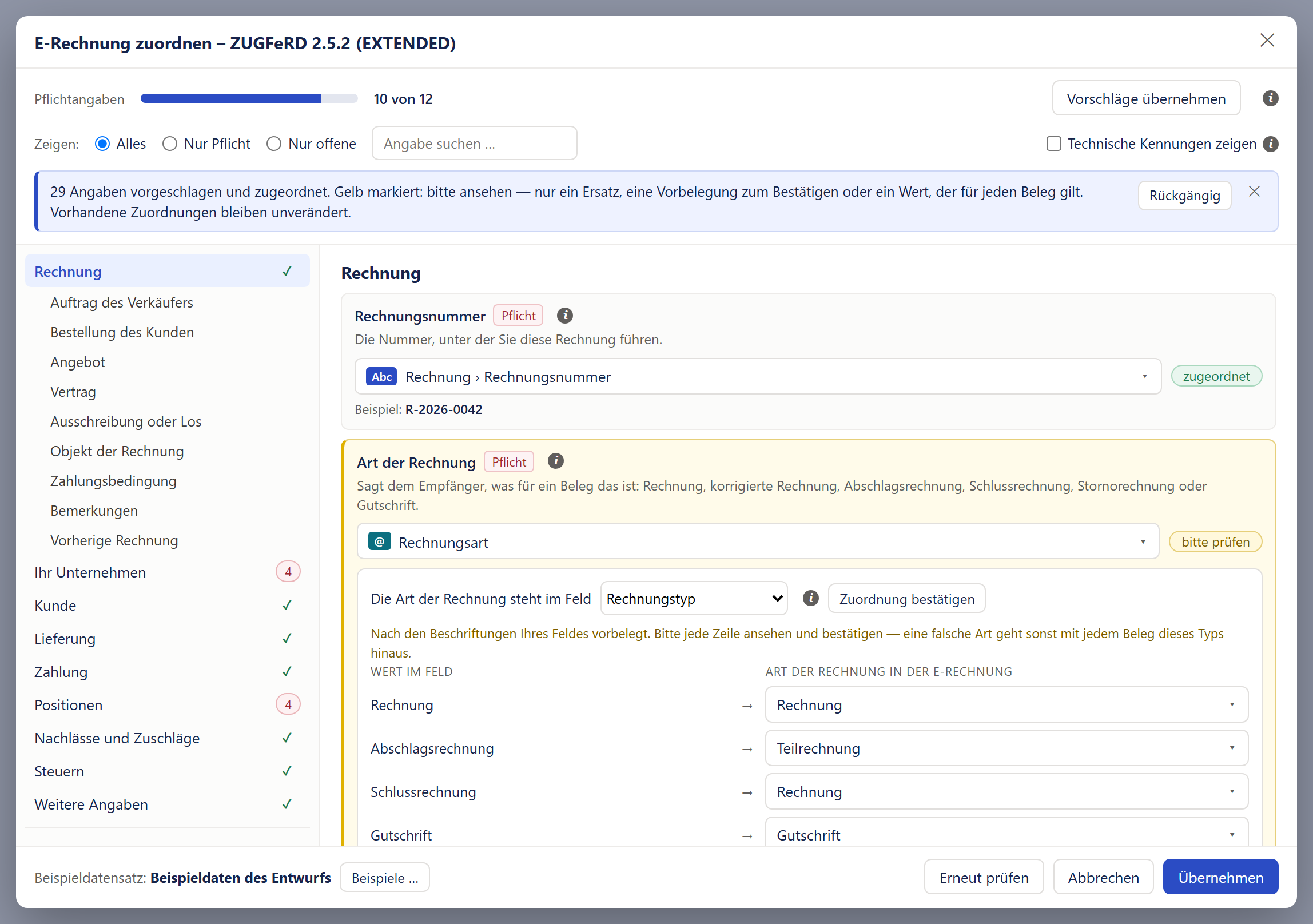
- 1The line after the suggestions: how many are suggested, what is open and which errors the check found.
- 2“Undo” takes the suggestions out again.
- 3“n to look at ›” jumps in turn to the yellow entries.
- 4“Apply suggestions” is further up; a second click assigns what has been added in the meantime.
- 5Assigned: the example shows the value from the sample record, “Status” stays empty.
- 6Yellow: a suggestion to look at, here the invoice type according to the labels of the invoice type.
Suggestions that you should look at are marked yellow:
- a substitute: Dynamics has no invoice date of its own, the creation date is suggested; if you keep a field of your own, choose it instead,
- a value that applies to every document, such as the invoice type “Invoice” (380), tax type and tax rate 19 % on every line item, the unit “Piece” without a unit field, or the fixed tax entry “19 %”; if you keep the invoice type in a choice field of your own, choose it at the entry (see The invoice type),
- something that Smart Templates has newly created: the rule variable “Netto”, the variable “NettoGesamt” and the fixed entries for discounts and freight,
- a variable that already existed and that Smart Templates uses unchanged: the rule variable “Netto” with this name or the variable “NettoGesamt” with this name and the same formula; the note at the entry then begins with “Already there:” instead of “Newly created:”, and you check whether the variable calculates what you want,
- a total from Dynamics if the template has no line item rule: whether it contains discounts and freight as the e-invoice requires is known only to whoever sets up the template.
For this, Smart Templates creates what is missing: on the rule of your line item table, the rule variable “Netto” (the amount minus manual discount; Dynamics has already deducted the volume discount in the amount), from which the line item amount net and the total of the line items come; the variable “NettoGesamt” (the total amount from Dynamics without the tax) for the total amount net and the basis of the tax line; fixed entries with a condition for the discount on the whole invoice, the freight, and per line item for the manual discount and the volume discount. Such an entry applies only if its amount is greater than 0; you assign tax type and tax rate of discount and freight in the entry itself. In addition come the comment of the invoice and the delivery address. “Undo” and “Cancel” also take out what was created. The suggestions come from a table in Smart Templates that the AI assistant also uses (see Assigning with AI).
Smart Templates does not suggest custom fields — neither those of your company nor those of an add-on solution, nor those of Microsoft. You recognize them by the prefix of their publisher before the field name, such as cig_, ep_, msdyn_ or new_; the fields of Dynamics itself have none. A custom field may not exist in another environment. You assign those yourself, also for the invoice type: you choose your own choice field, such as “Rechnungstyp”, at the entry with “From a choice field of my invoice”. The Leitweg-ID belongs here too: it is usually in a field of its own on the customer. With XRechnung, where it is mandatory, the window says so after the suggestions. “Undo” in the message takes the suggestions back, “Cancel” everything that was changed in this window. If there is nothing left to suggest, it says there: “No further suggestions: what the sources of this template provide is already assigned.”
After the suggestions, the window checks straight away with the sample record; the examples and the yellow “empty in the sample record” arise from that. What you should look at is counted by “n to look at ›” in the menu “⋯” at the top right; each click jumps to the next yellow entry and expands it.
The invoice type
The invoice type tells the recipient whether it is an invoice, a corrected invoice, a partial, final or cancellation invoice or a credit note. Instead of a menu, the entry asks a question: “How does the template tell what kind of document it is?” It appears as soon as you click the row “Invoice type”; collapsed, the row shows only the short form, such as “fixed Invoice” or “from field Rechnungstyp · 7 values translated”. The question has three answers; the answer that currently applies is marked.
- “It is always an invoice”: every document goes out with the code 380, also credit notes and corrections. This is how a newly turned-on e-invoice is prefilled, with “please check”. “Fine as is” or a click on the answer that is already marked confirms it; the yellow then stays away, also the next time you open it.
- “From a choice field of my invoice”: usually the invoice type. Under “Choice field”, choose the field; only the choice fields of your primary source are listed there. A table assigns a type of the standard to each value of the field (see below).
- “Otherwise: I build an if-then …”: opens the if-then window, for example for “else invoice, if … then credit note” (see If-then on an entry). After that, below the answer there is the value field with all ways: a fixed code, “Choose a field or variable …” and “If-then …”. If you choose a choice field there, the table of the second answer appears. At this entry, also for the value of a branch in the if-then, the field picker offers only choice and text fields, no fields for date, number, amount or yes/no and no lookups; a relationship leads to the fields of its target. A field of another type that is already assigned stays visible and unchanged.
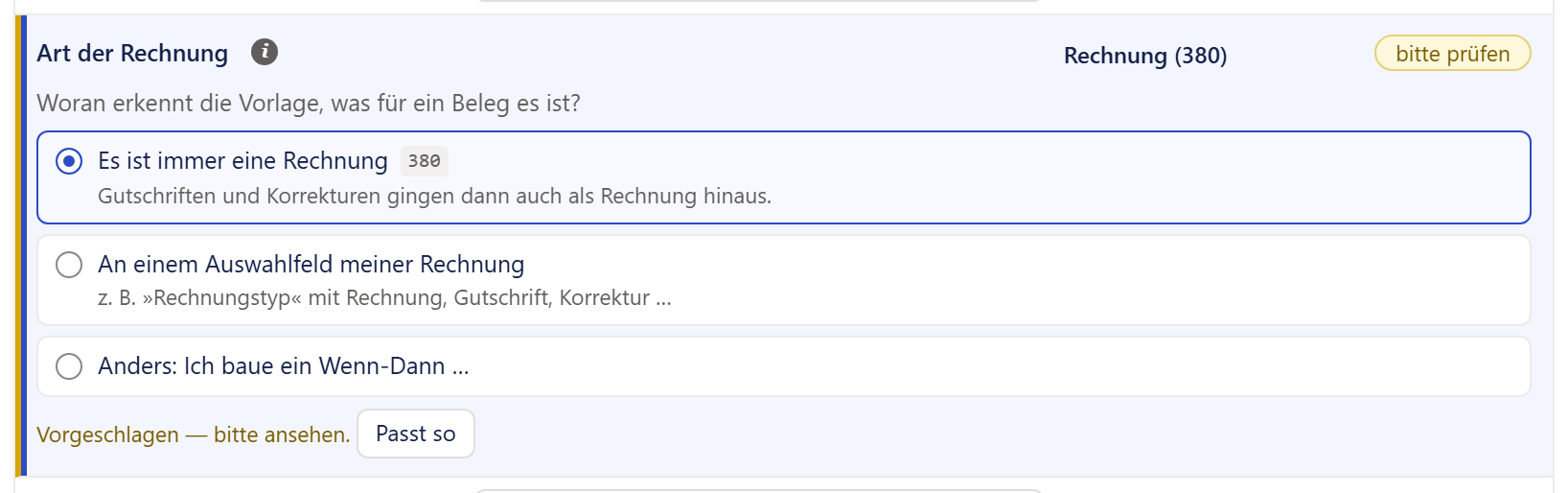
- 1“It is always an invoice”: this is how a newly turned-on e-invoice is prefilled.
- 2“From a choice field of my invoice”: the table below.
- 3“Otherwise”: an if-then of your own (see If-then on an entry).
- 4“Fine as is” confirms the prefill.
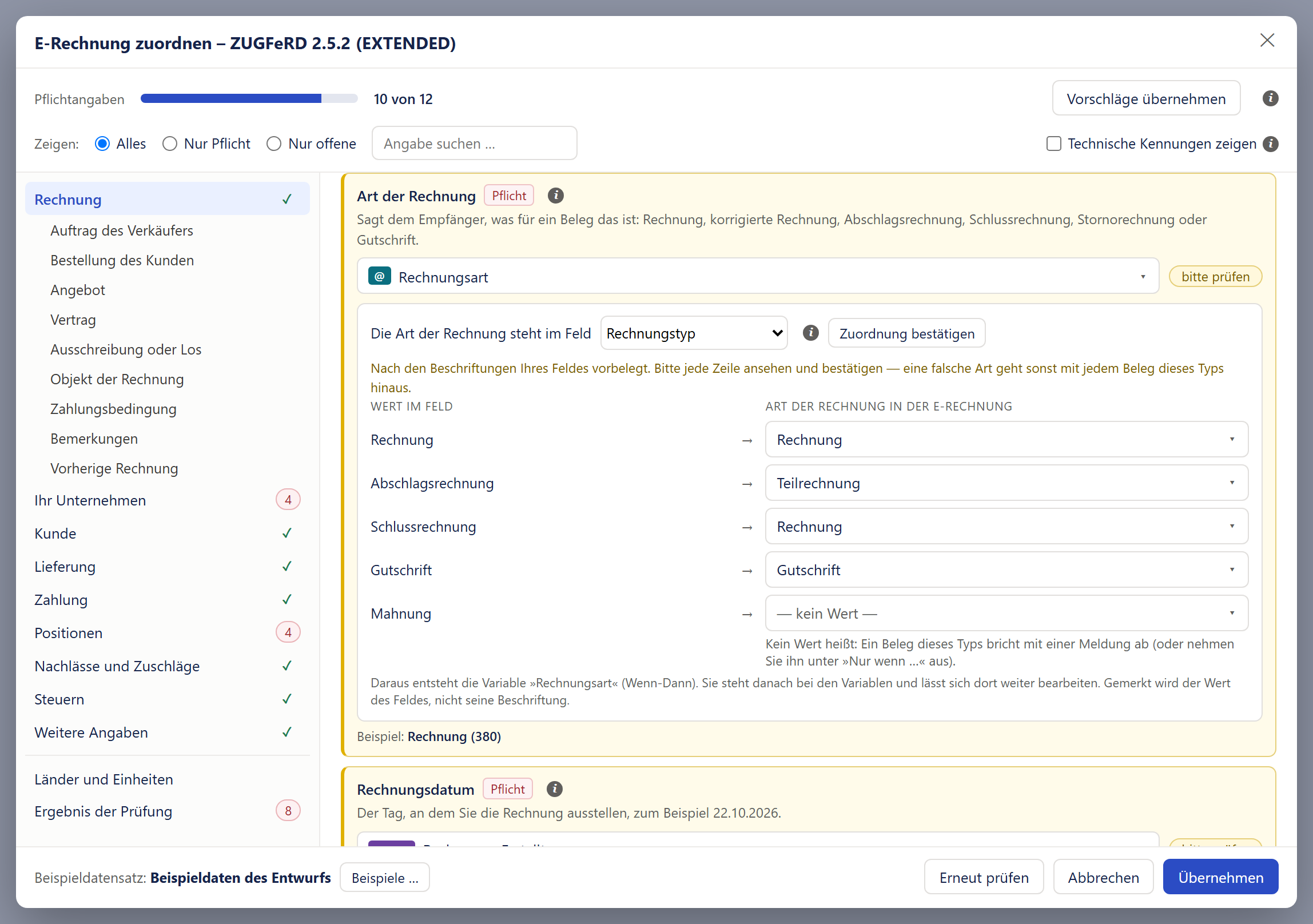
- 1The choice field of the primary source.
- 2One row per value of the field with the invoice type.
- 3A value without a matching type: “— no document —”.
- 4“Apply” confirms the table.
- 5“Back to the question” leaves the invoice type as it was before.

The table is prefilled according to the labels of the field. The prefill guesses from the usual German and English words: “Rechnung” and “Schlussrechnung” become invoice, “Abschlag” and “Anzahlung” partial invoice, “Gutschrift” and “Storno” credit note, “Korrektur”, “Rechnungskorrektur”, “korrigiert” and “Berichtigung” corrected invoice. You find rare types in the menu of a row via “Search further codes …”. From this, Smart Templates writes an if-then directly onto the entry: one branch per value of the field. What is remembered is the value of the field, that is its code, not its label; that differs per language.
- The prefill stays on “please check” until you confirm the table with “Apply”. After that, the expanded row shows only the short form, such as “from field Rechnungstyp · 7 values translated, 1 without document”, with the example next to it; “Change” brings back the question. “Apply suggestions” does not choose a field of its own for this (see Applying suggestions); you choose the field here.
- “Back to the question” leaves the table; the invoice type then stays as it was before.
- A value without a matching type, such as “Mahnung”, gets “— no document —”: a document of this kind stops with a message. If it should be produced without an e-invoice, exclude it at the switch under “Only if …”.
- If no label of the field matches a type, for example with “Status” or “Priorität”, the table appears with nothing but “— no document —”, and below it the sentence “None of this field’s labels could be matched to a type — please choose the types yourself.” You then choose the types yourself in the menu of each row; “Apply” works as soon as one value has a type. Until then the previous invoice type stays unchanged.
- A variable “Rechnungsart” from an older version is still recognized by Smart Templates and edited in the same table; the finished row shows it as a blue placeholder (see Variables).
- An if-then with other conditions, for example by hand or from an AI, appears under the answer “Otherwise”; you edit its branches there.
- With XRechnung, a credit note document of its own is created automatically for a credit note (381).
- If the primary source has no choice field, under “Choice field” it says “— no choice field in the main source —”; then “It is always an invoice” and “Otherwise” remain.
Taxes and totals
Smart Templates calculates nothing itself. You assign totals, tax amounts and tax rates like any other entry: from fields, from custom variables or from the result of a rule. Usually they are the same fields or variables that your document prints. Whether the amounts add up is checked by the arithmetic check of the standard (see Checking with a sample record).
- One tax rate: In the list of taxes, “One tax rate” creates a fixed entry “19 %” with the tax type S (for XRechnung “Standard rate”, for ZUGFeRD “Standard or reduced rate”) and the tax rate 19. Then assign the basis, that is the total net at this rate, and the tax amount (see Lists).
- Several tax rates: Instead of fixed entries, use a rule over the line items, summarized by the tax rate, with the totals to two decimal places (see Rules).
- The suggested totals calculate from the line items: the total of the line items via the rule variable “Netto”, the total amount net as total amount minus tax (variable “NettoGesamt”), the discount on the invoice and the freight from their fields. They are yellow until you look at them; the arithmetic check reveals any deviation. If the template has no line item rule, Smart Templates suggests the totals from Dynamics.
- Rounding: Smart Templates writes amounts into the e-invoice rounded commercially to two decimal places, also an amount from a custom variable, such as 1,486.905 as 1,486.91. Unit prices, quantities and percentages stay as they are. The arithmetic check checks the rounded amounts as they appear in the e-invoice; if it does not add up by one cent because of rounded partial amounts, it reports that. A summary such as
{{sum(Positionen.Netto)}}rounds each line item to two places before adding up — the total of the line items thus matches the line items. A total from a custom variable or a field is best rounded to two places already in the rule. - Credit note: If Dynamics stores a credit note with negative amounts, convert the totals together with the line items (see Credit note with positive amounts).
Lists: line items, tax rates, allowances
Some entries occur several times: line items, tax rates, bank accounts, allowances. Each of these lists appears as a tile in the section it belongs to, with the marker “Mandatory” if it needs at least one entry, otherwise with “List”; such a mandatory list carries the red asterisk like a mandatory entry. A click on “open ›” on its tile opens the list. At the top is the box “Where do the entries come from?” (see Where the entries come from); if the list gets different entries depending on the document, create parts “If …” and “Else” below it with “Set condition …” (see If and Else: different entries depending on the document). You assign the entries per row in the window “Edit fields …” (see The fields of a list); they are not below the box, not even for a list without a condition.
On the list “Preceding invoice” it says what it is for: “Needed for corrected, cancellation and final invoices”. The ⓘ next to it explains what belongs in it: for a corrective or cancellation invoice, the invoice that is corrected or canceled, for a final invoice every partial invoice. Below it follow the notes that the check otherwise reports: for XRechnung the rule BR-DE-26 (a corrected invoice should refer to the original invoice), for both standards the own check rule ST-BG-3 of Smart Templates. It reports a note if the invoice type is a cancellation, corrective or final invoice (code 381, 384, 876 or 877) and “Preceding invoice” stays empty; if XRechnung already reports BR-DE-26, it is dropped. The e-invoice is produced in any case. ST-BG-3 is a rule of Smart Templates, not of the standard; its sentence says so: “… (own check rule of Smart Templates, not a rule of the standard)”. What is checked is the result: whether the entries come from a rule, from fixed entries, from “Else” or from a case, the note appears only if the list is empty at the end. If the list has no source in “Else” or in a case, the message says “To be fixed by whoever maintains the template.”, otherwise “To be fixed by whoever maintains the record.”
If a rule of the standard names another list, a line “Otherwise the check reports a note: …” or “… an error: …” with the sentence of the rule and its identifier also appears on the tile and at the head of the list. With XRechnung it also exists on “Credit transfer” (BR-DE-23-a, BR-DE-24-b and BR-DE-25-b); “Needed for …” appears only on “Preceding invoice”. After a check, the findings that concern this list also appear at the head of the list, a note in yellow, an error in red; after a change they disappear until you check again.
Where the entries come from
At the top, in the box “Where do the entries come from?”, there are two buttons side by side: “Rows from a rule” and “Fixed entries”. A list gets its entries from one of the two; at the start “Rows from a rule” is pressed, and only what was chosen appears. If you switch, you remove what the other source already has; the designer asks first, such as “Remove the fixed entry?”, and afterwards immediately opens the rule picker or the window of a new entry.
- Rows from a rule. One entry is created per row of the rule, as with the rows of a table. With “Choose rule …” choose an existing rule; usually it is the same one your table in the document is based on. If you choose a relationship instead of a rule, the rule is created by itself: if the relationship already has a rule without a limit (for the line items one that does not summarize), Smart Templates suggests that one first; otherwise it creates a rule “… (E-Rechnung)” with all rows and without a limit (see The rule is created by itself). “Undo” in the message takes it out again, as long as you have not changed anything else afterwards. Next to the rule is the button “Edit fields …”: it opens the window for the entries per row, relative to one row of the rule (see The fields of a list), and names what is still open there, such as “Edit fields … · 1 open”. The ✕ after it takes the rule out.
- Fixed entries. With “Entry” you create an entry with values of its own, such as a row “Fracht” or “Abschlag”, or a tax rate. As long as there is none, it says “No entry yet.” Fixed entries come in their order; a fixed entry can have an “Only if …”.
- Older templates with both. If a list from an older version has a rule and fixed entries, both appear and continue to apply: first the rows of the rule, then the fixed entries in their order. A sentence points this out; the two buttons are locked until you have removed one of the two. Nothing is deleted silently.
- “Only if …” on the rule. The box no longer offers it: the same effect is achieved by “Set condition …” below the part (see If and Else: different entries depending on the document). An older “Only if” on the rule is still evaluated and appears on the rule: “Change condition …” expands its condition builder below the row, “Done” collapses it, the ✕ takes the condition out. A condition that is not a text (see “Only if …”) still opens a window, so that nothing is overwritten silently. “Turn into a case” turns it into a part “If …” and leaves the e-invoice as it was. On the rule of the line items, an older “Only if” appears in gray; “Remove condition” takes it out, after which the line items come with every document.
- An entry whose condition applies is always there. If a mandatory entry is missing in it, that is an error.
The rule of a list must not leave out rows. If it delivers only the first N rows, or if for the line items it selects exactly one row, a red message appears below the rule: “The rule »…« delivers only the first 2 rows. An e-invoice must contain all of them.” The button “Create own rule without limit” creates a copy that loses only the limit; filter and sorting stay. Your rule and the printed document stay as they are; the copy can cost further queries.
Below the rule it says what it costs: the same rule as the table in the document already has its query. If the e-invoice additionally reads something through relationships of the row, such as through a lookup to the invoice, it is joined in and can cost further queries; that is then stated below it. A rule that the document itself does not use can cost further queries for the e-invoice.
The rule is created by itself
If you click “Rows from a rule”, “Choose rule …” or the chosen rule, the window “Choose rule for »…«” opens. It shows the main record with its relationships and the rules on them. On a rule it says what matters for the e-invoice:
- “table in the document · its query already exists”: a table of the document is based on this rule. It is usually the right choice.
- “limited — not for the e-invoice” (red): the rule delivers only the first N rows or, for the line items, exactly one; the e-invoice rejects it.
- On a relationship without a matching rule it says what a click does, such as “creates »Zahlungsplan (E-Rechnung)«”.
A click on a rule chooses it. A click on a relationship leads to a rule without the rule window opening:
- If the relationship already has a rule without a limit, a small window asks, such as “»Rechnungspositionen« already has the rule »Positionen« without limit, which the table in the document also uses. Use it?” The blue button, here “Use »Positionen«”, chooses it, “Create new rule” creates one of its own. For the line items, it does not suggest a rule that summarizes.
- Otherwise a rule “Relationship (E-Rechnung)” is created under the relationship, with all rows, without a filter and without a limit. If a rule of the same relationship already sorts, the new one takes over its sorting, never its limit, plus the rule variables that read this sorting or your assignments.
- At the top a message then appears such as “Rule »Zahlungsplan (E-Rechnung)« created: all rows, without limit. It can cost further queries.”, with taken-over sorting with “sorted like »…«”. It names rule variables that were taken over and, in yellow, columns of the previous rule that the new one does not have (“Assignments on them stay empty”). “View rule …” opens the new rule in the rule window; if you rename it there, the assignment follows. “Undo” takes it out again, as long as you have not changed anything else afterwards.
The new rule then appears in the data tree under its relationship like any other (see Rules). It changes nothing in the printed document. Like any rule that the document does not use, it can cost further queries.
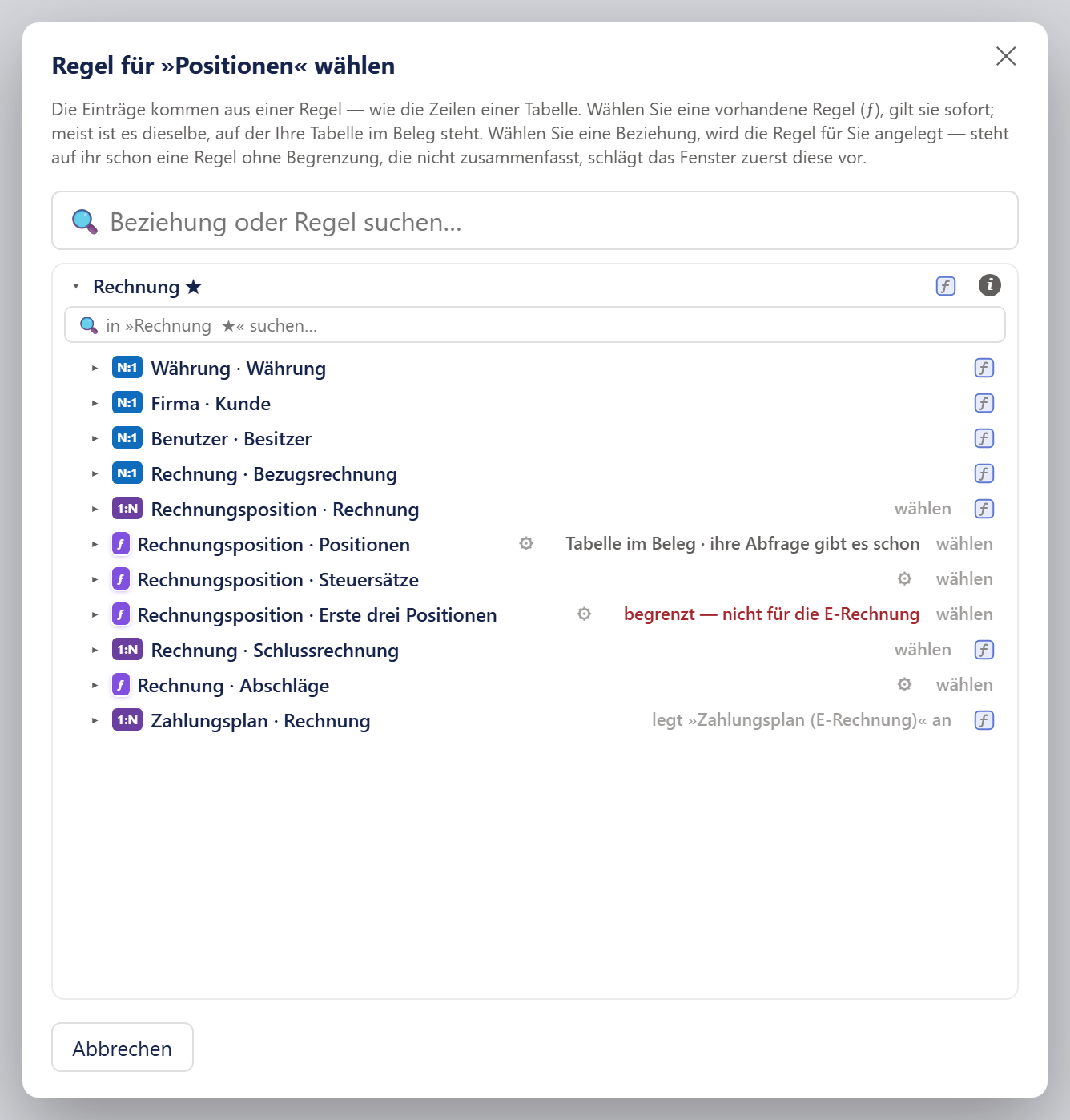
- 1The rule on which the table in the document is based: usually the right choice.
- 2The e-invoice rejects a limited rule.
- 3A click on a relationship without a matching rule creates one.
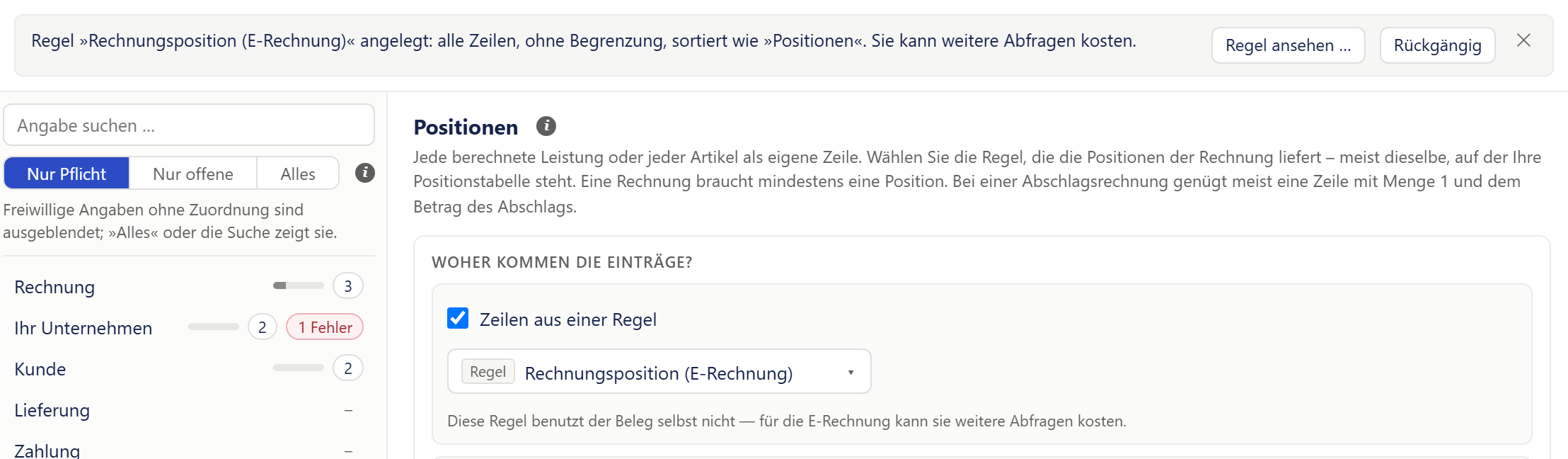
- 1The message names the new rule and where its sorting comes from.
- 2“View rule …” opens the new rule in the rule window.
- 3“Undo” takes it out again.
- 4The new rule is now the source of the list.
- 5What it costs: the document does not use this rule.
The fields of a list: “Edit fields …”
What goes into each entry of a list, you assign in the window “Edit fields …”. If the list has a rule, the button of the same name is next to it; if mandatory entries are still open, it names the number, such as “Edit fields … · 1 open”. The window also exists for a list without a condition: below the box “Where do the entries come from?” there are no entries per row any more. A fixed entry has its own window (see A fixed entry).
- The head says what the window applies to, such as “Edit fields · Preceding invoice · Else if Rechnungstyp is equal to Schlussrechnung · Rule »Abschlagsrechnungen«”: the part as it is called in the box, with its condition in words. For a list without a condition it is missing. Below it says what the entries relate to: “Relative to one row of the rule; example from row 1.”
- Every entry has a row as in the assignment window: name, selection field, example and status (see Choosing a value). All entries of the list are there, in the order of the standard; the red asterisk shows what is mandatory, and “open” appears on a mandatory entry without an assignment. The if-then of an individual entry remains a window of its own that opens above this one (see If-then on an entry). For the line items, the table with the column bar appears in place of the rows (see The line items).
- If the list has conditions, the fields belong to the part that is named in the head; each part has its own. The example is then that of the standard (“e.g. …”) and not row 1 of the sample record, because only the data show which part applies; the column is called “Example”, and the sentence above it says “Relative to one row of the rule. The list has cases — the example shown is the one of the standard.”
- Lists per row, such as an allowance on the line item, appear under “Lists per row” as tiles. “open ›” opens the list in the same window, not in a second one above it. At the top, breadcrumbs show the way, such as “Positionen If Belegart is equal to Gutschrift › Nachlass auf die Position”, and lead back with one click. There too is the box “Where do the entries come from?” with “Set condition …” (see If and Else: different entries depending on the document); the fixed entries of such a list also open in the window, with the breadcrumb “Fixed entry”.
- Apply and Cancel. “Apply” takes the fields into the working copy of the assignment window. “Cancel”, the cross, Esc and a click next to the window discard only what you changed in this window; if something has changed, the designer asks “Discard the changes in this window?” with “Discard”. As always, it is stored only with “Apply” in the assignment window and saving the template.
- Jumps. The search, “to the entry ›” in the result of the check and “n to look at ›” open the right tab and the list, choose the right part and open the window with the entry marked (for a fixed entry its window; for a fixed entry in a list per row the box of the list in the pop-up, with all its entries). Which part it is is decided by the order of the check: the first one that has the entry; for an entry that the check reports as missing, the first one that lacks it. If a check rule names a list, such as ST-BG-3 the list “Preceding invoice”, “to the entry ›” leads to that list.
If and Else: different entries depending on the document
Some lists get something different depending on the document: a cancellation invoice names the canceled invoice, a final invoice every partial invoice, an ordinary invoice none. Conditions exist for this. Without a condition, the box “Where do the entries come from?” has one part, “Always”; whatever is in it, the list gets with every document. The ⓘ at the heading of the box explains everything else.
- Below the part “Always”, click “Set condition …”. The part is now called “If” and keeps what it had. Next to it is the condition builder for the condition, as you know it from “Only if …”, on the right “Remove condition”. Below it is “Else”, empty at first: “No entries — in this case the list stays empty. Choose a source above if it should get something here.” As long as you have not built a condition, “If” applies to every document; a sentence in the part says so.
- Build the condition, such as “Rechnungstyp is equal to Schlussrechnung”.
- If the list should get something in the remaining cases, choose “Rows from a rule” or “Fixed entries” in “Else”. A second click on the pressed button makes “Else” empty again.
- For a further case, click “Set condition …” again below “Else”. “Else” becomes “Else if” with a condition of its own, and below it there is a new, empty “Else”.
- Assign the fields: “Edit fields …” on the rule of a part opens the window for that rule (see The fields of a list); a fixed entry has its window as everywhere.
- The first part that applies wins. The parts are checked from top to bottom; if no condition applies, “Else” applies. A part without a condition applies to every document; the parts after it and “Else” then never come into play. The part points this out, and after saving the message “Warning: …”, such as “Case 2 has no condition and therefore always applies; …”.
- Removing a condition. “Remove condition” takes the part out. If it delivers something, the designer asks beforehand “Remove the condition and the part? What the list gets in this case will be lost.” If it is the only part with a condition and “Else” is empty, its content becomes “Always” again: that takes back “Set condition …”. A different order of the parts comes about by removing parts and creating them anew.
- Every part has a source: a rule or fixed entries, chosen with the two buttons at the top of the part (see Where the entries come from). A new part “Else if” begins with “Rows from a rule”. A fixed entry keeps its own “Only if …”. On the rule of a part there is no “Only if …”; the condition of the part decides.
- The condition reads your data, not the e-invoice. It queries fields of the record, also through lookups, and your own variables; for a list per row, the fields of the row above it. The condition builder does not offer entries of the e-invoice. For a cancellation invoice, you therefore query the field or the variable from which “Invoice type” comes, such as the invoice type, not the “Invoice type” itself.
- Create cases from »Invoice type«. Next to “Set condition …”, for a list in the section itself, such as “Preceding invoice”, there is the button “Create cases from »Invoice type«”. For credit note (381), corrected invoice (384), partial invoice (875), partial final invoice (876) and final invoice (877), it creates one part “If …” or “Else if …” each before “Else”, as far as your assignment delivers this code, with exactly the condition by which your template determines the invoice type: with the conditions of the if-then, with the variable, or with the field and its translation. What was in the part “Always” before becomes “Else”. The content of the new parts stays empty; you fill it yourself afterwards. The names of the codes are named by the tile of the list, such as “5 cases »Credit note, …«”. A second click does not create anything twice. If the invoice type is fixed or it cannot be read off which codes it delivers, a sentence says why there is nothing to create. For lists per row the button does not exist.
- Same rule, same fields. If a part without fields gets the same rule as another part of the list, it takes over its field assignment, first from the next part above it. You change only what differs, such as the signs for a credit note.
- Turn into a case. If the rule of “Always” or “Else” has an older “Only if …”, “Turn into a case” turns it into a part “If …” or “Else if …” with the same condition, the rule including fields and a copy of the fixed entries, after the existing parts; “Else” keeps the fixed entries. “Set condition …” does the same on this part. The e-invoice stays as it was. The message at the top has “Undo”.
- Queries. Every rule of a part is an ordinary rule of your template and is loaded with every document, even if its part does not apply: which part applies becomes known only from the data. A rule costs at most one query, none if the document already uses it. A lookup, such as to the canceled invoice, is joined into the query from which it is read: in a fixed entry and in the condition of a part into the query of the record (for a list per row, into the query of the row above it), in the fields of a rule into the query of that rule. It can cost further queries, for example from ten links on (see Where the entries come from).
- An empty mandatory list. If a mandatory list gets no entries in a part, that part says “In this case the list gets no entries; but it is mandatory.”, for an empty “Else” “If none of the cases applies, the list stays empty; but it is mandatory.” This is a note, also when saving, not an error: whether a list stays empty becomes known only on the document. If it stays empty there, no e-invoice is produced, as with any empty mandatory list.
- The numbers. The button “Edit fields …” shows “n open” for the mandatory entries in the fields of this part that have nothing assigned yet; in the window itself, “open” appears on the individual entry. The tabs, the bar and the template check when saving count as before: mandatory entries in the header and mandatory lists; a list with conditions counts as assigned there.
An example for the list “Preceding invoice”, if your invoice has a choice field “Rechnungstyp”:
| Part | Condition | Entries |
|---|---|---|
| If | Rechnungstyp is “Gutschrift” or “Rechnungskorrektur” | A fixed entry “Bezug” with number and date of the invoice that the document refers to, from the lookup to the reference invoice. |
| Else if | Rechnungstyp is “Schlussrechnung” | Rows from the rule “Abschläge”: one entry per partial invoice with number and date. |
| Else | no condition applies | no entries (“Else” stays empty) |
A cancellation invoice gets the entry from “If”, a final invoice the partial invoices from “Else if”, an ordinary invoice no entries and no note either, because the check rule ST-BG-3 requires the previous invoice only for the codes 381, 384, 876 and 877.
Good to know
A template with conditions on a list (in the template format they are called cases, faelle) requires a Smart Templates that knows cases, in the designer as well as in Dynamics. An older version rejects the key faelle as unknown: no document is then produced instead of a wrong one. So keep designer and plugin together at the new version.
The line items
The line items appear in the window “Edit fields …” like a table (see The fields of a list): on the left the entry, in the middle the value per row, on the right the example from row 1 (columns “Entry”, “Value per row” and “Example (row 1)”; if the list has cases, the column is called “Example”). Every row has the same selection field and the same status as an entry in the header (see Choosing a value); the explanation of an entry is shown by the mouse pointer on its name. Every entry is in the table, in the order of the standard, mandatory and optional mixed; the red asterisk shows what is mandatory. A “Mandatory if …” whose condition cannot apply to your template appears without an asterisk.
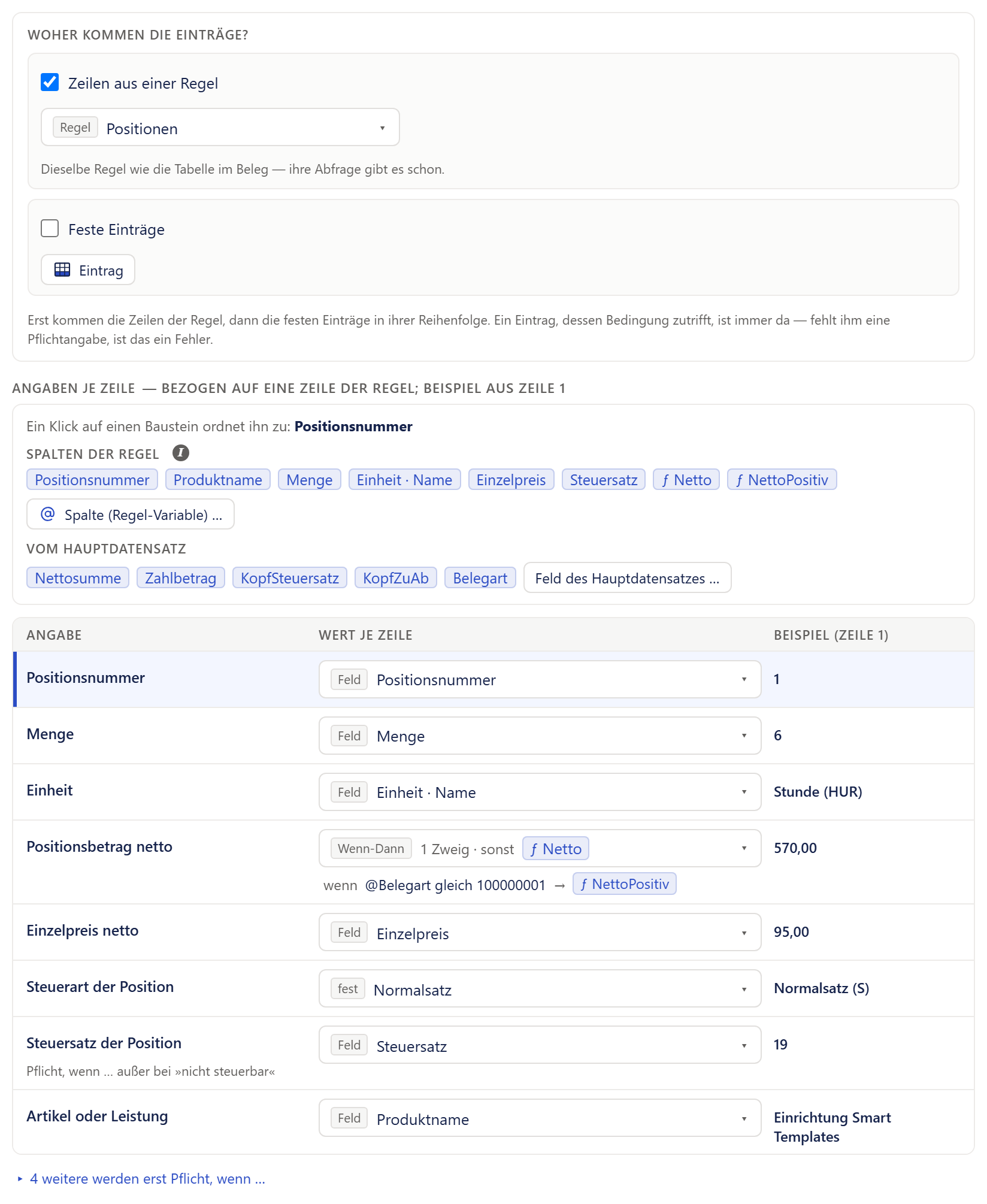
- 1In the box: the rule of the list, here the same as the table in the document.
- 2In the box: what the rule costs; here its query already exists.
- 3In the window “Edit fields …”: the columns of the rule, also rule variables with “ƒ”.
- 4“Column (rule variable) …” creates a variable on the rule.
- 5From the main record: the custom variables, here also “Belegart”.
- 6“Field of the main record …” turns a field of the invoice into a custom variable.
- 7The table: one row per entry with value and example from row 1.
- 8An if-then in a row compares with the code of the Belegart.
Above the table is the column bar with the fields that a line item row can read. Click an entry in the table to mark it; at the start the first open mandatory entry is marked, and the bar names it (“A click on a field assigns it to: …”). A click on a field assigns it to the marked entry.
- Columns of the rule: the fields that the table in the document shows on this rule, those already assigned and the rule variables, these with “ƒ” in front, such as “ƒ Netto”. A field that does not match the type of the marked entry is locked (“Does not match the type of this entry.”). You choose further fields of the row via “Choose a field or variable …”. “Column (rule variable) …” creates a variable on the rule, calculated per row, and assigns it to the marked entry, such as a positive amount for the credit note (see Creating a variable).
- From the main record: A line item row does not see the fields of the invoice by itself, just as little as a table row in print does. It reads the custom variables, with the same value in every row; they are available to choose here. “Field of the main record …” turns a field of the main record into a custom variable, named like the field. It then appears under “From the main record” and in the conditions to choose; it is not yet assigned with that: a click on it in the bar assigns it to the marked entry. If a custom variable already reads exactly this field, Smart Templates takes that one. For a choice field such as the Belegart, the variable remembers the code, not the label, which differs per language. In a condition you therefore compare it with the code; the row below shows this as, for example, “if @Belegart equals 100000001 → ƒ NettoPositiv”. The same button is at the bottom of the picker of an entry (“Choose a field or variable …”); there it inserts the new variable right at the entry.
- Via the lookup of the row: If the row has a lookup to the invoice, under “From the main record” there is one button per lookup that opens its fields. That is a join in the query of the rule and counts against the limit of ten links per query. If the row has several such lookups, the bar says so: “The row has 2 lookups to the main record. Take the one that points to the printed invoice …”. Another lookup may point to a different invoice.
On the rule of the line items there is no “Only if …”. Differences per document, such as for a credit note, are in the if-then of the individual entries or in parts with a condition (see If and Else: different entries depending on the document). If an older template still has a condition there, it appears in gray with the sentence “Older assignment: the line items only come if this condition applies — it is still evaluated that way. …”. “Remove condition” takes it out; that changes the e-invoice, and afterwards the line items come with every document. “Undo” in the message at the top takes it back. Nothing is rebuilt by itself. “Turn into a case” turns the condition into a part “If …” and leaves the e-invoice as it was.
Good to know
Without “Only if …” on the rule, the line items cannot be switched off for individual documents by a condition on the rule, for example for a partial invoice that should carry a row “Abschlag” instead of the line items. There are three ways to do this: a part “If …” (see If and Else: different entries depending on the document) with the condition for the partial invoice and the fixed entry “Abschlag”, while the rule of the line items stays under “Else”; a template of its own for partial invoices; or a rule of its own just for the e-invoice, whose filter lets no row through for a partial invoice, and in addition the row “Abschlag” as a fixed entry with “Only if …”. A rule of its own can cost further queries. Existing templates with a condition on the rule continue to work as before.
Credit note with positive amounts
A credit note (invoice type 381) needs positive amounts in the e-invoice. If Dynamics stores it with negative amounts, you convert all entries involved together by if-then, each for the same case “Belegart is Gutschrift”. In the header, you choose the credit note “by option value” among the options of the choice field; in the line items, you read the Belegart through a custom variable from the main record and compare with the code of the credit note, such as “@Belegart equals 100000001” (see The line items):
- in the line items the “Line net amount” and the “Net unit price” (or the “Quantity”), each via a rule variable that flips the sign (“Column (rule variable) …”),
- in the header the “Sum of line net amounts”, the “Total without VAT”, the “Total VAT”, the “Total with VAT” and the “Amount due”, each via a custom variable,
- under “VAT per rate” the “Taxable amount of this rate” and the “Tax amount of this rate”, via rule variables on its rule,
- and the “Invoice type” itself: 381 instead of 380.
For the line items and for the taxes, it also works through conditions on the list: “Set condition …” turns the part with the rule into a part “If” for the credit note; if you give “Else” the same rule, “Else” takes over the fields, and in the part of the credit note you change only the fields that flip the sign (see If and Else: different entries depending on the document). The totals in the header remain entries with if-then, because such conditions exist only for lists.
If you flip only the line item amount, the amounts no longer match each other: the unit price stays negative, quantity times price no longer gives the amount, and the totals in the header do not match the line items. No document is then produced, and the message names the arithmetic check that does not add up. With XRechnung, a credit note document of its own is created automatically for the credit note.
A fixed entry
“Entry” and “Edit fields …” in the row of an entry open the window for a fixed entry. It shows all entries of the list, each in a row as in the assignment window, in the order of the standard; the red asterisk shows what is mandatory, and the example is that of the standard. The name appears only in the window and in the list, not in the e-invoice. The cross after an entry removes it after a confirmation prompt. If there is something at the entry that Smart Templates does not know, such as “Wenn” instead of “wenn”, a red note says so (see “Only if …”).
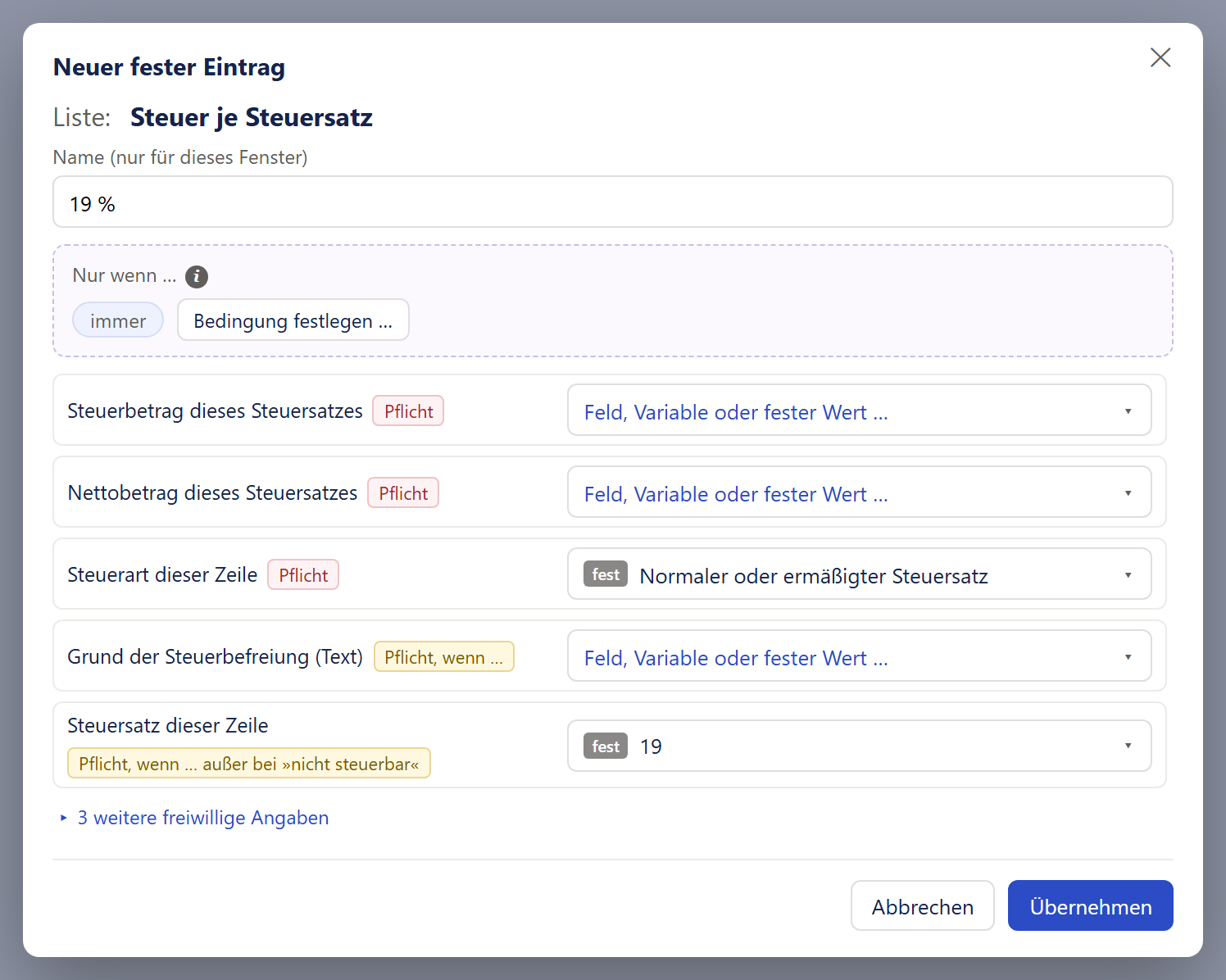
- 1The name only helps with finding it again.
- 2“Only if …”: without a condition, the entry is present on every document.
- 3The red asterisk shows the mandatory entries. Here the tax amount and the net amount are still missing.
- 4“Mandatory if …”: only needed if the condition of the standard applies.
- 5The optional entries are there too, in the order of the standard; nothing is collapsed.
Lists in a fixed entry, such as an allowance for this row, cannot be assigned here yet. For that, use a rule as the source of the list.
Countries and units
Countries and units appear in the e-invoice as fixed codes: DE for Germany, H87 for piece. Smart Templates usually recognizes what is in your data by itself, such as country names in German and English and common abbreviations like “Stk.” or “Std.”. Both supplied standards recognize the same spellings for countries, units and currencies. The country names come from Unicode CLDR. The button “Countries and units …” at the top of the window, next to “Apply suggestions”, shows the values from the sample record with their code; if values still need a choice, the yellow number on the button names how many, such as “2 ?”.
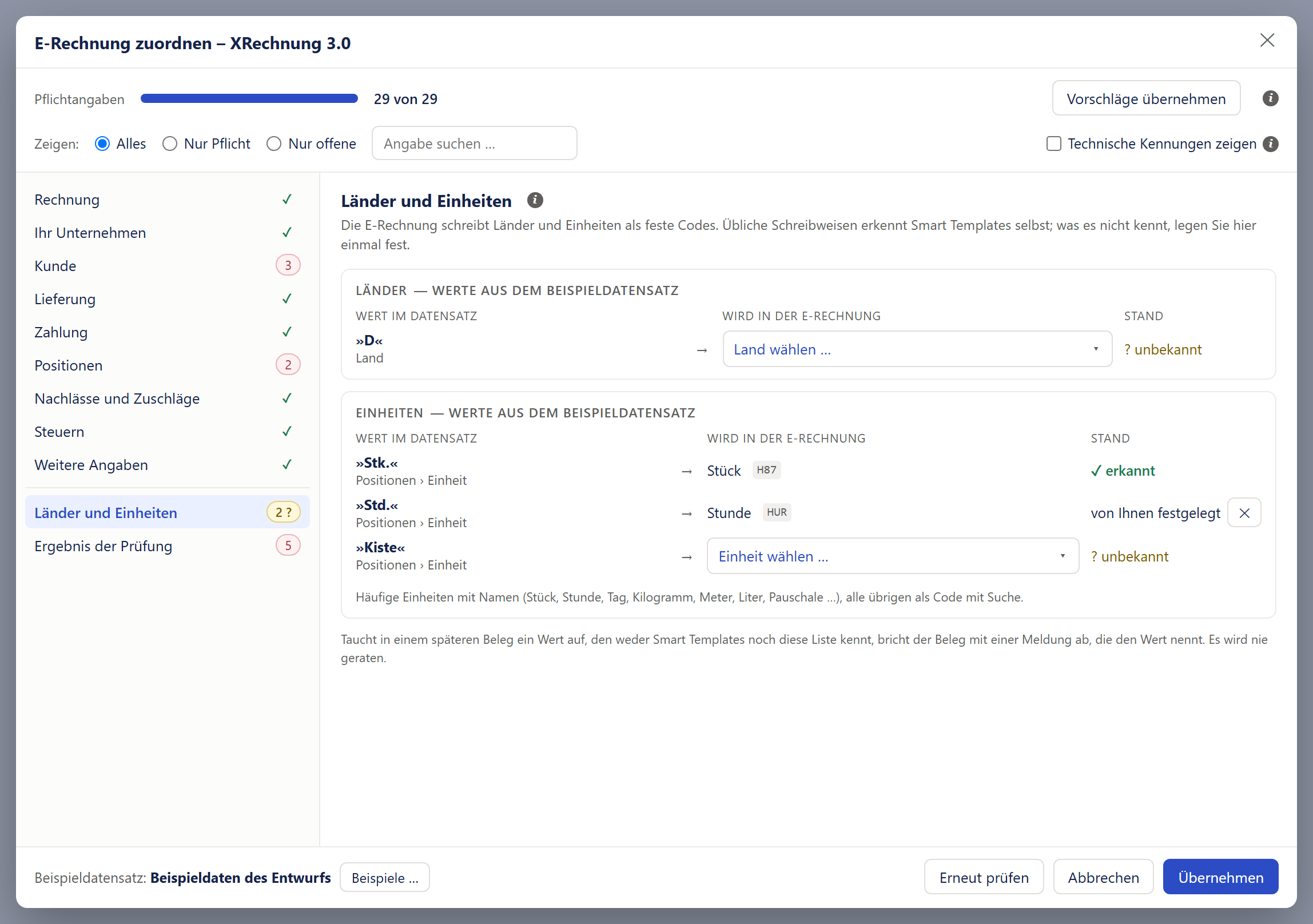
- 1A country that Smart Templates does not recognize. You choose it once from the list.
- 2Recognized: the value was already a common spelling.
- 3Set by you. The cross takes the setting out again.
- 4A unit that Smart Templates does not know.
- 5The number with a question mark names the values that still need a choice; it appears on the button “Countries and units …”.
For an unknown value, you choose the right code once. The selection shows the common countries or units first, then all from A to Z, with a search box. The setting then applies to every document of this template. If a value appears later that neither Smart Templates nor your settings know, the document stops with a message that names the value. Nothing is ever guessed. Settings that the sample record does not show at the moment are under “Further settings of this template” and can be removed there.
Checking with a sample record
The check runs with the part of Smart Templates that later produces the e-invoice: with the template as it currently stands in the window, even unsaved, and the data of the sample record. You start it with “Check with sample record” in the tab or in the footer of the assignment window, afterwards with “Check again”. After “Apply suggestions” and when the window is opened, as soon as there is a sample record, it runs by itself. “Check again” stays where you are: the findings appear at the entries and as red numbers on the tabs, at the top there is a line with the result, such as “With this record no document is created. 3 mandatory entries still open › View 2 errors ›”. Everything is collected under the “Check” tab on the right, heading “Result of the check”.
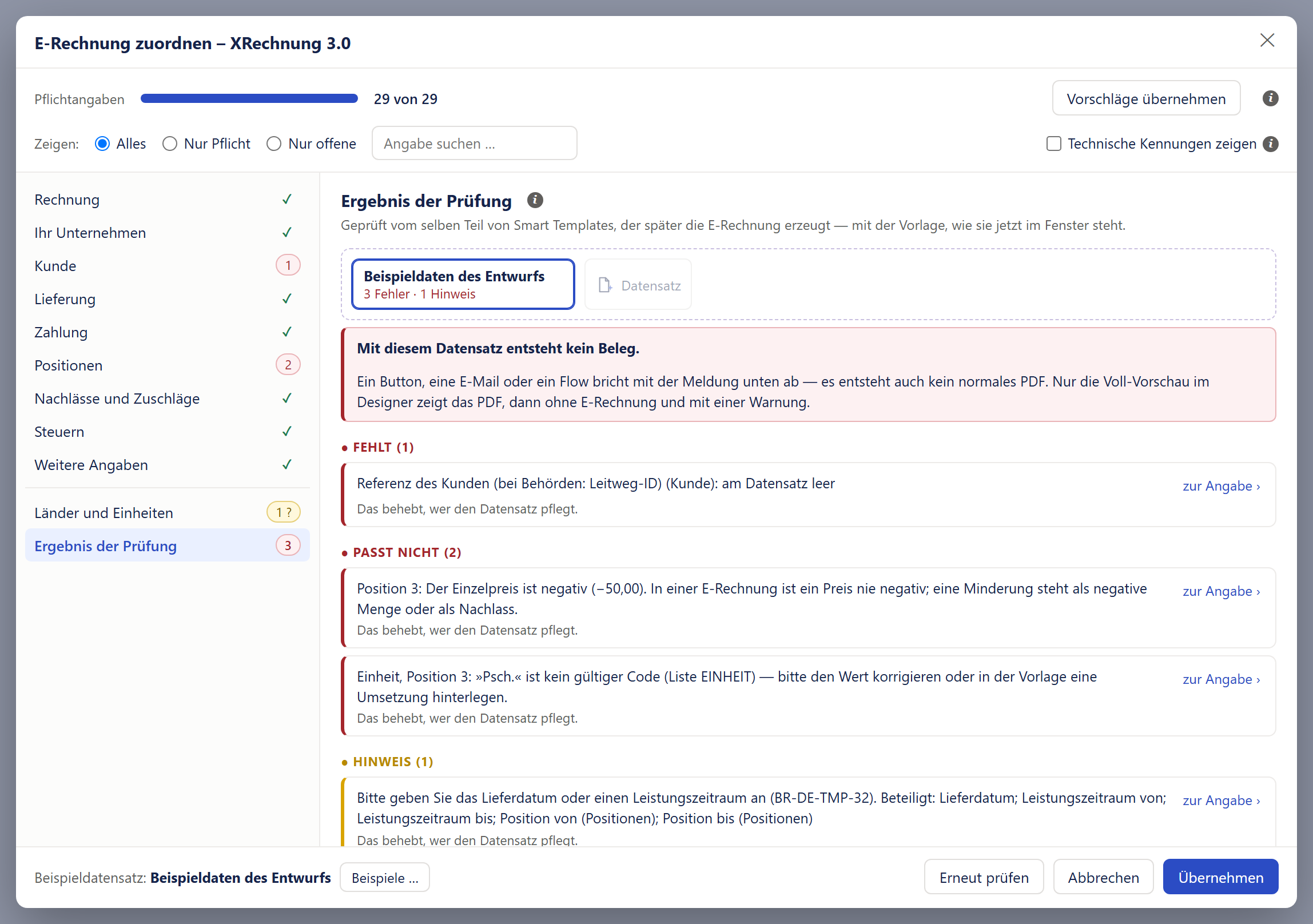
- 1The box summarizes: with this record no document is created.
- 2“Missing”: mandatory entries that are empty on the record, not set up in the template, or deliberately without a value for this case by if-then.
- 3“Does not fit”: values that the standard rejects, and arithmetic checks that do not add up.
- 4“Note”: the document is produced anyway.
- 5“to the entry ›” jumps to the entry and expands its row.
- 6The red number on the tab names open mandatory entries and errors of this check together.
- 7The sample record with its result; “Record” next to it adds a further one in Dynamics (see Up to three sample records).
Reading the result
- Red are errors. With this record no document would be produced: neither by button nor by email or flow, and no normal PDF either. The groups are called “Missing”, “Does not fit” and “PDF with e-invoice”. The last names the reasons why the PDF/A cannot be produced (see The PDF with embedded e-invoice).
- Mandatory entries that have nothing assigned yet are in gray under “Still open”, also a “Mandatory if …” whose condition applies to your template. As long as such entries are open, the check when opening and after the suggestions names only their number and, if there are any, the real errors, such as “3 mandatory entries are still open, plus 11 errors. Then check with the sample record.” It shows the red box “With this record no document is created.” as soon as you have run a check yourself in this window or nothing is open any more.
- Yellow are notes under “Note”. The document is produced anyway. This includes the note of the template check on an if-then with a branch without a condition, behind which further branches or “ELSE” follow, such as “Branch 1 has no condition and therefore always applies; »else« is never reached. If that is not intended, add the condition.” (see If-then on an entry). ST-BG-3, the own check rule of Smart Templates, is also a note: “For a cancellation, corrective or final invoice, the previous invoice is missing (own check rule of Smart Templates, not a rule of the standard).” The message names the invoice type and the list “Preceding invoice”; “to the entry ›” leads to this list, at whose head the same note appears (see Lists).
- Green means: “All there — with this record the e-invoice is created.” Below it is the file name, and for a credit note under XRechnung also “A credit note document is created.”
- Every row says who has to act: “To be fixed by whoever maintains the record.”, “To be fixed by whoever maintains the template.”, “Please have the assignment checked.” or, for an error in the program, “An error in Smart Templates — please report it.”
- “Do the amounts add up?” appears before the rows of the arithmetic check. It compares the totals the way the standard requires, for example: total tax equals the sum of the tax per rate. The message names the entries involved with their values.
- If “Only if …” does not apply to the record, it says: “»Only if …« does not apply to this record. The document is created as before, without e-invoice.”
- Collapsed it says “✓ n entries have a value” with the list of the values that the e-invoice gets.
- Entries changed since the last check show “Example: — (changed, please check again)”. A yellow strip says so too; “Check again” shows the new state.
With two buttons below the result you take the e-invoice with you straight away: “Download e-invoice as file” saves the XML as soon as it is valid, even if the PDF/A still fails; “View PDF with e-invoice” (with “e-invoice only (XML)” with a reading copy “View PDF (reading copy)”) shows the PDF with the assignment from the window, not yet applied.
Up to three sample records
Up to three sample records can be checked side by side, such as an invoice, a partial invoice and a credit note. Each has its own tab with its result; the cross on the tab takes it out. The red numbers on the tabs, also on “Check”, count the errors of the chosen sample record; if you choose another tab, they count its errors. In Dynamics the button “Record” adds one, “Samples …” in the footer opens the check view. The records are remembered with the template. Without any of your own, the sample record of the template applies (see Template settings: Sample record).
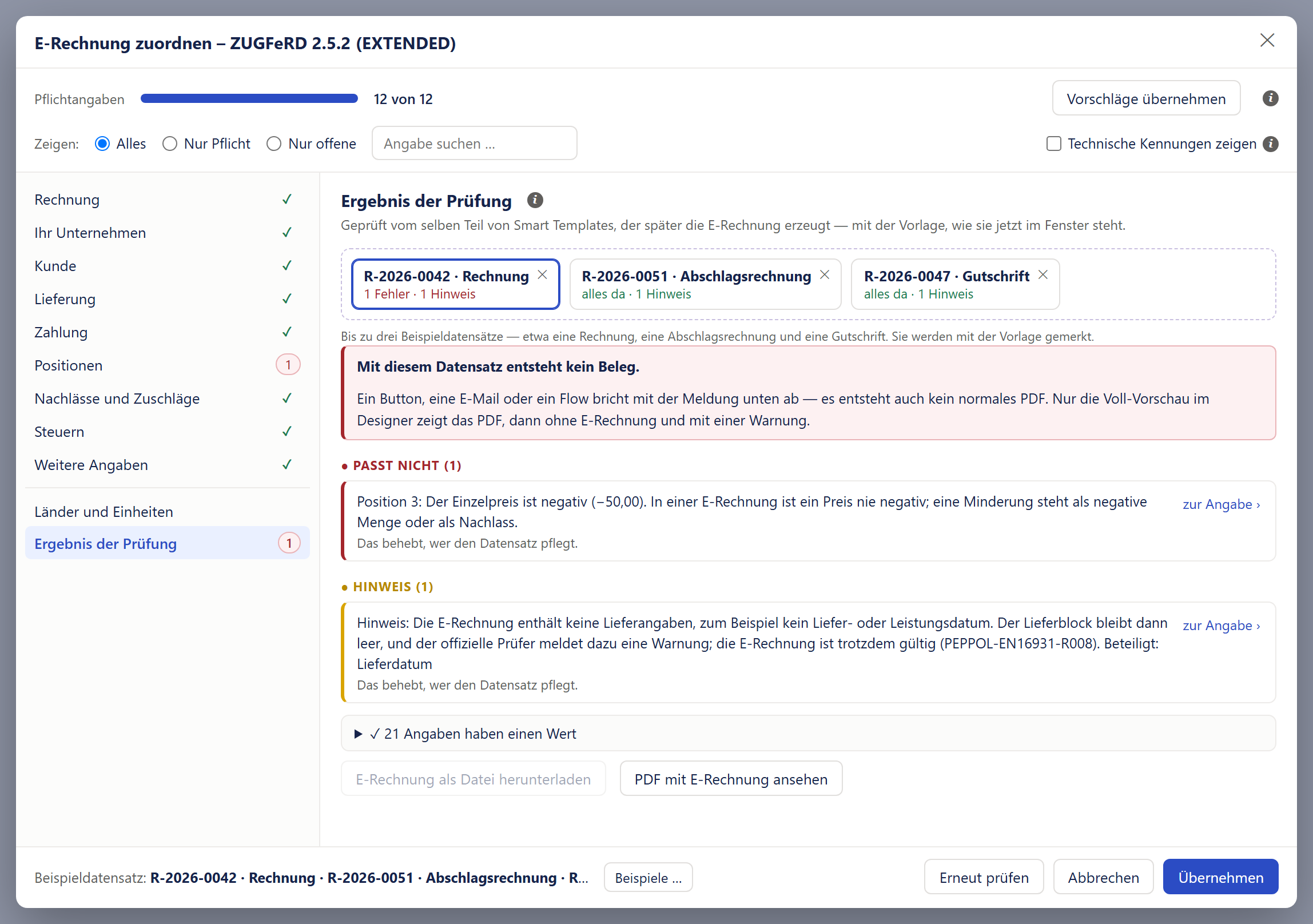
- 1The chosen tab shows its result below it.
- 2The cross takes a sample record out.
- 3As long as the e-invoice itself has an error, downloading the file is locked.
- 4The PDF can still be viewed.
Full preview and PDF
In Dynamics, “Full preview” and “PDF” show the PDF with e-invoice when the e-invoice is turned on and everything is valid. If there are gaps, the preview is milder than a button: it shows the PDF without an e-invoice and a warning that names the reason. The warning is in English in the message “Warning: …” and begins with “e-invoice: the PDF was made WITHOUT e-invoice” (see Full preview and PDF: With e-invoice). A button, an email and a flow, in contrast, stop.
When saving
If the template has the e-invoice turned on, the designer checks after saving whether all mandatory entries are assigned. If something is missing, a message appears at the top such as “Warning: For the e-invoice 1 assignment is still missing: Contact telephone. You can save anyway; documents with e-invoice are only created once everything is assigned.” Entries that are mandatory only under a condition are also named if the condition certainly applies to the template. In addition come notes on the conditions of a list: a part without a condition and a mandatory list that gets no entries in a part or in “Else” (see If and Else: different entries depending on the document). The template is saved in any case.
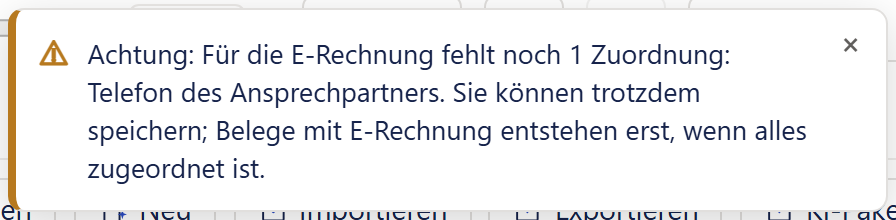
When no e-invoice is produced
Smart Templates checks strictly: an e-invoice is produced only if it is complete and consistent. Otherwise nothing is produced at all, neither the e-invoice nor a normal PDF nor a reading copy. Button, email and flow stop with a message; it appears in the window “Smart Templates — canceled”, in the error of the action or, with the email, in the sentence “The document could not be built: …”. The message comes in the language of your Dynamics interface: German with any German setting, otherwise English; here the English sentences are given. It names the entries in everyday language and says who has to act.
The message begins like this:
- “The e-invoice cannot be created – one entry is missing:” or “– 3 entries are missing:”, followed by one row per entry, such as “Invoice date (Invoice): empty on the record”,
- “The e-invoice cannot be created – the amounts do not add up:”, followed by the arithmetic check with the entries involved,
- “The e-invoice cannot be created:”, when the reasons are mixed, such as an invalid code or a negative unit price,
- “The PDF with embedded e-invoice (PDF/A-3) cannot be created:”, when the PDF would not be valid (see The PDF with embedded e-invoice).
At the end it says what to do: “Please complete the entries on the record.” or “Please have the template adjusted under »Template settings › E-invoice«.” For an error in the program: “Please report this to the vendor of Smart Templates.”
The common reasons:
| Reason | What helps |
|---|---|
| empty on the record: The entry is assigned, but the field is empty on the record. | Fill in the field on the record. |
| not set up in the template: Nothing is assigned to the entry. | Assign something in the assignment window. |
| the template provides no value for this case (if-then): For this document, a branch without a value applies in the if-then of the entry, or “ELSE” is empty. | Check the if-then of the entry (see If-then on an entry). If no e-invoice should be produced for such documents, exclude them under “Only if …” at the switch. |
| A condition in the if-then cannot be read or names a custom variable that does not exist, also in a branch that does not apply to this document. | Correct the condition in the assignment window. |
The same applies to the condition of a case: it cannot be read or names a variable that does not exist, also for a case that is not chosen for this document. It is likewise an error if a case carries an unknown key, has cases itself or faelle is not an array. | Look at the red note on the case or the list and fix it (see Problems and messages: E-invoice). |
| A mandatory list stays empty because no condition applies and “Else” is empty. | Give the part or “Else” a source (see If and Else: different entries depending on the document). |
| A value has the wrong format, such as a date “2026-02-30” or a number with text. | Correct the value on the record. |
| A unit price is negative. | A reduction is entered as a negative quantity or as an allowance. |
| A code is invalid, such as a unit or a country that Smart Templates does not know. | Correct the value or set it with “Countries and units …”. |
| The amounts do not add up. | Check the assigned totals and taxes. |
| The rule of a list leaves out rows, or the query reaches the limit of 20,000 rows. | Take the limit out of the rule or narrow the amount of data with a filter. |
| The standard does not exist in this environment. | Upload your own standard. |
| The PDF/A cannot be produced (character, image, font). | Replace the character, save the image as RGB, choose another font. |
The complete wording of the messages and how to fix them is shown in Problems and messages: E-invoice.
Button, email and flow
Button, email and flow deliver what is set in the template. There is no setting of its own for this on the button.
| Template setting | Button “Create and display the document” | Button “Download e-invoice” | |
|---|---|---|---|
| no e-invoice, turned off or “Only if …” does not apply | The document in the tab, as before. | No file; the button gives the reason. | The PDF, as before. |
| ZUGFeRD, “PDF with embedded e-invoice” | The PDF/A-3 in the tab. It is the e-invoice. | The XML alone as a file, the factur-x.xml from the PDF. |
One attachment: the PDF with the XML in it. |
| “e-invoice only (XML)” | The XML as a file to save. No PDF is produced; the tab that opens on the click closes again right away. | The XML as a file. | One attachment: the XML. |
| “e-invoice only (XML)” with reading copy | The PDF in the tab and the XML as a file. | The XML as a file. | Two attachments: the XML and the PDF. |
| Error of the e-invoice | The button, the email or the flow stops with the message from the core. No document, no reading copy and no email is produced. | ||
The button
In the assistant “Manage buttons in Dynamics” there is the purpose “Download e-invoice”, but only if the open template has an e-invoice turned on. It delivers only the XML, with ZUGFeRD the XML that is otherwise embedded in the PDF. The PDF is not produced for it. The button asks for no flow: no flow is triggered. It checks like printing; if an entry is missing, no file is produced, and the window says what is missing (see Buttons: the assistant: What should the button do?).
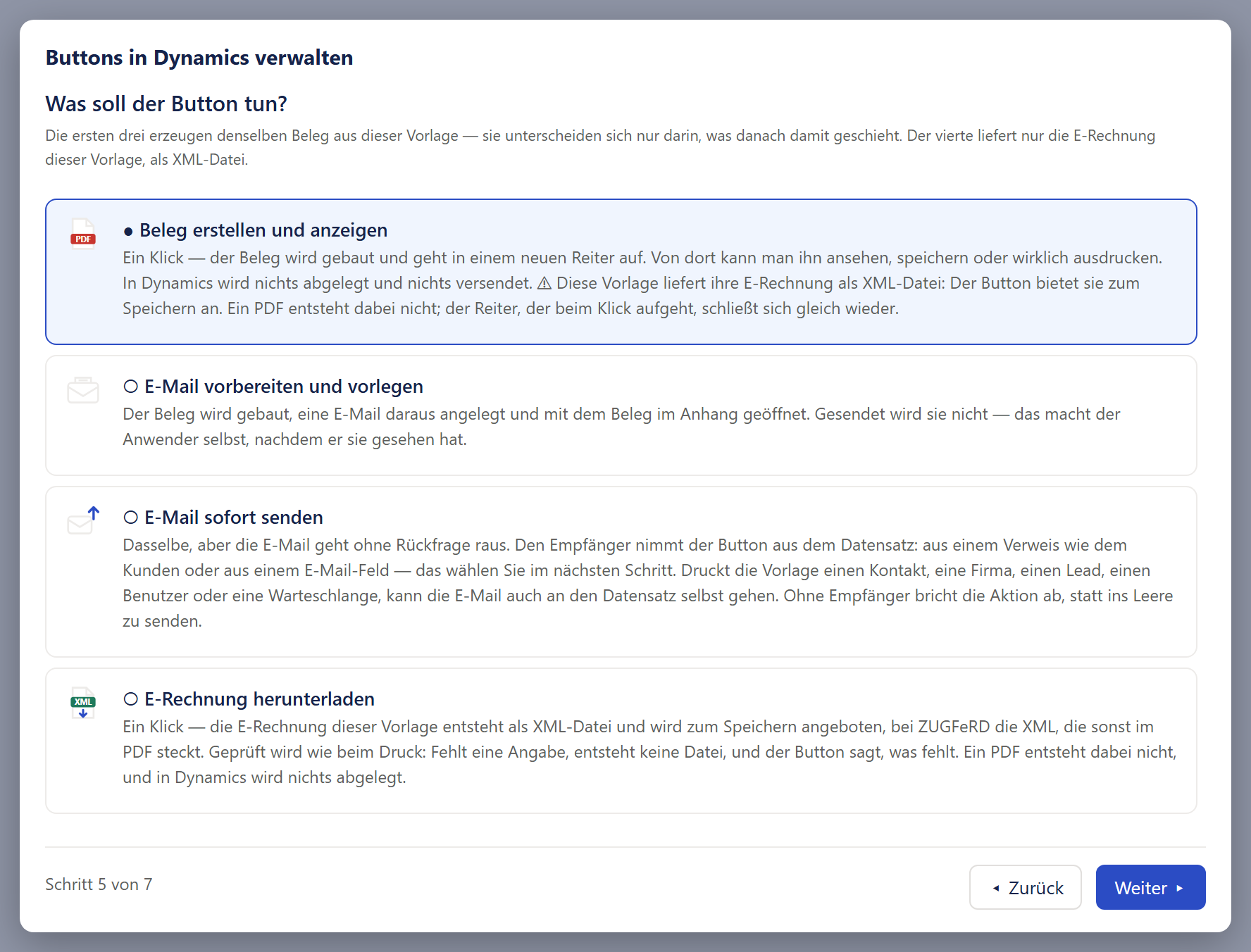
- 1The fourth card appears only if the template has an e-invoice turned on.
- 2The card “Create and display the document” says what this template delivers.
- 3The explanatory text names the difference of the fourth card.
You create the button in the command designer like any other (see Adding, changing and removing a button). As the function, the instructions enter SmartTemplates.Button.downloadEInvoice, for all checked rows SmartTemplates.Button.downloadEInvoiceAll. What the user sees on the click and which messages there are is described under What happens on click: The e-invoice.
Several invoices at once. With “All checked rows, one after the other”, all e-invoices come in one ZIP file, such as E-Rechnungen_2026-10-23_1405.zip (with an English Dynamics interface, with an English name). What fails is named by the message at the end with its place among the checked rows; the others are still in the ZIP file.
The email
The email purposes attach what the table above names. The email template supplies subject and text as usual (see Buttons: the assistant: Email template). If something is missing from the e-invoice, no email is produced: “The document could not be built: The e-invoice cannot be created – … — no email was created.”
The flow
A flow that the designer creates builds the document in the step “Beleg erzeugen” (see Flows: The scaffold of the created flow). With “e-invoice only (XML)”, the XML comes in the output XmlBase64 and its name in XmlFileName; the output PdfBase64 is then the reading copy or empty. Whoever needs only the XML calls the action st_GenerateEInvoice (see Actions and APIs: E-invoice). An error of the e-invoice makes the step fail; the sentence from the core is in the error message.
Own standards
In addition to the two supplied standards, you can upload your own, such as an annotation file that explains individual entries differently for your recipient or carries additional rules. You open the window “Standards for the e-invoice” in the “E-invoice” tab with “Manage standards …”. How such an annotation file is built is described in Own standards for the e-invoice.
At the top of the window there are short instructions. You need a standard of your own if your recipient requires a different format or a different version than the supplied ones. It goes in as a file (.xsd) or as a package (.zip), as described under Uploading a standard. The easiest way is to start from a supplied standard: you save it with “Save as file”, give it an ID of its own in the file (the IDs of the supplied standards are locked), adapt the file and upload it again. As soon as the manual is available online, the link “Read in the manual” also appears below the instructions; it opens the page Own standards for the e-invoice.
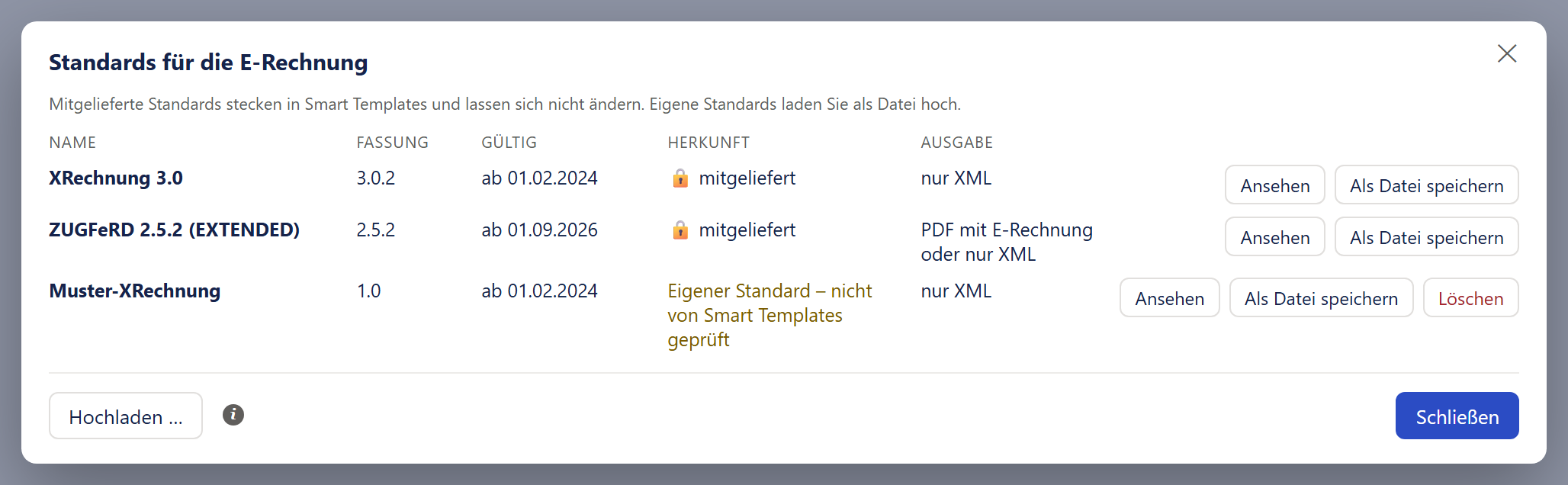
- 1Supplied standards carry a lock.
- 2Own standards carry the note “not checked by Smart Templates”.
- 3“View” shows all entries of the standard with their explanations.
- 4“Save as file” saves the annotation file (.xsd) of the standard.
- 5“Delete” exists only for own standards.
- 6“Open AI package …” opens the AI package with the checkbox for the standard checked (see Having an AI build your own standard).
- 7“Upload …” uploads your own standard.
- View shows all entries of the standard by section, with explanation, marker and search box, as a reference. It changes nothing.
- Save as file saves the annotation file of the standard as
kennung-fassung.smart-templates.xsd. It is the best starting point for an adaptation of your own. - Delete asks for confirmation: “Delete the own standard »…« (version …)?” If the open template uses it, it says that its e-invoice is then no longer produced until it is uploaded again. The window does not know of other templates that use it. Supplied standards cannot be deleted.
Uploading a standard
“Upload …” opens the window “Upload own standard”. Choose an annotation file (.xsd) on a supplied schema set or a package (.zip) with its own schema set. Smart Templates checks the file completely before it saves anything. If everything fits, it says “Saved: …” there, and the selection knows the standard. If something does not fit, the locations are listed.
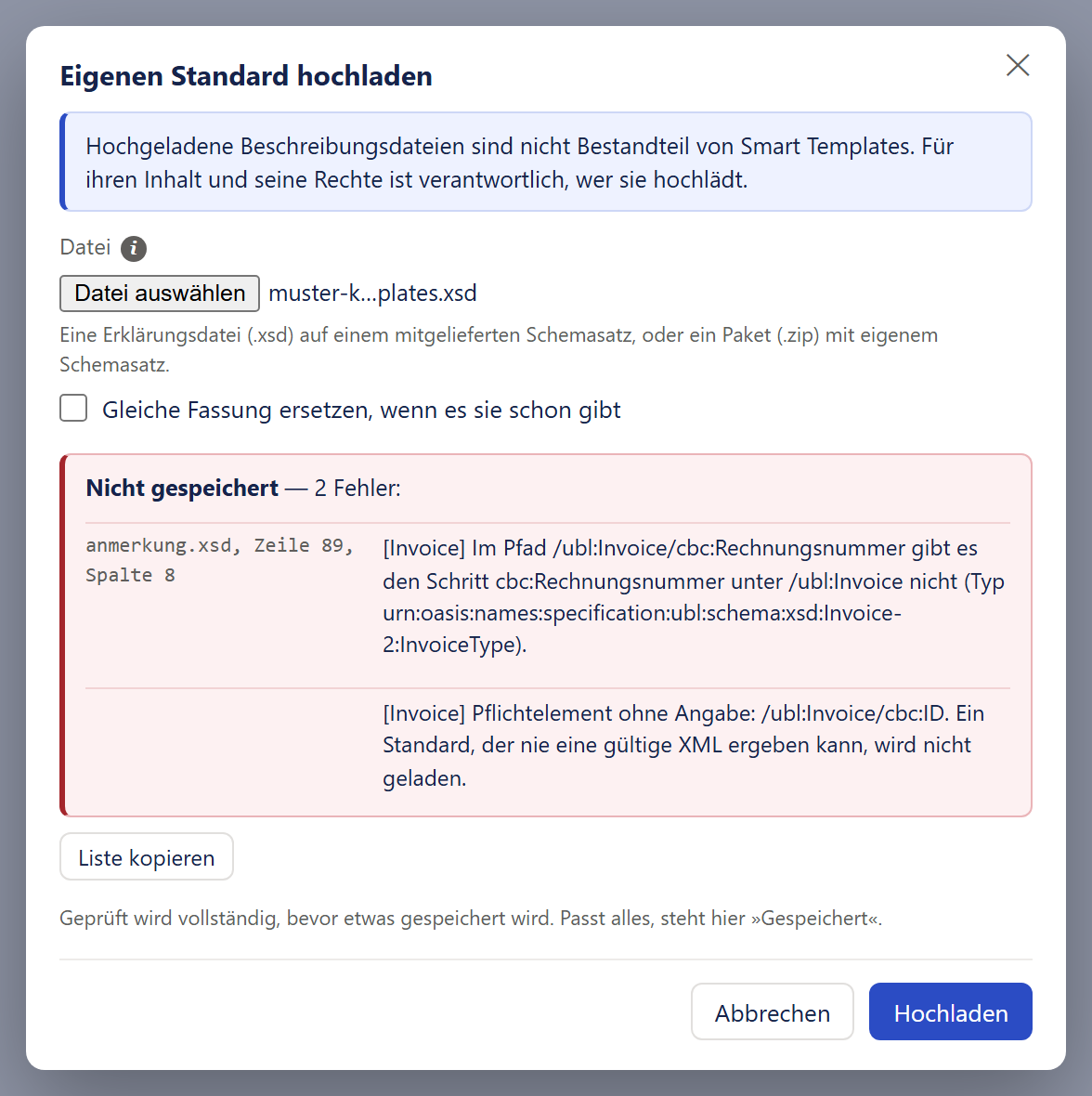
- 1The note on content and rights is always there.
- 2The chosen file.
- 3With the checkbox, the file replaces an existing identical version.
- 4Each row names the location (file, line, column) and the finding.
- 5“Copy locations” puts the findings on the clipboard.
- Same version. If ID and version already exist, the designer asks in the window “Replace standard?”: “This standard already exists here (…). Replace it with the uploaded file?” The checkbox “Replace the same version if it already exists” answers the question beforehand.
- Supplied IDs are locked: a standard of your own cannot replace a supplied one.
- Size. A package may be at most 768 KiB when packed.
- Rights. Uploading and deleting needs the security role “Smart Templates Designer” (see Rights and roles: Designing templates). Without it, the upload stops with a sentence that names the right on the table “st_erechnungstandard” (displayed it is called “Smart Templates E-Rechnungsstandard”).
Caution
Uploaded annotation files are not part of Smart Templates. Whoever uploads them is responsible for their content and rights.
Having an AI build your own standard
Below the list is the box “An AI can build your own standard for you”. You do not have to write the annotation file yourself:
- Create an AI package with the checkbox “Include the e-invoice standard”. The button “Open AI package …” in the box opens the window “AI package” with the checkbox already checked (see Working with an external AI: The settings in the “AI package” window).
- Give the file to an AI and ask it expressly to write a standard of your own. Say what your recipient needs differently. The AI does not deliver one on its own.
- Bring the answer back with “Upload AI changes”. The standard comes along: the designer asks first, uploads it and checks it completely in the process, as described under Uploading a standard (see Working with an external AI: Taking over the AI’s answer). After that it appears among the standards.
A standard written by the AI is also a standard of your own: it needs an ID of its own (the IDs of the supplied standards are locked; if the AI has used one of them, ask it for one of its own), it carries the note “Own standard – not checked by Smart Templates”, and the note above applies to its content and rights.
Assigning with AI
You can leave the assignment to an AI. The fastest way is the box “The AI can fill in the assignment for you” at the very top of the “E-invoice” tab of the template settings. It is also there as long as the e-invoice is still off: the AI can turn it on if you tell it to.
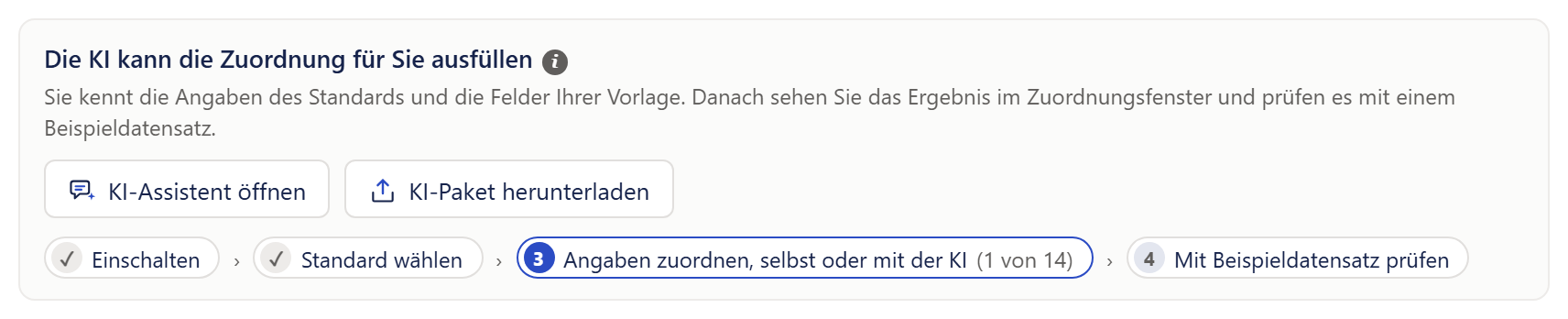
- 1“Open AI assistant” exists only in Dynamics.
- 2“Download AI package” opens the window “AI package” with the checkbox for the standard checked.
- 3The step you are at is outlined in blue; the number is the same as on the bar.
- “Open AI assistant” opens the AI assistant (Microsoft 365 Copilot) in a window of its own. The template and the task “Assign the mandatory entries of the e-invoice of this template.” are on the clipboard; you paste them there with Ctrl+V and send the message. The assistant works with the saved template, and its change comes into the open template as soon as the template settings are closed. The button exists only in Dynamics; if no assistant is set up there yet, it says so on the click. For a new template it is gray until you have created it with “Create template”; below it then says “The AI assistant is available once the new template has been created with »Create template« – it works with saved templates.”
- “Download AI package” opens the window “AI package” with the checkbox “Include the e-invoice standard” checked, even if the e-invoice is still off. You give the file to an AI of your choice; you bring its answer back with “Upload AI changes”.
- The steps below show where you are: “Switch on”, “Choose standard”, “Assign entries, yourself or with the AI” with the same number as the bar, such as “(1 of 14)”, and “Check with sample record”. A check mark means: done. The last step never gets a check mark, because the template does not remember the result of a check.
- As soon as the manual is available online, the box also contains the link “Read in the manual”; it opens this section.
Both buttons lead to the two ways from Working with AI:
- AI assistant in Copilot: It reads the standard with its tool “Standard lesen”, uses the same suggestions as “Apply suggestions” for the Dynamics invoice and asks about what it cannot take from fields, such as the Leitweg-ID or the data of your company (see Working with the AI assistant in Copilot: E-invoice).
- External AI with the AI package: In the window “AI package”, check the box “Include the e-invoice standard” and below it check the standards that the AI should work with; ZUGFeRD and the standard of this template are preselected. The entries of the standards then appear in the file with mandatory status, type and common codes, with several standards one section per standard (see Working with an external AI: The settings in the “AI package” window).
Both assign only entries that the standard knows. If a value differs depending on the document, such as the invoice type or the amounts of a credit note, the AI writes an if-then directly onto the entry; calculation is done only in variables (see If-then on an entry). In the line items it uses the rule of the table in the document; if a row has several lookups to the invoice, it asks which one is meant. If a list gets different entries depending on the document, such as the previous invoice for a cancellation and a final invoice, it writes cases, in the window parts “If …” and “Else” (see If and Else: different entries depending on the document). Like any AI change, the change comes into the open template as one undo step. Afterwards, check the e-invoice here with “Check again”. An AI writes a standard of your own only if you ask for it (the way is described under Having an AI build your own standard); how it is built is described under Own standards for the e-invoice.
The standard EN 16931
The same explanation appears in the “E-invoice” tab under “Standard EN 16931” and in the license enclosure THIRD-PARTY-NOTICES.txt (section 10, there also in English):
Explanation of the standard
For e-invoices, Smart Templates implements the semantic data model of the European standard EN 16931-1:2017+A1:2019 and the syntax bindings according to CEN/TS 16931-3-2 and CEN/TS 16931-3-3. Reproduced with the permission of CEN and DIN. CEN and DIN accept no liability for the content or its implementation; in case of doubt, the official texts of the standard, available from DIN, prevail.
Limits
- Two standards are supplied: ZUGFeRD 2.5.2 in the EXTENDED profile and XRechnung 3.0. There are no further ZUGFeRD profiles and no XRechnung extension. Own standards can be uploaded.
- One standard applies per template.
- There are no attachments as file content. References to documents without a file, that is identifier, description and link, can be assigned. Delivery terms (Incoterms®) are missing.
- Smart Templates calculates nothing itself. You assign totals, taxes and signs from your template; the arithmetic check of the standard checks them.
- Smart Templates delivers the file: as a download, as an email attachment or to a flow. Sending over a network such as Peppol is not part of it.
- The check works with the schema and the rules of the standard, in the designer as well as for every document that a button, an email, a flow or code of your own produces; an error prevents the document. Whether the recipient accepts the file, it cannot promise.
- Lists in a fixed entry cannot be assigned yet; the rule of a list must not leave out rows.
- If-then exists on individual entries, not on groups or sections. A branch chooses a value; calculation is done in variables.
- There is no “Only if …” on the rule of the line items; the line items can be switched off entirely for individual documents with a part “If …” (see The line items).
- Parts with a condition (in the template format cases) exist per list, not per entry and not for the header. A part cannot have parts with a condition of its own, but the lists per row in its fields can. The condition of a part reads your data and your variables, never the entries of the e-invoice.
- Smart Templates gives no legal or tax advice.
What changes in the document?
On the canvas
Nothing. The e-invoice has no object on the sheet, and the sheet looks as it does without it. The assignment is in the template and can be viewed in the template settings. Variables and rules that are created in the assignment window then appear with the variables or in the data tree; they change the sheet only when you drag them into the document yourself.
In the PDF
With “PDF with embedded e-invoice”, pages and texts look as they do in the normal PDF. Images appear without smoothing: a greatly enlarged small image may look somewhat more jagged. In addition, the XML is embedded in the document as the attachment factur-x.xml, and the PDF is a PDF/A-3. With “e-invoice only (XML)”, the XML file is produced and, if set, the ordinary PDF as a reading copy. If something is missing from the e-invoice, no document is produced at all.